1. Introduction
The Samsung FIT Plus 64GB USB 3.1 Flash Drive is designed for convenient and reliable data storage and transfer. Its compact form factor allows for seamless integration with various devices, providing expanded storage without protrusion. This drive offers fast read speeds up to 300MB/s, making file transfers efficient. It is engineered with robust durability features, including water, shock, magnet, temperature, and X-ray resistance, ensuring the safety of your data.

Image 1: Front view of the Samsung FIT Plus 64GB USB 3.1 Flash Drive.
2. Setup
- Insert the Drive: Carefully insert the Samsung FIT Plus USB 3.1 Flash Drive into an available USB Type-A port on your computer, laptop, smart TV, car audio system, or other compatible device. Ensure the drive is fully seated in the port.
- Automatic Recognition: Most operating systems will automatically detect and install the necessary drivers for the flash drive. A notification may appear indicating that the device is ready for use.
- Accessing the Drive: Once recognized, the drive will appear as a removable storage device (e.g., 'USB Drive' or 'Removable Disk') in your computer's file explorer (Windows) or Finder (macOS).

Image 2: The Samsung FIT Plus USB drive seamlessly inserted into a laptop's USB port.
3. Operating Instructions
3.1. Transferring Files
- Copying Files to the Drive: Locate the files or folders you wish to transfer on your device. Drag and drop them into the Samsung FIT Plus drive folder, or right-click and select 'Copy', then navigate to the drive and select 'Paste'.
- Copying Files from the Drive: Open the Samsung FIT Plus drive folder. Locate the files or folders you wish to transfer. Drag and drop them to your desired location on your device, or right-click and select 'Copy', then navigate to your desired location and select 'Paste'.
- Transfer Speed: The drive supports USB 3.1 for fast data transfer, with read speeds up to 300MB/s. Actual speeds may vary depending on the host device, file attributes, and other factors. The drive is also backward compatible with USB 3.0 and USB 2.0 ports, though speeds will be limited by the slower interface.
3.2. Safely Removing the Drive
To prevent data corruption, always safely remove the USB flash drive before physically disconnecting it from your device.
- Windows: Click the 'Safely Remove Hardware and Eject Media' icon in the system tray, then select the Samsung FIT Plus drive.
- macOS: Drag the drive icon from the desktop or Finder sidebar to the Trash, or right-click the drive icon and select 'Eject'.
4. Maintenance
The Samsung FIT Plus is designed for durability. To ensure optimal performance and longevity, consider the following:
- Physical Protection: The drive features a robust design that is waterproof, shock-proof, magnet-proof, temperature-proof, and X-ray proof. While durable, avoid unnecessary exposure to extreme conditions or physical impact.
- Cleanliness: Keep the USB connector free from dust and debris. Use a soft, dry cloth to gently clean the exterior if needed.
- Storage: When not in use, store the drive in a clean, dry environment. The integrated key ring allows for secure attachment to prevent loss.
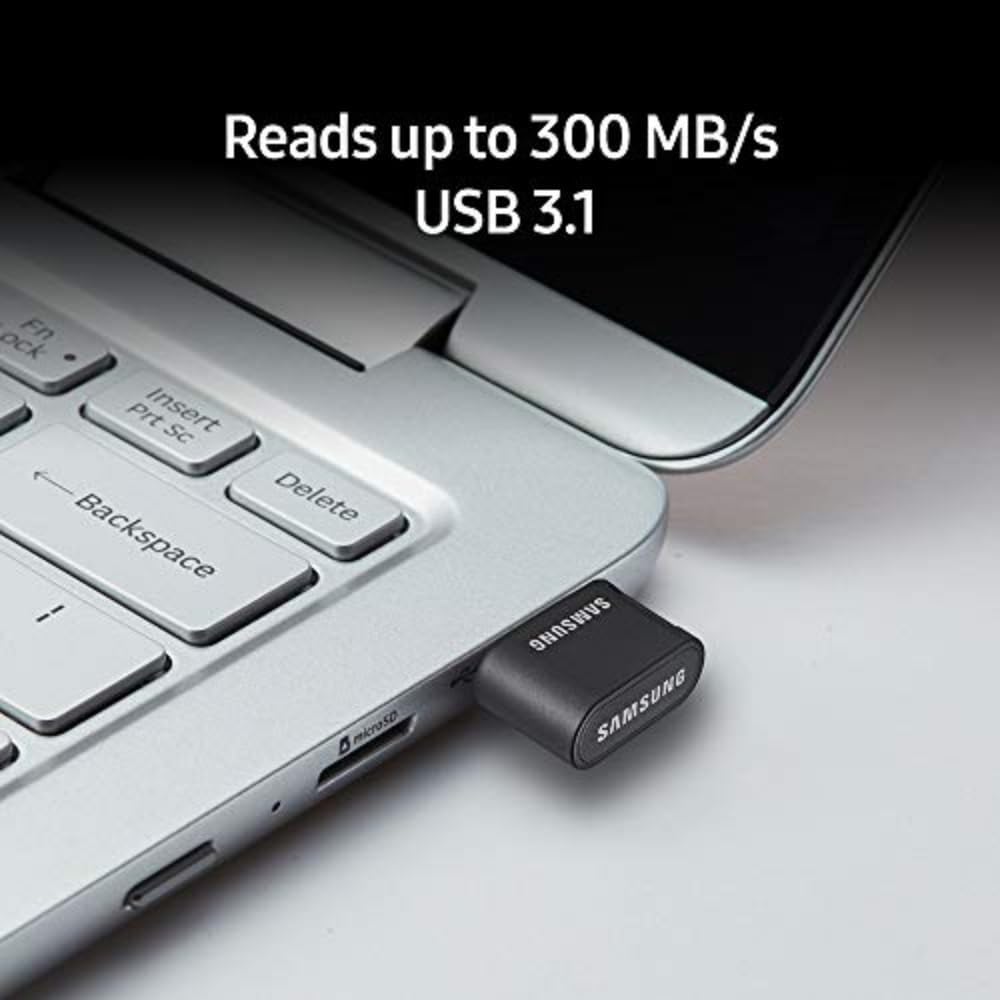
Image 3: Visual representation of the 5-proof durability features: waterproof, shock-proof, magnet-proof, temperature-proof, and X-ray proof.
5. Troubleshooting
- Drive Not Recognized:
- Ensure the drive is fully inserted into the USB port.
- Try a different USB port on your device.
- Test the drive on another computer to rule out a device-specific issue.
- Check your device's 'Disk Management' (Windows) or 'Disk Utility' (macOS) to see if the drive is detected but not assigned a drive letter or mounted.
- Slow Transfer Speeds:
- Ensure you are using a USB 3.0 or USB 3.1 compatible port for optimal speeds. USB 2.0 ports will operate at slower speeds.
- Transferring many small files can be slower than transferring a few large files.
- Close other applications that might be using system resources or accessing the drive.
- Data Corruption:
- Always safely eject the drive before removing it.
- Avoid disconnecting the drive during active file transfers.
- If data corruption occurs, you may need to reformat the drive (this will erase all data).
6. Specifications
| Feature | Detail |
|---|---|
| Model Name | MUF-64AB/AM FIT Plus |
| Memory Storage Capacity | 64 GB |
| Hardware Interface | USB 3.0 (Backward compatible with USB 2.0) |
| Connectivity Technology | USB Type A |
| Read Speed | Up to 300 MB/s |
| Special Feature | Water Resistant, Shock-proof, Magnet-proof, Temperature-proof, X-ray proof |
| Item Weight | 0.112 ounces |
| Product Dimensions (LxWxH) | 0.9 x 0.7 x 0.3 inches |
| Color | Black/Silver |
7. Warranty
The Samsung MUF-64AB/AM FIT Plus 64GB USB 3.1 Flash Drive is backed by a 5-year limited warranty. This warranty covers defects in materials and workmanship under normal use. For detailed terms and conditions, please refer to the official Samsung warranty documentation or contact Samsung customer support.
8. Support
For further assistance, technical support, or warranty claims, please visit the official Samsung support website or contact their customer service department. Keep your product's model number (MUF-64AB/AM) and proof of purchase readily available when seeking support.
Online Support: www.samsung.com/us/support/


