
1. Introduction
This manual provides instructions for the ZdalaMit AXD7622 replacement remote control. This remote is designed to function as a direct replacement for the original Pioneer AXD7622 remote, offering full compatibility with specified Pioneer Audio Video (AV) Receiver models without the need for programming or pairing.
Compatible Pioneer AV Receiver Models:
- VSX-921-K
- VSX-821-K
- VSX-921
- VSX-821
- VSX-826
2. Setup
2.1 Battery Installation
The remote control requires two (2) AAA alkaline batteries for operation. Batteries are not included with the remote control.
- Locate the battery compartment on the back of the remote control.
- Slide the battery compartment cover downwards or press the latch and lift to open.
- Insert two AAA alkaline batteries, ensuring the positive (+) and negative (-) terminals align correctly with the markings inside the compartment.
- Replace the battery compartment cover by sliding it back into place until it clicks securely.
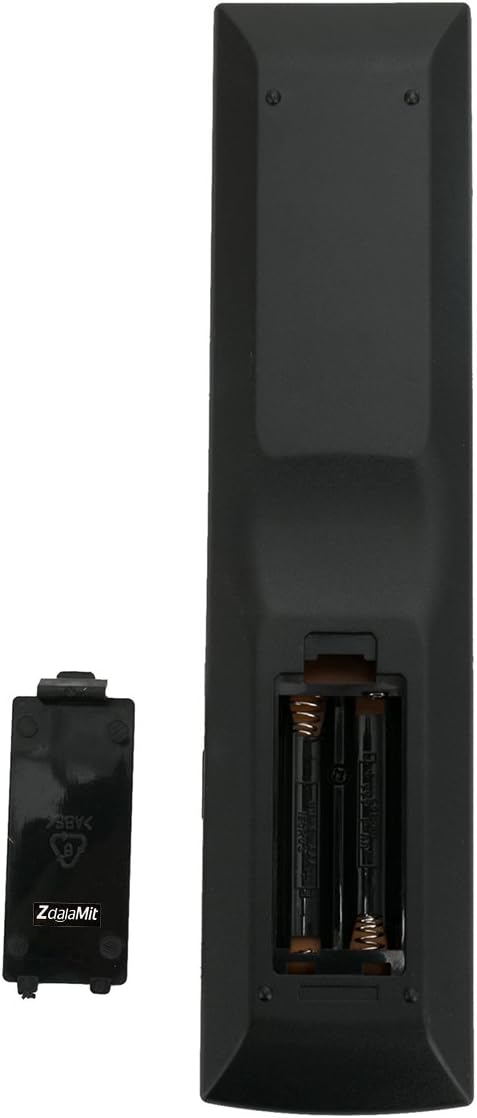
Image 1: Rear view of the remote control with the battery cover removed, illustrating the battery placement.
Once batteries are installed, the remote control is ready for use. No programming or pairing is required.
3. Operating Instructions
3.1 Basic Functions
The ZdalaMit AXD7622 remote control provides access to all standard functions of your compatible Pioneer AV Receiver. Point the remote control directly at the AV receiver's infrared sensor for optimal performance.

Image 2: Front view of the ZdalaMit AXD7622 remote control, displaying the layout of all control buttons.
Key functions include:
- RECEIVER Power Button: Turns the AV receiver on or off.
- INPUT SELECT Buttons: Switches between various audio/video input sources (e.g., BD, DVD, TV, CD, VIDEO 1, TUNER).
- VOLUME (+/-) Buttons: Adjusts the master volume level of the AV receiver.
- MUTE Button: Silences the audio output.
- Navigation Buttons (Up, Down, Left, Right, ENTER): Used to navigate menus and confirm selections on the AV receiver's display.
- AUDIO PARAMETER / TONE / MASTER VOLUME: Accesses audio settings and adjustments.
- SETUP Button: Enters the AV receiver's setup menu.
- Number Buttons (0-9): For direct input selection or channel tuning.
Refer to your Pioneer AV Receiver's original user manual for detailed explanations of specific functions and menu navigation.
4. Maintenance
4.1 Cleaning
To clean the remote control, use a soft, dry cloth. Do not use abrasive cleaners, solvents, or chemical sprays, as these may damage the remote's surface or internal components.
4.2 Battery Replacement
Replace batteries when the remote control's response becomes sluggish or stops working. Always replace both batteries at the same time with new AAA alkaline batteries. Do not mix old and new batteries, or different types of batteries.
4.3 Storage
If the remote control will not be used for an extended period, remove the batteries to prevent leakage and potential damage to the device.
5. Troubleshooting
- Remote Control Not Responding:
- Ensure batteries are installed correctly with the correct polarity (+/-).
- Replace old batteries with new AAA alkaline batteries.
- Check for any obstructions between the remote control and the AV receiver's infrared sensor.
- Ensure you are within the effective operating range and pointing the remote directly at the receiver.
- Specific Buttons Not Working:
- This remote is a direct replacement. If a specific button does not work, ensure the corresponding function is available on your specific Pioneer AV receiver model.
- Clean the remote control surface, especially around the non-functioning button, to ensure no debris is interfering.
6. Specifications
| Feature | Detail |
|---|---|
| Model Number | GFS3065 (AXD7622 Replacement) |
| Brand | ZdalaMit |
| Power Supply | 2 x 1.5V AAA Alkaline Batteries (not included) |
| Compatible Devices | Pioneer AV Receivers (VSX-921-K, VSX-821-K, VSX-921, VSX-821, VSX-826) |
| Dimensions | 6 x 2 x 1 inches (approximately) |
| Item Weight | 2.5 ounces (approximately) |
| Special Feature | Pre-Programmed (No setup required) |
7. Warranty and Support
For warranty information and customer support, please refer to the retailer where the product was purchased or contact the manufacturer directly. Specific warranty terms may vary.
If you have any questions or require assistance, please reach out to the ZdalaMit customer service team through the contact information provided at the point of purchase.