1. Introduction
The LG AN-MR18BA Magic Remote Control is designed to enhance your viewing experience with compatible 2018 LG AI ThinQ Smart TVs. This remote offers intuitive control through intelligent voice recognition, mouse-like pointing, and a scroll wheel, alongside traditional button functions. It also features universal remote capabilities to manage various connected devices.
This manual provides essential information for setting up, operating, maintaining, and troubleshooting your LG Magic Remote.
2. Setup
2.1. Battery Installation
To power your Magic Remote, install two AAA batteries. Ensure correct polarity (+/-) as indicated inside the battery compartment.
2.2. Pairing the Remote with Your TV
Before using the Magic Remote, it must be paired with your compatible LG Smart TV.
- Turn on your LG Smart TV.
- Point the Magic Remote towards your TV.
- Press the Wheel (OK) button. The remote will automatically register to your TV.
- A message confirming successful pairing will appear on the TV screen.
If the remote fails to register, try pressing and holding the HOME and BACK buttons simultaneously for 5 seconds to unpair, then repeat the pairing process.
2.3. TV Compatibility
The LG AN-MR18BA Magic Remote is compatible with select 2018 LG AI ThinQ Smart TV models. Please verify your TV model against the list below:
- OLED Models: W8, E8, C8, B8
- Super UHD Models: SK9500, SK9000, SK8070, SK8000
- UHD 4K Models: UK7700, UK6570, UK6500, UK6300
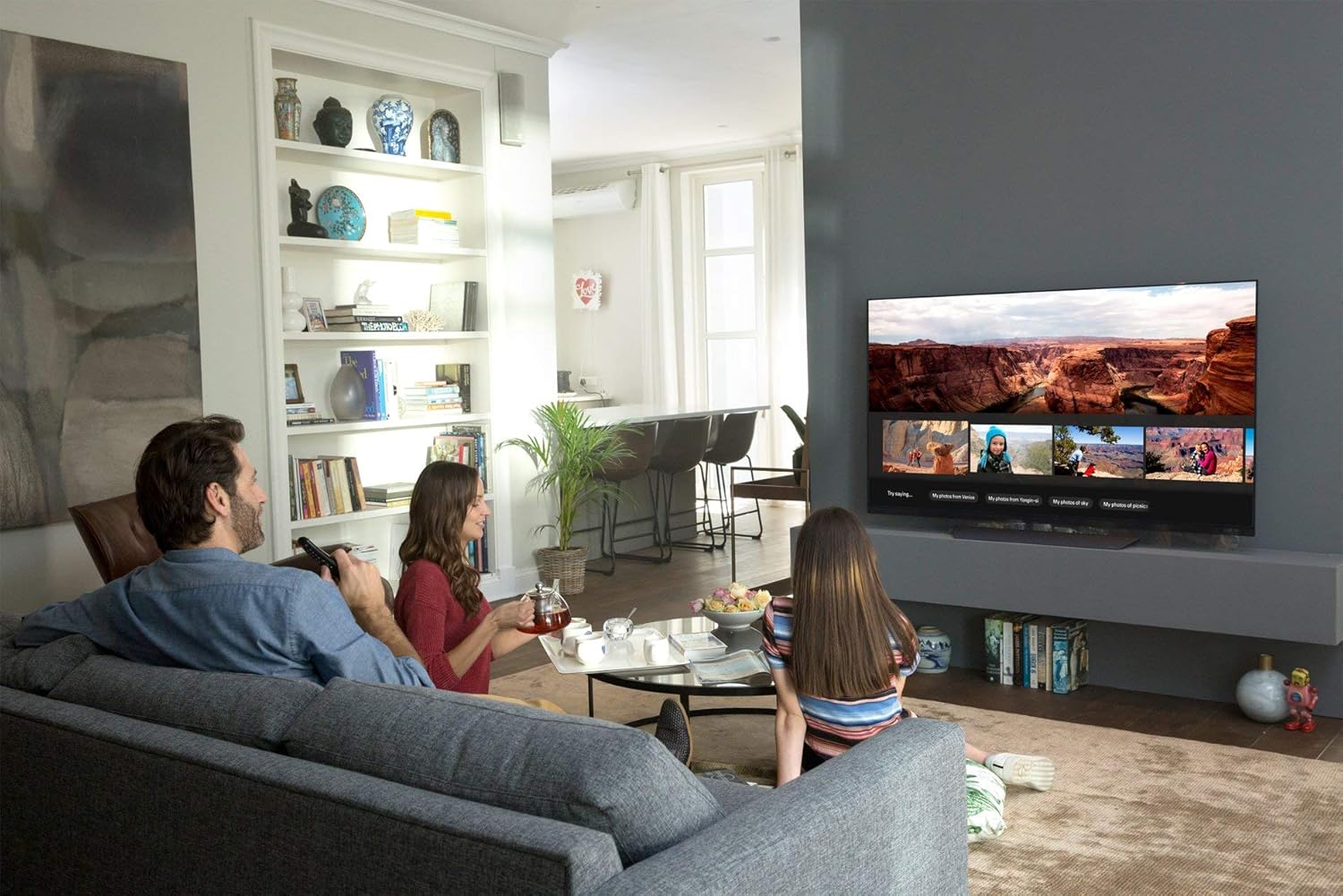
Image: A family seated on a sofa, watching a large LG Smart TV mounted on a wall. The TV displays a media interface with various images. One person is holding the LG Magic Remote, demonstrating its use in a home entertainment setting.
3. Operating Instructions
3.1. Pointing and Wheel Control
The Magic Remote features an intuitive mouse-like pointer that appears on your TV screen. Move the remote to control the pointer. The Wheel (OK) button acts as a scroll wheel for navigating menus and web pages, and as an 'Enter' button when pressed.
3.2. Intelligent Voice Recognition
Press and hold the Microphone button on the remote to activate voice commands. Speak clearly into the remote to search for content, change settings, or control smart home devices. The remote supports Google Assistant and Alexa for enhanced functionality.
3.3. Universal Remote Function
The Magic Remote can control compatible external devices connected to your LG TV, such as Blu-ray players, set-top boxes, and sound bars. Configuration for universal control can typically be found within your TV's settings menu under 'Connection' or 'Universal Control Settings'.
3.4. Number Key Pad
Use the dedicated number key pad for direct channel input or other numerical selections.
4. Maintenance
4.1. Battery Replacement
When the remote's performance degrades or the TV indicates low battery, replace both AAA batteries with new ones. Do not mix old and new batteries, or different types of batteries.
4.2. Cleaning
Wipe the remote control with a soft, dry cloth. Avoid using liquid cleaners or abrasive materials, as these can damage the remote's surface or internal components.
5. Troubleshooting
- Remote not responding: Ensure batteries are correctly installed and charged. Re-pair the remote with the TV by holding HOME and BACK buttons for 5 seconds, then pressing the Wheel (OK) button.
- Pointer not appearing or moving: Ensure the remote is paired. Check for obstructions between the remote and the TV. If 'Audio Guidance' is enabled in your TV's Accessibility settings, disable it as it can interfere with pointer and voice functions.
- Voice control not working: Verify the remote is paired. Ensure the TV's internet connection is active for voice assistant features. Check TV settings for voice recognition activation. Disable 'Audio Guidance' if active.
- Wheel (OK) button or scroll function issues: If the scroll wheel becomes unresponsive or sticky, gently clean around the wheel. If the issue persists, the remote may require replacement.
- Only one remote works fully: If using multiple Magic Remotes, only one pointer may be active at a time. The last remote synced will have active pointer control. Other functions typically work simultaneously.
6. Specifications
| Feature | Detail |
|---|---|
| Model Number | AN-MR18BA |
| Product Dimensions (W x H x D) | 1.9" x 7.3" x 1.6" (4.8 x 18.5 x 4.1 cm) |
| Item Weight | 2.89 ounces (81.9 g) |
| Batteries Required | 2 x AAA batteries |
| Special Features | Pointing, Wheel, Voice Recognition |
| Compatible Devices | Select 2018 LG AI ThinQ Smart TVs |
| Color | Black |
7. Warranty Information
The LG AN-MR18BA Magic Remote Control comes with a 1-Year Limited Replacement Warranty. Please retain your proof of purchase for warranty claims. For specific terms and conditions, refer to the warranty documentation provided with your product or contact LG customer support.
8. Customer Support
For further assistance, technical support, or warranty inquiries, please visit the official LG website or contact LG customer service directly. Have your product model number (AN-MR18BA) and TV model number ready when contacting support.