
1. Product Overview
The MOCUTE 053 is a wireless gamepad designed for an enhanced gaming experience on Android devices. It features a comfortable ergonomic design, high-speed wireless connectivity, and a long-lasting battery, making it suitable for extended gaming sessions.
Key Features:
- High-speed and reliable Wireless 3.0 connection with a transmission range of up to 8 meters.
- Integrated 400mAh li-ion battery providing 20-30 hours of continuous gaming.
- Ergonomic curve design for comfortable and prolonged use.
- Compatible with a wide range of Android mobile phones and devices.
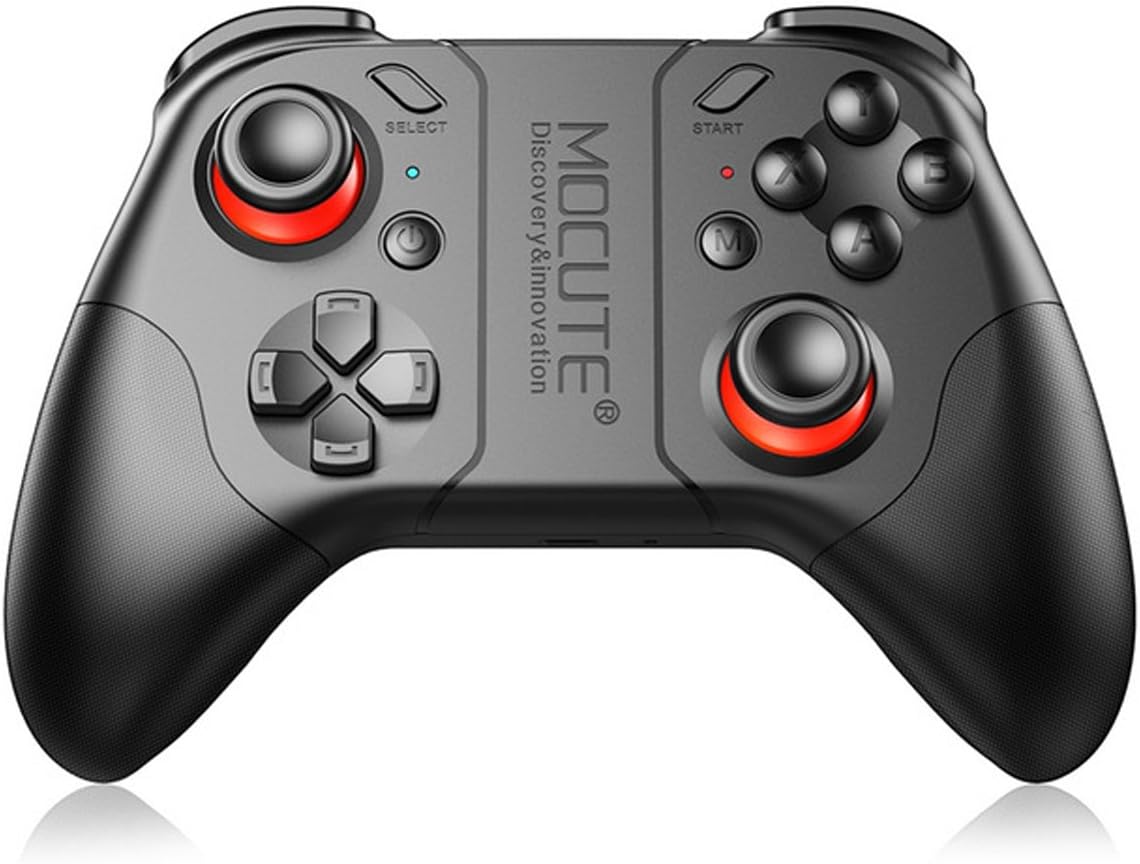
Figure 1: Front view of the MOCUTE 053 Wireless Gamepad, showcasing its ergonomic design and button layout.
2. Compatibility
The MOCUTE 053 Gamepad is designed for use with Android Wireless mobile phones and other Android devices, including tablets and TV Boxes. Compatible devices include, but are not limited to, Samsung Galaxy S9/S9+, S8/S8+, Note 8, GALAXY A9 Star, viv x21/x20, Y85/Y83, X PLAY6, HUAWEI Mate 10/10 Pro, P20/P20 Pro, P9/P9 Plus, P10/10 Plus, HUAWEI nova 3e, Tablet M5, PC, and OPPO A3/R15.
Important Note: This product does not support iOS system devices.
3. Product Layout and Controls
Familiarize yourself with the layout of the MOCUTE 053 Gamepad to optimize your gaming experience. The diagram below details the function of each button and control.

Figure 2: Diagram illustrating the function of each button and control on the MOCUTE 053 Gamepad.
The gamepad features dual analog sticks, a D-pad, standard action buttons (A, B, X, Y), shoulder buttons (L1, R1), and triggers (L2, R2). Additional buttons include SELECT, START, and a central M button for mode switching or special functions depending on the game.
4. Setup
4.1 Charging the Gamepad
- Connect the provided USB charging cable to the gamepad's charging port.
- Connect the other end of the cable to a USB power source (e.g., computer USB port, USB wall adapter).
- The charging indicator light will illuminate.
- A full charge typically takes 2-3 hours. The indicator light will change or turn off once charging is complete.
- A fully charged gamepad provides 20-30 hours of working time and up to 30 days of standby time.
4.2 Pairing with Your Device
- Ensure the gamepad is sufficiently charged.
- Turn on the gamepad by pressing the Power button. The indicator light will start blinking, indicating it's in pairing mode.
- On your Android device, go to Settings > Bluetooth and turn Bluetooth on.
- Search for available devices. The gamepad should appear as "MOCUTE 053" or similar.
- Select "MOCUTE 053" to initiate the pairing process.
- Once paired, the gamepad's indicator light will become solid, indicating a successful connection.
- If pairing fails, turn off the gamepad and your device's Bluetooth, then repeat the steps.
5. Operating Instructions
5.1 Power On/Off
- Power On: Press and hold the Power button for a few seconds until the indicator light illuminates.
- Power Off: Press and hold the Power button for a few seconds until the indicator light turns off. The gamepad will also automatically power off after a period of inactivity to conserve battery.
5.2 Gaming Usage
- Once paired, launch your desired game on your Android device.
- Most Android games with gamepad support will automatically recognize the MOCUTE 053.
- Refer to the game's settings for controller mapping and customization options.
- Use the analog sticks for movement and camera control, the D-pad for directional input, and the action buttons (A, B, X, Y) for in-game actions.
- The shoulder buttons (L1, R1) and triggers (L2, R2) are typically used for shooting, aiming, or other quick actions.
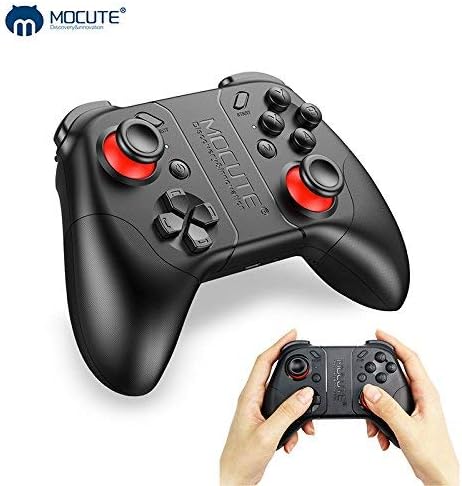
Figure 3: The MOCUTE 053 Wireless Gamepad held in hands, demonstrating its compact size and comfortable grip.
6. Maintenance
Proper maintenance will extend the lifespan of your MOCUTE 053 Gamepad.
- Cleaning: Use a soft, dry cloth to wipe the surface of the gamepad. For stubborn dirt, slightly dampen the cloth with water. Do not use harsh chemicals or abrasive cleaners.
- Storage: Store the gamepad in a cool, dry place away from direct sunlight, extreme temperatures, and high humidity.
- Battery Care: Avoid fully discharging the battery frequently. If storing for a long period, charge the gamepad to about 50% every few months to maintain battery health.
- Avoid Drops: Protect the gamepad from drops and impacts, which can damage internal components.
7. Troubleshooting
If you encounter issues with your MOCUTE 053 Gamepad, refer to the following common problems and solutions:
| Problem | Possible Cause / Solution |
|---|---|
| Gamepad does not power on. | Battery is low or depleted. Charge the gamepad for 2-3 hours. |
| Cannot pair with device. |
|
| Buttons are unresponsive or laggy. |
|
| Gamepad disconnects frequently. |
|
8. Technical Specifications
| Feature | Specification |
|---|---|
| Model | MOCUTE 053 |
| Wireless Version | 3.0 |
| Material | ABS Plastic |
| Battery | 400mAh Li-ion battery |
| Transmission Distance | 2-8 meters |
| Working Time | 20-30 hours |
| Charging Time | 2-3 hours |
| Standby Time | 30 days (fully charged) |
| Dimensions (L x W x H) | 170 x 140 x 60 mm |
| Weight | 226g |
| Number of Buttons | 17 |
| UPC | 611864734743 |
9. Warranty and Support
The MOCUTE 053 Wireless Gamepad comes with a standard manufacturer's warranty. For specific warranty terms and conditions, please refer to the documentation included with your purchase or contact MOCUTE customer support.
For technical assistance, troubleshooting beyond this manual, or warranty claims, please contact the manufacturer or your point of purchase. Keep your purchase receipt as proof of purchase.


