
1. Introduction
This manual provides detailed instructions for the installation, operation, and maintenance of your Thermaltake Pure Plus 12 RGB TT Premium Edition 120mm PWM Case Radiator Fan 3-Pack. These fans are designed to enhance your PC's cooling performance while offering extensive customizable RGB lighting through the TT RGB PLUS Software and AI voice control.
Key Features:
- Addressable RGB LEDs: Each fan features 9 addressable LEDs for 16.8 million color customization options.
- TT RGB PLUS Software/App: Monitor performance, adjust fan speeds, and customize lighting effects.
- AI Voice Control: Compatible with Amazon Alexa for controlling lights and fan speed.
- PWM Control: Dynamic fan speed adjustment for optimal cooling and noise levels.
2. Safety Information
Please read and understand the following safety precautions before installing or operating the product:
- Ensure your computer system is powered off and unplugged from the wall outlet before installation.
- Handle components with care to avoid damage.
- Do not expose the product to moisture or extreme temperatures.
- Keep out of reach of children.
- Only use the provided cables and accessories.
3. Package Contents
Verify that all items listed below are included in your package:
- Thermaltake Pure Plus 12 RGB Fans (x3)
- Digital Lighting Controller (x1)
- Bridge Cable (x1)
- Controller Cable (x1)
- Power Cable (x1)
- Mounting Screws (for fans)
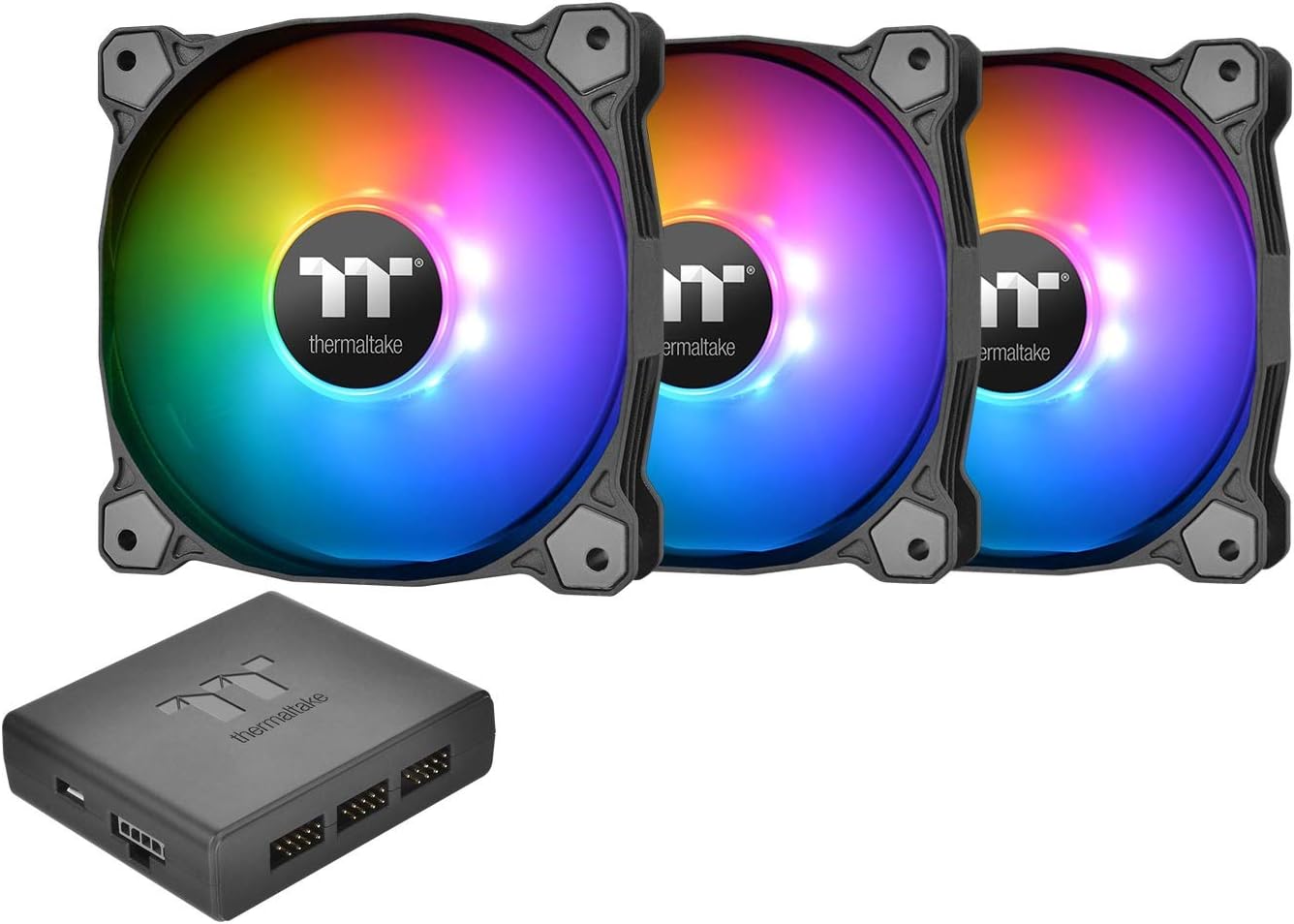
Image 3.1: Overview of the Thermaltake Pure Plus 12 RGB fan 3-pack and digital lighting controller.

Image 3.2: Included cables (Bridge, Controller, Power) and mounting screws for the fans.
4. Setup and Installation
4.1 Physical Installation
- Prepare your PC: Power off your computer and unplug it from the power source. Open your PC case.
- Mount the Fans: Install the Pure Plus 12 RGB fans into your desired locations (e.g., case front, top, rear, or radiator) using the provided mounting screws. Ensure the airflow direction is correct for your cooling setup.
- Connect Fans to Controller: Connect each fan's cable to an available port on the Digital Lighting Controller. The controller supports up to 5 devices.
- Connect Controller to Motherboard: Use the Controller Cable to connect the Digital Lighting Controller to an available USB 2.0 header (9-pin) on your motherboard.
- Provide Power to Controller: Connect the Power Cable (Molex) from your power supply unit (PSU) to the Digital Lighting Controller. It is recommended to connect up to 3 controllers per peripheral power cable.
- Secure Controller: Use the included Velcro strips to secure the Digital Lighting Controller inside your PC case.

Image 4.1: Front and back views of the Thermaltake Pure Plus 12 RGB fan, showing the fan blades and motor hub.

Image 4.2: The Digital Lighting Controller, capable of managing up to 5 devices and connecting to the motherboard via USB 2.0.

Image 4.3: Example of Thermaltake Pure Plus 12 RGB fans installed within a PC case, showcasing their integration.
4.2 Software Installation
- Download TT RGB PLUS Software: Visit the official Thermaltake website and download the latest version of the TT RGB PLUS Software.
- Install Software: Follow the on-screen instructions to install the software on your Windows 7 / 8 / 8.1 / 10 operating system.
- Launch Software: After installation, launch the TT RGB PLUS Software. The software should automatically detect the connected Digital Lighting Controller and fans.
5. Operating Instructions
5.1 TT RGB PLUS Software Control
The TT RGB PLUS Software allows comprehensive control over your fans' lighting and performance.
- Fan Speed Adjustment: Adjust fan speeds from 500 to 1500 RPM. You can set individual fan speeds or synchronize them.
- Lighting Modes: Choose from 10 'Light Mode' options including Full Lighted, Sound Control, Flow, RGB Spectrum, Ripple, Blink, Pulse, Wave, and Thermal.
- Color Modes: Select from RGB, Single Color, or Off.
- Light Speeds: Adjust the animation speed with options like Slow, Normal, Fast, and Extreme.
- LED Brightness: Control the intensity of the RGB lighting.
- Profiles: Create and save multiple lighting and performance profiles for different scenarios.

Image 5.1: Screenshot of the TT RGB PLUS software interface, showing options for fan speed, color modes, and lighting effects.

Image 5.2: A single Thermaltake Pure Plus 12 RGB fan displaying a vibrant rainbow lighting effect.
5.2 AI Voice Control (Amazon Alexa)
The TT RGB PLUS ecosystem supports AI voice control via Amazon Alexa. This allows you to control lighting effects and fan speeds using voice commands.
- Enable Alexa Skill: Open the Amazon Alexa app on your mobile device and enable the 'TT RGB PLUS' skill.
- Link Accounts: Follow the instructions to link your Thermaltake account with your Amazon account.
- Voice Commands: Once linked, you can use commands such as:
- "Alexa, turn on the fan lights."
- "Alexa, set fan speed to 70%."
- "Alexa, change fan color to blue."
6. Maintenance
Regular maintenance ensures optimal performance and longevity of your fans.
- Cleaning: Periodically clean the fan blades and housing to prevent dust buildup, which can impede airflow and increase noise. Use compressed air or a soft, dry cloth.
- Power Off: Always power off your PC and unplug it before performing any cleaning or maintenance.
- Avoid Liquids: Do not use liquid cleaners directly on the fans or controller.
7. Troubleshooting
If you encounter issues with your Thermaltake Pure Plus 12 RGB fans, refer to the following common problems and solutions:
- Fans/Controller Not Detected by Software:
- Ensure all cables (fan to controller, controller to motherboard USB 2.0, controller to PSU Molex) are securely connected.
- Restart your computer.
- Reinstall the TT RGB PLUS Software.
- Check your motherboard's BIOS settings to ensure USB 2.0 headers are enabled.
- RGB Lighting Not Working or Resetting:
- Verify the TT RGB PLUS Software is running and has administrative privileges (if required by your OS).
- If lighting resets after sleep mode, ensure the software is configured to launch on startup and re-apply settings.
- Check for software updates.
- Fans Not Spinning or Incorrect Speed:
- Confirm the Molex power connector from the PSU to the controller is firmly seated.
- Check fan speed settings within the TT RGB PLUS Software.
- Ensure the fan cables are properly connected to the controller.
- Excessive Noise:
- Check for dust buildup on fan blades and clean if necessary.
- Ensure fans are securely mounted and not vibrating against the case.
- Adjust fan speed settings in the software to a lower RPM.
8. Specifications
| Feature | Specification |
|---|---|
| Model Number | CL-F063-PL12SW-A |
| Fan Dimension | 120 x 120 x 25 mm |
| Interface | USB 2.0 connectors (9 Pin) |
| System Compatibility | Windows 7 / 8 / 8.1 / 10 |
| Fan Started Voltage | 9.0 V |
| Fan Rated Voltage | 12 V and 5V |
| Rated Current (one fan + LED) | 0.44 A |
| Power Input (Fan*3) | 12V – 4.32 W, 5V – 11.52W |
| Fan Speed | 500 ~ 1500 R.P.M |
| Max. Air Pressure | 1.59 mm-H2O |
| Max. Air Flow | 56.45 CFM |
| Noise Level | 25.8 dB-A |
| Bearing Type | Hydraulic Bearing |
| Life Expectation | 40,000 hrs, 25℃ |
| Weight (per fan) | 164 g |
9. Warranty and Support
Thermaltake products are manufactured to the highest quality standards. For detailed warranty information, please refer to the warranty card included with your product or visit the official Thermaltake website.
For technical support, driver downloads, or further assistance, please visit the Thermaltake support page at www.thermaltake.com.


