
PlayStation DualShock 4 Wireless Controller V2
Contents
DualShock 4 Wireless Controller for PlayStation 4 V2 - Sunset Orange
User Manual
Introduction
This manual provides essential information for the proper use and maintenance of your DualShock 4 Wireless Controller for PlayStation 4 V2. This special limited edition controller features a unique Sunset Orange color and offers familiar controls along with innovative features for an enhanced gaming experience.
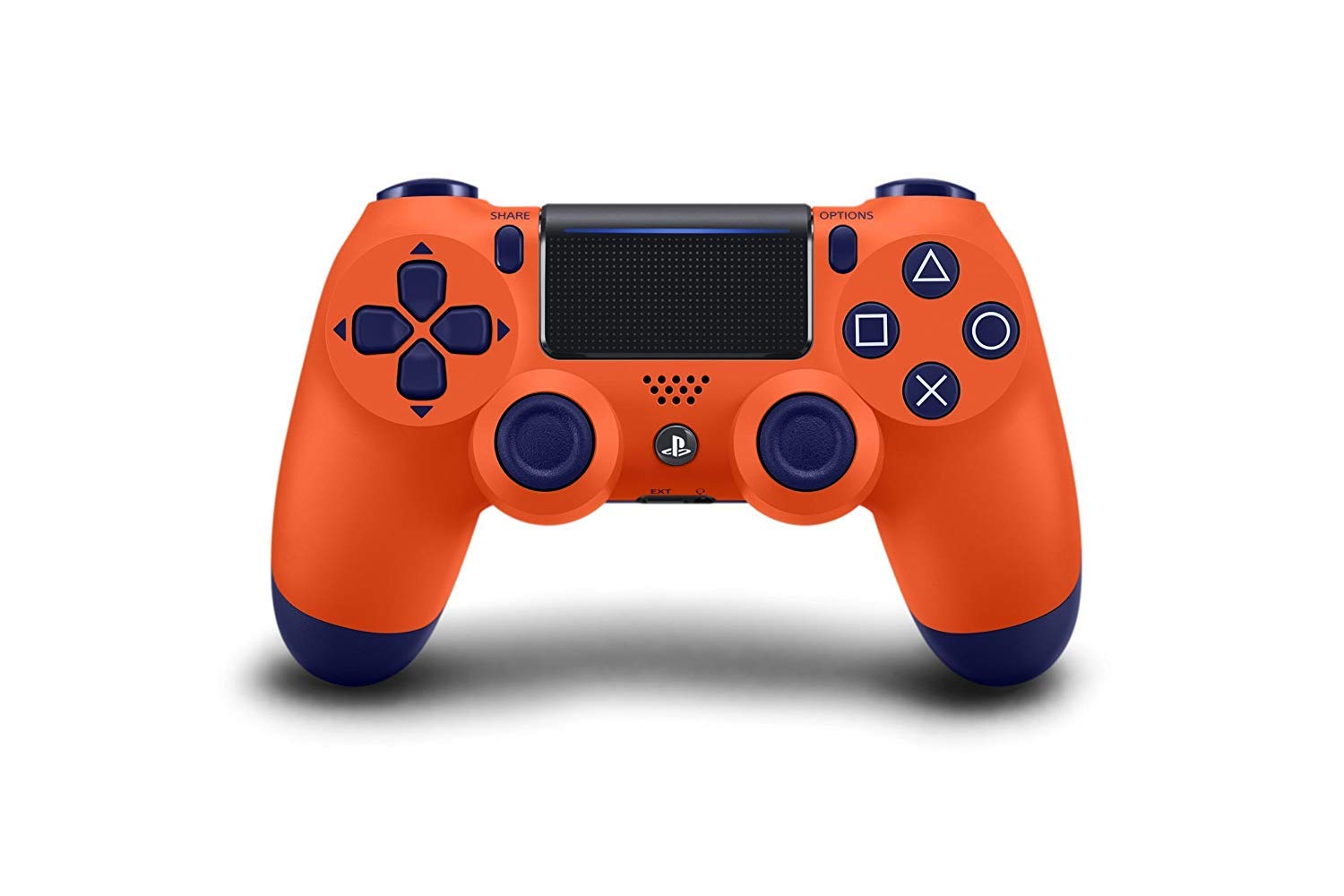
Figure 1: Front view of the DualShock 4 Wireless Controller (Sunset Orange).
Setup
1. Initial Pairing and Connection
To use the controller for the first time, you must pair it with your PlayStation 4 system. Connect the controller to your PS4 system using the supplied USB cable. Once connected, press the PS button. The controller will turn on, and the light bar will glow. After the light bar glows, you can disconnect the USB cable and use the controller wirelessly.
2. Charging the Controller
The controller contains a built-in rechargeable lithium-ion battery. To charge the controller, connect it to your PS4 system using a USB cable while the system is turned on or in rest mode. The light bar will slowly blink orange while charging and turn off when charging is complete. You can also charge the controller using a compatible USB wall charger (sold separately).

Figure 2: Back view of the controller, highlighting the USB charging port.
Operating the Controller
The DualShock 4 controller features a range of buttons and functions designed for intuitive gameplay.
Key Components and Functions:
- Analog Sticks (L3/R3): Used for precise movement and camera control. Pressing them down functions as L3 and R3 buttons.
- Directional Buttons (D-Pad): For menu navigation and specific in-game actions.
- Action Buttons (Triangle, Circle, Cross, Square): Primary input buttons for various in-game actions.
- SHARE Button: Allows you to share screenshots and video clips of your gameplay.
- OPTIONS Button: Used to pause games, access in-game menus, and other options.
- PS Button: Turns on the PS4 system, displays the Home screen, and can be used to switch users or turn off the system.
- Touch Pad: A capacitive touch pad that can be used for navigation, gestures, and as an additional button (click).
- Light Bar: Changes color to indicate player number, character health, or other game-specific information.
- L1/R1 Buttons: Shoulder buttons for various actions.
- L2/R2 Triggers: Analog triggers for precise control, often used for acceleration, braking, or shooting.
- Built-in Speaker: Provides additional audio cues from the controller.
- Stereo Headset Jack: Connect a compatible headset for game audio and voice chat.

Figure 3: Angled view of the controller, highlighting the various buttons and the touchpad.
Maintenance
Cleaning:
To clean the controller, use a soft, dry cloth. Do not use chemical solvents or abrasive cleaners, as they may damage the surface or internal components. Avoid getting moisture into any openings.
Storage:
Store the controller in a cool, dry place away from direct sunlight, extreme temperatures, and high humidity. When not in use for extended periods, ensure the controller is fully charged before storing to preserve battery life.
Battery Care:
The built-in battery is not user-replaceable. To maximize battery lifespan, avoid fully discharging the battery frequently. Charge the controller regularly, even if not in constant use.
Troubleshooting
Controller Not Connecting or Responding:
- Ensure the controller is charged. Connect it to the PS4 with a USB cable.
- Try re-pairing the controller by connecting it via USB and pressing the PS button.
- Reset the controller: Locate the small reset button on the back of the controller, near the L2 shoulder button. Use a small, unfolded paper clip or similar tool to press and hold the button for 3-5 seconds. Then, reconnect the controller to the PS4 with a USB cable and press the PS button to re-pair.
- Ensure there are no strong wireless interferences nearby.
Charging Issues:
- Verify the USB cable is securely connected to both the controller and the PS4 system.
- Try a different USB cable or a different USB port on the PS4.
- Ensure the PS4 system is powered on or in rest mode (orange light on PS4).
Specifications
| Feature | Detail |
|---|---|
| Product Dimensions | 3.15 x 8.19 x 7.09 inches |
| Item Weight | 12.35 ounces |
| Connectivity | Bluetooth, USB |
| Battery Type | 1 Lithium Polymer battery (included, non-replaceable) |
| Manufacturer | Sony |
| Model | DualShock 4 Wireless Controller V2 |
Warranty and Support
For information regarding warranty coverage, technical support, or service for your DualShock 4 Wireless Controller, please refer to the official PlayStation support website or contact PlayStation customer service. Warranty terms and conditions may vary by region.
Official PlayStation Support: www.playstation.com/support
Ask a question about this manual
Ask about setup, troubleshooting, compatibility, parts, safety, or missing instructions. Manuals+ will review the question and use this page’s manual context to help answer it.