1. Introduction
This manual provides essential information for the proper setup, operation, and maintenance of your iiyama Prolite T2454MSC-B1AG 23.8-inch Full HD Multi-Touch Monitor. Please read this manual thoroughly before using the product to ensure optimal performance and safety.

Image: Front view of the iiyama Prolite T2454MSC-B1AG touch screen monitor.
2. Safety Information
Observe the following safety precautions to prevent damage to the monitor and ensure your safety.
- Do not expose the monitor to rain or moisture to avoid fire or shock hazards.
- Do not open the monitor casing. There are no user-serviceable parts inside. Refer all servicing to qualified service personnel.
- Place the monitor on a stable, flat surface to prevent it from falling.
- Ensure proper ventilation around the monitor. Do not block ventilation openings.
- Use only the power cord and adapter supplied with the monitor.
- Disconnect the power plug from the outlet if the monitor will not be used for an extended period.
3. Package Contents
Verify that all items listed below are included in your package. If any items are missing or damaged, contact your retailer.
- iiyama Prolite T2454MSC-B1AG Monitor
- Power Cable(s) (region specific)
- USB Cable
- HDMI Cable
- Quick Start Guide (not included in this digital manual)

Image: Included cables for the monitor, typically power, USB, and HDMI.
4. Setup
4.1 Physical Setup and Connections
Follow these steps to set up your monitor and connect it to your computer.
- Positioning the Monitor: Place the monitor on a stable, flat surface. The flexible stand allows for various viewing angles. Adjust the stand to your preferred ergonomic position.
- Connecting Video Cable: Connect one end of the HDMI or VGA cable to the corresponding port on your computer's graphics card and the other end to the monitor's input port.
- Connecting USB Cable: For touch functionality, connect the supplied USB cable from your computer's USB port to the USB upstream port on the monitor.
- Connecting Power: Connect the power cable to the monitor's power input and then plug it into a wall outlet.
- VESA Mounting (Optional): The monitor is VESA mount compliant (100x100mm). If you wish to wall mount or use a different stand, remove the factory stand and attach your VESA-compatible mounting solution.


Image: The monitor's adjustable stand allows for various viewing angles, from upright to reclined.

Image: Close-up view of the monitor's rear input ports, including HDMI, VGA, and USB connections.

Image: Rear view of the monitor, highlighting the VESA mounting points for alternative installation.
4.2 Initial Power On
After connecting all cables, press the power button on the monitor to turn it on. The monitor should automatically detect the input signal.
5. Operating Instructions
5.1 Basic Touch Operation
The Prolite T2454MSC-B1AG features Projective Capacitive 10-point touch technology, allowing for intuitive interaction with your operating system and applications.
- Tap: Equivalent to a single mouse click.
- Double Tap: Equivalent to a double mouse click.
- Press and Hold: Equivalent to a right-click.
- Drag: Move an item by touching and dragging your finger across the screen.
- Pinch-to-Zoom: Use two fingers to zoom in or out on content.
- Multi-Touch Gestures: Your operating system may support additional multi-touch gestures. Refer to your OS documentation for details.

Image: A user interacting with the multi-touch screen of the iiyama Prolite T2454MSC-B1AG monitor.
5.2 On-Screen Display (OSD) Menu
The OSD menu allows you to adjust various display settings. The control buttons are located on the rear right side of the monitor.
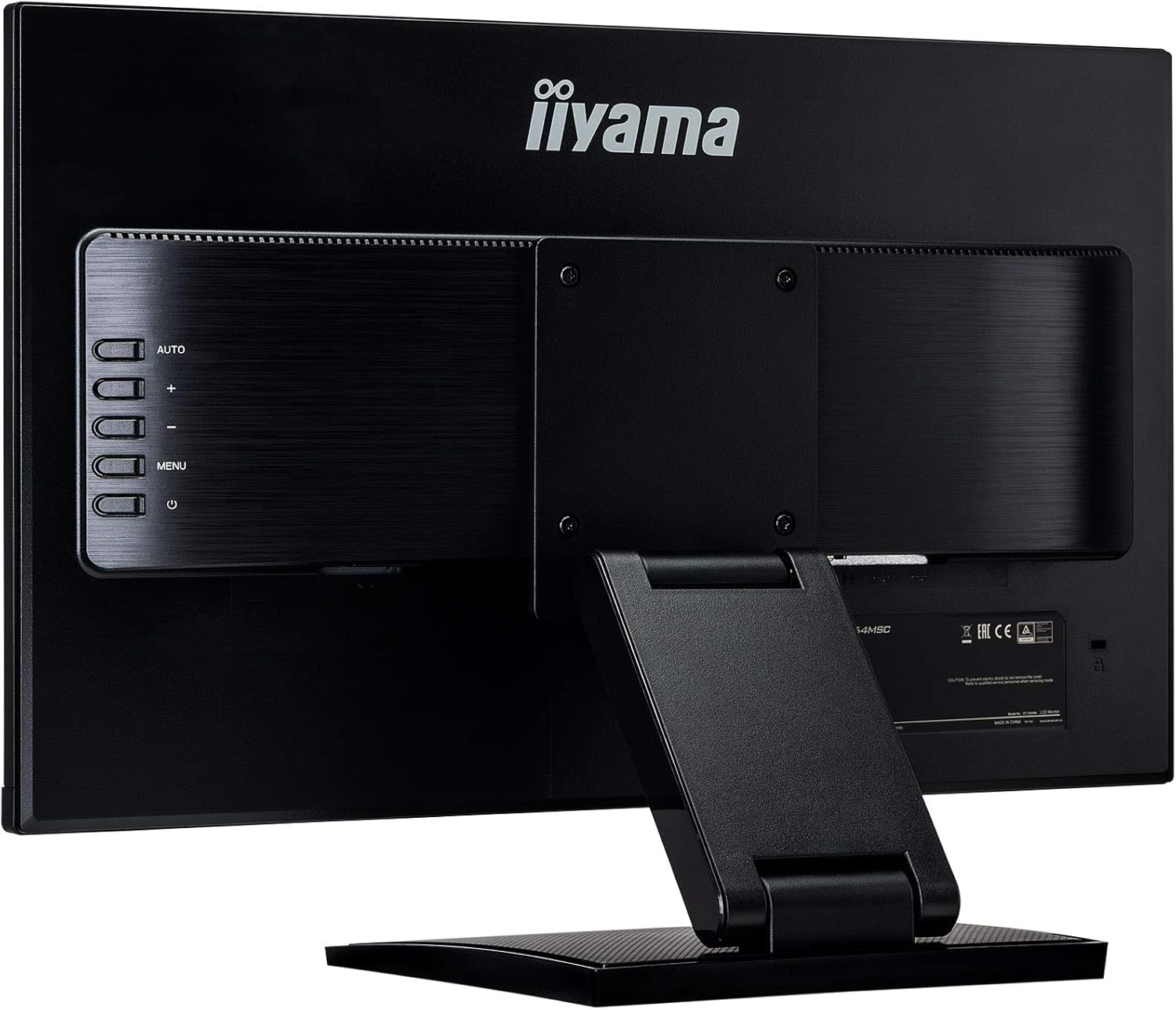
Image: Rear view of the monitor, highlighting the OSD control buttons for menu navigation.
- Power Button: Turns the monitor on or off.
- Menu Button: Opens the OSD menu. Press again to exit or go back.
- Up/Down Buttons (+/-): Navigate through menu options or adjust values.
- Auto Button: Automatically adjusts image settings for optimal display (primarily for analog VGA input).
Navigate the menu using the Up/Down buttons and confirm selections with the Menu button. Common settings include brightness, contrast, input selection, and color temperature.
6. Maintenance
Proper maintenance ensures the longevity and performance of your monitor.
- Cleaning the Screen: Gently wipe the screen with a soft, lint-free cloth. For stubborn marks, dampen the cloth with a mild, non-abrasive screen cleaner. Do not spray cleaner directly onto the screen.
- Cleaning the Casing: Use a soft, dry cloth to wipe the monitor casing. Avoid using strong detergents or abrasive cleaners.
- Storage: If storing the monitor for an extended period, disconnect all cables and store it in a cool, dry place, preferably in its original packaging.
7. Troubleshooting
Refer to the table below for common issues and their solutions.
| Problem | Possible Cause | Solution |
|---|---|---|
| No power | Power cable not connected or power outlet not active. | Ensure power cable is securely connected to the monitor and a working power outlet. Check power switch. |
| No signal / Blank screen | Video cable not connected or incorrect input selected. | Check video cable connections (HDMI/VGA). Use the OSD menu to select the correct input source. |
| Touch function not working | USB cable not connected or driver issue. | Ensure the USB upstream cable is connected between the monitor and your computer. For Windows, touch drivers are usually automatic; for other OS, check manufacturer's website. |
| Image is blurry or distorted | Incorrect resolution or refresh rate, or analog signal interference. | Set your computer's display resolution to 1920x1080 and refresh rate to 60Hz. For VGA, use the OSD's "Auto" adjustment. |
| Speakers not producing sound | Audio cable not connected (if using VGA) or volume too low. | If using HDMI, audio is carried over HDMI. If using VGA, ensure an audio cable is connected. Check monitor and computer volume settings. |
8. Specifications
Detailed technical specifications for the iiyama Prolite T2454MSC-B1AG monitor.
| Feature | Detail |
|---|---|
| Brand | iiyama |
| Model | T2454MSC-B1AG |
| Screen Size | 24 Inches (23.8" viewable) |
| Display Type | LED LCD, IPS Technology |
| Resolution | 1920 x 1080 (Full HD) |
| Aspect Ratio | 16:9 |
| Touch Technology | Projective Capacitive (P-CAP) 10-point multi-touch |
| Response Time | 4 Milliseconds |
| Refresh Rate | 60 Hz |
| Viewing Angle | 178 Degrees (Horizontal/Vertical) |
| Image Contrast Ratio | 1000:1 |
| Special Features | Height Adjustment, Anti-Glare Coating, Built-in Speakers |
| Hardware Interface | HDMI, USB, VGA |
| Total USB Ports | 2 |
| Mounting Type | Desk Mount, Wall Mount (VESA 100x100mm) |
| Product Dimensions | 54.05 x 12.8 x 38.8 cm (W x D x H) |
| Item Weight | 5.5 kg |
| Power Consumption | 24 Watts (typical) |

Image: Diagram illustrating the physical dimensions of the monitor.

Image: EU Energy Label for the iiyama T2454MSC-B1AG monitor, showing energy efficiency class E.
For more details, refer to the EPREL database.
9. Warranty and Support
The iiyama Prolite T2454MSC-B1AG monitor typically comes with a manufacturer's warranty. Based on available information, the minimum guaranteed product support is 3 years.
- Warranty Period: Please refer to your purchase documentation or the official iiyama website for the exact warranty period applicable in your region.
- Technical Support: For technical assistance, troubleshooting beyond this manual, or warranty claims, please visit the official iiyama support website or contact their customer service.
- Online Resources: Additional drivers, firmware updates, and detailed manuals may be available on the iiyama official website.