
TENMOS K6005
TENMOS K6 Wireless Gaming Mouse User Manual
Model: K6005
Introduction
The TENMOS K6 Wireless Gaming Mouse is designed for comfortable and efficient use with laptops and PCs. Featuring a rechargeable battery, silent click buttons, adjustable DPI settings, and an ergonomic design, it provides a reliable and quiet user experience. This manual provides detailed instructions for setup, operation, maintenance, and troubleshooting.

Image: Top-down view of the TENMOS K6 Wireless Gaming Mouse, showcasing its black body with blue crackle-pattern LED lighting and the included USB receiver.
What's in the Box
- Wireless Mouse
- USB Receiver
- USB Charging Cable
- User Manual
Setup
1. Charging the Mouse
The TENMOS K6 mouse features a built-in rechargeable battery. Before first use, or when the mouse battery is low, connect the included USB charging cable to the mouse's charging port and to a USB power source (e.g., computer USB port, USB wall adapter). The LED lights on the mouse may indicate charging status.
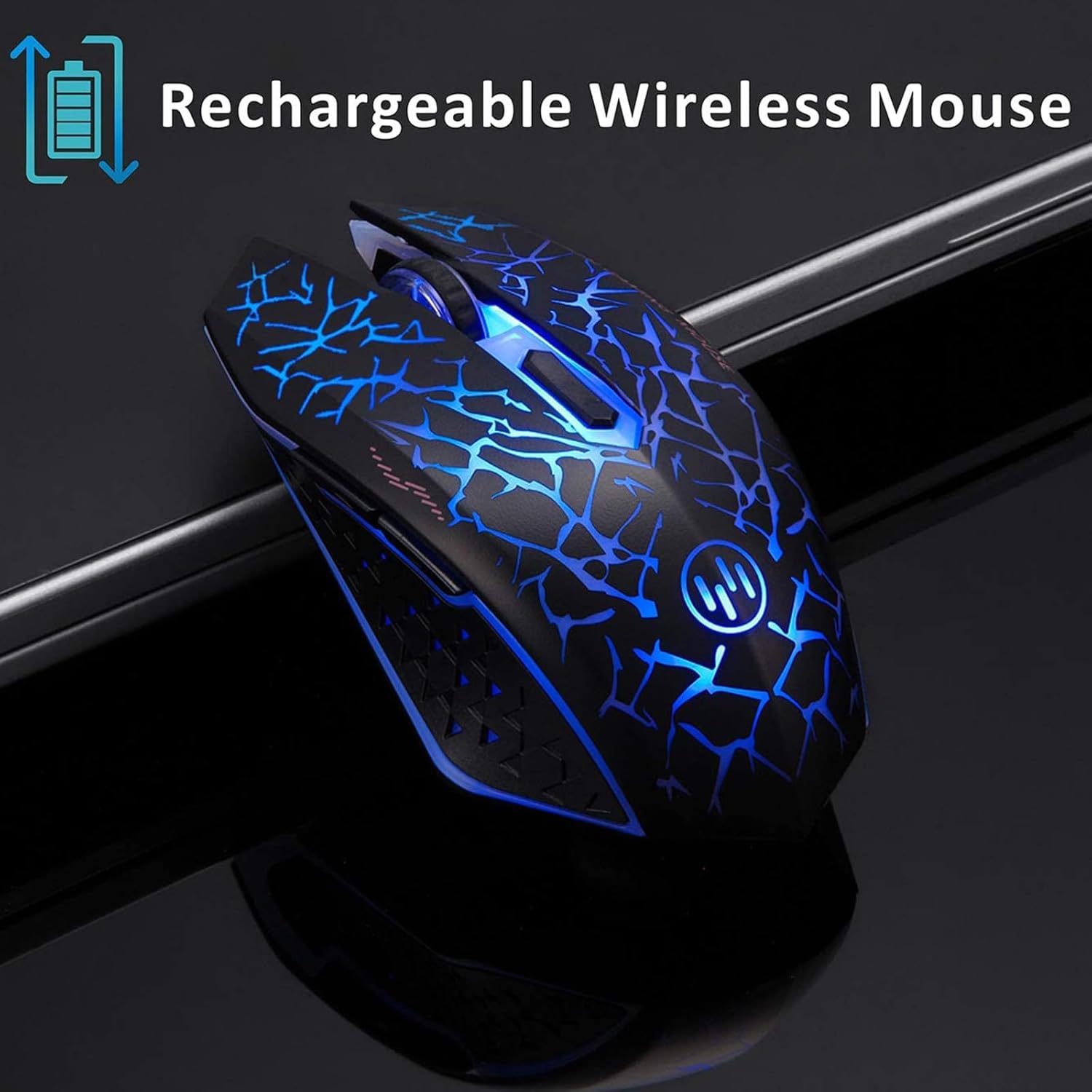
Image: The TENMOS K6 mouse illuminated with blue light, accompanied by a graphic indicating its rechargeable wireless capability.
2. Connecting the USB Receiver
- Locate the USB receiver, typically stored in a compartment on the underside of the mouse.
- Plug the USB receiver into an available USB port on your laptop or computer.
- Turn on the mouse using the ON/OFF switch located on the bottom of the mouse. There are two switches: one for the mouse function and another for the LED lights. Ensure both are in the "ON" position for full functionality.
- Your computer should automatically detect and install the necessary drivers. No additional software installation is required.

Image: The TENMOS K6 mouse positioned next to a laptop, illustrating its wireless connection via a USB receiver and highlighting its compatibility with Windows 7/8/10/XP/Vista and Mac OS.
Operating Instructions
Silent Click Buttons
The left and right mouse buttons are designed for silent clicks, minimizing noise during use. This feature allows for focused work or gaming without disturbing others.

Image: The TENMOS K6 mouse illuminated with blue light, emphasizing its silent click feature with a "Noiseless" label and a mute icon.
Adjusting DPI (Dots Per Inch)
The mouse features 3 adjustable DPI levels: 1000, 1600, and 2400. DPI determines the sensitivity of the mouse cursor. A higher DPI setting results in faster cursor movement across the screen. To change the DPI, press the DPI button located on the top of the mouse, usually behind the scroll wheel. Each press cycles through the available DPI settings.
- 1000 DPI: Standard sensitivity for general use.
- 1600 DPI: Increased sensitivity for faster navigation.
- 2400 DPI: High sensitivity for gaming or tasks requiring rapid cursor movement.

Image: The TENMOS K6 mouse with an overlay highlighting its DPI button and listing the three adjustable DPI levels: 1000, 1600, and 2400.
LED Light Control and Energy Saving
The mouse features soothing LED lights. There are two ON/OFF switches on the bottom of the mouse. The top switch controls the mouse's power, and the bottom switch controls the LED lights. You can turn off the LED lights at any time to conserve battery power.
Auto Sleeping Function
To save energy, the mouse will automatically enter a sleep mode after a period of inactivity. To wake the mouse, simply click any button or move the mouse.
Maintenance
Cleaning
To clean the mouse, use a soft, dry cloth. For stubborn dirt, a slightly damp cloth with a mild cleaning solution can be used, ensuring no liquid enters the mouse's internal components. Avoid using harsh chemicals or abrasive materials.
Battery Care
To prolong battery life, avoid fully discharging the mouse frequently. Recharge the mouse when the battery indicator suggests low power. Store the mouse in a cool, dry place when not in use for extended periods.
Troubleshooting
| Problem | Possible Cause | Solution |
|---|---|---|
| Mouse not responding | Low battery; USB receiver not connected; Mouse power switch off. | Charge the mouse; Ensure USB receiver is firmly plugged in; Turn on both mouse and LED switches on the bottom. |
| Cursor movement is erratic or slow | Low DPI setting; Dirty optical sensor; Interference. | Adjust DPI using the DPI button; Clean the optical sensor on the bottom of the mouse; Move closer to the USB receiver or away from other wireless devices. |
| LED lights not working | LED light switch is off; Mouse is in sleep mode. | Ensure the LED light switch on the bottom of the mouse is ON; Click a button or move the mouse to wake it from sleep. |
Specifications
| Model Number | K6005 |
| Product Dimensions | 5.1 x 2.7 x 1.2 inches |
| Item Weight | 5.6 ounces |
| Connectivity Technology | USB Wireless (2.4GHz) |
| Movement Detection Technology | Optical |
| DPI Levels | 1000 / 1600 / 2400 |
| Special Features | Ergonomic Design, LED Lights, Rechargeable, Soundless Click, Wireless |
| Compatibility | Windows XP/Vista/7/8/10, Mac OS |
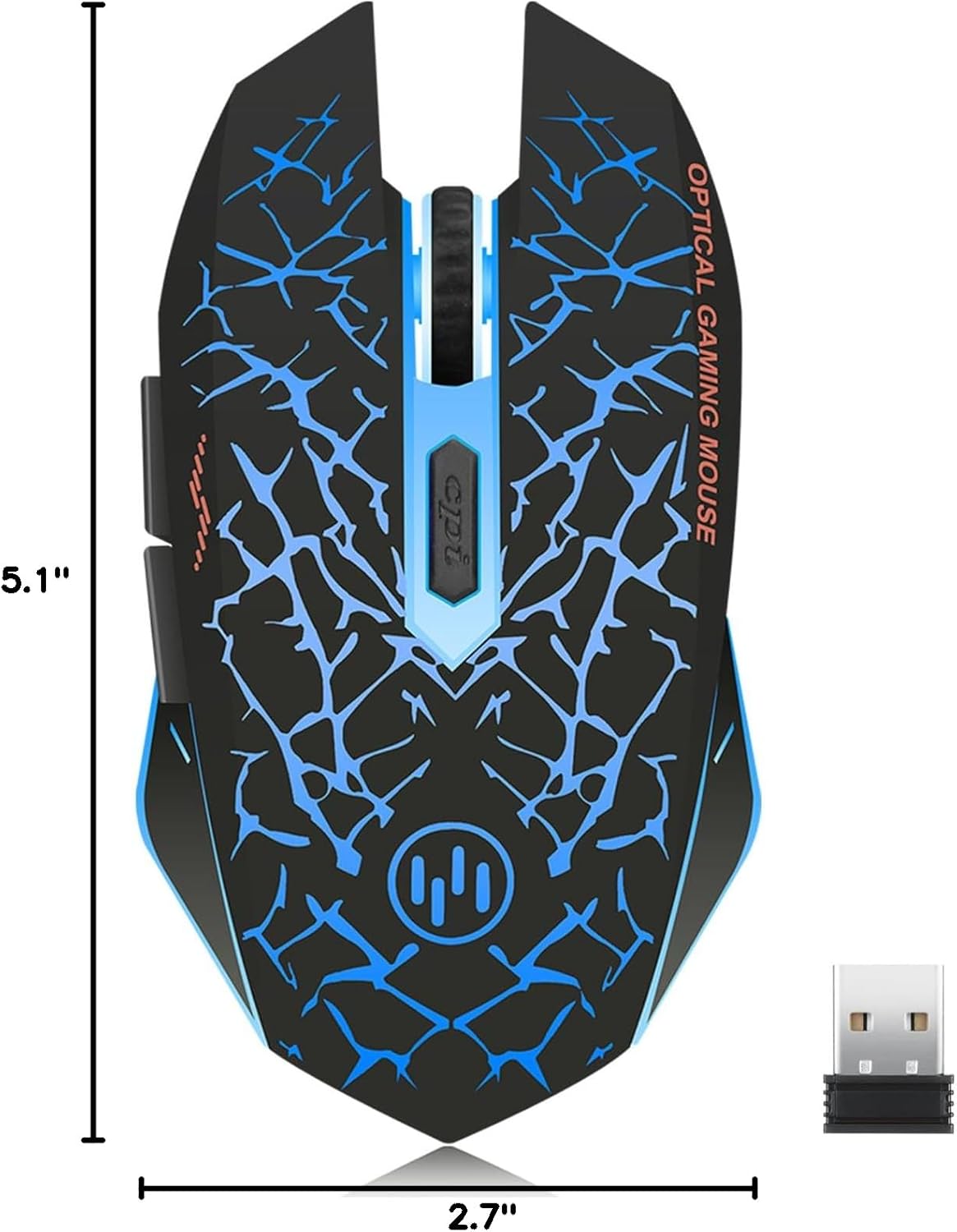
Image: Diagram illustrating the dimensions of the TENMOS K6 Wireless Gaming Mouse, showing a length of 5.1 inches and a width of 2.7 inches.
Warranty and Support
For warranty information and customer support, please refer to the contact details provided on the product packaging or visit the official TENMOS website. Keep your purchase receipt for warranty claims.
Manufacturer: TENMOS
Date First Available: May 24, 2018
Ask a question about this manual
Ask about setup, troubleshooting, compatibility, parts, safety, or missing instructions. Manuals+ will review the question and use this page’s manual context to help answer it.