
1. Introduction
This manual provides essential information for setting up, operating, maintaining, and troubleshooting your ASUS ROG Zephyrus M GM501GM-WS74 gaming laptop. Please read this guide thoroughly to ensure proper use and to maximize the performance and longevity of your device.
The ASUS ROG Zephyrus M GM501GM-WS74 is a high-performance gaming laptop featuring an Intel Core i7-8750H processor, NVIDIA GeForce GTX 1060 graphics, a 15.6-inch 144Hz IPS-Type G-SYNC display, 16GB DDR4 RAM, and a hybrid storage solution with a 256GB PCIe SSD and a 1TB FireCuda SSHD.
2. Package Contents
Carefully unpack your ASUS ROG Zephyrus M GM501GM-WS74 and ensure all items are present. The standard package includes:
- ASUS ROG Zephyrus M GM501GM-WS74 Notebook
- Power Adapter and Power Cord
- User Manual (this document)
3. Product Overview
The ASUS ROG Zephyrus M GM501GM-WS74 is designed for high-performance gaming and demanding tasks, combining powerful hardware with an ultra-slim design and advanced cooling.
3.1. External Features

Figure 3.1: Front view of the ASUS ROG Zephyrus M GM501GM-WS74 laptop, open with the screen displaying the Republic of Gamers logo.

Figure 3.2: Rear-angled view of the ASUS ROG Zephyrus M GM501GM-WS74, highlighting the cooling vents and the illuminated ROG logo on the lid.
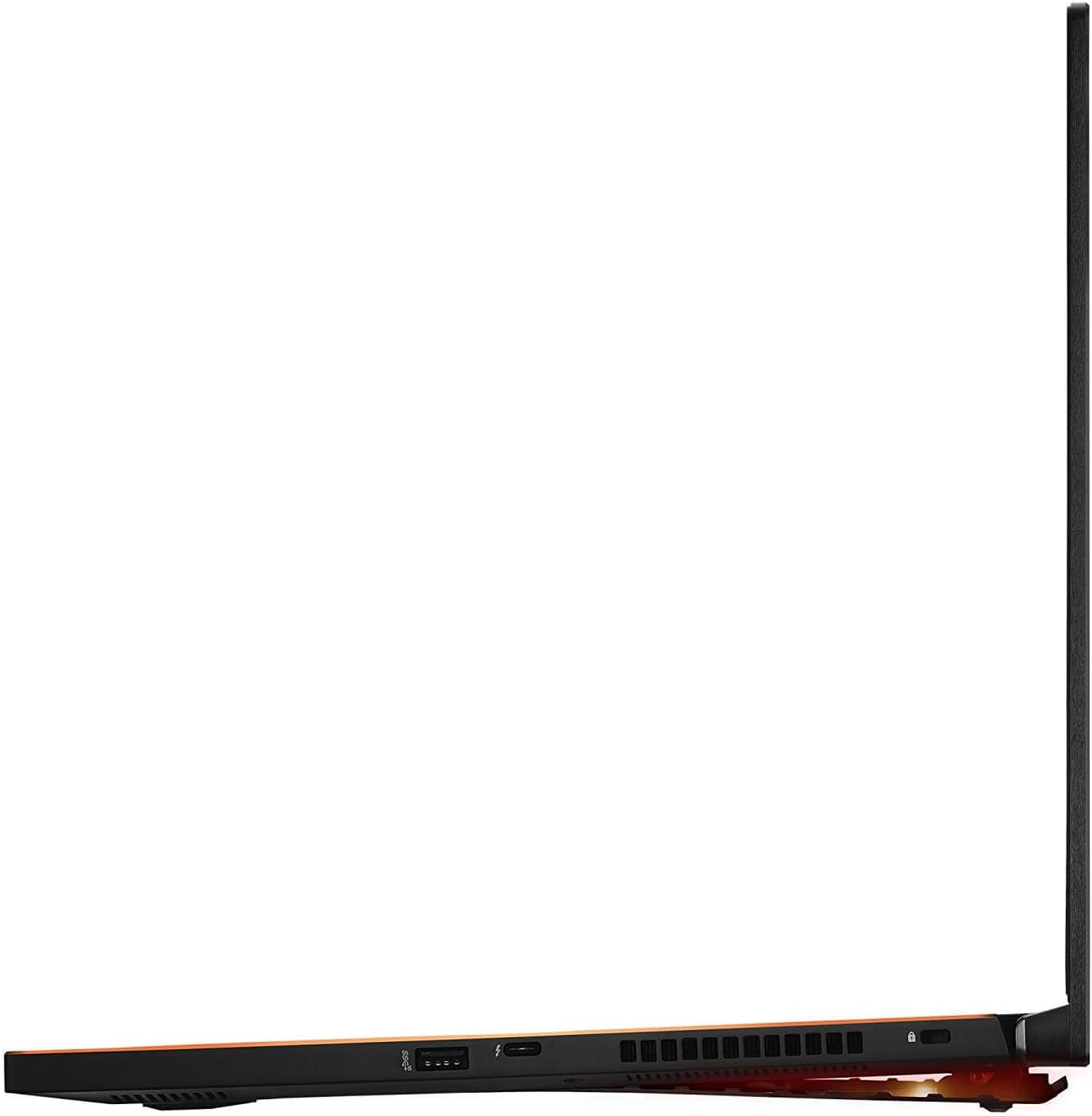
Figure 3.3: Side profile view of the ASUS ROG Zephyrus M GM501GM-WS74, demonstrating its ultra-slim chassis and available ports.
3.2. Key Features
- Processor: Intel Core i7-8750H six-core processor (2.2GHz - 4.1GHz) for powerful multitasking and gaming.
- Graphics: NVIDIA GeForce GTX 1060 with 6GB GDDR5 VRAM for high-fidelity gaming.
- Display: 15.6-inch Full HD (1920 x 1080) 144Hz IPS-Type G-SYNC matte display with 3ms response time for smooth, tear-free visuals.
- Memory: 16GB DDR4 2666MHz RAM.
- Storage: Fast 256GB NVMe PCIe SSD for the operating system and critical applications, complemented by a 1TB FireCuda SSHD for additional storage.
- Keyboard: ASUS Aura Sync customizable RGB Gaming Keyboard with 1.7mm key travel.
- Connectivity: Gigabit Ethernet LAN, Intel 9560 Gigabit Wi-Fi, Bluetooth 4.2.
- Ports: 4x USB 3.1 Type-A (Gen2), 1x USB 3.1 Type-C (Gen2) with Thunderbolt support, 1x HDMI, 1x Headphone/Microphone combo jack.
- Operating System: Microsoft Windows 10 (64-bit).
3.3. Advanced Cooling System
The Zephyrus M GM501GM-WS74 incorporates the Active Aerodynamic System (AAS) and Anti-Dust Tunnels to maintain optimal performance during intense gaming sessions.

Figure 3.4: Illustration of the Active Aerodynamic System (AAS) which opens a vent at the bottom of the laptop when the lid is lifted, improving airflow.

Figure 3.5: Diagram illustrating the Anti-Dust Tunnel design, which helps to expel dust particles from the cooling system, maintaining efficiency.
4. Setup
4.1. Initial Power-On
- Connect Power Adapter: Plug the power adapter into the laptop's power input port and then into a wall outlet. Ensure the power adapter is securely connected.
- Open the Display Panel: Carefully lift the display panel. The Active Aerodynamic System (AAS) will automatically open the bottom vent.
- Power On: Press the power button, typically located on the top right side of the keyboard deck.
- Windows Setup: Follow the on-screen instructions to complete the initial Windows 10 setup, including language, region, network connection, and user account creation.
4.2. Connecting Peripherals
Your laptop offers various ports for connecting external devices:
- USB Devices: Connect mice, keyboards, external storage, or other USB accessories to the USB Type-A or Type-C ports.
- External Display: Use the HDMI port to connect an external monitor or TV.
- Audio Devices: Plug headphones or external speakers into the 3.5mm headphone/microphone combo jack.
- Network: For a wired internet connection, connect an Ethernet cable to the Gigabit Ethernet LAN port.

Figure 4.1: Overview of the various input/output ports available on the ASUS ROG Zephyrus M laptop for connecting peripherals.
5. Operating
5.1. Power Management
- Power On: Press the power button.
- Shut Down: Click the Windows Start button, then Power > Shut down.
- Sleep Mode: Click the Windows Start button, then Power > Sleep, or close the laptop lid.
- Restart: Click the Windows Start button, then Power > Restart.
5.2. Keyboard Functions
The ASUS ROG Zephyrus M features an RGB backlit keyboard with customizable lighting via ASUS Aura Sync software and dedicated function keys.

Figure 5.1: Close-up view of the ASUS AURA RGB Gaming Keyboard, showcasing its customizable backlighting.
- Function Keys (Fn): Hold the Fn key and press the corresponding F-key (F1-F12) for special functions such as adjusting brightness, volume, or toggling Wi-Fi.
- Aura Sync: Use the pre-installed ASUS Aura Sync software to customize keyboard backlighting effects and colors.
5.3. Display Settings
Your laptop features a 144Hz G-SYNC display for a smooth gaming experience.
- Refresh Rate: The 144Hz refresh rate is automatically enabled for compatible applications. You can verify or adjust this in Windows Display Settings.
- G-SYNC: NVIDIA G-SYNC technology synchronizes the display's refresh rate with the GPU's frame rate to eliminate screen tearing and minimize stuttering. Ensure G-SYNC is enabled in the NVIDIA Control Panel.
- Graphics Modes: The laptop supports both Discrete Graphics Mode (for maximum performance using the NVIDIA GPU) and Optimus Mode (for power efficiency by switching between integrated and discrete graphics). These modes can typically be configured via the NVIDIA Control Panel or ASUS software.

Figure 5.2: Explanation of Discrete Graphics Mode, where the dedicated NVIDIA GPU is always active for maximum performance.

Figure 5.3: Explanation of Optimus Mode, which intelligently switches between integrated and dedicated graphics for optimal power efficiency and performance.
5.4. Audio
The laptop features onboard speakers for audio output. For a more immersive experience, connect external headphones or speakers.

Figure 5.4: Detail of the onboard speakers, designed to provide clear audio.
5.5. Wireless Connectivity
The laptop supports Intel 9560 Gigabit Wi-Fi and Bluetooth 4.2.
- Wi-Fi: Connect to wireless networks via Windows network settings.
- Bluetooth: Pair Bluetooth devices such as headphones, mice, or game controllers through Windows Bluetooth settings.

Figure 5.5: Representation of the Gigabit Wave 2 802.11ac WiFi capability for high-speed wireless connectivity.
6. Maintenance
6.1. Cleaning
- Screen: Use a soft, lint-free cloth lightly dampened with water or a screen cleaner. Avoid harsh chemicals.
- Keyboard and Chassis: Use a soft cloth to wipe surfaces. For dust in crevices, use compressed air.
- Vents: Regularly check and clean the cooling vents to prevent dust buildup, which can impede airflow and cause overheating. The Anti-Dust Tunnel system helps, but periodic external cleaning is still recommended.
6.2. Battery Care
- Avoid fully discharging the battery frequently.
- If storing the laptop for an extended period, charge the battery to approximately 50-60% and store in a cool, dry place.
- Use only the original ASUS power adapter.
6.3. Software Updates
- Operating System: Keep Windows 10 updated through Windows Update.
- Drivers: Regularly check the ASUS support website for the latest drivers for your model (e.g., graphics drivers, chipset drivers). NVIDIA graphics drivers should also be updated regularly via GeForce Experience or NVIDIA's website.
- ASUS Utilities: Keep ASUS-specific software (like Aura Sync, Armoury Crate if applicable) updated for optimal functionality.
6.4. Storage Management
- SSD: Avoid defragmenting the SSD. Ensure sufficient free space for optimal performance.
- HDD: Periodically defragment the 1TB FireCuda SSHD if necessary, though modern Windows versions often manage this automatically.
- Backup: Regularly back up important data to an external drive or cloud storage.
7. Troubleshooting
This section addresses common issues you might encounter with your laptop.
7.1. Power and Boot Issues
- Laptop does not power on: Ensure the power adapter is securely connected and the wall outlet is functional. Try a different outlet. If the battery is completely drained, it may take a few minutes of charging before the laptop can power on.
- Laptop powers on but no display: Connect an external monitor to check if the issue is with the laptop's display. Try restarting the laptop.
7.2. Display Issues
- Screen tearing or stuttering: Ensure G-SYNC is enabled in the NVIDIA Control Panel. Update your graphics drivers.
- Dim display: Adjust screen brightness using the function keys or Windows display settings.
7.3. Keyboard and Touchpad Issues
- Keyboard not responding: Restart the laptop. Ensure all drivers, especially for the keyboard and ASUS utilities (like Aura Sync), are up to date.
- Touchpad not working: Ensure the touchpad is not disabled via a function key (e.g., Fn + F10) or in Windows settings. Update touchpad drivers.
7.4. Performance Issues
- Slow performance: Close unnecessary background applications. Check for malware. Ensure sufficient free space on the SSD. Update drivers.
- Overheating and loud fans: Ensure cooling vents are clear of obstructions. Clean dust from vents. Consider using a cooling pad. Ensure the laptop is on a hard, flat surface to allow proper airflow through the AAS vent.
7.5. Audio Issues
- No sound: Check volume levels in Windows and ensure speakers/headphones are properly connected. Update audio drivers.
If you encounter persistent issues not resolved by these steps, please refer to the Warranty and Support section for further assistance.
8. Specifications
Below are the detailed technical specifications for the ASUS ROG Zephyrus M GM501GM-WS74 laptop:
| Feature | Specification |
|---|---|
| Brand | ASUS |
| Model Name | GM501GM-WS74 |
| Screen Size | 15.6 Inches |
| Display Resolution Maximum | 1920x1080 Pixels (Full HD) |
| Refresh Rate | 144 Hz |
| CPU Model | Intel Core i7-8750H |
| Processor Speed | 2.2 GHz (up to 4.1 GHz Turbo) |
| Graphics Coprocessor | NVIDIA GeForce GTX 1060 (6GB GDDR5) |
| RAM Memory Installed Size | 16 GB DDR4 2666MHz |
| Hard Disk Size | 256GB NVMe PCIe SSD + 1TB FireCuda SSHD |
| Operating System | Windows 10 Pro (64-bit) |
| Wireless Technology | 802.11ac Wi-Fi, Bluetooth 4.2 |
| Ports | 4x USB 3.1 Type-A (Gen2), 1x USB 3.1 Type-C (Gen2) with Thunderbolt, 1x HDMI, 1x Headphone/Microphone Combo |
| Keyboard | ASUS Aura Sync customizable RGB Gaming Keyboard |
| Item Weight | 0.77 Pounds (Note: This weight seems incorrect for a laptop, typically refers to shipping weight or a component. Actual laptop weight is usually around 5-6 lbs.) |
| Color | Black |
9. Warranty and Support
9.1. Product Warranty
Your ASUS ROG Zephyrus M GM501GM-WS74 laptop comes with a 1-year limited warranty from the date of purchase. This warranty covers manufacturing defects and hardware failures under normal use conditions. Please retain your proof of purchase for warranty claims.
For detailed terms and conditions of your warranty, please refer to the warranty card included with your product or visit the official ASUS support website.
9.2. Technical Support
If you require technical assistance, have questions about your product, or need to initiate a warranty claim, please contact ASUS customer support. You can typically find support contact information, FAQs, and driver downloads on the official ASUS website:
- ASUS Support Website: www.asus.com/support/
- Online Resources: The ASUS support website provides drivers, manuals, FAQs, and troubleshooting guides specific to your model.
When contacting support, please have your laptop's serial number and proof of purchase readily available.