
1. Introduction
The ADESSO iMouse M20B is a wireless ergonomic optical mouse designed to provide comfort and efficiency for extended use. It utilizes 2.4 GHz RF wireless technology, offering a reliable connection up to 30 feet. Key features include adjustable DPI settings for precise control and convenient internet navigational buttons.
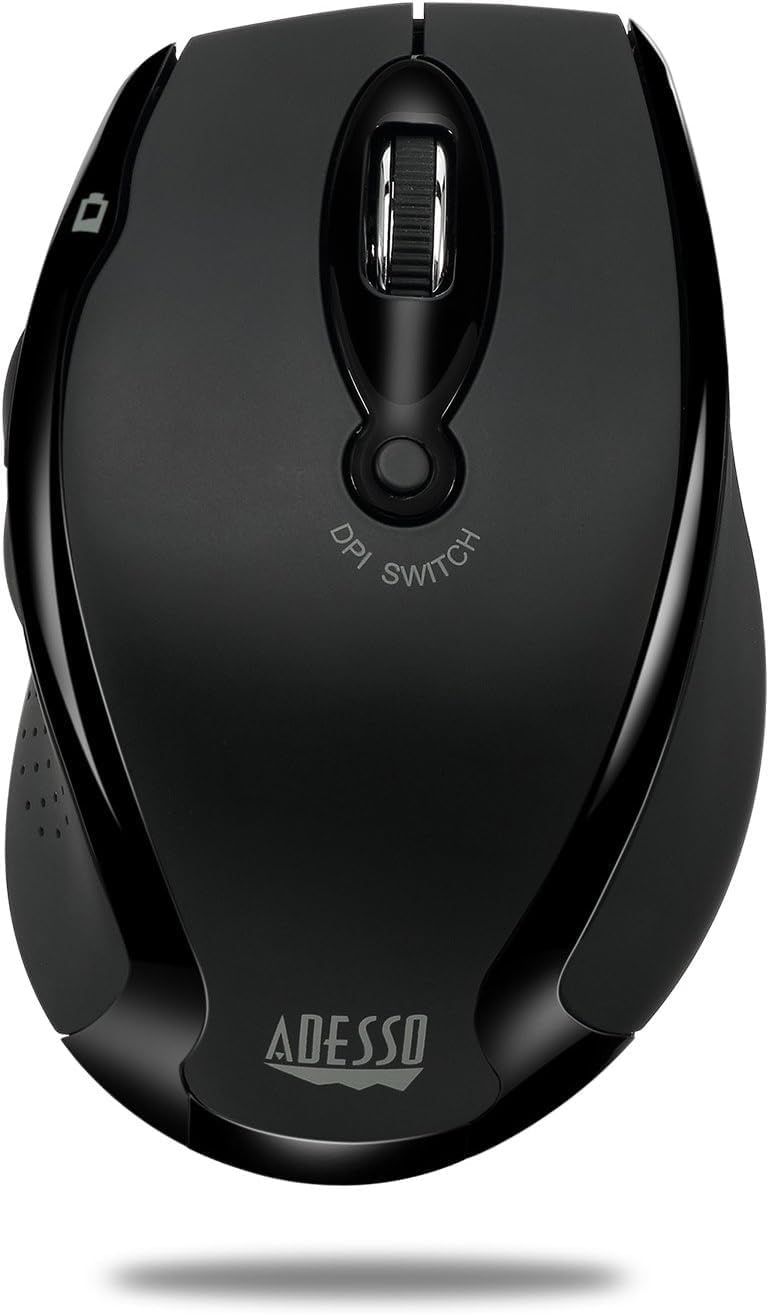
Figure 1: Top view of the iMouse M20B Wireless Ergonomic Optical Mouse.
2. Package Contents
Ensure all items are present in your package:
- Adesso iMouse M20B - Wireless Ergonomic Optical Mouse
- USB Receiver (stored inside the mouse)
- 1 x AA Battery (pre-installed or included)
3. Product Overview
Familiarize yourself with the various components and functions of your iMouse M20B.

Figure 2: Diagram illustrating the adjustable DPI switch on the iMouse M20B.

Figure 3: Side view of the iMouse M20B, highlighting the internet navigational buttons.
4. Setup Guide
4.1. Installing Batteries
- Locate the battery compartment cover on the underside of the mouse.
- Slide the cover open.
- Insert one AA battery, ensuring correct polarity (+/-).
- Replace the battery compartment cover.

Figure 4: The underside of the iMouse M20B, showing the battery compartment and the storage slot for the USB receiver.
4.2. Connecting the USB Receiver
- Locate the USB receiver, typically stored inside the battery compartment of the mouse.
- Remove the receiver from its storage slot.
- Plug the USB receiver into an available USB port on your computer.
- Turn on the mouse using the power switch located on the underside.
- Your computer should automatically detect and install the necessary drivers. The mouse is compatible with Windows® 8/ 7/ Vista/ XP.
5. Operating Instructions
5.1. Adjusting DPI Resolution
The iMouse M20B features an adjustable DPI switch, allowing you to change cursor sensitivity on the fly. This is useful for tasks requiring different levels of precision.
- Locate the DPI switch button on the top of the mouse, just below the scroll wheel.
- Press the button to cycle through the available DPI settings: 800, 1200, and 1600 DPI.
- Select the DPI setting that best suits your current task.
5.2. Using Internet Navigational Buttons
Two dedicated buttons on the left side of the mouse provide quick access to browser navigation.
- The forward button advances to the next page in your browser history.
- The backward button returns to the previous page in your browser history.
5.3. Power Management
To conserve battery life, the iMouse M20B includes a power on/off switch.
- When not in use for an extended period, slide the power switch on the mouse base to the 'OFF' position.
- Slide the switch to the 'ON' position to resume operation.

Figure 5: Illustration of the battery-saving on/off power switch.
6. Ergonomic Design
The iMouse M20B features an ergonomic design crafted to provide a comfortable grip, reducing hand strain during prolonged use and offering enhanced cursor control.

Figure 6: A hand comfortably gripping the iMouse M20B, showcasing its ergonomic form.
7. Maintenance
7.1. Cleaning
To maintain optimal performance, periodically clean your mouse:
- Use a soft, lint-free cloth slightly dampened with water or a mild cleaning solution.
- Wipe the surface of the mouse gently.
- Avoid using harsh chemicals or abrasive materials.
- Ensure no liquid enters the mouse's internal components.
7.2. Battery Replacement
When the mouse's performance degrades or the low battery indicator (if present) illuminates, replace the battery:
- Follow the steps in Section 4.1 to open the battery compartment.
- Remove the old AA battery.
- Insert a new AA battery, observing correct polarity.
- Close the battery compartment.
8. Troubleshooting
If you encounter issues with your iMouse M20B, try the following solutions:
| Problem | Possible Solution |
|---|---|
| Mouse not responding |
|
| Erratic cursor movement |
|
| Short wireless range |
|
9. Product Specifications
| Feature | Specification |
|---|---|
| Brand | ADESSO |
| Model Number | IMOUSE_M20B |
| Connectivity Technology | 2.4 GHz RF Wireless |
| Movement Detection Technology | Optical |
| DPI Resolution | 800 / 1200 / 1600 (Adjustable) |
| Special Feature | Ergonomic Design |
| Color | Black |
| Item Weight | 3.2 ounces |
| Product Dimensions (LxWxH) | 2.9 x 4.5 x 1.5 inches |
| Power Source | Battery Powered (1 Lithium Ion battery required, included) |
| Operating System Compatibility | Windows® 8/ 7/ Vista/ XP |
| Manufacturer | AdessoInc. |
| Country of Origin | China |
10. Warranty and Support
For warranty information and technical support, please refer to the official ADESSO website or contact their customer service directly. Keep your purchase receipt for warranty claims.
10.1. Legal Disclaimer
This product contains chemicals known to the State of California to cause cancer and birth defects or other reproductive harm.