
1. Introduction
Thank you for choosing the BN-LINK WiFi Heavy Duty Smart Plug Outlet. This device allows you to control your electronic appliances from anywhere using your smartphone or voice commands. It is compatible with Amazon Alexa and Google Assistant, offering convenience and energy management for your home. This manual provides detailed instructions for setup, operation, and maintenance to ensure optimal performance and safety.

Image: Two BN-LINK WiFi Heavy Duty Smart Plug Outlets, showing their compact design and power button with a blue LED indicator.
2. Product Features
- Voice Control: Seamless integration with Amazon Alexa and Google Assistant for hands-free operation.
- Remote Control: Manage connected devices from anywhere using the BN-LINK Smart app or Smart Life app on your smartphone.
- Smart Scheduling: Program devices to automatically turn on or off at specific times, including timer and countdown functions.
- Group Control & Sharing: Organize multiple smart plugs into groups and share control with family members.
- Easy Setup: Connects directly to your 2.4GHz Wi-Fi network without requiring a separate hub.
- Heavy Duty & Safe: ETL certified, rated for 15 Amps, 125 Volts, and 1875 Watts, featuring a fire-resistant shell and premium internal components.

Image: A diagram illustrating the key features of the smart plug, including LED indicator, ON/OFF button, Wi-Fi control, timer & countdown, app control, and voice control.
3. Package Contents
- BN-LINK WiFi Heavy Duty Smart Plug Outlet (2 units)
- User Manual (this document)
4. Specifications
| Feature | Detail |
|---|---|
| Model Number | BNC-60/U133T |
| Current Rating | 15 Amps |
| Operating Voltage | 125 Volts |
| Wattage | 1875 Watts |
| Connectivity Protocol | Wi-Fi (2.4 GHz only) |
| Control Method | App, Voice (Amazon Alexa, Google Assistant) |
| Dimensions (L x W x H) | 3 x 2 x 2 inches |
| Item Weight | 6.4 ounces |
| Color | White |
| Certifications | ETL Certified |
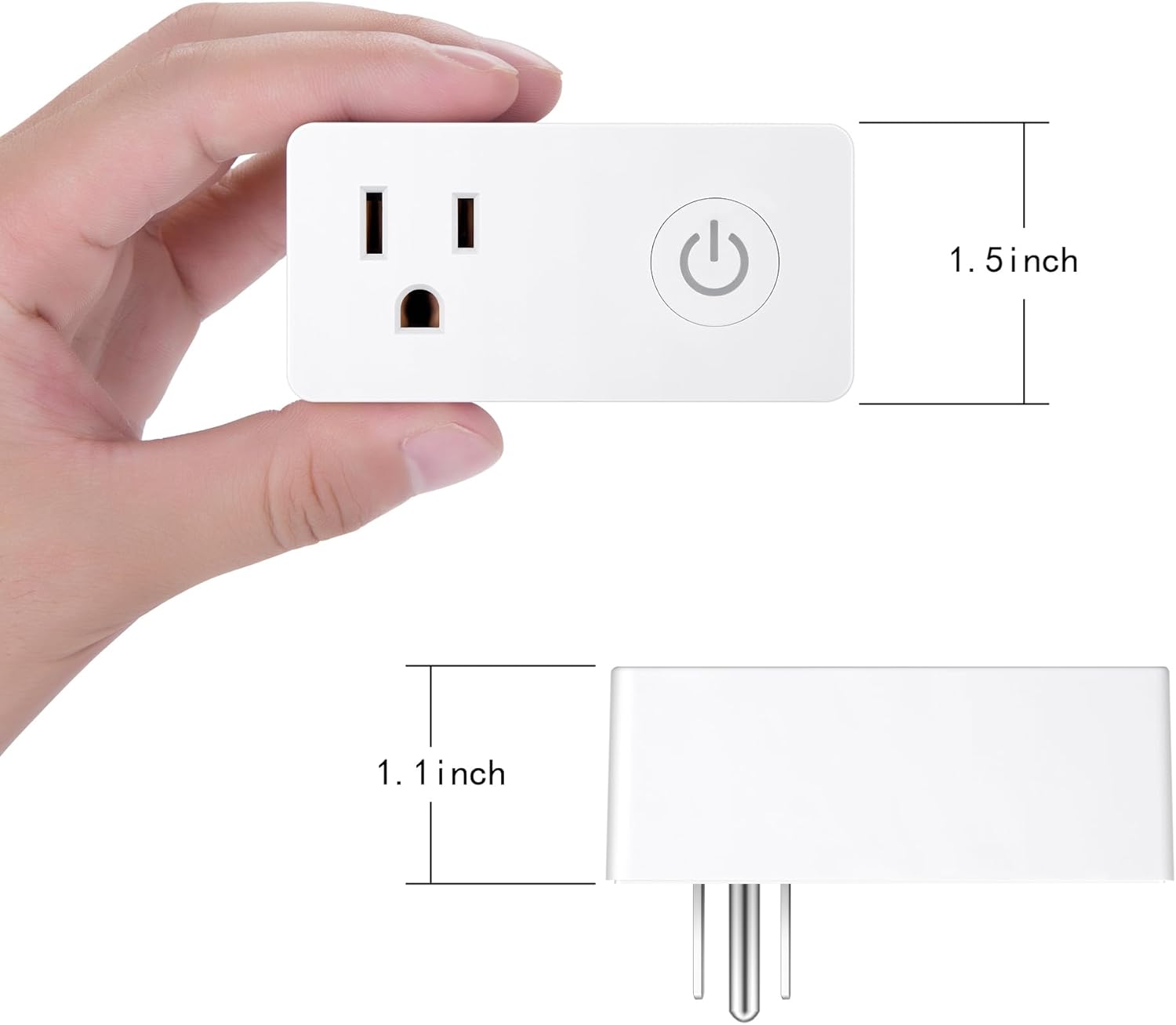
Image: A diagram showing the physical dimensions of the BN-LINK Smart Plug, indicating a length of 3 inches, width of 2 inches, and height of 2 inches.

Image: An exploded view of the smart plug, highlighting its internal components such as the fire-resistant shell, superior phosphor bronze contacts, premium PCBA, and power plug pins.
5. Important Safety Information
- For indoor use only. Do not expose to moisture or extreme temperatures.
- Do not exceed the maximum load rating of 15A, 125V, 1875W.
- Ensure the smart plug is fully inserted into the wall outlet.
- Do not disassemble or modify the device.
- Keep out of reach of children.
- Unplug the device from the outlet before cleaning.
- If the device appears damaged, discontinue use immediately.
6. Setup Guide
Follow these steps to set up your BN-LINK Smart Plug:
- Download the App: Search for "BN-LINK Smart" or "Smart Life" in the Apple App Store or Google Play Store and download the app.
- Register/Log In: Open the app and register for a new account or log in with an existing one.
- Plug In the Smart Plug: Insert the BN-LINK Smart Plug into a standard wall outlet. The indicator light on the plug should start blinking rapidly. If it does not, press and hold the power button on the plug for about 5-10 seconds until it blinks rapidly.
- Add Device in App:
- In the app, tap the "+" icon in the top right corner to add a device.
- Select "Electrical Outlet" or "Smart Plug" from the device list.
- Confirm that the indicator light on the smart plug is blinking rapidly.
- Enter your 2.4GHz Wi-Fi network name and password. (Note: The smart plug only supports 2.4GHz Wi-Fi networks. If you have a dual-band router, ensure your phone is connected to the 2.4GHz network during setup.)
- The app will begin connecting to the device. Once connected, you can rename your smart plug for easier identification (e.g., "Living Room Lamp," "Coffee Maker").
- Connect with Voice Assistants (Optional):
To connect with Amazon Alexa or Google Assistant:
- Open the BN-LINK Smart app.
- Navigate to the device settings for your smart plug.
- Look for options like "Third-party Control" or "Alexa/Google Assistant."
- Follow the in-app instructions to link your BN-LINK Smart account with your Alexa or Google Home account. This typically involves signing in to your Amazon or Google account within the BN-LINK app or enabling the "BN-LINK Smart" skill/action in the Alexa/Google Home app.

Image: A visual guide demonstrating the steps to connect the smart plug with Amazon Alexa using the BN-LINK Smart App, showing app screenshots for adding devices and linking accounts.
7. Operating Instructions
Once your smart plug is set up, you can control it in several ways:
7.1 Manual Control
Press the power button on the side of the smart plug to manually turn the connected device on or off. The LED indicator will show the current status (e.g., blue for ON, off for OFF).
7.2 App Control
Open the BN-LINK Smart app or Smart Life app on your smartphone. From the main screen, you can:
- Turn On/Off: Tap the power icon next to the device name to toggle its power state.
- Set Schedules: Access the device settings to create daily or weekly schedules for automatic power on/off.
- Use Timer/Countdown: Set a countdown timer for the device to turn off after a specified duration, or a timer for it to turn on/off at a specific time.
- Group Devices: Combine multiple smart plugs into a single group to control them simultaneously.
- Share Control: Share access to your smart plugs with other family members through the app.

Image: A series of screenshots from the BN-LINK Smart App, demonstrating various control options such as ON/OFF switch, countdown timer, scheduling, circulate mode, random mode, and home automation setup.

Image: A smartphone screen displaying the BN-LINK Smart App schedule interface, showing options for countdown, schedule, circulate, and random timers, with specific ON/OFF times set for different days.

Image: A BN-LINK Smart Plug connected to a humidifier, illustrating the schedule and timer function for automatic operation to save energy.

Image: A BN-LINK Smart Plug connected to a coffee machine, with a smartphone screen showing the "Add Schedule" interface in the app, allowing users to set specific times and days for the plug to turn on or off.
7.3 Voice Control
After linking your smart plug with Amazon Alexa or Google Assistant, you can use voice commands:
- For Alexa: "Alexa, turn on [device name]," or "Alexa, turn off [device name]."
- For Google Assistant: "Hey Google, turn on [device name]," or "Hey Google, turn off [device name]."

Image: A woman in a laundry room using voice control to command an Amazon Echo device to turn on a coffee machine, demonstrating hands-free operation of the smart plug.
8. Maintenance
- Ensure the smart plug is unplugged from the wall outlet before cleaning.
- Wipe the exterior with a soft, dry cloth. Do not use liquid cleaners or aerosols.
- Avoid exposing the smart plug to excessive dust or dirt.
9. Troubleshooting
| Problem | Possible Solution |
|---|---|
| Smart plug cannot connect to Wi-Fi. |
|
| Voice control is not working. |
|
| Smart plug is unresponsive. |
|
| Schedules or timers are not activating. |
|
10. Warranty and Support
BN-LINK products are designed with quality and reliability in mind. For warranty information or technical support, please refer to the official BN-LINK website or contact their customer service directly. BN-LINK is committed to providing excellent after-sales service to ensure customer satisfaction.
For further assistance, please visit the BN-LINK Store on Amazon or their official website.


