
DBPOWER PD928
DBPOWER 11.5" Portable DVD Player User Manual
Model: PD928
Introduction
This user manual provides detailed instructions for the operation and maintenance of your DBPOWER 11.5" Portable DVD Player. Please read this manual thoroughly before using the device to ensure proper functionality and longevity. This portable DVD player is designed for versatile entertainment on the go, featuring a swivel screen, long-lasting battery, and multi-format support.
Package Contents
Upon opening the package, please verify that all the following items are included:
- 9" Portable DVD Player
- Remote Control
- DC Adapter
- Car Charger
- 3-in-1 AV Cable
- User Manual

Figure 1: Package Contents
Product Overview and Features
The DBPOWER Portable DVD Player offers a range of features designed for convenience and entertainment:
- High Capacity Built-in Battery: Equipped with a 2500 mAh rechargeable lithium battery, providing approximately 5 hours of video playback. The device supports three power supply options: built-in battery, car charger, and AC power adapter.
- Multimedia Support: Direct playback of various formats including CD, DVD, CD-R/RW, DVD-R/+R, DVD+RW/-RW, VCD, SVCD. It also supports USB drives and SD cards up to 32GB, with compatibility for MP3/WMA/WAV audio, JPEG images, and MPEG2/AVI/DIVX video formats. The player is region-free.

Figure 2: Multiple Media Support
- Swiveling Screen: Features a 9-inch screen with an 800x480 resolution. The screen can rotate 270 degrees and flip 180 degrees, allowing it to be used as a tablet or mounted to a car headrest.

Figure 3: Swivel Screen Functionality
- Dual Speaker & Louder Volume: Integrated with two powerful stereo speakers for clear and loud audio. A 3.5mm earphone jack is also available for private listening.
- Last Memory & Remote Control: The break-point memory function allows the player to resume playback from where it was last stopped. A remote control is included for convenient operation.
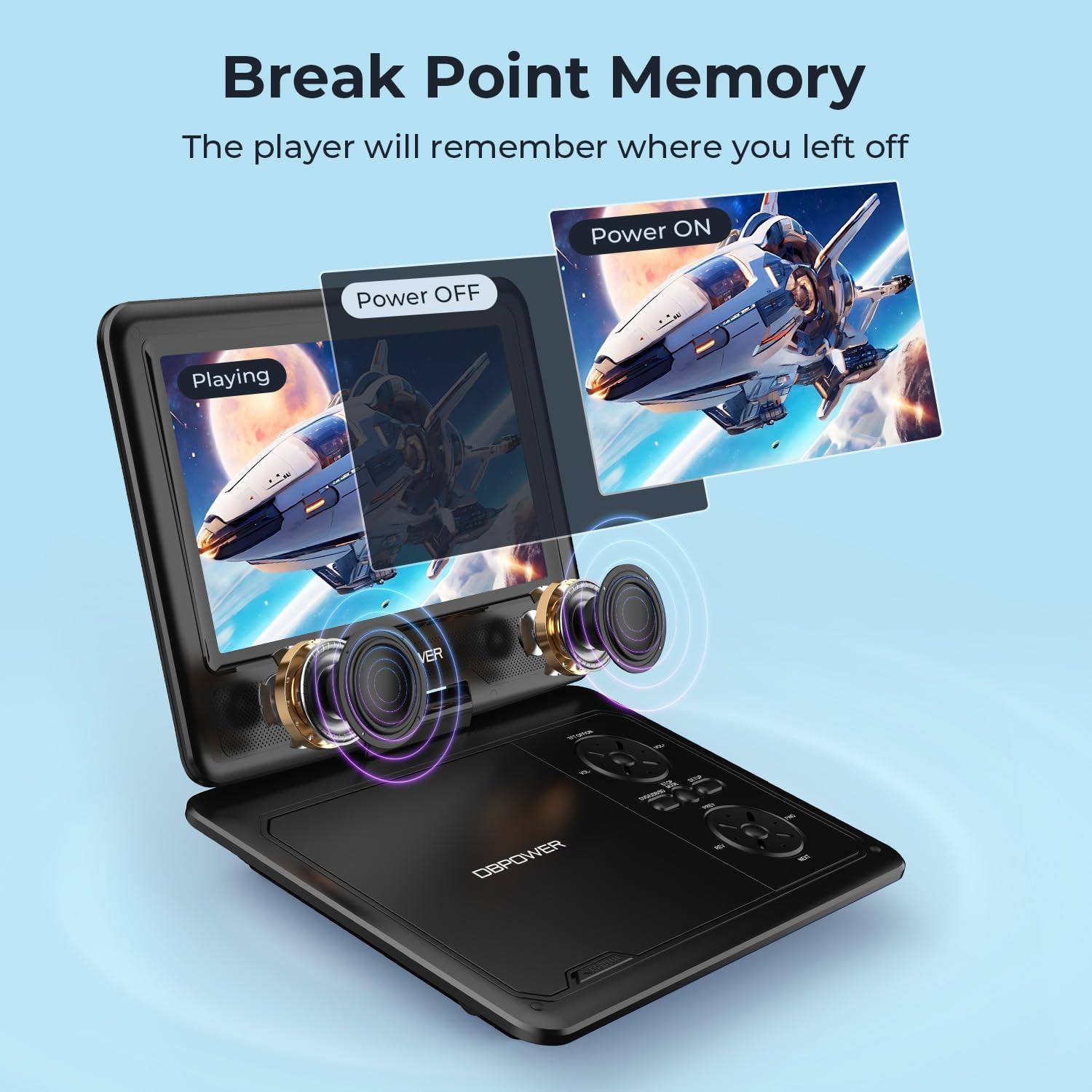
Figure 4: Last Memory Function

Figure 5: DBPOWER 11.5" Portable DVD Player
Setup
- Charging the Battery: Before first use, fully charge the built-in 2500 mAh lithium battery using the provided AC power adapter or car charger. The charging indicator light will typically change color or turn off when fully charged.
- Inserting a Disc: Gently open the disc cover. Place a compatible DVD or CD onto the spindle, ensuring it clicks into place. Close the disc cover firmly.
- Powering On: Locate the ON/OFF switch, usually on the side or back of the unit, and slide it to the 'ON' position. The screen should power on.
- Connecting to External Devices (Optional):
- To a TV: Use the included 3-in-1 AV cable. Connect the yellow plug to the video input of your TV, and the red/white plugs to the audio inputs. Connect the other end to the AV OUT port on the DVD player. Select the corresponding AV input on your TV.

Figure 6: Connecting to a TV
- USB/SD Card: Insert a USB flash drive into the USB port or an SD card into the SD card slot. The player will typically detect the media automatically.
- To a TV: Use the included 3-in-1 AV cable. Connect the yellow plug to the video input of your TV, and the red/white plugs to the audio inputs. Connect the other end to the AV OUT port on the DVD player. Select the corresponding AV input on your TV.
Operating Instructions
- Basic Playback: After inserting a disc or media, the player will usually begin playback automatically. Use the Play/Pause, Stop, Fast Forward, and Rewind buttons on the player or remote control to manage playback.
- Volume Control: Adjust the volume using the dedicated volume buttons on the player or the remote control.
- Screen Adjustment: The 9-inch screen can be swiveled up to 270 degrees and flipped 180 degrees for optimal viewing angles.
- Menu Navigation: Use the directional buttons and OK/Enter button on the player or remote to navigate disc menus or media files.
- Last Memory Function: To enable this feature, navigate to the SETUP page in the player's menu and set "Last Memory" to "ON". This allows the player to resume from the last played position after being turned off.
- Car Use: The player can be mounted to a car headrest using a compatible mount (not explicitly stated as included, but implied by feature bullets). Use the car charger for continuous power during long trips.
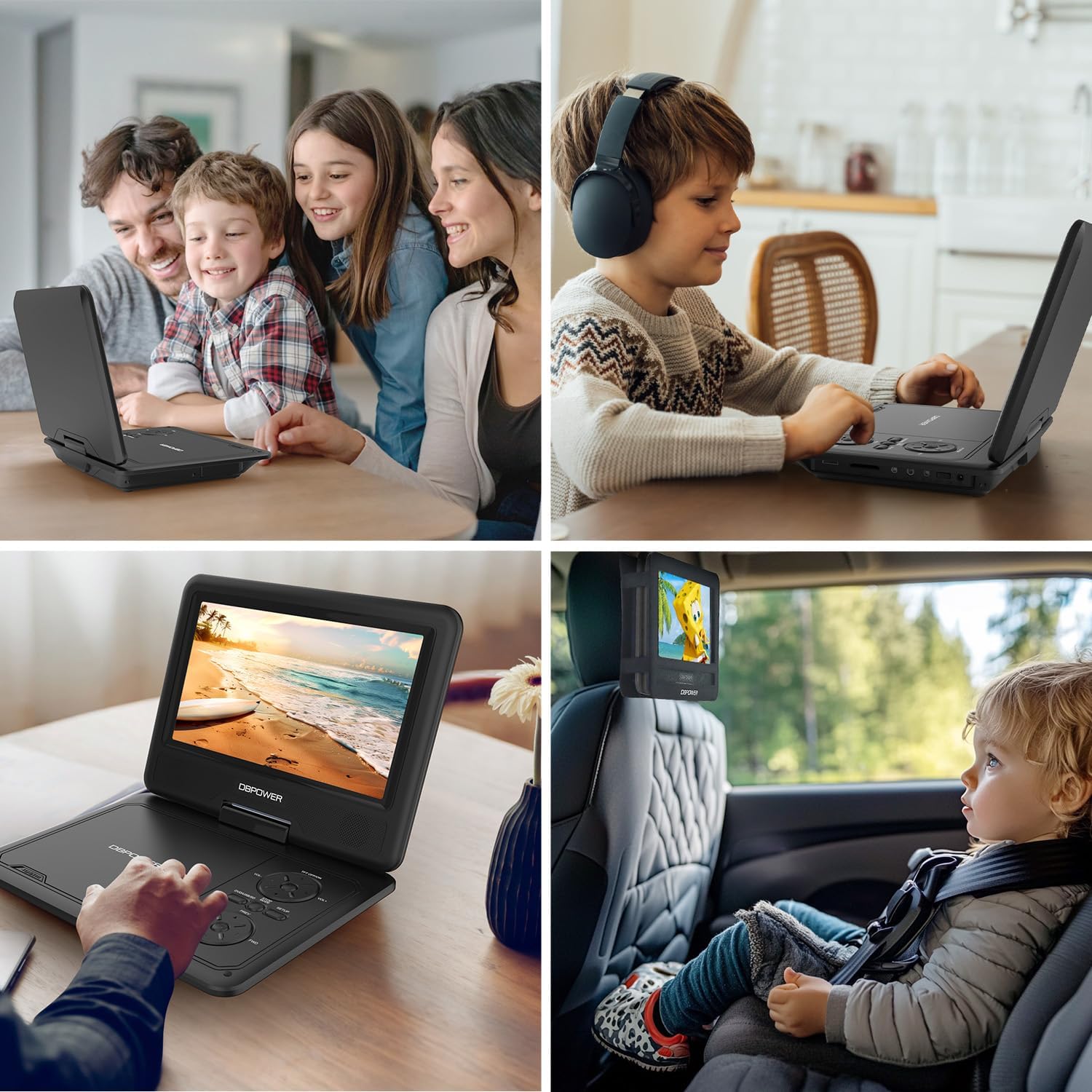
Figure 7: Usage Scenarios
Maintenance
- Cleaning: Use a soft, dry cloth to clean the exterior of the player. For the screen, use a screen-specific cleaning solution and a microfiber cloth. Do not use abrasive cleaners or solvents.
- Disc Care: Handle discs by their edges. Keep them clean and free of scratches. Store discs in their cases when not in use.
- Storage: When not in use for extended periods, store the player in a cool, dry place, away from direct sunlight and extreme temperatures. Ensure the screen is closed for protection.
- Battery Care: To prolong battery life, avoid fully discharging the battery frequently. Recharge the battery regularly, even if the player is not in frequent use.
Troubleshooting
| Problem | Possible Cause | Solution |
|---|---|---|
| Player does not power on. | Battery is depleted or power adapter is not connected properly. | Connect the AC adapter or car charger and allow the battery to charge. Ensure the power switch is in the 'ON' position. |
| No disc detected / "NO DVD" message. | Disc is dirty, scratched, or incompatible format. Disc not inserted correctly. | Clean the disc with a soft cloth. Try a different disc. Ensure the disc is placed correctly on the spindle. Verify disc format compatibility (no Blu-ray). |
| No picture on TV. | AV cable not connected properly or incorrect TV input selected. | Check AV cable connections on both the player and TV. Select the correct AV input channel on your TV. |
| No sound. | Volume too low, mute activated, or external speakers/headphones not connected properly. | Increase volume. Check if mute is active. Ensure headphones or external speakers are properly connected to the 3.5mm jack. |
| Remote control not working. | Batteries are dead or remote is not aimed correctly. | Replace remote control batteries. Ensure there are no obstructions between the remote and the player's IR receiver. |
Specifications
- Product Dimensions: 15.94 x 13.58 x 2.95 inches
- Item Weight: 1.94 pounds
- Manufacturer: DBPOWER
- Model Number: PD928
- Batteries: 1 Lithium Metal battery (included)
- Screen Size: 9 Inches
- Display Type: LCD
- Supported Media Types: CD, DVD, CD-R/RW, DVD-R/+R, DVD+RW/-RW, VCD, SVCD, USB, SD Card
- Supported Audio Formats: MP3/WMA/WAV
- Supported Video Formats: MPEG2/AVI/DIVX
- Supported Image Formats: JPEG
- Color: Black
Warranty and Support
DBPOWER is committed to providing excellent customer service and support for its products. For any inquiries or assistance, please refer to the following:
- Customer Service: Available 24 hours.
- Exchange & Return: 12 Months policy.
- Technical Support: 12 Months of technical support.
Please retain your proof of purchase for warranty claims. For more detailed support or to contact customer service, please visit the official DBPOWER website or refer to the contact information provided in the included user manual.
Related documentsPD928


Ask a question about this manual
Ask about setup, troubleshooting, compatibility, parts, safety, or missing instructions. Manuals+ will review the question and use this page’s manual context to help answer it.