
1. Introduction and Overview
The PNY Duo Link USB 3.1 Type-C OTG Flash Drive is designed to expand storage for Android smartphones, tablets, and computers. It features both USB Type-C and USB Type-A connectors, allowing for versatile data transfer. With transfer speeds up to 130MB/s, it facilitates quick movement of photos, videos, and other files. Its sliding design protects the connectors when not in use, ensuring durability and convenience.
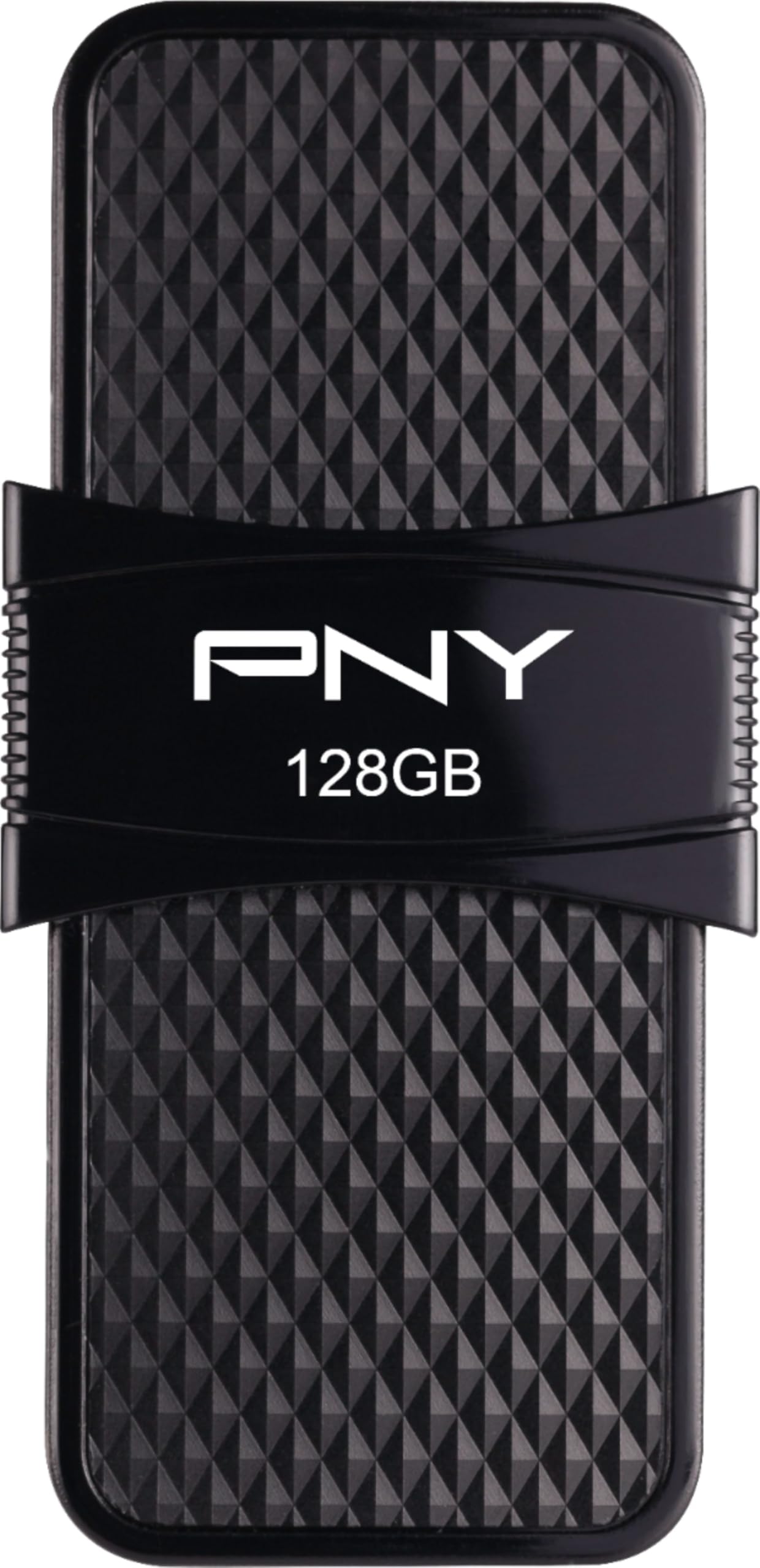
Image 1.1: The PNY Duo Link USB 3.1 Type-C OTG Flash Drive, showcasing its compact design.
2. Key Features
- Storage Expansion: Free up space on your Android smartphone and tablet by transferring videos, photos, and more.
- Dual Connectivity: Features a USB Type-C 3.1 connector compatible with the latest Android smartphones and tablets, and a USB Type-A 3.1 connector compatible with PC and Mac computers, laptops, Ultrabooks, printers, and more.
- High-Speed Transfers: Achieve transfer speeds of up to 130MB/s, reducing waiting times for file transfers.
- Protective Design: Sliding mechanism protects both Type-C and Type-A connectors when not in use.

Image 2.1: The PNY Duo Link's two-in-one design, highlighting both USB Type-C and Type-A connectors.
3. Setup
To use the PNY Duo Link Flash Drive, slide the housing to reveal either the USB Type-C or USB Type-A connector. Connect the appropriate connector to your device.
3.1 Connecting to Android Devices
- Ensure your Android smartphone or tablet supports USB On-The-Go (OTG) functionality. This feature allows your device to act as a host for USB peripherals.
- Slide the drive to expose the USB Type-C connector.
- Insert the USB Type-C connector into your Android device's charging/data port.
- Your device should recognize the drive as external storage. You may receive a notification or see the drive listed in your device's file manager app.
3.2 Connecting to Computers
- Slide the drive to expose the USB Type-A connector.
- Insert the USB Type-A connector into an available USB port on your PC or Mac computer. For optimal performance, use a USB 3.0/3.1 port.
- The drive will appear as a removable storage device in 'This PC' (Windows) or 'Finder' (Mac).
4. Operating Instructions
4.1 Transferring Files to Duo Link
- Connect the Duo Link to your device (Android or computer) as described in the Setup section.
- On Android: Open a file manager app (e.g., 'Files by Google', 'My Files'). Navigate to your device's internal storage or SD card. Select the photos, videos, or other files you wish to transfer. Use the 'Copy' or 'Move' option and select the Duo Link drive as the destination.
- On a Computer: Open 'This PC' (Windows) or 'Finder' (Mac). Locate the files on your computer you wish to transfer. Drag and drop the selected files into the Duo Link drive folder.
4.2 Accessing Files from Duo Link
- Connect the Duo Link to your device.
- On Android: Open your file manager app and navigate to the Duo Link drive to view, open, or stream its contents.
- On a Computer: Open 'This PC' (Windows) or 'Finder' (Mac) and click on the Duo Link drive to access its contents.

Image 4.1: Accessing and streaming media directly from the Duo Link on a tablet.
4.3 Safely Removing the Drive
Always safely eject or unmount the drive from your device's operating system before physically removing it to prevent data corruption or loss.
- On Windows: Click the 'Safely Remove Hardware and Eject Media' icon in the taskbar, then select the Duo Link drive.
- On Mac: Drag the Duo Link drive icon to the Trash, or right-click (Control-click) the drive icon and select 'Eject'.
- On Android: Go to 'Settings' > 'Storage' > 'USB Storage' and tap 'Eject' or 'Unmount'. Alternatively, look for an eject option in the notification panel.
Video 4.2: Official product video demonstrating the features and usage of the PNY Duo Link USB 3.1 Type-C OTG Flash Drive.
5. Maintenance
Proper care ensures the longevity and reliable performance of your PNY Duo Link Flash Drive:
- Physical Care: Keep the flash drive clean and free from dust, dirt, and moisture. Use a soft, dry, lint-free cloth for cleaning.
- Environmental Protection: Avoid exposing the drive to extreme temperatures (hot or cold), direct sunlight, or high humidity.
- Connector Protection: Always utilize the sliding mechanism to retract and protect the USB Type-C and Type-A connectors when the drive is not in use or being transported.
- Data Backup: Regularly back up important data stored on the flash drive to another storage medium to prevent data loss in case of unforeseen issues.
6. Troubleshooting
If you encounter issues with your PNY Duo Link Flash Drive, refer to the following common solutions:
6.1 Drive Not Recognized
- Check Connection: Ensure the drive is fully and correctly inserted into the USB port of your device.
- Try Different Port/Device: Test the drive in a different USB port on the same device, or try it on another compatible computer or Android device to rule out a port or device issue.
- USB OTG (Android): For Android devices, verify that your device supports USB OTG. Some devices may require enabling OTG functionality in their settings (e.g., Developer Options or Storage settings).
- Restart Device: Restart your computer or Android device and try connecting the drive again.
6.2 Slow Transfer Speeds
- USB 3.0/3.1 Port: Ensure you are connecting the drive to a USB 3.0 or USB 3.1 compatible port on your computer for optimal speeds. Connecting to a USB 2.0 port will result in slower transfer rates.
- File Type: Transferring many small files typically takes longer than transferring a few large files of the same total size.
- System Resources: Close other applications that might be consuming significant system resources during file transfers.
6.3 Cannot Write Files
- Check Storage Space: Verify that there is sufficient free space on the Duo Link drive. Delete unnecessary files if the drive is full.
- File System: If the drive was formatted on a different operating system (e.g., Mac HFS+ or Linux Ext4), it might have limited write access on Windows. Consider reformatting the drive to a universally compatible file system like exFAT or FAT32 (note: reformatting will erase all data).
- Permissions: Ensure you have the necessary write permissions for the drive on your operating system.
7. Specifications
| Brand | PNY |
| Model Name | Duo Link |
| Model Number | P-FD128OTGSLTC-GE |
| Memory Storage Capacity | 128 GB |
| Hardware Interface | USB Type C, USB Type A |
| Read Speed | Up to 130 Megabytes Per Second |
| Compatible Devices | Laptop, Mobile, Tablet |
| Color | Black |
| Item Weight | 0.02 Pounds |
| UPC | 751492617770 |
8. Warranty Information
The PNY Duo Link USB 3.1 Type-C OTG Flash Drive comes with a 1-year warranty. This warranty covers manufacturing defects and ensures the product meets its specified performance standards under normal use.
For detailed warranty terms and conditions, including coverage specifics, limitations, and how to make a claim, please refer to the official PNY website or contact PNY customer support directly. Keep your proof of purchase for warranty validation.
9. Support
For further assistance, technical support, or additional product information, please utilize the following resources:
- PNY Official Website: Visit the official PNY website for FAQs, driver downloads (if applicable), and comprehensive support documentation.
- Customer Service: Contact PNY customer service for personalized support regarding product issues, warranty claims, or general inquiries.
- PNY Amazon Store: Explore more PNY products and information at the official PNY Amazon Store: PNY Store on Amazon.


