
VSTARCAM C24S
Contents
VSTARCAM 1080P Wireless Pet Camera User Manual
Model: C24S | Brand: VSTARCAM
1. Product Overview
The VSTARCAM 1080P Wireless Pet Camera (Model C24S) is an indoor surveillance camera designed for monitoring pets, babies, or general home security. It features 3MP resolution for clear video, pan and tilt capabilities for wide coverage, two-way audio for communication, and advanced motion detection with night vision.
Key Features:
- 3MP HD Resolution: Provides clear video streams accessible via iOS/Android mobile phones and Windows PC. Supports 2.4GHz Wi-Fi (5GHz Wi-Fi is not supported).
- Pan & Tilt Functionality: Offers a 96° viewing angle with 345° horizontal and 84° vertical rotation for comprehensive coverage.
- Motion Detection & Night Vision: Equipped with 6 infrared LED lights for up to 12-15m night vision. Supports motion detection alarms with app/email alerts.
- Two-Way Audio: Built-in speaker and microphone enable real-time communication with subjects in front of the camera.
- Easy Setup: Simple 3-step setup process for quick installation.

Image: VSTARCAM Pet Camera with a smartphone displaying a live feed of a child and dog.
2. Package Contents
Verify that all items listed below are included in your package:
- VSTARCAM Pet Camera (1)
- Power Adapter (1)
- User Manual (1)
- Set of Screws (1)
- Mounting Bracket (1)

Image: Contents of the VSTARCAM Pet Camera package, showing the camera, power adapter, user manual, screws, and hanging plate.
3. Setup Guide
Follow these steps to set up your VSTARCAM Pet Camera:
- Connect Power: Plug the power adapter into the camera and then into a wall outlet. The camera will power on and initiate its startup sequence.
- Download the O-KAM Pro App: Search for "O-KAM Pro" in your mobile device's app store (Google Play for Android or App Store for iOS) and download the application. Register for an account if you are a new user.
- Add Camera: Open the O-KAM Pro app. Follow the in-app instructions to add a new camera. This typically involves scanning the QR code located on the camera or manually adding the device.
- Connect to Wi-Fi: Within the app, select your 2.4GHz Wi-Fi network and enter the password. The camera will then connect to your home network. Ensure your phone is also connected to the 2.4GHz Wi-Fi during this process.

Image: Visual representation of the 3-step setup process: connecting power, downloading the Eye4 (O-KAM Pro) app, and adding the camera.

Image: Screenshot of the O-KAM Pro app in an app store, along with various devices (tablet, laptop, smartphone) displaying the camera's live feed.
4. Operating Instructions
4.1 Pan & Tilt Control
The camera offers a wide range of motion, allowing you to remotely adjust its viewing angle. Use the controls within the O-KAM Pro app to pan the camera 345° horizontally and tilt it 84° vertically. You can also set up automatic cruise functions.

Image: Diagram illustrating the 345° pan and 84° tilt capabilities of the VSTARCAM camera, with a phone showing the panoramic view.

Image: A hand holding a smartphone displaying the camera's live feed with controls for 360° horizontal and 84° vertical movement, including preset options.
4.2 Two-Way Audio
The camera features a built-in speaker and high-sensitivity microphone, enabling two-way communication. You can speak through the app and hear responses from the camera's location, ideal for interacting with pets, children, or deterring intruders.

Image: A boy interacting with the camera via two-way audio, and a person viewing the live feed on a smartphone.

Image: A baby looking out a window, with a speech bubble indicating a two-way audio message from the camera.
4.3 Motion Detection and Tracking
The camera is equipped with motion detection capabilities. When human movement is detected, the camera can automatically track the position of the person in real-time. Alerts can be sent to your app or email, keeping you informed of activity.

Image: A sequence showing the camera detecting and tracking a person walking across a room.

Image: A baby crawling on the floor, with a green box highlighting the area of detected motion.
4.4 Night Vision
The camera is equipped with 6 infrared LED lights, providing clear night vision up to 12-15 meters. Dual filters automatically switch between day and night modes, ensuring sharp images even in complete darkness.

Image: Split image showing a baby in a well-lit room (Day mode) and a baby sleeping in a dark room (Night mode), demonstrating the camera's night vision capability.

Image: A child sleeping, with an inset showing the black and white night vision view on a smartphone screen.
4.5 Storage Options
The VSTARCAM camera supports two primary methods for storing recorded footage:
- Cloud Service: Optional cloud storage is available, often with a 7-day free trial, requiring a subscription for continued use.
- Micro SD Card: The camera supports local storage via a Micro SD card (not included) up to 256GB. The SD card slot is located underneath the camera.
A privacy mode is also available to temporarily shut down surveillance when desired.

Image: Visual representation of storage options including Cloud Service, Privacy Mode, and Micro SD card, with a filmstrip showing various recorded moments.
4.6 Multi-Device Access & Sharing
Access your camera's live feed and recordings from multiple devices, including iOS and Android smartphones, iPads, and Windows PCs. The O-KAM Pro app also allows you to share camera access with family members or trusted individuals via QR code, with customizable permissions.
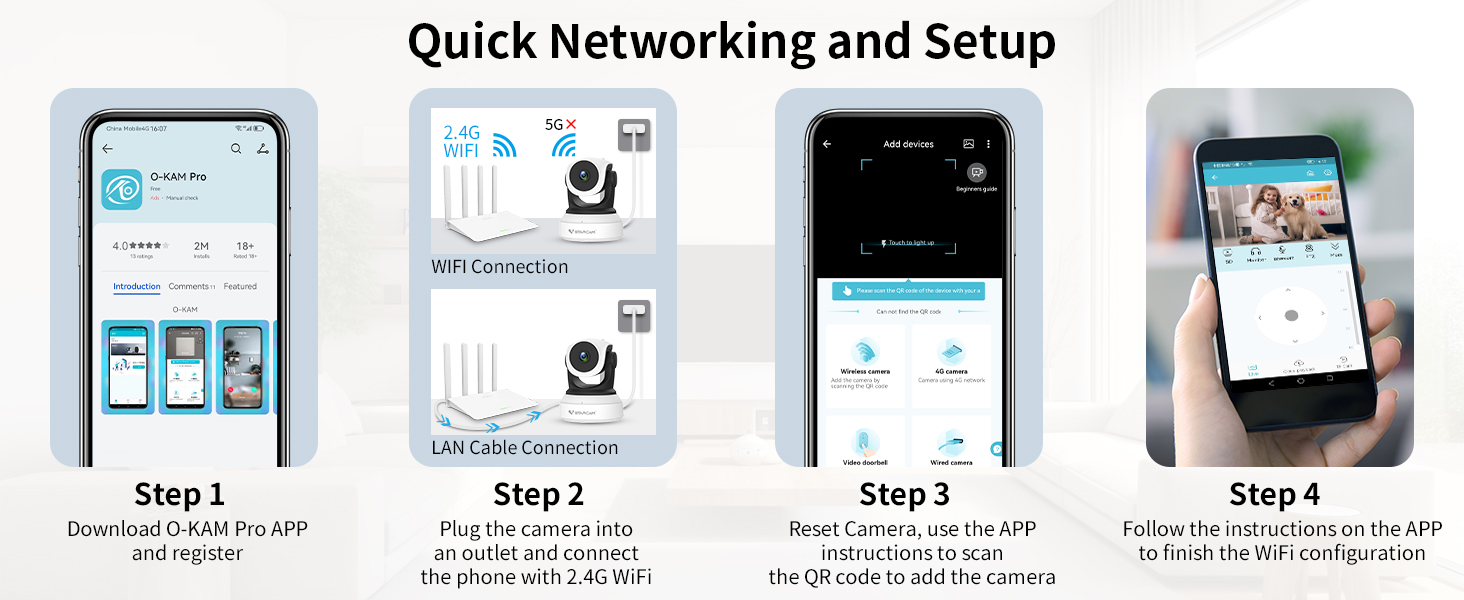
Image: Various individuals viewing the camera feed on their mobile devices, and a close-up of the app showing a QR code for sharing camera access.

Image: Icons representing Android, iOS, iPad, and PC, with various devices displaying the camera's live feed, indicating multi-platform compatibility.
5. Maintenance
- Cleaning: Gently wipe the camera lens and body with a soft, dry cloth. Avoid using harsh chemicals or abrasive materials that could scratch the lens or damage the finish.
- Firmware Updates: Periodically check the O-KAM Pro app for available firmware updates. Keeping your camera's firmware updated ensures optimal performance, security, and access to new features.
- Placement: Ensure the camera is placed in a stable location, away from direct sunlight, heat sources, and areas with high humidity. For optimal Wi-Fi performance, place it within range of your 2.4GHz router.
6. Troubleshooting
| Issue | Possible Solution |
|---|---|
| Camera not connecting to Wi-Fi | Ensure your Wi-Fi is 2.4GHz (5GHz is not supported). Check Wi-Fi password. Move camera closer to the router. Restart the camera and router. |
| Poor video quality | Check your internet connection speed. Ensure the camera lens is clean. Adjust camera placement for better lighting. |
| Two-way audio not working | Check microphone and speaker settings in the app. Ensure app has microphone permissions. Adjust volume levels. |
| Motion detection alerts not received | Verify motion detection is enabled in the app settings. Check app notification permissions on your phone. Adjust sensitivity settings. |
| SD card not recognized | Ensure the SD card is correctly inserted. Format the SD card through the app. Use a compatible Micro SD card (up to 256GB). |
| App issues or cloud storage concerns | Ensure your O-KAM Pro app is updated to the latest version. For cloud storage issues, verify your subscription status or contact VSTARCAM support. |
7. Technical Specifications
| Feature | Specification |
|---|---|
| Model Number | C24S |
| Video Capture Resolution | 1920p (3MP) |
| Connectivity Technology | Wireless (Wi-Fi 2.4GHz) |
| Pan Range | 345 Degrees |
| Tilt Range | 84 Degrees |
| Night Vision Distance | 12-15 meters |
| Storage Options | Cloud Service, Micro SD Card (up to 256GB) |
| Power Source | Corded Electric (5 Volts, 5 Watts) |
| Dimensions (L x W x H) | 7.8 x 6 x 4.7 inches |
| Item Weight | 8.8 ounces |
| Indoor/Outdoor Usage | Indoor |
| Compatible Devices | PC, MAC, iOS, Android |
8. Warranty Information
VSTARCAM products are covered by a manufacturer's warranty. For specific details regarding the warranty period and terms, please refer to the documentation included with your product or contact VSTARCAM customer support directly. Keep your proof of purchase for warranty claims.
9. Customer Support
If you encounter any issues or have questions not covered in this manual, please contact VSTARCAM customer support. Provide your product model number (C24S) and a detailed description of your inquiry for efficient assistance.

Image: A customer support representative wearing a headset, symbolizing available assistance.
Documents and downloads
Ask a question about this manual
Ask about setup, troubleshooting, compatibility, parts, safety, or missing instructions. Manuals+ will review the question and use this page’s manual context to help answer it.