
1. Introduction
The S-link SL-UN100 is a Networking USB Server designed to enable sharing of USB printers and other USB devices over a wired network. This device is compatible with USB 2.0 specifications and previous USB 1.1 versions. It features automatic detection for Ethernet ports operating at 10Base-T or 100Base-T, ensuring broad network compatibility.
The unit supports multiple network protocols and various operating systems, making it versatile for different environments. An integrated web management feature allows users to configure, monitor, and reset the USB server conveniently via a standard web browser.
2. Package Contents
Please verify that all items are present in the package:
- S-link SL-UN100 Networking USB Server
- User Manual
- Warranty Certificate
3. Product Features
- Connectivity: Equipped with 4 USB ports and 1 Ethernet network input.
- Durability: Constructed from high-quality, impact-resistant metal for extended lifespan.
- Design: Features a stylish and lightweight design.
- Stability: Includes a special rubber base for secure, non-slip placement on various surfaces.
- Network Compatibility: Supports 10Base-T and 100Base-T Ethernet with auto-detection.
- Management: Integrated web-based management interface for easy configuration and monitoring.
4. Setup
Follow these steps to set up your S-link SL-UN100 Networking USB Server:
- Power Connection: Connect the provided power adapter to the DC 5V input port on the USB server and then plug it into a power outlet. The power indicator light should illuminate.
- Network Connection: Connect an Ethernet cable from your network router or switch to the RJ45 Ethernet port on the USB server. Ensure the network indicator light shows activity.
- USB Device Connection: Connect your USB devices (e.g., printers, external hard drives) to the available USB ports on the server.
- Software Installation: Install the necessary client software on the computers that will access the shared USB devices. Refer to the included software CD or the manufacturer's website for the latest drivers and utility.
- Initial Configuration: Access the web management interface via a web browser on a networked computer. Typically, the device will obtain an IP address automatically from your network's DHCP server. Consult the software utility or your network administrator for the device's IP address if needed.

Image: Side view of the S-link SL-UN100, highlighting the four USB ports, Ethernet port, and DC 5V power input.
5. Operating Instructions
Once the setup is complete, you can begin using the Networking USB Server:
- Accessing USB Devices: Use the client software installed on your computer to connect to and manage the USB devices attached to the server. The software will allow you to select which shared USB device you wish to use.
- Web Management Interface: Open a web browser and enter the IP address of the USB server to access its configuration page. From here, you can monitor device status, change network settings, and perform advanced configurations.
- Sharing Devices: Ensure that only one computer is connected to a specific USB device at a time to avoid conflicts, especially for devices like printers or scanners.
6. Maintenance
To ensure optimal performance and longevity of your S-link SL-UN100:
- Cleaning: Use a soft, dry cloth to clean the exterior of the device. Do not use liquid cleaners or aerosols.
- Environment: Place the device in a well-ventilated area, away from direct sunlight, heat sources, and moisture.
- Power Cycle: If the device becomes unresponsive, disconnect the power adapter, wait for 10 seconds, and then reconnect it.
7. Troubleshooting
If you encounter issues with your S-link SL-UN100, refer to the following common problems and solutions:
- Device Not Powering On:
- Ensure the power adapter is securely connected to both the device and a working power outlet.
- Check if the power outlet is functional. - USB Devices Not Recognized:
- Verify that the USB devices are properly connected to the server's USB ports.
- Ensure the client software is correctly installed and running on your computer.
- Try connecting the USB device directly to your computer to confirm it is functional.
- Restart the USB server and your computer. - No Network Connectivity:
- Check the Ethernet cable connection between the server and your router/switch.
- Verify that your network router/switch is operating correctly.
- Confirm that the network indicator light on the server is active.
- Ensure the server has obtained a valid IP address from your network. - Web Management Interface Inaccessible:
- Confirm your computer is on the same network as the USB server.
- Verify the IP address of the USB server.
- Clear your browser's cache or try a different web browser. - Resetting the Device:
- If issues persist, locate the 'RESET' button on the device (often a small pinhole button). Use a paperclip to press and hold the button for approximately 5-10 seconds until the device restarts. This will restore factory default settings.
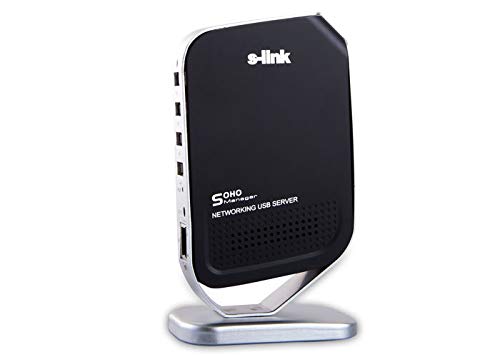
Image: Front view of the S-link SL-UN100, showing the USB ports, Ethernet port, and the 'RESET' button.
8. Specifications
| Feature | Specification |
|---|---|
| Brand | S-Link |
| Model Number | SL-UN100 |
| Hardware Interface | Ethernet, USB, USB 1.1, USB 2.0 |
| Color | Black |
| Compatible Devices | Desktop Computer |
| Data Link Protocol | Ethernet, USB |
| Data Transfer Rate | 100 Megabits per Second |
| Product Weight | 0.58 kg |
| Country of Origin | China |
9. Warranty Information
The S-link SL-UN100 Networking USB Server comes with a 2-year manufacturer's warranty from the date of purchase. Please retain your proof of purchase for warranty claims. The warranty covers defects in materials and workmanship under normal use. It does not cover damage caused by misuse, accidents, unauthorized modifications, or external factors.
10. Support
For further assistance, technical support, or detailed information not covered in this manual, please refer to the following resources:
- Visit the official S-Link website for updated drivers, FAQs, and support documentation.
- Contact S-Link customer service through the contact information provided on their official website or your warranty card.