
1. Setup Guide
This section provides instructions for the initial setup of your Rii RK200 Wireless Keyboard and Mouse Combo.
1.1 Package Contents
- Rii RK200 Wireless Keyboard
- Rii Wireless Mouse
- Nano USB Receiver (stored in the mouse battery compartment)
1.2 Battery Installation
The keyboard and mouse require batteries (not included) for operation. Please ensure correct polarity when inserting batteries.
Mouse Battery: Open the battery compartment cover on the underside of the mouse. Insert 1 AA battery. The Nano USB receiver is also located here. Remove it before closing the compartment.

Keyboard Battery: Open the battery compartment cover on the underside of the keyboard. Insert 1 AAA battery.
1.3 Connecting to Your Device
The Rii RK200 combo uses a single Nano USB receiver for both the keyboard and mouse, offering a stable 2.4 GHz wireless connection up to 10 meters (33 feet).
- Locate the Nano USB receiver. It is typically stored in the battery compartment of the mouse.
- Plug the Nano USB receiver into an available USB port on your computer or compatible device.
- Turn on the mouse using the power switch on its underside.
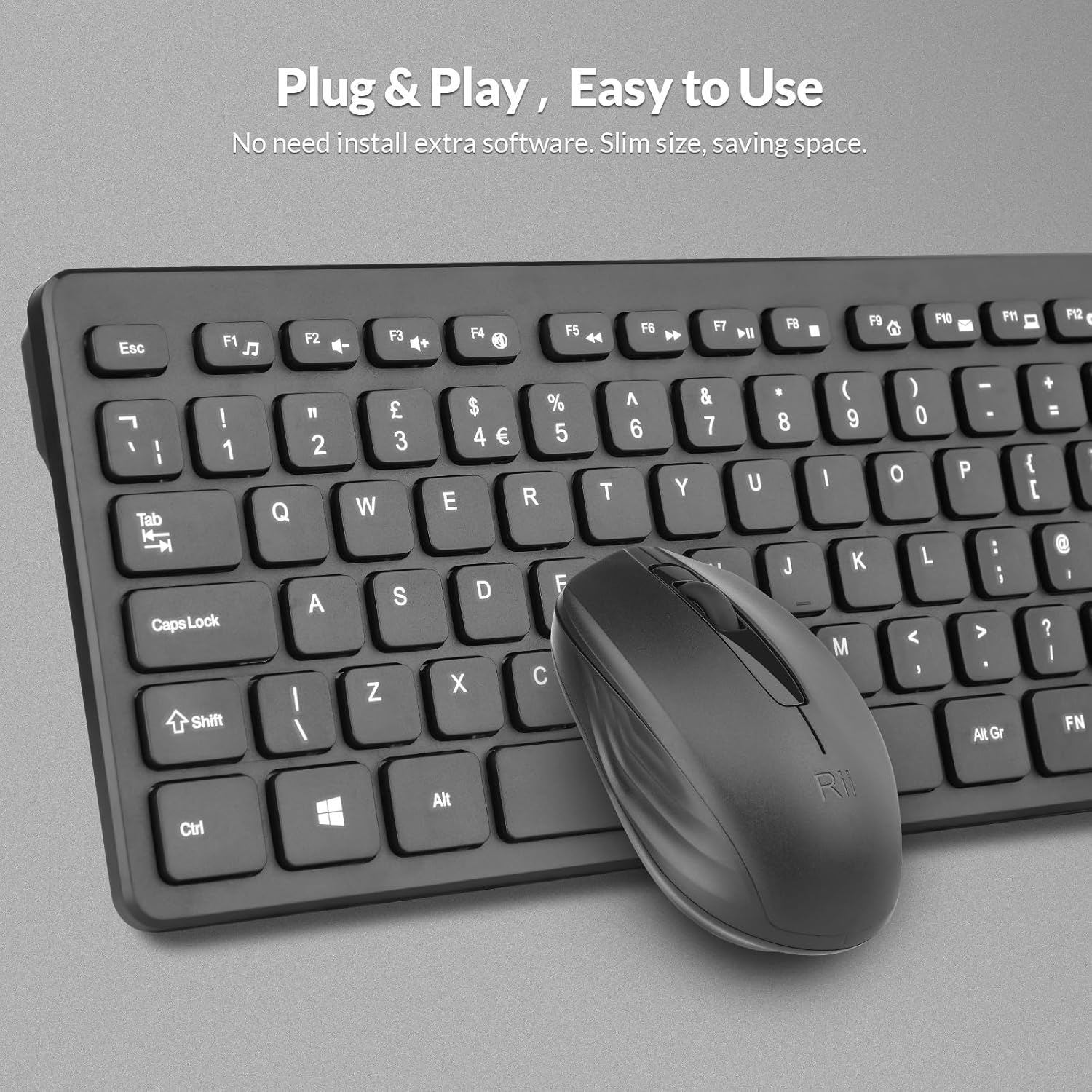
- Your device should automatically detect and install the necessary drivers. No additional software installation is required.

The Nano USB receiver provides a plug-and-play connection for both the keyboard and mouse.
1.4 Setup Video Guide
This video demonstrates the unboxing and initial setup steps for the Rii Wireless Keyboard and Mouse Combo, including battery installation and USB receiver connection.
2. Operating Instructions
Learn how to effectively use your Rii RK200 Wireless Keyboard and Mouse Combo.
2.1 Keyboard Features
The Rii RK200 keyboard features silent keys for a quiet typing experience and an ergonomic design with adjustable stands for comfort during extended use.
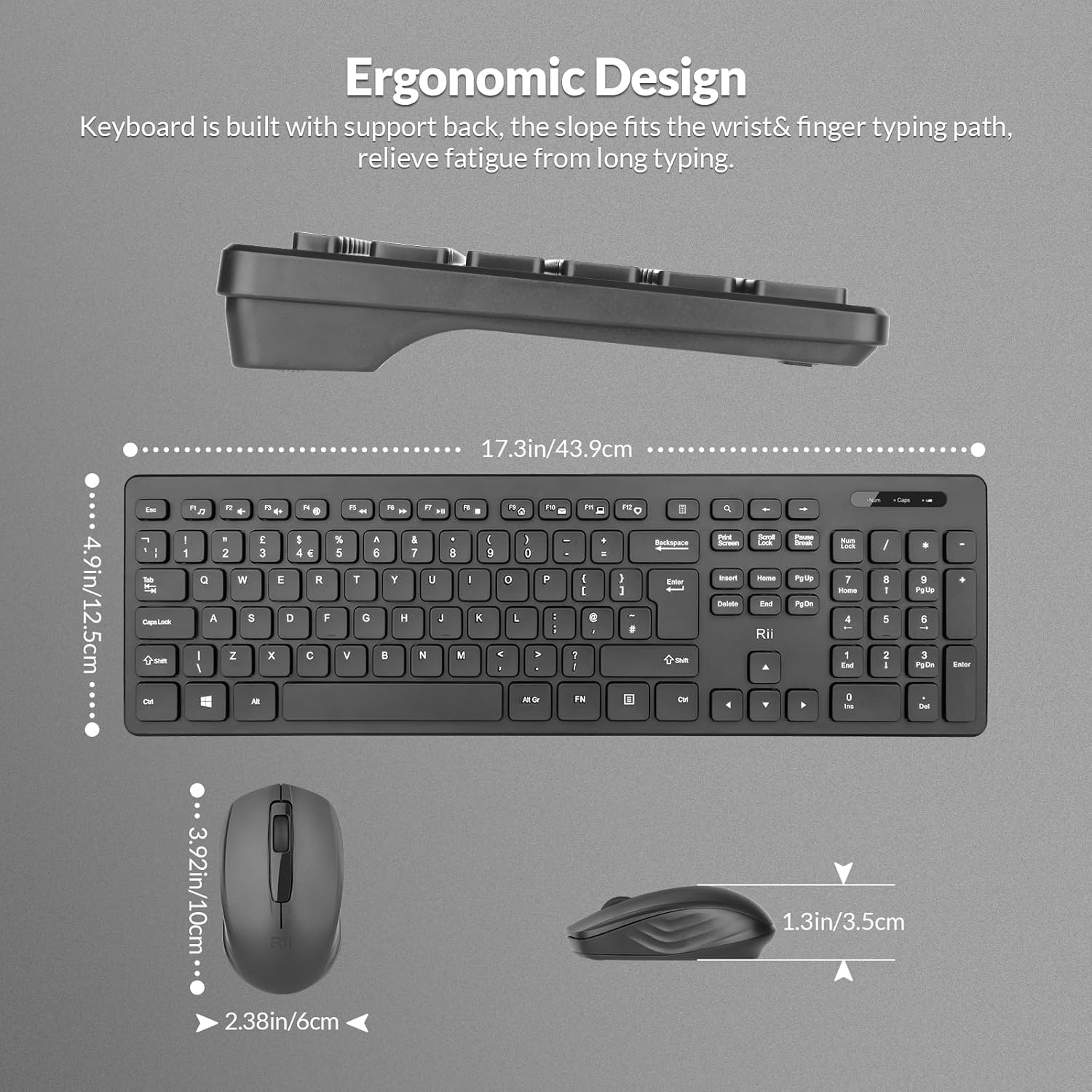
The keyboard is designed with a slight incline to reduce wrist strain.
Indicator Lights
The keyboard includes indicator lights for essential functions:
- NumLock Indicator: Lights up when the numeric keypad is active.
- Caps Lock Indicator: Lights up when Caps Lock is enabled.
- Low-Battery Indicator: Illuminates when the keyboard battery is low and requires replacement.

Indicator lights provide visual feedback on keyboard status.
Function Keys (F1-F12)
The keyboard features 12 function keys that can be used for multimedia control and other shortcuts. These keys often require pressing the Fn key simultaneously with the desired function key for their secondary functions.
2.2 Mouse Features
The Rii RK200 mouse offers a comfortable, ergonomic design and a DPI of 1000 for precise cursor movement.

The mouse features a scroll wheel, left-click, and right-click buttons for standard navigation.
DPI Setting
The mouse operates at a fixed DPI of 1000, providing a balanced sensitivity for most tasks, from general browsing to office work.
Auto Sleep Mode
To conserve battery life, both the keyboard and mouse enter a power-saving sleep mode after 10 minutes of inactivity. Press any key or click the mouse to reactivate them.
3. Maintenance
Proper care ensures the longevity and optimal performance of your Rii RK200 combo.
3.1 Cleaning
- Use a soft, dry cloth to wipe the surfaces of the keyboard and mouse.
- For stubborn dirt, slightly dampen the cloth with water or a mild, non-abrasive cleaner. Avoid excessive moisture.
- Do not spray cleaning solutions directly onto the devices.
- Use compressed air to remove dust and debris from between the keyboard keys.
3.2 Storage
When not in use for extended periods, store the keyboard and mouse in a cool, dry place. Consider removing batteries if storing for several months to prevent leakage.
4. Troubleshooting
If you encounter issues with your Rii RK200 Wireless Keyboard and Mouse Combo, refer to the following solutions.
4.1 Connection Issues
- No response from keyboard/mouse: Ensure the Nano USB receiver is securely plugged into a working USB port on your device.
- Intermittent connection: Try plugging the USB receiver into a different USB port. Ensure the keyboard and mouse are within the 10-meter (33-foot) operating range and there are no large metallic objects or other wireless devices causing interference.
- Mouse not moving: Check if the mouse power switch is in the 'ON' position.
4.2 Power Issues
- Devices not turning on: Replace the batteries in both the keyboard (1 AAA) and mouse (1 AA) with fresh ones. Ensure batteries are inserted with correct polarity.
- Low-Battery Indicator is on: Replace the keyboard battery promptly.
4.3 Other Issues
- Keys not responding: Clean the keyboard to remove any debris that might be obstructing key presses.
- Mouse cursor erratic: Clean the optical sensor on the underside of the mouse. Ensure you are using the mouse on a suitable surface.
5. Specifications
| Feature | Detail |
|---|---|
| Model Number | RK200 |
| Brand | Rii |
| Connectivity Technology | 2.4 GHz Wireless (USB Receiver) |
| Keyboard Layout | QWERTY, 104 Keys |
| Mouse Movement Detection | Optical |
| Mouse DPI | 1000 |
| Keyboard Power Source | 1 x AAA Battery (not included) |
| Mouse Power Source | 1 x AA Battery (not included) |
| Operating Range | Up to 10 meters (33 feet) |
| Compatible Operating Systems | Windows 7/8/10/11, Android OS, Mac OS, Raspberry Pi OS, iOS |
| Compatible Devices | Laptop, Personal Computer, Smart TV, Android TV Box, Raspberry Pi |
| Product Dimensions (Keyboard) | 40 x 14 x 2 cm |
| Item Weight | 450 Grams |
| Country of Origin | China |
6. Warranty and Support
6.1 Warranty Information
The Rii RK200 Wireless Keyboard and Mouse Combo comes with a 12-month warranty from the date of purchase.
6.2 Customer Support
For any issues or questions regarding your product, please contact our customer support team. We offer 7x24 service to assist you.
Please refer to your purchase platform or the Rii official website for specific contact details.


