
1. Introduction
Thank you for choosing the Symcode MJ-2090-CCD Embedded Mini Barcode Scanner. This device is designed for efficient and reliable barcode scanning, capable of reading barcodes from various surfaces, including mobile phone and computer screens. Its compact size and plug-and-play functionality make it ideal for integration into various systems such as kiosks, lockers, and point-of-sale equipment. This manual provides essential information for setting up, operating, and maintaining your barcode scanner.
2. Product Overview
2.1 Key Features
- Screen Scanning Capability: Reads barcodes directly from mobile phone and computer screens.
- Plug and Play: Easy integration with end devices via USB, requiring no additional driver installation.
- Automatic Induction Trigger: Scans codes automatically without the need to press a trigger button.
- Keyboard Emulation: Functions as a keyboard device to input barcode characters directly.
- Wide Compatibility: Supports a broad range of 1D barcode types including Code128, EAN-13, EAN-8, Code39, UPC-A, UPC-E, Codabar, Interleaved 2 of 5, ISBN, Code 93, UCC/EAN-128, GS1 Databar, and more.
- Visual and Audible Indicators: Features a siren and LED light for scan confirmation.
2.2 Package Contents
Upon unpacking, please ensure all items are present and in good condition:
- 1 x Symcode MJ-2090-CCD Barcode Scanner Unit
- 1 x USB Cable
- 1 x User Manual

Image: Package contents including the scanner unit, USB cable, and user guide.
3. Setup
The Symcode MJ-2090-CCD barcode scanner is designed for simple plug-and-play operation. Follow these steps to set up your device:
- Connect the USB Cable: Insert the smaller end of the provided USB cable into the USB port on the barcode scanner.
- Connect to Host Device: Plug the standard USB-A end of the cable into an available USB port on your computer, kiosk, or other compatible host device.
- System Recognition: Your operating system should automatically detect and install the necessary drivers. The scanner will be recognized as a standard keyboard input device.
- Ready for Use: Once the LED indicator on the scanner illuminates and/or a confirmation sound is heard, the scanner is ready to operate.

Image: The barcode scanner connected to a computer via its USB cable, demonstrating the plug-and-play setup.
4. Operating Instructions
The MJ-2090-CCD scanner features an automatic induction trigger, simplifying the scanning process.
4.1 Basic Scanning
- Ensure the scanner is properly connected to your host device and powered on.
- Position the barcode within the scanner's reading window. The scanner will automatically detect the barcode and emit a red light to scan it.
- Upon successful scan, the scanner will emit an audible beep and the LED indicator will flash, and the barcode data will be transmitted to your host device as if typed via a keyboard.
4.2 Scanning from Screens
This scanner is optimized to read barcodes displayed on digital screens, such as mobile phones and computer monitors. Simply present the screen with the barcode to the scanner's window.

Image: The barcode scanner actively scanning a barcode displayed on a mobile phone screen.
4.3 Application Scenarios
The compact and embedded design of the MJ-2090-CCD makes it suitable for various applications:
- Kiosks: For self-service checkouts, information terminals, or ticket vending.
- Lockers: For package retrieval or secure storage systems.
- Point-of-Sale (POS) Systems: Integrated into cash registers or payment terminals.
- Access Control: For scanning ID badges or tickets.
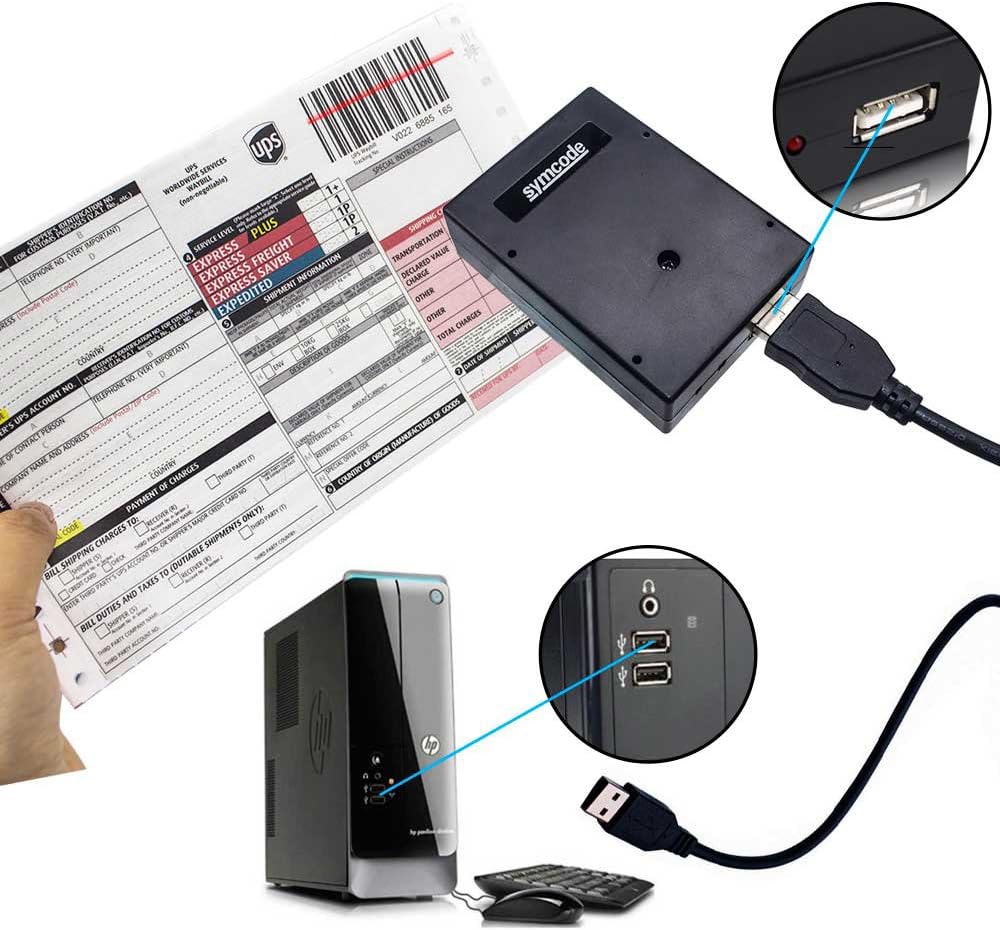
Image: Examples of the embedded barcode scanner used in different environments, including self-service kiosks and automated locker systems.

Image: The scanner demonstrating its ability to automatically read different barcode formats such as Code 39, Code 93, and Code 128.
5. Maintenance
Proper maintenance ensures the longevity and optimal performance of your barcode scanner.
- Cleaning the Scan Window: Regularly clean the scanner's optical window with a soft, lint-free cloth. For stubborn dirt, lightly dampen the cloth with water or a mild, non-abrasive cleaner. Avoid harsh chemicals or abrasive materials that could scratch the surface.
- General Cleaning: Wipe the exterior of the scanner with a soft, dry cloth to remove dust and debris.
- Environmental Conditions: Operate and store the scanner within the specified temperature and humidity ranges to prevent damage. Avoid exposure to extreme temperatures, direct sunlight, or high moisture.
- Cable Care: Handle the USB cable gently. Avoid bending, twisting, or pulling the cable excessively, which can damage the internal wires.
6. Troubleshooting
If you encounter issues with your Symcode MJ-2090-CCD barcode scanner, refer to the following common problems and solutions:
| Problem | Possible Cause | Solution |
|---|---|---|
| Scanner does not power on or respond. | Loose USB connection; No power from USB port; Damaged cable. | Ensure USB cable is securely connected to both scanner and host device. Try a different USB port or host device. Inspect the cable for damage. |
| Scanner does not read barcodes. | Barcode is damaged or poorly printed; Incorrect scanning angle/distance; Scanner window is dirty; Unsupported barcode type. | Ensure barcode is clear and undamaged. Adjust scanning angle and distance. Clean the scanner window. Verify the barcode type is supported (refer to specifications). |
| Barcode data is incorrect or incomplete. | Partial scan; Host device input error. | Ensure the entire barcode is within the scan area. Check if other applications are interfering with keyboard input on the host device. |
| Scanner reads too slowly or intermittently. | Environmental interference; Host device performance. | Minimize strong light sources or reflective surfaces near the scanner. Ensure the host device is not under heavy load. |
If the problem persists after attempting these solutions, please contact Symcode customer support for further assistance.
7. Specifications
Below are the technical specifications for the Symcode MJ-2090-CCD Barcode Scanner:

Image: The Symcode MJ-2090-CCD barcode scanner with its physical dimensions (70mm/2.7in height, 20mm/2in width, 22mm/0.9in depth) clearly indicated.
| Feature | Detail |
|---|---|
| Model Number | MJ-2090-CCD |
| Dimensions (L x W x H) | 70mm x 20mm x 22mm (2.7in x 2in x 0.9in) |
| Weight | 110g |
| Light Source | 650nm~670nm Visible Red Light Diode |
| Scan Speed | 100 scans/sec |
| Read Preciseness | 0.1mm (4mil) |
| Print Contrast | 30% minimum |
| Depth of Field | 0~600mm (0.33mm, PCS 90%) |
| Scan Scope | 10mm~250mm |
| Reading Distance | 2.5~600mm (100% UPC/EAN) |
| Decode Capabilities | EAN-8/13, UPC-A/E, Code 39/93/128, EAN-128, Codabar, Industrial 2 of 5, Interleave 2 of 5, Matrix 2 of 5, MSI, ISBN, GS1 Databar, etc. |
| Bit Error Rate | 1/5 million |
| Current | 85mA (working), 36mA (storage) |
| Interface | USB |
| Operating Temperature | 0℃~45℃ |
| Storage Temperature | -20℃~60℃ |
| Humidity | 5%~95% non-condensing |
| Material | ABS+PC |
| Compatible Devices | Laptop (and other USB host devices) |
| Power Source | Corded (USB) |
| Operating Voltage | 3.7 volts |
8. Warranty and Support
Symcode products are manufactured to high-quality standards. For warranty information, technical support, or service inquiries, please refer to the contact information provided with your purchase or visit the official Symcode website. Please retain your proof of purchase for warranty claims.