
1. Introduction
The VILTROX DC-70 II is a 7-inch full HD camera monitor designed to enhance your video production workflow. Featuring a 1024x600 high-resolution display, tight pixel density, and high brightness, it delivers excellent image quality and a professional visual experience. This monitor serves as an external display for various cameras, including DSLRs, mirrorless cameras, and digital camcorders, transmitting real-time 4K video signals.

The VILTROX DC-70 II monitor provides professional monitoring, designed to restore standard colors for accurate visual feedback during shooting.
2. Package Contents
Please verify that all items are present in your package:
- VILTROX DC-70 II 7-inch Camera Video Monitor
- Sunshade Hood
- NP-F550 Battery
- Battery Charging Cable (USB)
- Standard Cold Shoe Adapter
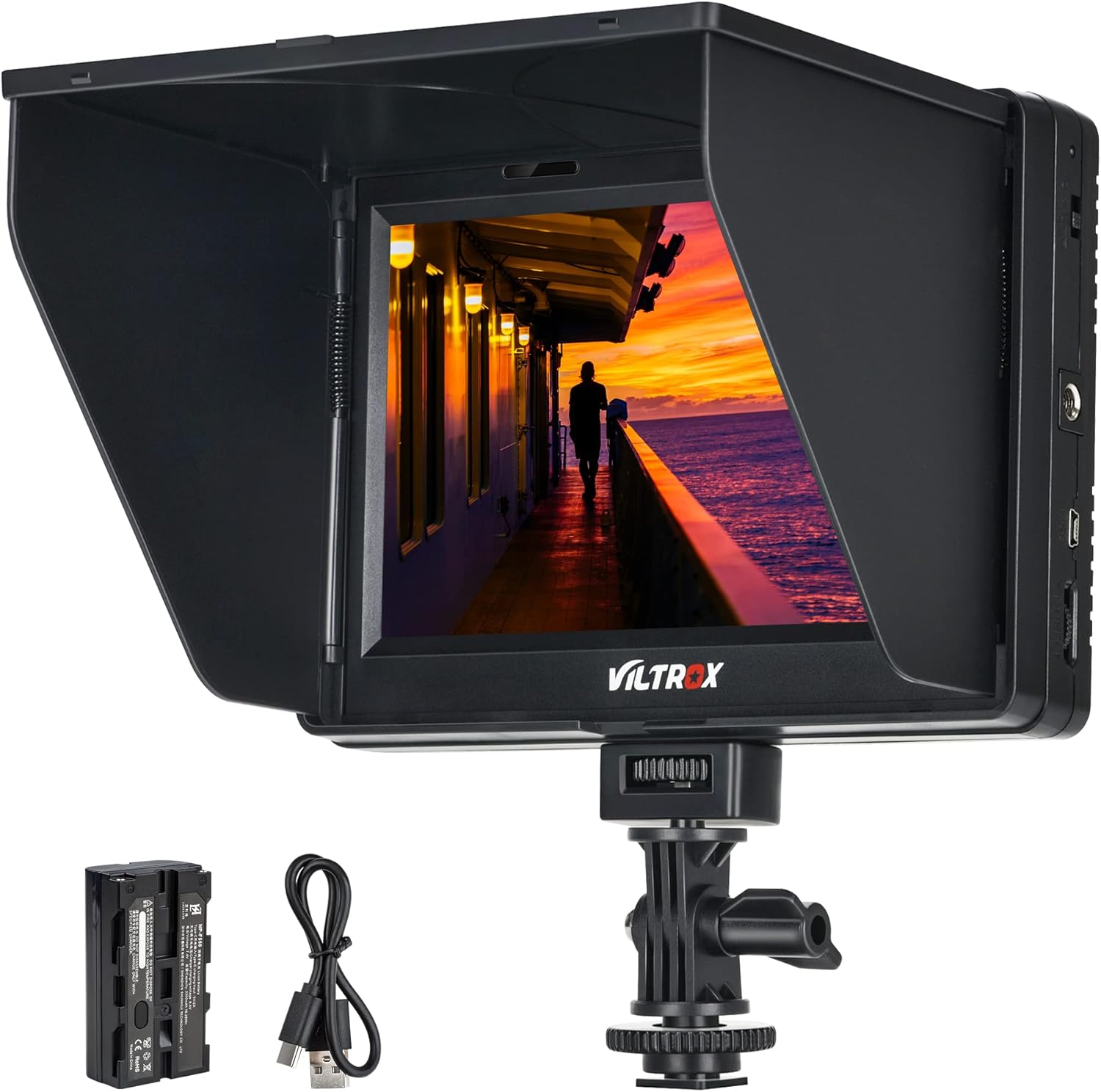
The VILTROX DC-70 II monitor kit includes the 7-inch monitor, a detachable sunshade, an NP-F550 battery, and a USB charging cable.
3. Product Features
The VILTROX DC-70 II monitor offers a range of features designed for professional video monitoring:
- 7-inch Full HD Display: 1024x600 resolution with high brightness for clear visuals.
- Professional Monitoring Functions: Includes Color Temperature Settings, False-color, Peaking Focus Assist, Histogram, Monochrome, Zooming Pixel, Safe Frames, Image Flip, Check Field, and Pixel to Pixel.
- Versatile Connectivity: HDMI input/output, AV input, headphone jack, and USB update port for broad compatibility.
- Dual Power Options: Can be powered by an AC adapter or the included NP-F550 battery.
- Wide View Angle IPS LCD Panel: Ensures excellent visibility from various angles.
- Removable Sunshade: Reduces glare in bright conditions and protects the screen during transport.
- Standard 1/4" Hot Shoe Mount: Allows for flexible mounting on cameras and rigs.

Equipped with a 7-inch IPS 4K HD display, the monitor offers an Ultra HD 1280x800 resolution with a 1200:1 color contrast ratio, supporting features like zoom in, focus assist, and pixel to pixel.
4. Setup
4.1 Mounting the Monitor
Attach the monitor to your camera, rig, or stabilizer using the provided standard cold shoe adapter. The adapter allows for multi-directional adjustment to achieve optimal viewing angles.

The monitor features a standard 1/4 inch hot shoe mount, enabling attachment to DSLRs, cameras, micro-single cameras, or handheld stabilizers for versatile use.
4.2 Powering the Monitor
The DC-70 II monitor can be powered in two ways:
- AC Adapter: Connect an appropriate AC adapter (not included) to the DC IN port for continuous power.
- Battery: Insert the included NP-F550 lithium-ion battery into the battery bay. Use the provided USB charging cable to recharge the battery.
4.3 Connecting Video Sources
Connect your camera or video source to the monitor using an HDMI cable (not included) to the HDMI IN port. The monitor supports 4K video signals. An AV input is also available for older devices.

This diagram details the monitor's versatile power options, the protective sun hood, the 360-degree adjustable hot shoe for flexible viewing angles, and its support for 4K HDMI input and output for connecting various camera devices.
5. Operating Instructions
The DC-70 II monitor features intuitive controls for accessing its various functions. Use the menu function keys (labeled 4 in the dimensions diagram) to navigate and adjust settings.
5.1 Basic Operation
- Power On/Off: Use the power switch (labeled 1 in the dimensions diagram) to turn the monitor on or off.
- Menu Navigation: Press the menu button to access the on-screen display (OSD) menu. Use the directional buttons to navigate and select options.
5.2 Advanced Monitoring Functions
Access these functions through the OSD menu to optimize your monitoring experience:
- Peaking Focus Assist: Highlights in-focus areas to aid in precise manual focusing.
- False-color: Displays exposure levels using a spectrum of colors, helping to identify over- or under-exposed areas.
- Histogram: Provides a graphical representation of the tonal distribution in your image.
- Monochrome: Switches the display to black and white, or specific color channels (red, green, blue) for detailed analysis.

The monitor supports auxiliary adjustment of camera color settings, allowing display in monochrome, red, green, or blue to drive pixels. This feature aids in precise color monitoring.
- Zooming Pixel: Magnifies a portion of the screen to check fine details.
- Safe Frames: Displays guides for various aspect ratios and safe areas for broadcast.
- Image Flip: Flips the image horizontally, vertically, or both, useful for different mounting orientations.

The image flip function allows for horizontal and vertical flipping of the display, accommodating various installation and monitoring needs, such as tripod, magic arm, or stabilizer setups.
- Check Field: Displays only red, green, or blue channels, or monochrome, to check color calibration.
- Pixel to Pixel: Displays the image at its native resolution without scaling, useful for critical focus and detail checking.
6. Maintenance
To ensure the longevity and optimal performance of your VILTROX DC-70 II monitor, follow these maintenance guidelines:
- Cleaning the Screen: Use a soft, lint-free cloth specifically designed for electronics screens. Do not use harsh chemicals or abrasive materials.
- Cleaning the Body: Wipe the monitor's body with a soft, dry cloth. Avoid moisture near ports.
- Storage: When not in use, store the monitor in a dry, cool place, away from direct sunlight and extreme temperatures. Use the sunshade to protect the screen during travel.
- Battery Care: Fully charge the battery before first use. For long-term storage, charge the battery to approximately 50% and store it separately from the monitor.
7. Troubleshooting
If you encounter issues with your VILTROX DC-70 II monitor, refer to the following common problems and solutions:
- No Power:
- Ensure the battery is correctly inserted and charged, or the AC adapter is securely connected.
- Check the power switch is in the 'ON' position.
- No Video Signal:
- Verify that the HDMI or AV cable is securely connected to both the camera and the monitor.
- Confirm the camera is outputting a video signal and is set to the correct output resolution.
- Ensure the monitor's input source is correctly selected in the menu.
- Image Quality Issues (e.g., blurry, incorrect colors):
- Adjust the monitor's brightness, contrast, and color settings in the OSD menu.
- Check the camera's output settings.
- If using Peaking Focus Assist, ensure your lens is properly focused.
- Buttons Not Responding:
- Restart the monitor.
- Ensure no debris is obstructing the buttons.
If the problem persists after attempting these solutions, please contact VILTROX customer support.
8. Specifications
Detailed technical specifications for the VILTROX DC-70 II monitor:

This diagram provides a detailed view of the monitor's physical dimensions and its various interfaces, such as HDMI input/output, AV interface, USB port, headphone jack, and battery bay with release button.
| Feature | Specification |
|---|---|
| Model Number | FSDC-90HD |
| Screen Size | 7 Inches |
| Display Type | IPS LCD |
| Resolution | 1024 x 600 (HD) |
| Aspect Ratio | 16:9 |
| Image Brightness | 1000 Cd/m2 |
| Video Input | HDMI, AV |
| Video Output | HDMI |
| Audio Output | Headphone Jack |
| Update Port | USB |
| Power Source | AC Adapter (not included), NP-F550 Battery (included) |
| Item Weight | 2.4 pounds |
| Package Dimensions | 9.17 x 8.39 x 2.95 inches |
| First Available Date | April 18, 2018 |
9. Warranty and Support
VILTROX products typically come with a limited warranty. Please refer to the warranty card included with your product or visit the official VILTROX website for detailed warranty terms and conditions.
For technical support, service, or inquiries, please contact VILTROX customer service through their official channels. Contact information can usually be found on the product packaging or the VILTROX website.