
1. Introduction
The Cooler Master MasterAir MA620P is a processor cooler designed for efficient heat dissipation in desktop computer systems. It features a twin-tower heatsink design, which enhances cooling capacity. The cooler incorporates six heatpipes and Continuous Direct Contact Technology 2.0 (CDC 2.0) for direct heat transfer from the CPU. Two MasterFan MF120R RGB fans are included, providing airflow and customizable lighting. This manual provides instructions for the proper installation, operation, and maintenance of your MasterAir MA620P cooler.

Figure 1: Front view of the Cooler Master MasterAir MA620P CPU cooler, showcasing its twin-tower heatsink design and a fan illuminated with purple RGB lighting.
2. Safety Information
- Always disconnect power from your computer before installing or removing any components.
- Handle components with care to avoid damage. Sharp edges may be present on heatsink fins.
- Wear an anti-static wrist strap or frequently touch a grounded metal object to prevent electrostatic discharge (ESD) damage to components.
- Keep out of reach of children.
- Do not attempt to modify the cooler or its components.
3. Package Contents
Verify that all items are present in the package:
- MasterAir MA620P CPU Cooler (Heatsink with pre-installed fans)
- Mounting Brackets for Intel Sockets (LGA 2066, 2011-v3, 2011, 1151, 1150, 1155, 1156)
- Mounting Brackets for AMD Sockets (AM4, AM3+, AM3, AM2+, AM2, FM2+, FM2, FM1)
- Backplate
- Screws and Spacers
- Thermal Paste
- RGB Controller (if included with your specific model)
- User Manual (this document)
4. Setup and Installation
Follow these general steps for installing the MasterAir MA620P. Refer to the detailed installation guide provided with your cooler for socket-specific instructions.
- Prepare the Motherboard: Install the appropriate backplate for your CPU socket type (Intel or AMD) onto the rear of the motherboard.
- Install Mounting Brackets: Secure the correct mounting brackets to the front of the motherboard around the CPU socket.
- Apply Thermal Paste: Clean the CPU surface and apply a small amount of thermal paste to the center of the CPU's integrated heat spreader (IHS).
- Mount the Cooler: Carefully place the MasterAir MA620P heatsink onto the CPU, aligning the mounting holes on the cooler with the brackets. Secure the cooler using the provided screws, tightening them in an alternating pattern until snug.
- Connect Fans: Connect the 4-pin PWM fan cables from the MasterFan MF120R RGB fans to the CPU_FAN headers on your motherboard.
- Connect RGB Lighting: Connect the RGB cables from the fans to the included RGB controller or directly to a compatible 4-pin RGB header on your motherboard.

Figure 2: Bottom-up angled view of the Cooler Master MasterAir MA620P, revealing the copper heatpipes extending from the base and passing through the aluminum fin stacks.
5. Operating Instructions
Once installed, the MasterAir MA620P operates automatically based on your motherboard's fan control settings and the CPU temperature.
- Fan Speed Control: The MasterFan MF120R RGB fans are PWM (Pulse Width Modulation) controlled. You can adjust their speed profiles through your motherboard's BIOS/UEFI settings or dedicated fan control software.
- RGB Lighting Control: If connected to an RGB controller, use the controller's buttons to cycle through lighting modes and colors. If connected to a motherboard's RGB header, use the motherboard manufacturer's RGB software to customize lighting effects.

Figure 3: Angled view of the Cooler Master MasterAir MA620P CPU cooler, featuring a fan with vibrant red RGB illumination and visible copper heatpipes.
6. Maintenance
Regular maintenance ensures optimal performance and longevity of your CPU cooler.
- Dust Removal: Periodically clean dust from the heatsink fins and fan blades using compressed air or a soft brush. Ensure the fans are not spinning during cleaning.
- Fan Inspection: Check fan blades for any obstructions or signs of wear. Ensure fans spin freely.
- Thermal Paste: The thermal paste typically lasts for several years. If you notice a significant increase in CPU temperatures, consider reapplying fresh thermal paste after carefully cleaning the old paste from the CPU and cooler base.
7. Troubleshooting
If you encounter issues with your MasterAir MA620P, consider the following:
- High CPU Temperatures:
- Ensure the cooler is securely mounted and making proper contact with the CPU.
- Verify that thermal paste was applied correctly and evenly.
- Check if fans are spinning at appropriate speeds. Adjust fan curves in BIOS/UEFI if necessary.
- Clean any dust accumulation from the heatsink and fans.
- Fans Not Spinning:
- Confirm fan cables are securely connected to the motherboard's CPU_FAN headers.
- Check BIOS/UEFI settings to ensure fan control is enabled and not set to 0 RPM at low temperatures.
- RGB Lighting Not Working:
- Ensure RGB cables are correctly connected to the RGB controller or motherboard header.
- If using a motherboard header, verify that the correct RGB software is installed and configured.
- Check for loose connections.
8. Specifications
| Product Dimensions | 5.36"L x 4.8"W x 6.5"H |
| Brand | Cooler Master |
| Power Connector Type | 4-Pin |
| Voltage | 12 Volts |
| Wattage | 3.6 watts |
| Cooling Method | Air |
| Compatible Devices | Desktop |
| Noise Level | 25 Decibels |
| Material | Copper, Aluminium, Plastic |
| Maximum Rotational Speed | 1500 RPM |
| Manufacturer | Cooler Master Europe B.V. |
| Item Weight | 2.2 pounds |
| Item Model Number | MAP-D6PN-218PC-R1 |
| Date First Available | April 19, 2018 |
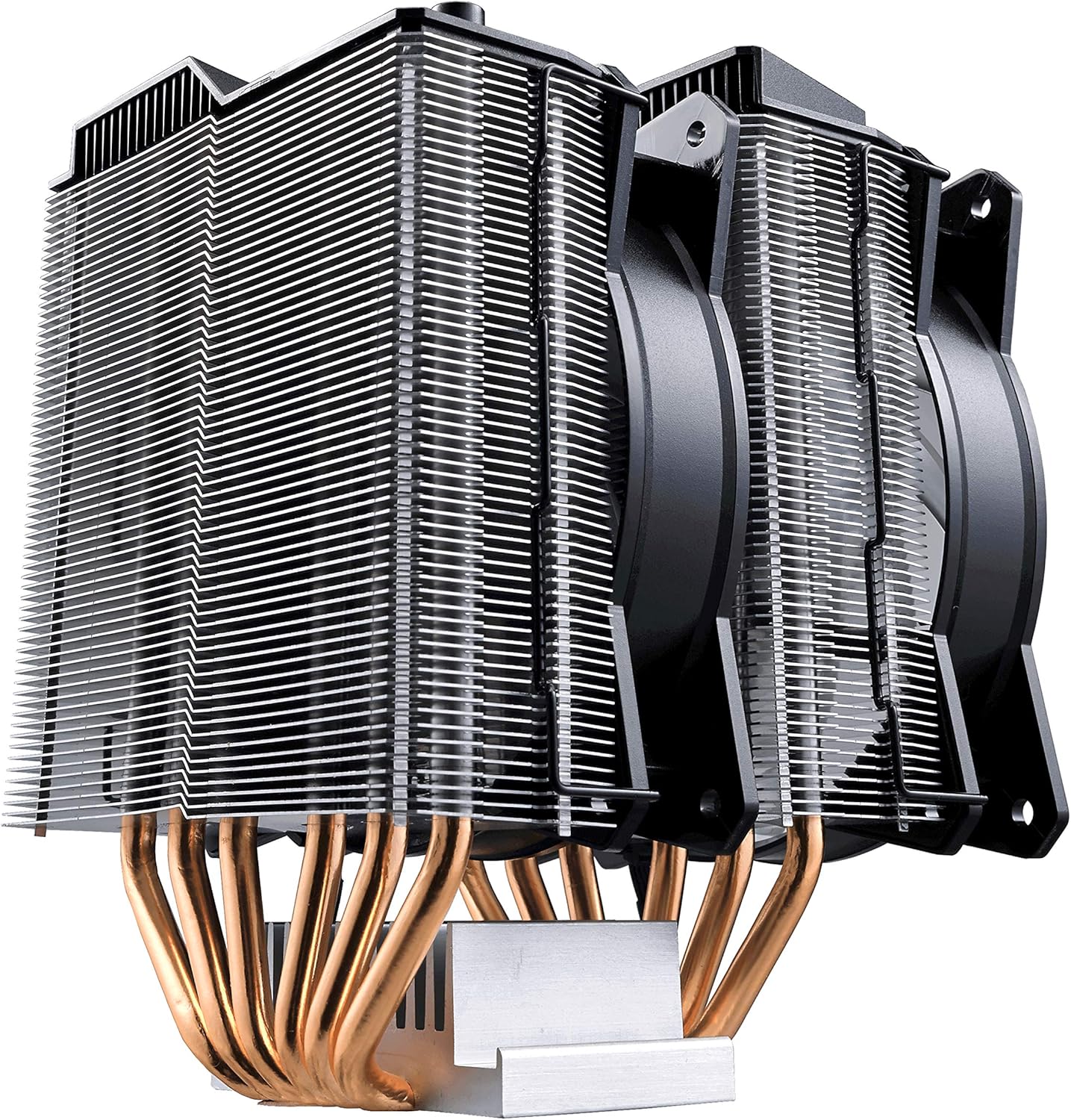
Figure 4: Side profile of the Cooler Master MasterAir MA620P, showing the dual heatsink towers and the two cooling fans positioned between and on one side of the towers.
9. Warranty and Support
For warranty information and technical support, please visit the official Cooler Master website or contact their customer service department. Keep your proof of purchase for warranty claims.


