
1. Introduction
The LAUNCH Creader 3001 is a compact and user-friendly OBD2 diagnostic scanner designed to read and clear engine fault codes for most vehicles manufactured since 1996. This device provides essential diagnostic functions, helping users identify and resolve common engine-related issues, turn off the Check Engine Light (MIL), and perform emission-related tests. Its plug-and-play design makes it suitable for both beginners and experienced users.

Figure 1: LAUNCH Creader 3001 OBD2 Scanner device.
2. Setup
The LAUNCH Creader 3001 is designed for straightforward setup and operation. No batteries are required as the device powers directly from the vehicle's OBD2 port.
2.1 Connecting the Device
- Locate the OBD2 Port: The 16-pin OBD2 Data Link Connector (DLC) is typically located under the dashboard on the driver's side of the vehicle. Refer to your vehicle's owner's manual for the exact location.
- Connect the Scanner: With the vehicle's ignition off, firmly plug the LAUNCH Creader 3001's diagnostic cable into the vehicle's OBD2 port.
- Turn on Ignition: Turn the vehicle's ignition to the "ON" position (do not start the engine). The scanner will automatically power on and initiate communication with the vehicle's onboard computer.

Figure 2: The LAUNCH Creader 3001 connected to a vehicle's OBD2 port, ready for diagnostics.
3. Operation
The LAUNCH Creader 3001 offers a range of diagnostic functions accessible through its intuitive menu system. Use the UP and DOWN arrow buttons to navigate and the OK button to confirm selections. The RETURN button navigates back to the previous screen.
3.1 Reading and Clearing Diagnostic Trouble Codes (DTCs)
This function allows you to retrieve and clear engine fault codes, which can turn off the Check Engine Light (MIL).
- From the main menu, select "Diagnose".
- Choose "Read Codes" to display current, pending, and permanent DTCs.
- To clear codes, select "Erase Codes". Confirm the action when prompted. Note: Clearing codes will also clear freeze frame data and reset monitor status. Ensure the underlying issue is resolved before clearing codes to prevent the light from reappearing.

Figure 3: The scanner displaying options to read and clear codes, and indicating how to turn off the engine lamp.
3.2 I/M Readiness Status Test
This function checks the status of emission-related monitors to determine if the vehicle is ready for an emissions test (Smog Check).
- From the main menu, select "I/M Readiness".
- The scanner will display the status of various monitors (e.g., Misfire Monitor, Fuel System Monitor, Catalyst Monitor) as "OK", "INC" (Incomplete), or "N/A" (Not Applicable).

Figure 4: The Creader 3001 displaying I/M Readiness status, indicating vehicle's emission system readiness.
3.3 View Freeze Frame Data
When an emission-related fault occurs, the vehicle's computer stores a snapshot of operating conditions at that moment. This data is called Freeze Frame Data.
- Select "Freeze Frame" from the diagnostic menu to view this data.
3.4 Live Data Stream
This function displays real-time operational parameters from the vehicle's sensors and modules.
- Select "Data Stream" to view live sensor data, such as engine RPM, vehicle speed, O2 sensor readings, and more.

Figure 5: The scanner showing live data stream values, useful for diagnosing engine problems.
3.5 O2 Sensor Test
Retrieves O2 sensor monitoring test results for the most recently completed tests from the vehicle's onboard computer.
- Select "O2 Sensor Test" to view the results.
3.6 On-Board Monitor Test (Mode 6)
Retrieves test results for emission-related powertrain components and systems that are not continuously monitored.
- Select "On-Board Monitor Test" to access these results. This can help identify intermittent issues or problems not detected by continuous monitoring.

Figure 6: Illustration of the On-Board Monitor Test (Mode 6) function, which helps diagnose driveability and emission faults.
3.7 EVAP System Test (Mode 8)
Initiates a leak test for the vehicle's Evaporative Emission Control (EVAP) system, which prevents fuel vapor from escaping the fuel tank.
- Select "Evap System Test" to perform this diagnostic.
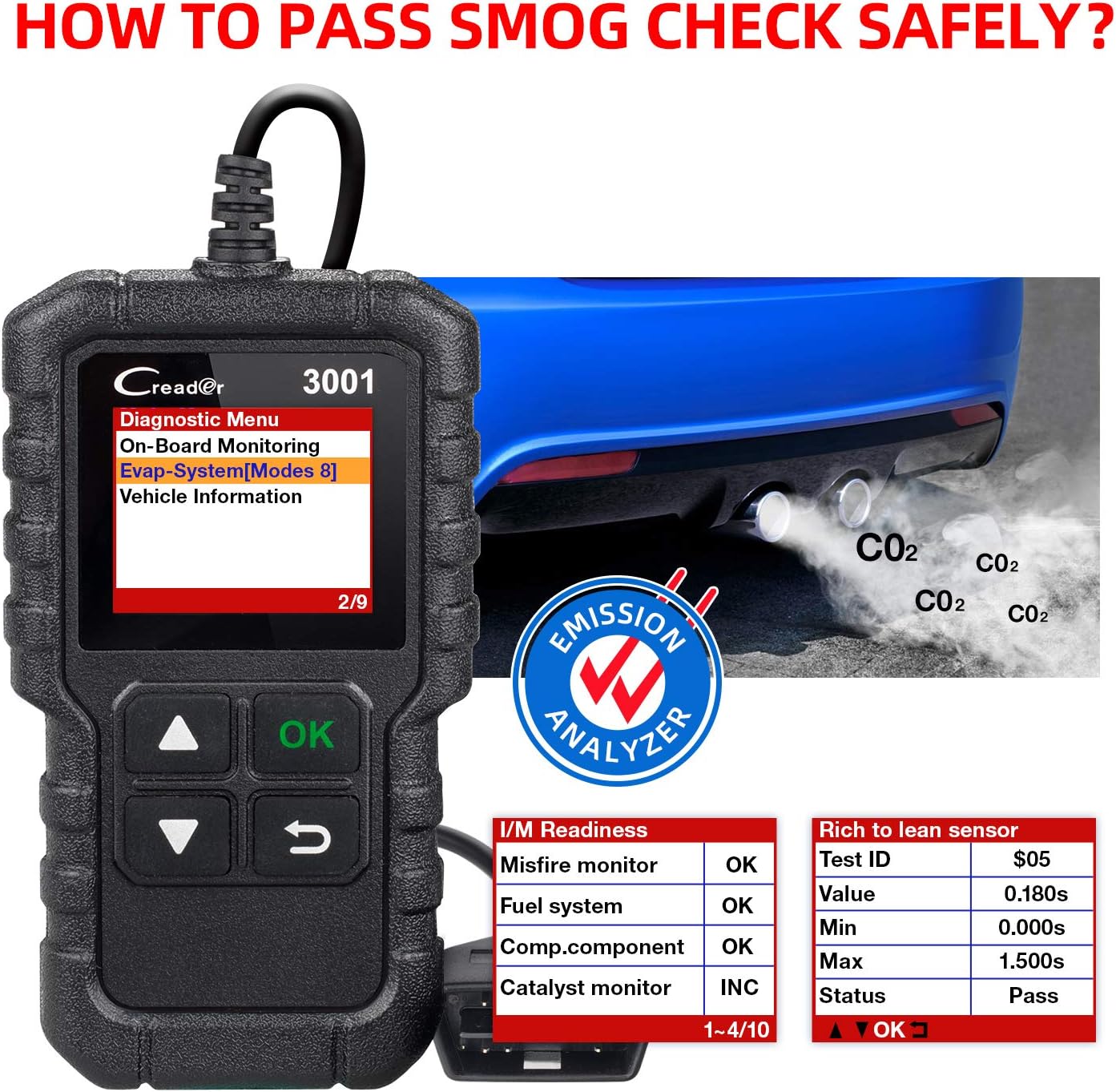
Figure 7: The EVAP System Test (Mode 8) function, used to check for fuel vapor leaks.
3.8 Identify VIN Information
The scanner can retrieve the vehicle's identification information, including VIN (Vehicle Identification Number), CID (Calibration ID), and CVN (Calibration Verification Number).
- Select "Vehicle Information" to view these details.
3.9 DTC Lookup Library
The Creader 3001 includes a built-in DTC lookup library, allowing you to quickly understand the meaning of diagnostic trouble codes without needing external resources.
- Select "DTC Lookup" from the main menu and enter the code to get its description.


Figure 8: Icons representing the OBD2 scanner and code reader functions, including DTC lookup.
3.10 Language Support and Vehicle Coverage
The device supports 7 languages: English, French, German, Spanish, Russian, Italian, and Polish. It is compatible with most OBD2 protocol vehicles sold in the US (since 1996), Europe (since 2000), and Asia (since 2008), supporting CAN, ISO9141, KWP2000, J1850 PWM, and J1850 VPW protocols.

Figure 9: The Creader 3001 supports various vehicle models and multiple languages for global use.
4. Maintenance
To ensure optimal performance and longevity of your LAUNCH Creader 3001, follow these maintenance guidelines:
- Software Updates: The device supports lifetime free updates. Regularly check the LAUNCH official website for available software updates to ensure compatibility with newer vehicle models and improved functionality. Connect the device to a computer via USB for updates.
- Cleaning: Use a soft, dry cloth to clean the device. Avoid using abrasive cleaners or solvents.
- Storage: Store the scanner in a dry, cool environment, away from direct sunlight and extreme temperatures.
- Cable Care: Avoid bending or twisting the diagnostic cable excessively to prevent internal damage.
5. Troubleshooting
If you encounter issues with your LAUNCH Creader 3001, refer to the following common troubleshooting steps:
- Device Does Not Power On:
- Ensure the diagnostic cable is securely connected to the vehicle's OBD2 port.
- Verify the vehicle's ignition is in the "ON" position.
- Check the vehicle's fuse for the OBD2 port (usually labeled "Cigar Lighter" or "Accessory").
- Communication Error:
- Confirm the vehicle is OBD2 compliant (most vehicles since 1996 in the US, 2000 in EU, 2008 in Asia).
- Ensure the ignition is "ON" and the engine is off.
- Try connecting the scanner to a different OBD2 compliant vehicle to rule out a vehicle-specific issue.
- Check for any loose connections in the diagnostic cable.
- Cannot Clear Codes:
- Ensure the underlying fault that triggered the code has been repaired. Codes cannot be cleared if the fault is still present.
- The ignition must be "ON" and the engine off when attempting to clear codes.
- Incorrect Data Display:
- Ensure the correct vehicle protocol is automatically detected or manually selected if applicable.
- Perform a software update to ensure the latest firmware is installed.
6. Specifications
| Feature | Detail |
|---|---|
| Brand | LAUNCH |
| Model | CR3001 |
| Item Weight | 3.5 ounces |
| Product Dimensions | 4.65 x 2.68 x 0.88 inches |
| Power Source | Corded Electric (via OBD2 port) |
| Operating System | Windows XP (for update software) |
| Screen Size | 1.7 Inches |
| Supported Protocols | CAN, ISO9141, KWP2000, J1850 PWM, J1850 VPW |
| Supported Languages | English, French, German, Spanish, Russian, Italian, Polish |
7. Warranty & Support
LAUNCH provides comprehensive support for the Creader 3001 OBD2 Scanner.
- Lifetime Free Updates: The device benefits from lifetime free software updates, ensuring it remains current with new vehicle models and diagnostic capabilities.
- Technical Support: For any technical inquiries or assistance, please refer to the official LAUNCH website or contact their customer service.


