
1. Introduction
Thank you for choosing the Vandlion V8 Keychain Voice Recorder. This compact and versatile device is designed for high-quality audio recording in various environments, offering ease of use and portability. It also functions as an MP3 player and a USB storage device. Please read this manual thoroughly to understand the features and proper operation of your new device.
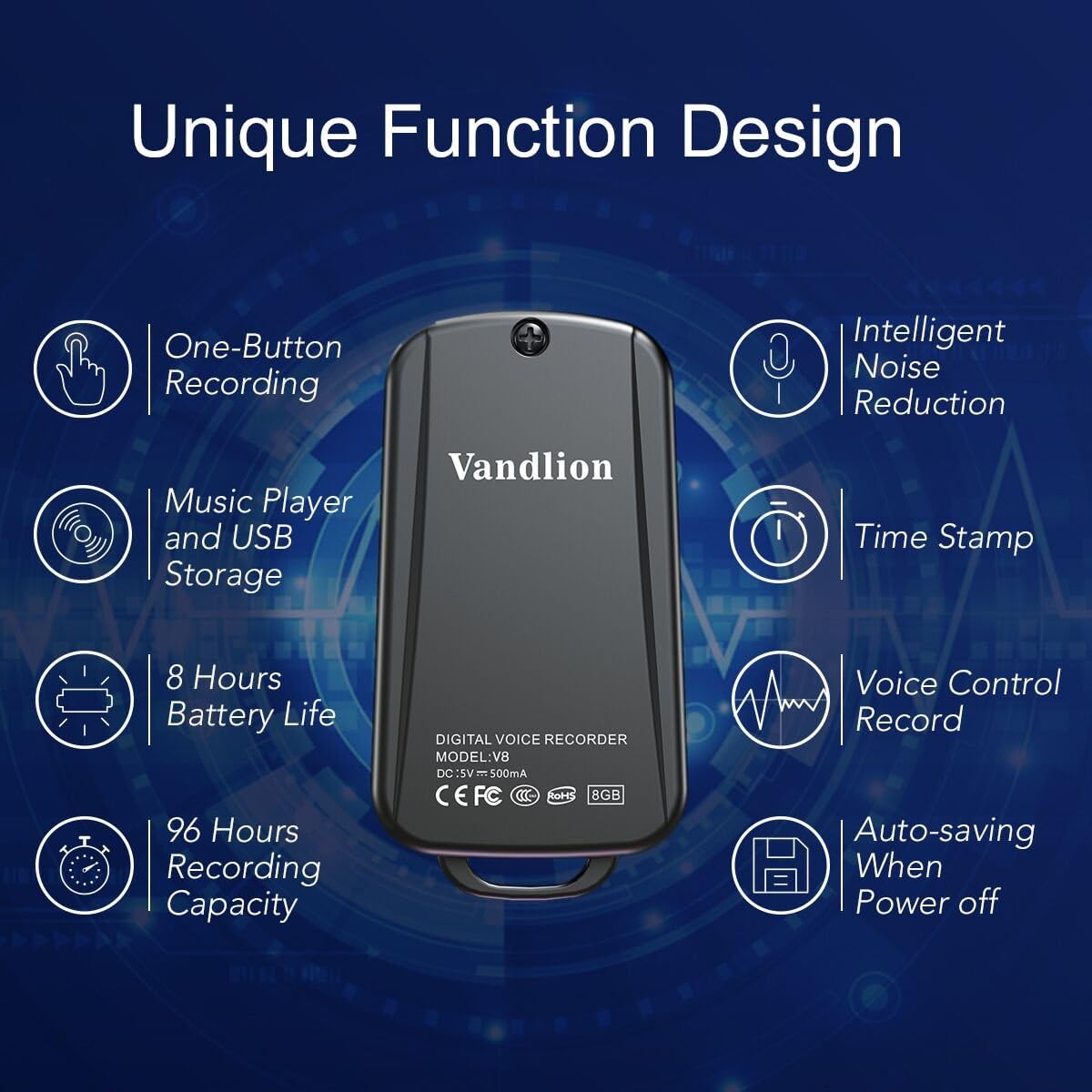
Image 1: Vandlion V8 Keychain Voice Recorder highlighting features like one-button recording, intelligent noise reduction, time stamp, voice control record, auto-saving, music player, USB storage, 8 hours battery life, and 96 hours recording capacity.
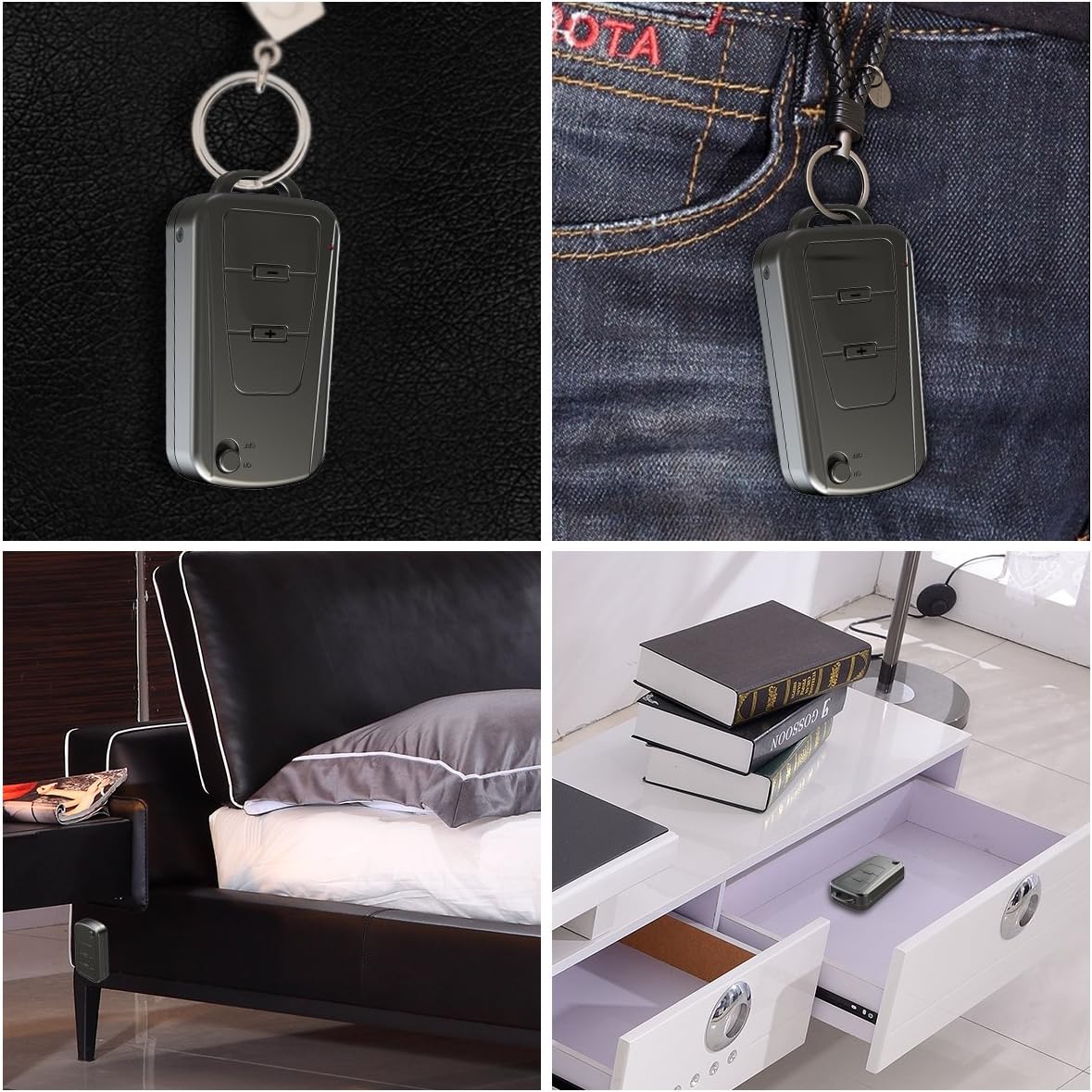
Image 2: The Vandlion V8 recorder shown in various discreet usage scenarios, including attached to a keychain, clipped to trousers, placed beside a bed, and hidden in a drawer.

Image 3: The Vandlion V8 recorder depicted in various application scenarios such as classes, meetings, speeches, concerts, interviews, and for forensic purposes.
2. Package Contents
- 1 x Vandlion V8 Voice Recorder
- 1 x USB Cable
- 1 x User Manual (this document)
3. Device Overview
Familiarize yourself with the physical components of your voice recorder.
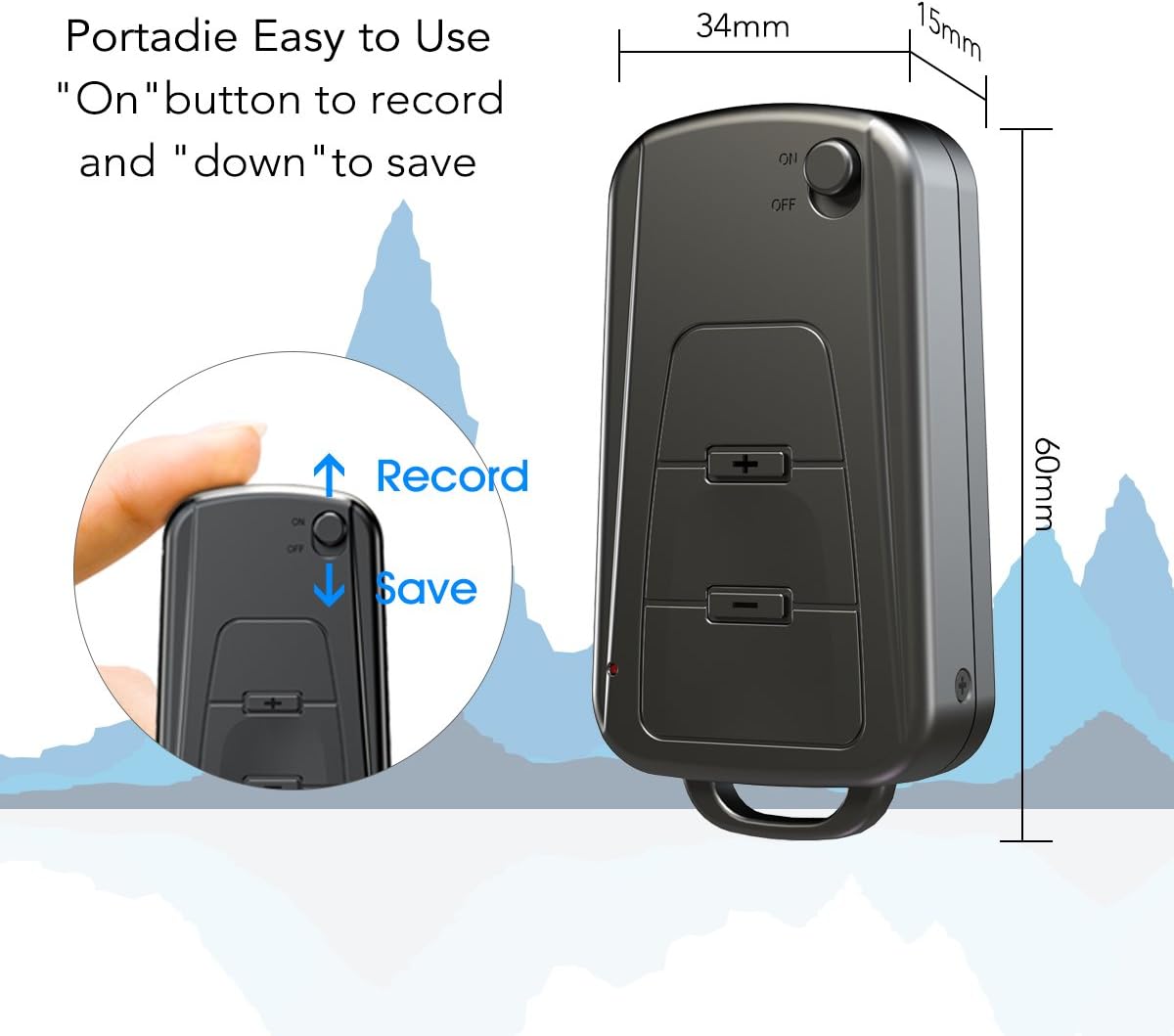
Image 4: Side view of the Vandlion V8 recorder, illustrating the ON/OFF switch for recording and saving, along with volume control buttons. Dimensions are also shown: 60mm length, 34mm width, 15mm thickness.
- ON/OFF Switch: Used to start and stop recording, and to power the device.
- USB Port: For charging and connecting to a computer.
- Headphone Jack: For audio playback.
- Microphone: Integrated for audio capture.
- Indicator Light: Provides status feedback (e.g., recording, charging).
4. Setup
4.1. Charging the Device
Before first use, fully charge the voice recorder. Connect the device to a computer's USB port or a USB wall adapter using the provided USB cable. The indicator light will typically show a specific color (e.g., red) during charging and change (e.g., blue or off) when fully charged. A full charge provides approximately 20 hours of operation.
4.2. Initial Power On
Slide the ON/OFF switch to the "ON" position to power on the device. The indicator light will briefly illuminate.
5. Operating Instructions
5.1. One-Button Recording
- To start recording, slide the ON/OFF switch to the "ON" position. The device will automatically begin recording. The indicator light will not flicker during recording to ensure discreet operation.
- To save the recording, slide the ON/OFF switch to the "OFF" position. The device will save the current recording and power off.
Image 5: Close-up of the Vandlion V8 recorder demonstrating the simple "ON" to record and "OFF" to save operation.
5.2. Voice Activated Recording (VOR)
The device features a smart voice-activated system. When enabled, the recorder will only record when sound is detected, conserving storage space and battery life. Refer to the full user guide (if available from manufacturer) for detailed instructions on enabling/disabling VOR, as this feature may require specific button presses or software settings not covered by the basic one-button operation.
5.3. Playing Back Recordings
- Connect headphones to the headphone jack on the device.
- Power on the device by sliding the ON/OFF switch to "ON".
- Use the volume buttons (if present) to navigate through recordings and adjust playback volume.
Alternatively, connect the device to a computer to play back recordings.
5.4. Transferring Files to a Computer
- Ensure the recorder is powered off.
- Connect the recorder to your computer using the supplied USB cable. The device will be recognized as a removable storage drive.
- Open the drive, locate the recording files (typically in WAV format), and drag them to your computer.
- Note for Mac users: You may need to use VLC Media Player or similar software to play WAV files recorded by this device.
5.5. Using as an MP3 Player
The device supports WAV, WMA, and MP3 audio formats. You can transfer music files to the device's storage via USB connection, similar to transferring recordings. Once music files are on the device, connect headphones and power on the device to listen to your music.
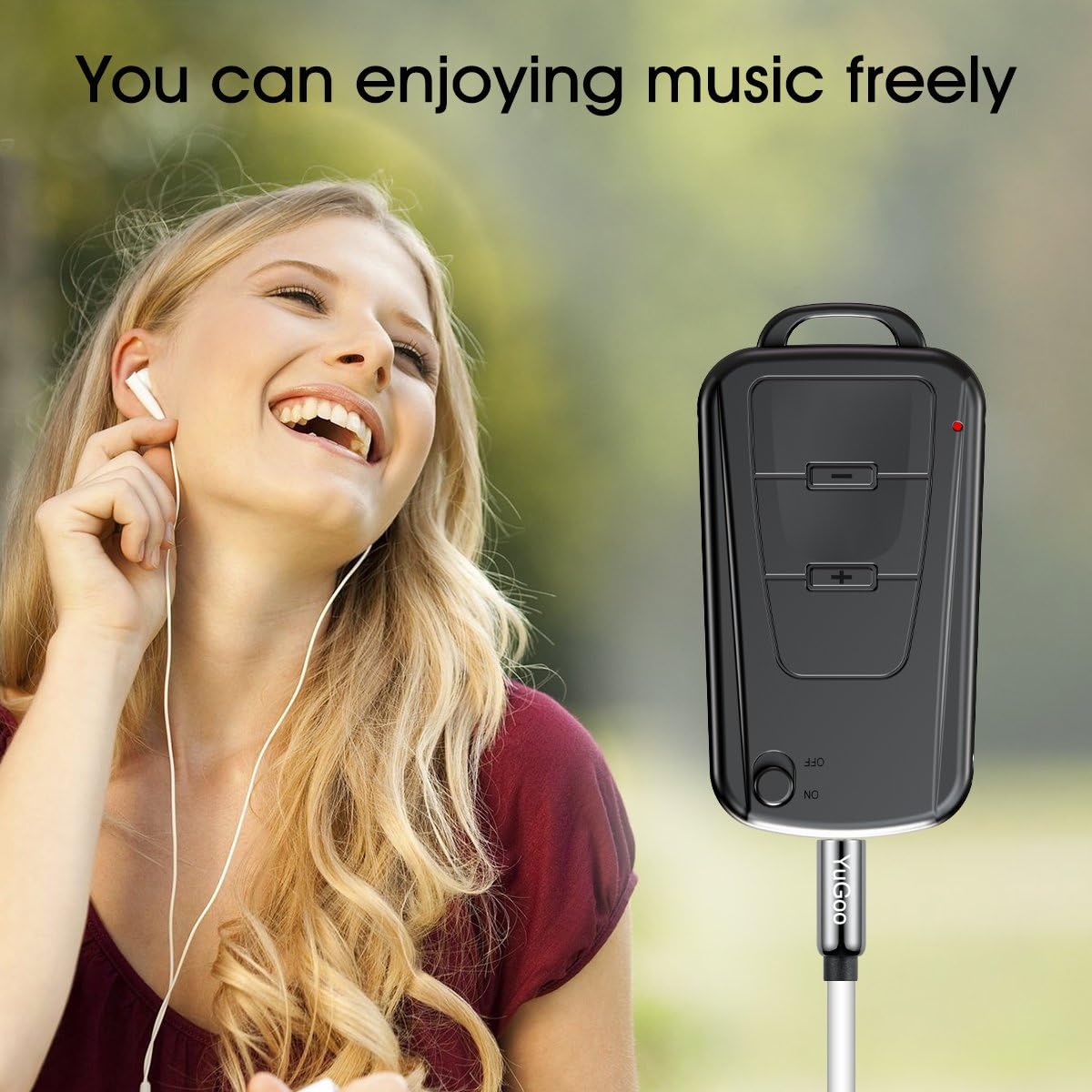
Image 6: The Vandlion V8 recorder connected to earphones, demonstrating its capability as an MP3 player for enjoying music.
6. Maintenance
- Keep the device dry. Avoid exposure to moisture or liquids.
- Clean the device with a soft, dry cloth. Do not use harsh chemicals or abrasive cleaners.
- Store the device in a cool, dry place away from direct sunlight and extreme temperatures.
- Charge the battery regularly, even if not in use, to maintain battery health. Avoid fully discharging the battery for extended periods.
7. Troubleshooting
- Device not turning on:
- Ensure the battery is charged. Connect to a power source and try again.
- Cannot record:
- Check if the device has sufficient storage space. Ensure the ON/OFF switch is in the "ON" position.
- Poor recording quality:
- Ensure the microphone is not obstructed. Record in a quiet environment. The device features DSP noise reduction for clear audio.
- Device not recognized by computer:
- Try a different USB port or cable. Ensure the device is powered off before connecting. Restart your computer.
- Cannot play files on Mac:
- Mac users are advised to use VLC Media Player for optimal playback of recorded WAV files.
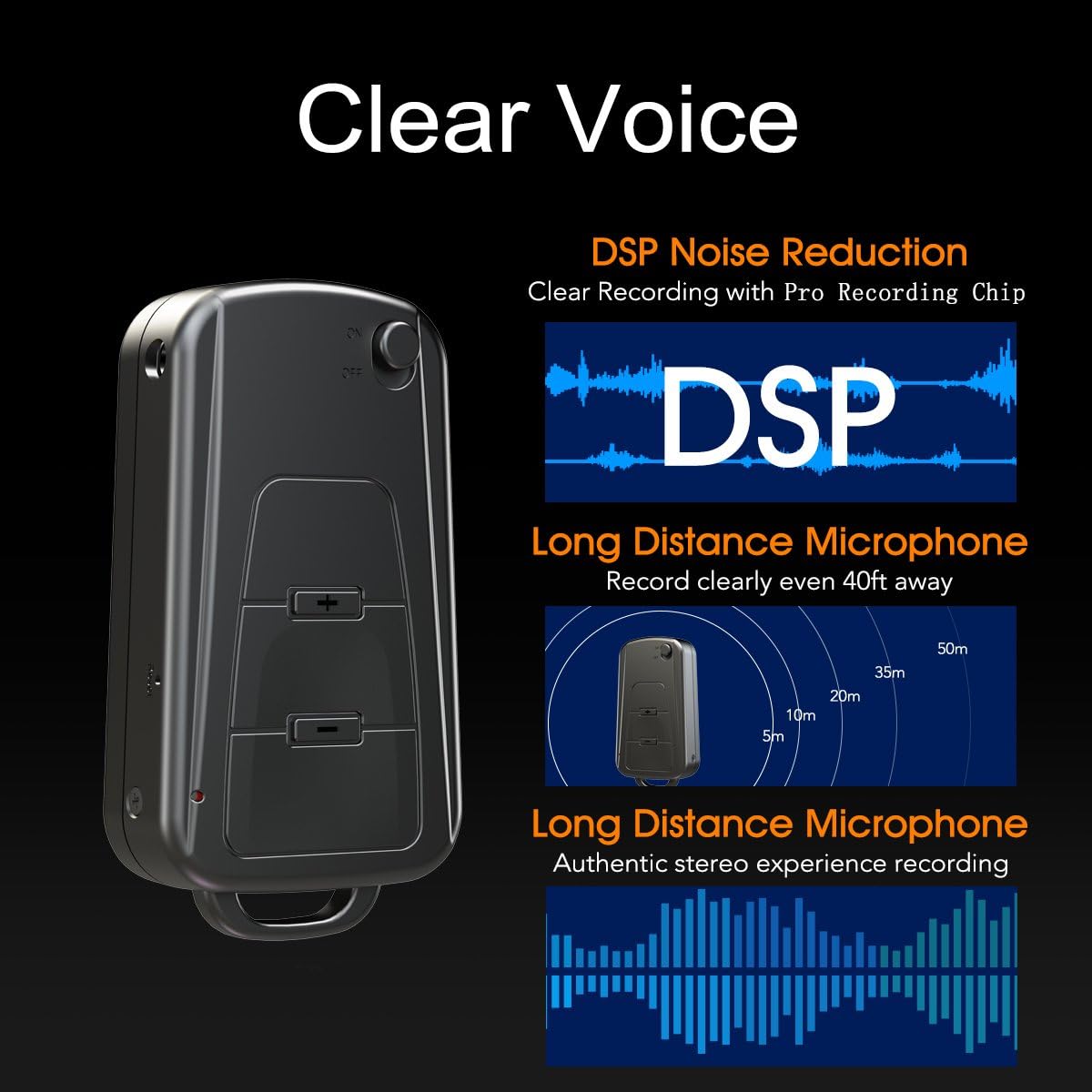
Image 7: Diagram illustrating the Vandlion V8's DSP noise reduction technology for clear recording and its long-distance microphone, capable of capturing sound clearly from up to 40 feet away, providing an authentic stereo experience.
8. Specifications
| Feature | Specification |
|---|---|
| Model | V8 |
| Storage Capacity | 8GB (approx. 96 hours recording capacity) |
| Battery Life (Recording) | Approx. 20 hours |
| Recording Format | WAV |
| Music Format | WAV, WMA, MP3 |
| Sampling Rate | 192Kbps |
| Dimensions | 60 x 34 x 15 mm (2.36 x 1.33 x 0.59 inches) |
| Weight | 27g (1.46 ounces) |
| Interface | USB |
| Compatible Devices | MP3 Player, Personal Computer |
| Microphone Operation Mode | Stereo |
9. Warranty and Support
9.1. Manufacturer's Warranty
This Vandlion V8 Keychain Voice Recorder comes with a Six Months Manufacturer's Warranty from the date of purchase. This warranty covers defects in materials and workmanship under normal use. It does not cover damage caused by misuse, accidents, unauthorized modifications, or normal wear and tear.
9.2. Customer Support
For further assistance, technical support, or warranty claims, please contact Vandlion customer service through the retailer where the product was purchased or refer to the official Vandlion website for contact information. Additional resources, such as a PDF version of the user manual and updated user guides, may be available for download from the manufacturer's support page.
10. Important Safety Information
- Do not attempt to disassemble or modify the device.
- Keep out of reach of children.
- Dispose of the device and its battery responsibly according to local regulations.
- Avoid extreme temperatures and direct sunlight.
