
Philips SRP9263C/27
Philips Universal Remote Control User Manual
Model: SRP9263C/27
Introduction
This manual provides comprehensive instructions for setting up, operating, and maintaining your Philips 6-Device Universal Remote Control (Model SRP9263C/27). This remote is designed to consolidate control of up to six audio and video devices, simplifying your home entertainment experience.
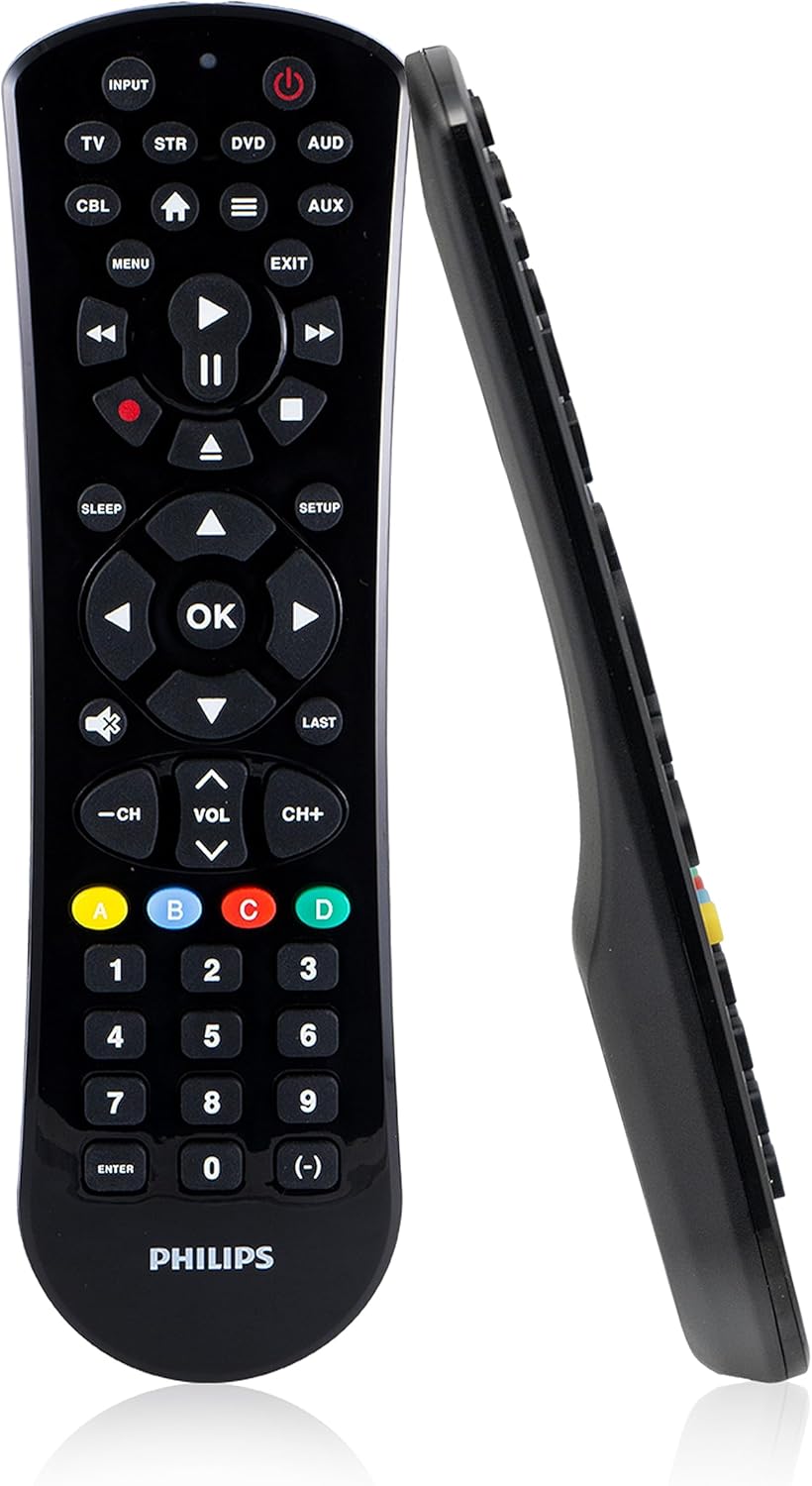
Image: Front and side view of the Philips 6-Device Universal Remote Control.
Setup
1. Battery Installation
Your Philips Universal Remote Control requires two AAA batteries (not included). To install:
- Locate the battery compartment on the back of the remote.
- Slide the battery cover downwards to open.
- Insert two AAA batteries, ensuring the positive (+) and negative (-) terminals align with the indicators inside the compartment.
- Slide the battery cover back into place until it clicks securely.
2. Programming Your Remote
The remote can be programmed using either auto code search or direct code entry. It comes preprogrammed for immediate use with Samsung TVs and Roku streaming media boxes (note: not compatible with Roku Streaming Sticks or Amazon Fire TV/Sticks).

Image: Step-by-step visual guide for programming the remote control.
Direct Code Entry:
- Locate the Remote Code List included with your remote.
- Press and hold the SETUP button on the remote until the red light on the remote control turns on.
- Press and release the device button (e.g., TV, STR, DVD, AUD, CBL, AUX) on the remote that corresponds to the device you want to control.
- Use the number buttons on the remote to enter the first 4-digit remote code from the list for your device's brand.
- Point the remote at the device and test its functions (e.g., Power, Volume).
- Repeat these steps to set up each additional device.
For additional codes or assistance, refer to the official Philips support website or the User Guide PDF provided in the documentation.

Image: The remote can easily program various devices including TVs, soundbars, home theater systems, cable/satellite boxes, DVD/Blu-ray players, and media streaming players.
Operating Your Remote
Your Philips Universal Remote is designed for intuitive control of up to six devices.
Device Selection
To control a specific device, press the corresponding device button at the top of the remote (TV, STR, DVD, AUD, CBL, AUX). The remote will then send commands to the selected device.
Key Features:
- Primary Audio Control: Adjust the volume of your primary audio device (e.g., soundbar or receiver) regardless of which device is currently selected on the remote. This feature ensures consistent volume control.
- Blu-ray/DVD Open/Close: Dedicated buttons allow for direct control of disc tray functions on compatible Blu-ray or DVD players.
- Advanced DVR Functions: Access common DVR controls such as record, play, pause, fast forward, and rewind.
- Simple Menu Navigation: Use the directional pad and OK button for easy navigation within device menus.
- Dash Button: Provides quick access to sub-channels (e.g., 2.1, 2.2).
- Streaming App Hotkey: A dedicated button to take you directly to your smart TV’s primary media platform or streaming app.

Image: The remote offers 6-device configuration, dedicated DVD/Blu-ray open/close, advanced DVR functions, and a sleek gloss finish.

Image: The remote features a comprehensive code library, working with all major brands and supporting thousands of audio/video components.
Maintenance
Battery Replacement
When the remote's performance degrades or the indicator light no longer illuminates, it's time to replace the batteries. Follow the battery installation steps in the Setup section.
Cleaning
To clean your remote, use a soft, dry cloth. Do not use abrasive cleaners, solvents, or wet cloths, as these can damage the remote's finish or internal components.
Troubleshooting
- Remote not responding:
- Ensure fresh AAA batteries are correctly installed.
- Point the remote directly at the device's IR sensor.
- Verify that the correct device button (TV, STR, DVD, etc.) is selected.
- Device not responding to commands:
- Re-enter the programming code for the device. Try alternative codes listed for your brand in the code list.
- Ensure the remote is not obstructed and there are no strong light sources interfering with the IR signal.
- Remote not compatible with Roku Streaming Stick or Amazon Fire TV/Sticks:
- This remote operates using infrared (IR) signals and is not designed for radio frequency (RF) devices like Roku Streaming Sticks or Amazon Fire TV/Sticks. These devices typically require their own dedicated RF remotes.
- Some functions not working after programming:
- Some universal remote codes may not support all original remote functions. Try different codes for your device's brand.
- Refer to the comprehensive User Guide PDF for advanced programming or specific function mapping.
Specifications
| Feature | Detail |
|---|---|
| Model Number | SRP9263C/27 |
| Product Dimensions | 6 x 8 x 2 inches |
| Item Weight | 3.84 ounces |
| Batteries Required | 2 AAA batteries (not included) |
| Max Number of Supported Devices | 6 |
| Compatible Devices | TVs, Blu-ray/DVD players, soundbars, cable and satellite receivers, streaming players (IR-based), Home Theater systems. Compatible with major brands including Sony, Samsung, Hisense, Westinghouse, LG, Toshiba, Sharp, Vizio, Insignia, Philips, TCL, Panasonic, Roku (boxes, not sticks), Apple TV (boxes, not sticks). |
| Color | Black |
| Manufacturer | Jasco Products Company, LLC |

Image: The Philips Universal Remote is available in both 6-device (shown) and 4-device configurations.
Warranty and Support
For warranty information, product registration, and additional support, please visit the official Philips consumer electronics website or the manufacturer's website (Jasco Products Company, LLC).
You can also refer to the comprehensive User Guide PDF for detailed instructions and troubleshooting tips:
Ask a question about this manual
Ask about setup, troubleshooting, compatibility, parts, safety, or missing instructions. Manuals+ will review the question and use this page’s manual context to help answer it.