
Introduction
This manual provides detailed instructions for the setup, operation, maintenance, and troubleshooting of your AcuRite Iris (5-in-1) Professional Weather Station. This system is designed to provide comprehensive hyperlocal weather data, including indoor and outdoor temperature and humidity, wind speed and direction, rainfall, and barometric pressure.

Figure 1: Overview of the AcuRite Iris (5-in-1) Professional Weather Station system, including the outdoor sensor, high-definition display, AcuRite Access hub, and a smartphone displaying the My AcuRite app.
Setup
1. Unpacking and Initial Power-Up
- Carefully remove all components from the packaging: the 5-in-1 outdoor sensor, the High-Definition Display, and the AcuRite Access hub.
- Install 4 AA batteries (not included) into the 5-in-1 outdoor sensor. Ensure correct polarity.
- Plug the power adapter into the High-Definition Display and then into a standard electrical outlet.
- The display should power on and begin searching for the outdoor sensor. This may take a few minutes.
2. Outdoor Sensor Placement
Proper placement of the 5-in-1 outdoor sensor is crucial for accurate readings. Consider the following guidelines:
- Height: Mount the sensor at least 5 feet (1.5 meters) off the ground for optimal wind and rain measurement.
- Clearance: Ensure there are no obstructions directly above or around the sensor that could interfere with wind flow or rainfall collection. Avoid placing it near large metal objects or electrical appliances.
- Sunlight: The sensor includes a solar panel to power its internal aspirating fan. Position the sensor where it receives direct sunlight for most of the day.
- Level Surface: Use the integrated bubble level to ensure the sensor is perfectly level for accurate rainfall measurement.
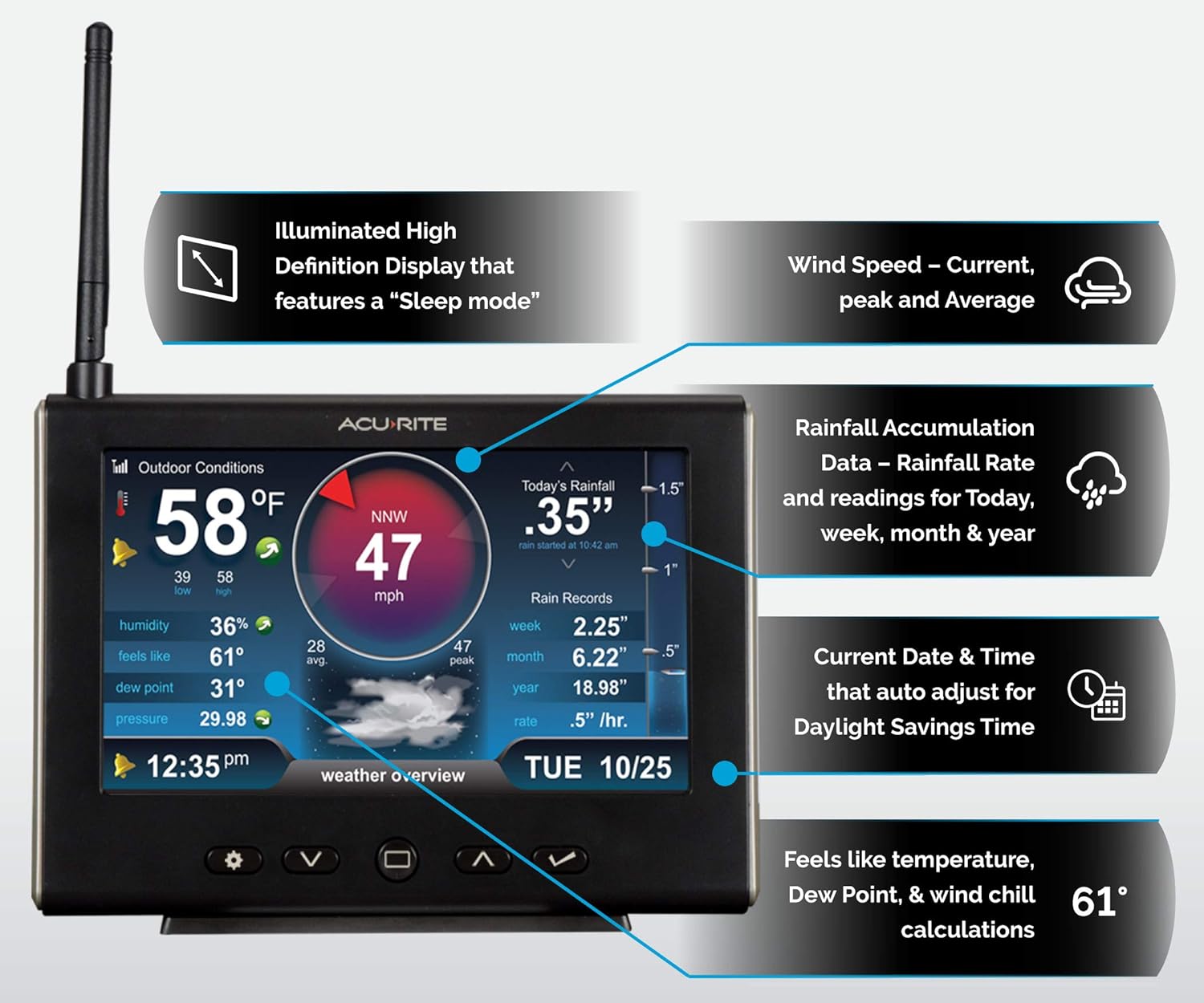
Figure 2: Key features of the 5-in-1 outdoor sensor, highlighting components like the anemometer, solar panel, rain gauge, and wind vane, which contribute to comprehensive weather data collection.
3. AcuRite Access Hub and My AcuRite App Setup
The AcuRite Access hub enables remote monitoring and alerts via the My AcuRite mobile app.
- Connect the AcuRite Access hub to your internet router using the provided Ethernet cable.
- Plug the power adapter into the AcuRite Access hub and then into a standard electrical outlet.
- Download the "My AcuRite" app from your device's app store (available on iOS and Android).
- Open the app and follow the on-screen instructions to create an account and add your AcuRite Access hub using its Product ID (located on the bottom of the unit).
- Once the hub is connected, add your 5-in-1 outdoor sensor to the app to begin receiving data remotely.

Figure 3: The AcuRite Access hub, which facilitates remote monitoring of your weather station data through the My AcuRite app and web interface.
4. Enhanced Wi-Fi Connectivity to Weather Underground
Your AcuRite Access hub can share your weather data with the Weather Underground community:
- Within the My AcuRite app or web interface, navigate to the settings for your AcuRite Access hub.
- Locate the option to connect to Weather Underground. You will need a Weather Underground account and your station ID.
- Follow the prompts to link your AcuRite station to your Weather Underground account.

Figure 4: Connectivity options for the AcuRite Iris Weather Station, showcasing integration with My AcuRite, Weather Underground, and voice assistants like Amazon Alexa.
Operating Your Weather Station
1. High-Definition Display Overview
The HD display provides real-time weather conditions and historical data. It features dynamic graphics and allows you to toggle between different dashboards:
- Outdoor Weather Dashboard: Displays current outdoor temperature, humidity, wind speed and direction, rainfall totals, and barometric pressure.
- Indoor Comfort Dashboard: Shows indoor temperature and humidity, with an indicator for ideal comfort levels.
- Daily and Monthly Records: Access historical high and low records for various weather parameters.
- "Feels Like" Temperature: Calculates and displays the perceived temperature based on wind chill and heat index.

Figure 5: The High-Definition Display in a home setting, showing current outdoor weather conditions and providing an easy-to-read interface for monitoring.
2. My AcuRite Mobile App Features
The My AcuRite app provides remote access to your weather data and advanced features:
- Remote Monitoring: View real-time conditions from your smartphone or computer anywhere with an internet connection.
- Customizable Alerts: Set up email or push notifications for specific weather conditions, such as high winds, low temperatures, or heavy rainfall.
- Data History and Charts: Access detailed historical data and graphical representations of weather trends over time.
- Expansion Capability: Connect up to 7 compatible AcuRite sensors (sold separately) to monitor additional locations like a garage, shed, or garden.

Figure 6: The My AcuRite app interface accessible across various devices, providing comprehensive weather data, charts, and alerts for remote monitoring.
3. Amazon Alexa Compatibility
Integrate your AcuRite weather station with Amazon Alexa for convenient voice-activated weather updates:
- Enable the "My AcuRite" skill in your Amazon Alexa app.
- Link your My AcuRite account to Alexa.
- You can then ask Alexa for current weather conditions from your station, for example, "Alexa, ask My AcuRite about my backyard weather."
Maintenance
1. Battery Replacement
- The 5-in-1 outdoor sensor requires 4 AA batteries. It is recommended to replace these batteries approximately every 6 months, or when the low battery indicator appears on the display or app.
- Always use fresh, high-quality alkaline or lithium batteries. Lithium batteries are recommended for temperatures below -4°F (-20°C).
2. Cleaning the Outdoor Sensor
Regular cleaning ensures accurate readings, especially for the rain gauge and wind sensors.
- Rain Gauge: Periodically check the rain gauge funnel for debris such as leaves, insects, or dirt. Clean with a soft, damp cloth.
- Wind Cups and Vane: Ensure the wind cups spin freely and the wind vane rotates without obstruction. Gently remove any accumulated dirt or spiderwebs.
- Solar Panel: Keep the solar panel clean to ensure efficient charging of the internal fan. Wipe with a soft, damp cloth.
3. Checking Connections
Periodically verify that all power and Ethernet connections are secure for the display and AcuRite Access hub.
Troubleshooting
| Problem | Possible Cause | Solution |
|---|---|---|
| No outdoor data on display/app |
|
|
| Inaccurate temperature/humidity |
|
|
| Rainfall readings incorrect |
|
|
| No internet connectivity (AcuRite Access) |
|
|
For more detailed troubleshooting or specific error codes, please refer to the full product manual available on the AcuRite support website or contact customer support.
Specifications
| Feature | Detail |
|---|---|
| Model Number | 01151M |
| Brand | AcuRite |
| Measurements | Indoor/Outdoor Temperature, Indoor/Outdoor Humidity, Wind Speed, Wind Direction, Rainfall, Barometric Pressure |
| Display Type | High-Definition Color LCD |
| Connectivity | Wi-Fi (via AcuRite Access hub), Ethernet (for AcuRite Access hub) |
| Power Source (Display) | 5V Power Adapter (included) |
| Power Source (Sensor) | 4 AA Batteries (not included) |
| Power Source (AcuRite Access) | 5V Power Adapter (included) |
| Temperature Accuracy | ±1 °C |
| Product Dimensions | Display: 0.6 x 7.6 x 5.5 inches |
| Item Weight | 2.28 pounds (total package weight) |
Warranty and Support
1. Limited Warranty
The AcuRite Iris (5-in-1) Professional Weather Station comes with a one-year limited warranty from the date of purchase. This warranty covers defects in materials and workmanship under normal use. Please retain your proof of purchase for warranty claims.
The warranty does not cover damage caused by improper installation, accidents, misuse, abuse, natural disasters, or unauthorized repairs.
2. Customer Support
For technical assistance, warranty inquiries, or to purchase replacement parts, please visit the official AcuRite support website or contact their customer service department. Contact information can typically be found on the AcuRite website or on the product packaging.
When contacting support, please have your product model number (01151M) and date of purchase readily available.


