
Introduction
This manual provides comprehensive instructions for the NYEAR NP100 portable thermal printer. It covers essential information regarding setup, operation, maintenance, and troubleshooting to ensure optimal performance. The NP100 is designed for printing receipts and labels with a fixed print width of 57mm, offering both USB and Bluetooth connectivity.
Package Contents
Please verify that all items are present in the package:
- NYEAR NP100 Portable Thermal Printer (Black)
- Two Rechargeable Batteries
- American Standard Power Adapter
- User Manual (this document)
- One Roll of Receipt Paper
- One Roll of 57x30mm Label Paper
Setup
1. Battery Installation
The printer operates with two rechargeable batteries. To install:
- Locate the battery compartment on the back of the printer.
- Open the compartment cover.
- Insert the two batteries, ensuring correct polarity.
- Close the battery compartment cover securely.

Image: Bottom view of the NYEAR NP100 printer, illustrating the battery compartment. The compartment cover is visible, indicating where to insert the batteries.
2. Power Connection and Charging
The printer can be powered directly via the American standard adapter or by the installed batteries. For charging, connect the adapter to the printer and a power outlet. A full charge typically takes 3-4 hours.

Image: Side view of the NYEAR NP100 printer, highlighting the power input port for connecting the American standard adapter.
3. Paper Loading
The NP100 printer supports 57mm wide thermal receipt paper and 57x30mm thermal label paper. Ensure you use the correct paper type for your printing needs.
- Gently open the top cover of the printer.
- Insert the paper roll with the printing surface facing the print head.
- Pull a small amount of paper out past the print head.
- Close the top cover firmly until it clicks into place.

Image: Top view of the NYEAR NP100 printer, showing the paper compartment open and ready for paper roll insertion. The control panel with Power, State, and Bluetooth indicators is also visible.
Operation
1. Software Installation
To operate the printer, you will need to install the appropriate software:
- For Android users: Download "Nyearlabel" and "Nyearbill" from Google Play Store.
- For iOS users: Download "Nyearlabel" from Apple App Store.
- For Windows users: The printer is compatible with Windows. Specific driver installation may be required, typically available from the manufacturer's support website.
2. Bluetooth Connectivity
Ensure Bluetooth is enabled on your mobile device and the printer is powered on.
- For Android devices:
- Open the "Nyearlabel" or "Nyearbill" application.
- Search for available devices. The printer's Bluetooth name can be found on the test page (print a test page by holding the FEED button while turning on the printer).
- Select the printer name to pair.
- For iOS devices:
- Open the "Nyearlabel" application.
- iOS devices typically do not require manual pairing through system settings; pairing is managed within the application.
- Select the printer from the device list within the app.
3. Printing Receipts and Labels
The printer supports both receipt and label printing. The mode must be selected based on the paper type loaded.
- For Label Printing:
- Load 57x30mm label paper into the printer.
- In the "Nyearlabel" software, select the paper size 57x30mm.
- Edit your content and ensure the software is set to label paper mode before printing.

Image: The NYEAR NP100 printer shown with label paper loaded, demonstrating its capability to print labels.
- For Receipt Printing:
- Load 57mm thermal receipt paper into the printer.
- Ensure the software is set to thermal paper mode.
- The printer supports printing receipts and opening cash drawers via third-party POS software like Loyverse (Android version).
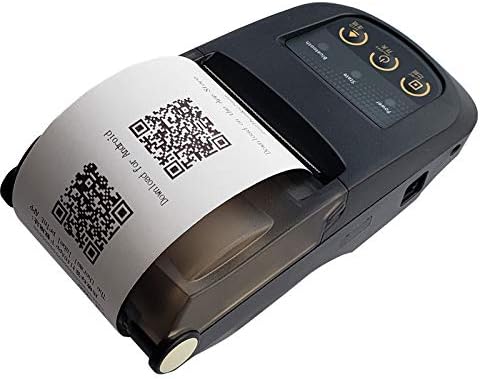
Image: The NYEAR NP100 printer with receipt paper loaded, displaying a printed receipt with QR codes.
Maintenance
1. Cleaning the Print Head
Regular cleaning of the print head ensures clear print quality and extends printer lifespan.
- Turn off the printer and disconnect the power adapter.
- Open the paper compartment.
- Use a soft, lint-free cloth lightly dampened with isopropyl alcohol to gently wipe the print head.
- Allow the print head to dry completely before closing the cover and resuming operation.
2. Battery Care
To maximize battery life:
- Charge the batteries fully before first use.
- Avoid completely draining the batteries frequently.
- If the printer will not be used for an extended period, charge the batteries to about 50% and store in a cool, dry place.
Troubleshooting
| Problem | Possible Cause | Solution |
|---|---|---|
| Printer does not power on | Low battery or power adapter not connected. | Charge batteries or connect the power adapter. Ensure batteries are correctly installed. |
| No print output | Paper loaded incorrectly, out of paper, or print head issue. | Check paper loading direction and ensure enough paper is present. Clean the print head if necessary. |
| Poor print quality | Dirty print head, incorrect paper type, or low battery. | Clean the print head. Ensure you are using thermal paper. Charge the printer. |
| Bluetooth connection fails | Bluetooth not enabled, incorrect pairing, or interference. | Ensure Bluetooth is active on both devices. Re-attempt pairing through the application. Move closer to the printer. |
| Cannot print labels (only receipts) | Incorrect paper type loaded or software setting. | Load 57x30mm label paper. In the "Nyearlabel" app, select 57x30mm paper size and ensure label mode is active. |
Specifications
- Brand: NYEAR
- Model Name: NP100
- Connectivity Technology: Bluetooth, USB
- Printing Technology: Thermal
- Special Feature: Portable
- Print Output: Monochrome
- Product Weight: 1.01 Pounds (approx. 0.46 kg)
- Compatible Driver Types: Android, Windows, iOS
- Print Media: Labels, Receipts
- Printer Type: Thermal
- Supported Print Media: Labels
- Hardware Connectivity: Bluetooth, USB
- UPC: 711639499898
- Manufacturer: NYEAR
Warranty Information
For specific warranty terms and conditions, please refer to the warranty card included with your product or contact NYEAR customer support. Keep your purchase receipt as proof of purchase for any warranty claims.
Customer Support
If you encounter any issues not covered in this manual or require further assistance, please contact NYEAR customer support. Contact details can typically be found on the manufacturer's website or on the product packaging.