
1. Product Overview
The Lexmark MS521dn is a high-performance monochrome laser printer designed for office environments. It offers fast printing speeds, two-sided duplex printing, and robust security features to meet the demands of large workgroups. With a 2.4-inch LCD display, managing print jobs and system information is intuitive and straightforward.
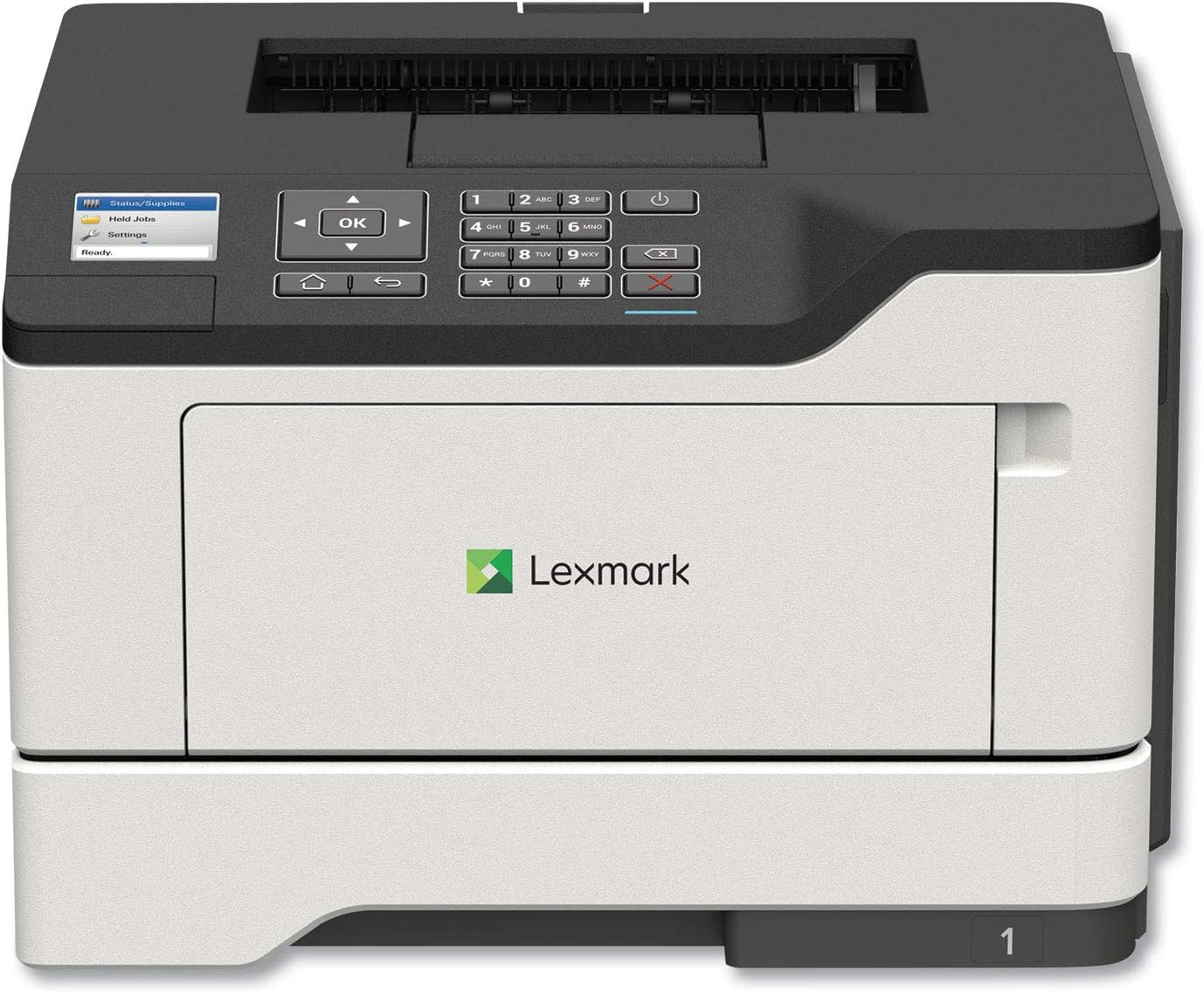
Image: Front view of the Lexmark MS521dn Monochrome Laser Printer, showcasing its compact design and control panel.
Key features include:
- High Performance: Print speeds up to 46 pages per minute with a 1-GHz dual-core processor and 512 MB of memory.
- Duplex Printing: Standard two-sided printing for paper saving.
- Robust Security: Comprehensive security architecture to protect information on the device and network.
- User-Friendly Interface: 2.4-inch color LCD for easy configuration and monitoring.
- Versatile Media Handling: Supports various media types and sizes, from A6 to legal, with a 100-sheet multipurpose feeder.
- Energy Efficiency: Designed to reduce power consumption in active and sleep modes, meeting ENERGY STAR 2.0 requirements.
2. Setup
Follow these steps to set up your Lexmark MS521dn printer and install the toner cartridge:
- Unpack the Printer: Carefully remove the printer from its packaging. Remove all packing materials, tapes, and protective films.
- Connect Power: Plug the power cord into the printer and then into a grounded electrical outlet.
- Install Toner Cartridge:
- Open the front access door of the printer.
- If replacing an old cartridge, gently pull it out.
- Unpack the new toner cartridge from its box and protective bag.
- Gently shake the new cartridge from side to side to distribute the toner evenly.
- Align the cartridge with the guides inside the printer and push it in until it clicks into place.
- Close the front access door.
- Connect to Network/Computer:
- For network connectivity, connect an Ethernet cable from your router or network switch to the printer's Ethernet port.
- For direct connection, use a USB cable to connect the printer to your computer.
- Install Software: Insert the provided Software and documentation CD into your computer's CD/DVD drive and follow the on-screen instructions to install the printer drivers and software. Alternatively, download the latest drivers from the official Lexmark support website.
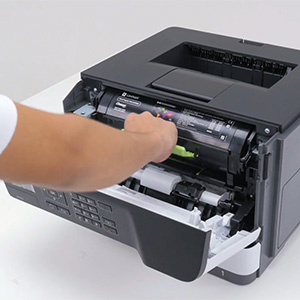
Image: A hand demonstrating the installation of a toner cartridge into the printer's front compartment.
Video: Official Lexmark guide on replacing the toner cartridge for the MS521dn printer. This video demonstrates the step-by-step process of opening the printer, removing the old cartridge, unpacking and preparing the new cartridge, and inserting it correctly.
3. Operating Instructions
The Lexmark MS521dn is designed for straightforward operation. Here are basic instructions for common tasks:
3.1. Basic Printing
- Ensure the printer is powered on and connected to your computer or network.
- Load paper into the main paper tray or the multipurpose feeder. Adjust the paper guides to fit the paper size.
- From your computer, open the document or image you wish to print.
- Select File > Print (or the equivalent command in your application).
- Choose the Lexmark MS521dn from the list of available printers.
- Adjust print settings as needed (e.g., number of copies, paper size, print quality, duplex printing).
- Click Print.
3.2. Using the Control Panel
The 2.4-inch color LCD display and control panel allow you to manage printer settings and monitor status:
- Navigation Buttons: Use the arrow keys and OK button to navigate through menus.
- Status/Supplies: Check toner levels, paper tray status, and printer errors.
- Settings: Configure network settings, paper handling options, print quality, and security features.
- Held Jobs: Access and manage print jobs held in the printer's memory.
4. Maintenance
Regular maintenance ensures optimal performance and longevity of your Lexmark MS521dn printer.
4.1. Replacing Toner Cartridge
When the printer indicates low toner or print quality degrades, it's time to replace the toner cartridge. Refer to the "Setup" section (Step 3) for detailed instructions and the embedded video on how to replace the toner cartridge.
4.2. Cleaning the Printer
- Exterior: Use a soft, damp, lint-free cloth to wipe the exterior of the printer. Avoid abrasive cleaners.
- Interior: Periodically open the front cover and gently remove any paper dust or debris from the interior using a dry, lint-free cloth. Do not touch the imaging unit's drum.
4.3. Fuser and Imaging Components
The Lexmark MS521dn features long-life fuser and imaging components designed to extend uptime and reduce the frequency of replacements. Consult the printer's display or the Lexmark support website for indicators on when these components may require attention.
5. Troubleshooting
This section addresses common issues you might encounter with your Lexmark MS521dn printer.
5.1. Printer Not Responding
- Check Power: Ensure the printer is plugged in and powered on.
- Check Connections: Verify that the USB or Ethernet cable is securely connected to both the printer and the computer/network.
- Restart Devices: Turn off the printer, computer, and router (if applicable). Wait a few minutes, then turn them back on in the following order: router, printer, computer.
- Printer Status: Check the printer's LCD display for any error messages or status indicators.
5.2. Poor Print Quality
- Toner Level: Check the toner cartridge level via the printer's display or software. Replace if low.
- Paper Type: Ensure you are using the correct paper type and quality for your print job.
- Printer Settings: Adjust print quality settings in your printer driver.
- Internal Cleaning: Perform an internal cleaning cycle if available through the printer's menu.
5.3. Paper Jams
- Locate Jam: The printer's display will usually indicate the location of the paper jam.
- Open Access Areas: Open all accessible covers and trays.
- Remove Paper: Carefully pull out any jammed paper in the direction of the paper path. Avoid tearing the paper.
- Close Covers: Close all covers and trays securely.
5.4. Connectivity Issues (e.g., Not Wireless)
The Lexmark MS521dn model (36S0300) connects via Ethernet or USB. It does not have built-in wireless connectivity. If you require wireless printing, you may need an external wireless print server or a network setup that allows for wireless access to a wired printer. Please verify your network configuration and ensure the printer is connected via a supported method.
6. Specifications
| Feature | Detail |
|---|---|
| Brand | Lexmark |
| Model Name | MS521dn (36S0300) |
| Printing Technology | Laser |
| Printer Output | Monochrome |
| Max Print Speed (Monochrome) | 46 ppm |
| Max Print Resolution | 1200 x 1200 dpi |
| Duplex Printing | Automatic (Two-sided) |
| Connectivity Technology | Ethernet, USB |
| Processor Count | 2 (Dual-core) |
| Memory Storage Capacity | 512 MB |
| Display Type | 2.4-inch Color LCD |
| Max Input Sheet Capacity | 350 sheets (expandable to 2000 sheets) |
| Product Dimensions (DxWxH) | 16.93"D x 18.5"W x 14.8"H |
| Item Weight | 31.1 pounds |
| Power Consumption | 620 Watts (On-mode) |
7. Warranty and Support
Your Lexmark MS521dn printer comes with a limited warranty. For specific details regarding the warranty period and coverage, please refer to the "Statement of limited warranty/guarantee" included in your product packaging.
Lexmark is committed to providing comprehensive product security and support. If you encounter issues that cannot be resolved using the troubleshooting guide, or for further assistance, please contact Lexmark customer support. You can find contact information and additional resources on the official Lexmark website.
For information on the Lexmark Cartridge Collection Program (LCCP) for recycling used cartridges, please refer to the included documentation or the Lexmark website.


