
Introduction
This manual provides detailed instructions for the proper use and care of your Vivitar DVR917HD 4K Action Camera. Please read this manual thoroughly before operating the device to ensure safe and effective use. The Vivitar DVR917HD is designed to capture high-quality video and photos in various environments, including underwater, thanks to its durable waterproof casing and versatile mounting options.
Product Features
- 2-inch Color LCD Display: For precise image capture, video playback, and photo viewing.
- 4K Video Recording: Capture stunning video at 4640 x 3480 resolution, along with 1080p and 720p options.
- 16 Megapixel CMOS Sensor: For high-resolution still photographs.
- Water-Resistant Case: Enables use in wet conditions and underwater adventures.
- Built-in Wi-Fi: Allows direct streaming of content to compatible smartphones or tablets.
- Wide-Angle Lens: Designed for capturing expansive scenes.
- Multiple Interfaces: Supports microSD, microSDHC, HDMI, and USB 2.0.
- Compact Design: Dimensions of 2.6 inches x 2.5 inches x 1.5 inches and a weight of 0.5 pounds.
Package Contents
Verify that all items listed below are included in your package:
- Vivitar DVR917HD 4K Action Camera
- Waterproof Housing
- Wireless Remote Control
- AC Power Adapter
- USB Cable
- HDMI Cable
- Helmet Mounting Kit
- Bicycle Mount

Image: The Vivitar DVR917HD camera shown with its full set of accessories, including the waterproof case, remote, various mounts, and cables.
Setup
1. Inserting a MicroSD Card
- Locate the microSD card slot on the side of the camera.
- Gently insert a compatible microSD or microSDHC card (Class 4 or higher recommended) into the slot until it clicks into place. Ensure the card is oriented correctly.
2. Charging the Battery
- Connect the camera to the AC power adapter using the provided USB cable.
- Plug the AC power adapter into a wall outlet.
- The charging indicator light will illuminate. Charging is complete when the light changes color or turns off.
3. Using the Waterproof Housing
- Open the latch on the waterproof housing.
- Carefully place the camera inside the housing, ensuring it fits snugly.
- Close the latch securely. Before first use in water, perform a leak test without the camera inside.
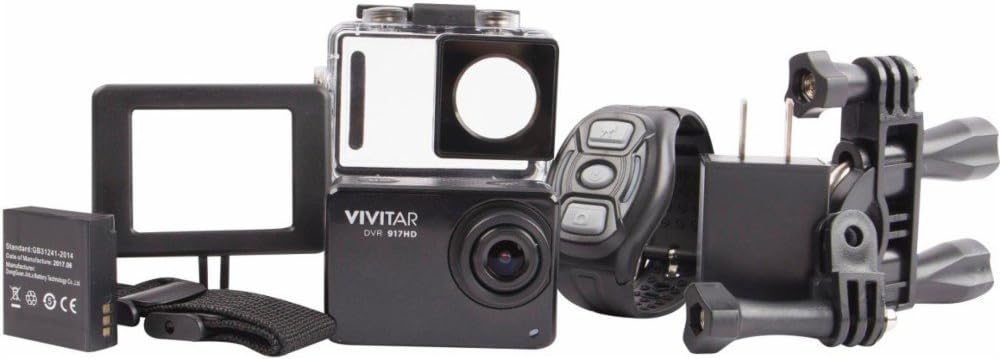
Image: The Vivitar DVR917HD camera positioned within its clear waterproof housing, with the back cover open.
4. Attaching Mounts
The camera comes with a helmet mounting kit and a bicycle mount. Follow the instructions provided with each mount to securely attach the camera for your desired activity.

Image: The Vivitar DVR917HD camera enclosed in its waterproof case, securely attached to a mounting accessory.

Image: A person wearing a ski helmet with the Vivitar DVR917HD action camera visibly mounted on the top, against a snowy mountain backdrop.
Operating Instructions
1. Powering On/Off
- To power on, press and hold the Power/Mode button (usually labeled 'MODE') until the screen illuminates.
- To power off, press and hold the Power/Mode button again until the screen turns off.

Image: A close-up view of the Vivitar DVR917HD action camera, highlighting its front lens and top control buttons.
2. Recording Video
- Ensure the camera is in video recording mode. Use the Mode button to cycle through modes if necessary.
- Press the 'OK' button to start recording. A red indicator light or on-screen icon will typically show recording is active.
- Press the 'OK' button again to stop recording.
3. Taking Photos
- Switch the camera to photo mode using the Mode button.
- Frame your shot using the 2-inch LCD display.
- Press the 'OK' button to capture a photo.

Image: The Vivitar DVR917HD camera's rear screen displaying a live view from a first-person perspective of someone riding a bicycle.
4. Wi-Fi Connectivity
- Enable Wi-Fi on the camera through the settings menu.
- On your smartphone or tablet, search for the camera's Wi-Fi network and connect to it.
- Open the Vivitar app (if available) or a compatible action camera app to stream content or control the camera remotely.
5. Using the Wireless Remote Control
The included wireless remote control allows for convenient operation of the camera from a distance. Refer to the remote control's specific instructions for pairing and function details.
Maintenance
Cleaning the Camera and Housing
- Use a soft, lint-free cloth to clean the camera body and lens. Avoid abrasive materials.
- For the waterproof housing, rinse with fresh water after use in saltwater and allow to air dry. Ensure the O-ring seal is free of debris.
Battery Care
- Charge the battery fully before each use.
- Do not expose the battery to extreme temperatures.
- If storing the camera for an extended period, remove the battery.
Storage
Store the camera in a cool, dry place away from direct sunlight and excessive humidity. Keep it protected from dust and impacts.
Troubleshooting
- Camera not powering on: Ensure the battery is charged and correctly inserted.
- Recording issues: Check if a microSD card is inserted and has sufficient free space. Ensure the card is not corrupted.
- Poor sound quality: The waterproof housing can significantly muffle sound. For better audio, use the camera outside the housing in dry conditions.
- Wi-Fi connection problems: Ensure Wi-Fi is enabled on the camera and your smart device. Try restarting both devices.
- Camera freezing: Remove and reinsert the battery to reset the camera.
Specifications
| Feature | Specification |
|---|---|
| Model Name | DVR917HD |
| Item Model Number | 3216565590 |
| Effective Still Resolution | 16 MP |
| Video Capture Resolution | 4K, 1080p, 720p |
| Video Capture Format | MP4 |
| Photo Sensor Technology | CMOS |
| Screen Size | 2 Inches |
| Connectivity Technology | Wi-Fi |
| Flash Memory Type | Micro SD |
| Special Feature | Waterproof |
| Lens Type | Wide Angle |
| Focus Type | Auto Focus |
| Exposure Control | Automatic |
| Item Weight | 717 g |
| Dimensions | 2.6 x 2.5 x 1.5 inches (approximate) |
Warranty Information
For detailed warranty information regarding your Vivitar DVR917HD 4K Action Camera, please refer to the warranty card included in your product packaging or visit the official Vivitar website. Warranty terms and conditions may vary by region and purchase date.
Customer Support
If you require further assistance, have questions not covered in this manual, or need technical support, please contact Vivitar customer service. Contact details can typically be found on the Vivitar official website or on your product packaging.