
1. Introduction
This manual provides essential information for the safe and efficient operation of your Brady i7100 600dpi Industrial Label Printer. The Brady i7100 is a heavy-duty, high-accuracy label printer designed for industrial applications, capable of producing high-resolution labels. Please read this manual thoroughly before using the printer and retain it for future reference.
2. Safety Information
Always observe the following safety precautions to prevent injury and damage to the printer:
- Read all instructions carefully before operating the device.
- Use only the power cord and accessories supplied or approved by Brady.
- Do not operate the printer in wet or damp conditions.
- Ensure the printer is placed on a stable, level surface.
- Disconnect the power cord before cleaning or performing maintenance.
- Keep hands clear of moving parts during operation.
- This product contains chemicals known to the State of California to cause cancer and birth defects or other reproductive harm (Proposition 65 warning).
3. Package Contents
Verify that all items listed below are included in your package. If any items are missing or damaged, contact your supplier.
- Brady i7100 Industrial Label Printer
- 2 Ribbon Take-up Cores (1" diameter)
- LabelMark 6 Label Creation Software
- USB Cable
- Power Cord (U.S. type B plug)
- Owner's Manual (English)
- Product CD with Driver
- Configuration/Settings Manual
- Owner's Manual in other languages

Figure 3.1: The Brady i7100 printer shown with its standard accessories, including power cord, USB cable, software CD, and manuals.
4. Setup
4.1 Connecting Power and Data
- Place the printer on a stable, flat surface.
- Connect the power cord to the printer's power inlet and then to a grounded electrical outlet.
- Connect the USB cable from the printer's USB port to your PC.

Figure 4.1: Rear panel of the Brady i7100, highlighting the power input and various connectivity ports, including USB.
4.2 Installing Software and Drivers
Insert the provided Product CD into your computer's CD-ROM drive. Follow the on-screen instructions to install the printer drivers and LabelMark 6 Label Creation Software. Alternatively, visit the official Brady website to download the latest drivers and software.
4.3 Loading Labels and Ribbon
- Open the printer's top cover.
- Carefully load the label roll onto the media supply spindle, ensuring the labels feed correctly into the print mechanism.
- Install the thermal transfer ribbon onto the ribbon supply spindle and thread it through the print head assembly, attaching it to a ribbon take-up core.
- Close the top cover securely.

Figure 4.2: Internal view of the Brady i7100 printer with the top cover open, illustrating the path for loading label media and thermal transfer ribbon.
5. Operating Instructions
5.1 Powering On and Initial Screen
Press the power button located on the side of the printer. The touch screen display will illuminate, showing the main menu or a "Ready" status.
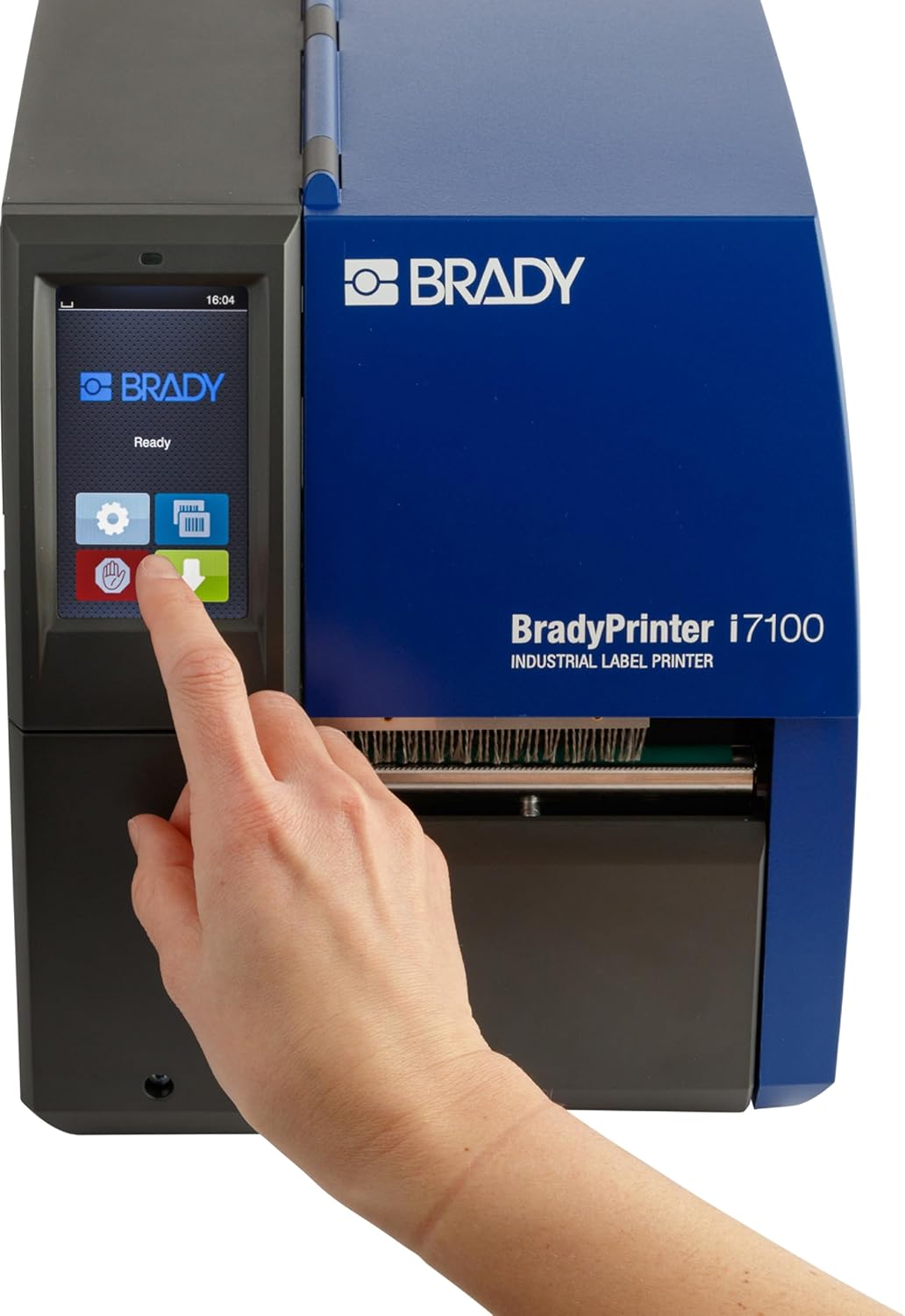
Figure 5.1: The Brady i7100's touch screen interface displaying the main operational icons and "Ready" status.
5.2 Printing Labels
- Create or open your label design using the LabelMark 6 software on your connected PC.
- Ensure the correct printer model (Brady i7100) is selected in the software's print settings.
- Verify label and ribbon types match your loaded consumables.
- Initiate the print job from the software. The printer will begin feeding and printing labels.

Figure 5.2: The Brady i7100 actively printing and dispensing a continuous roll of industrial labels.
6. Maintenance
6.1 Cleaning the Print Head
Regularly clean the print head to ensure optimal print quality.
- Turn off and unplug the printer.
- Open the print head assembly.
- Using a lint-free cloth dampened with isopropyl alcohol, gently wipe the print head surface.
- Allow to dry completely before closing the assembly and powering on.
6.2 Replacing Consumables
Replace label rolls and thermal transfer ribbons as they run out. Refer to section 4.3 for loading instructions. Use only genuine Brady consumables for best performance.
7. Troubleshooting
| Problem | Possible Cause | Solution |
|---|---|---|
| Printer not powering on | Power cord disconnected; power outlet fault | Check power cord connections; try a different outlet. |
| No labels printing | Labels not loaded correctly; ribbon depleted; software error | Reload labels and ribbon (refer to 4.3); check software print queue and settings. |
| Poor print quality | Dirty print head; incorrect ribbon/label combination; print head wear | Clean print head (refer to 6.1); ensure correct consumables are used; contact support if issue persists. |
| Label jam | Improper label loading; foreign object in path | Turn off printer, open cover, carefully remove jammed labels and any obstructions. Reload labels. |
8. Specifications
| Model Number | 149056 |
| Print Resolution | 600 dpi (Maximum Black and White Print Resolution) |
| Printing Technology | Thermal Transfer |
| Connectivity | USB (Hardware Interface, Total USB Ports: 1) |
| Control Method | Touch (Touch Screen, Touchpad Control) |
| Compatible Devices | PC |
| Supported Media Sizes | 3 x 4 inches, 4 x 6 inches (Maximum Media Size: Large) |
| Max Input Sheet Capacity | 1000 |
| Product Dimensions | 18 x 10 x 12 inches |
| Item Weight | 25.5 pounds |
| Manufacturer | Brady Corp |
| Date First Available | April 17, 2018 |
9. Warranty Information
The Brady i7100 Industrial Label Printer comes with a Limited Warranty. For detailed terms and conditions, including coverage period and claim procedures, please refer to the warranty documentation included with your product or visit the official Brady website.
10. Support
For technical assistance, additional documentation, or to order replacement parts and consumables, please contact Brady customer support or visit their official website:
- Brady Official Website: www.bradycorp.com
- Refer to the contact information provided in your product's original packaging for regional support details.


