
1. Introduction
This manual provides essential information for the installation, operation, and maintenance of the MOXA AWK-1137C-US 802.11n Wireless Client. Please read this manual thoroughly before using the device to ensure proper functionality and safety.
2. Product Overview
The MOXA AWK-1137C-US is an industrial-grade 802.11n wireless client designed for reliable wireless connectivity in demanding environments. It supports IEEE 802.11a/b/g/n standards and offers comprehensive interfaces including one serial port and two Ethernet LAN ports, along with integrated robust antenna and power isolation for enhanced performance and durability.

Figure 2.1: MOXA AWK-1137C-US Wireless Client (Top View). This image displays the device from a top-down perspective, highlighting the two external antennas, the power input terminal block, the DB9 serial port, and the two Ethernet LAN ports labeled LAN1 and LAN2. The device casing is black with a green MOXA logo and model number AWK-1137C.
3. Features
- IEEE 802.11a/b/g/n compliant client for versatile wireless connectivity.
- Comprehensive interfaces including one serial port (RS-232/422/485) and two 10/100Mbps Ethernet LAN ports.
- Integrated robust antenna design for reliable signal transmission and reception.
- Power isolation for enhanced system stability and protection in industrial environments.
- Designed for operation in a temperature range of 0 to 60°C.
- Anti-vibration design for durability in harsh conditions.
4. Package Contents
Verify that your package contains the following items:
- MOXA AWK-1137C-US Wireless Client unit
- Documentation (Quick Installation Guide, Warranty Card)
- Terminal block for power input
- Antennas (typically two, as shown in product images)
- Mounting kit (e.g., DIN-rail kit)
Note: Specific accessories may vary. Please refer to the packing list included with your product.
5. Setup
5.1 Safety Precautions
- Ensure the power supply voltage is within the specified range (9-30 VDC).
- Do not operate the device in environments exceeding its specified temperature and humidity limits.
- Disconnect power before making any connections or disconnections.
5.2 Mounting the Device
The AWK-1137C-US is designed for DIN-rail mounting. Attach the device securely to a standard DIN-rail in a suitable enclosure or cabinet. Ensure adequate ventilation around the device.
5.3 Connecting Antennas
Screw the provided antennas firmly onto the antenna connectors (A and B) on the device. Ensure they are oriented for optimal signal reception.
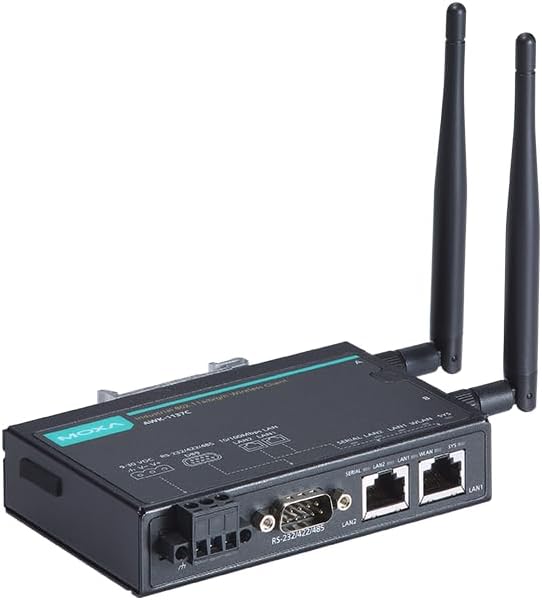
Figure 5.1: MOXA AWK-1137C-US Wireless Client with Antennas. This image shows an angled view of the device, emphasizing the attached antennas and the various connection ports on the side, including the power terminal block, serial port, and two Ethernet ports.
5.4 Power Connection
- Connect a 9-30 VDC power source to the terminal block labeled V+ and V-.
- Ensure correct polarity.
- Secure the wires firmly in the terminal block.
5.5 Network Connections
- Ethernet Ports: Connect your wired network devices (e.g., PLCs, industrial PCs) to the LAN1 and LAN2 Ethernet ports using standard RJ45 Ethernet cables.
- Serial Port: Connect serial devices (e.g., sensors, legacy equipment) to the DB9 serial port. The port supports RS-232, RS-422, and RS-485 modes, which can be configured via software.

Figure 5.2: MOXA AWK-1137C-US Connection Ports. This image provides a closer angled view of the device's connection side, clearly showing the DB9 serial port and the two RJ45 Ethernet LAN ports, along with the power input terminal block.
5.6 Initial Configuration
After physical connections, the device requires software configuration. This typically involves:
- Accessing the device's web-based management interface via an Ethernet connection.
- Configuring wireless settings (SSID, security, channel).
- Setting up IP addresses and network parameters.
- Configuring serial port parameters (baud rate, data bits, parity, stop bits, flow control).
Refer to the detailed software user manual available on the MOXA website for specific configuration steps.
6. Operating Instructions
Once configured, the AWK-1137C-US operates as a transparent wireless client, extending network connectivity to your wired and serial devices. The device will automatically connect to the configured wireless access point.
- LED Indicators: Monitor the LED indicators on the device for status information (e.g., power, WLAN activity, LAN link/activity, system status). Refer to the full user manual for a detailed explanation of each LED.
- Data Transmission: Data from connected Ethernet and serial devices will be transmitted wirelessly to the access point and vice-versa.
- Monitoring: The web-based management interface can be used to monitor the device's status, wireless signal strength, and connected clients.
7. Maintenance
Regular maintenance helps ensure the longevity and reliable operation of your AWK-1137C-US wireless client.
- Cleaning: Keep the device clean and free from dust. Use a soft, dry cloth for cleaning. Do not use liquid or aerosol cleaners.
- Environmental Check: Periodically inspect the operating environment to ensure it remains within specified temperature and humidity ranges.
- Firmware Updates: Check the MOXA website periodically for firmware updates. Applying updates can improve performance, add features, and address security vulnerabilities.
- Cable Integrity: Inspect all connected cables (power, Ethernet, serial) for any signs of wear or damage. Replace damaged cables immediately.
8. Troubleshooting
This section provides solutions to common issues. For more complex problems, consult the full user manual or contact MOXA technical support.
| Problem | Possible Cause | Solution |
|---|---|---|
| Device not powering on | Incorrect power connection, faulty power supply, incorrect voltage. | Verify power cable connection and polarity. Check power supply voltage (9-30 VDC). Test with a known good power supply. |
| No wireless connection | Incorrect wireless settings (SSID, security key), out of range, antenna issues, access point problem. | Check wireless configuration in the device's web interface. Ensure antennas are securely attached. Move the device closer to the access point. Verify the access point is operational. |
| Ethernet devices not connecting | Faulty Ethernet cable, incorrect IP settings, device port issue. | Test with a different Ethernet cable. Verify IP address and subnet mask settings. Check LED indicators for link status. |
| Serial communication failure | Incorrect serial port settings (baud rate, parity), incorrect wiring, faulty serial cable. | Verify serial port configuration (baud rate, data bits, parity, stop bits, flow control) matches the connected device. Check serial cable wiring (RS-232/422/485). |
9. Specifications
| Parameter | Value |
|---|---|
| Model Number | AWK-1137C-US |
| Wireless Standard | IEEE 802.11a/b/g/n |
| Operating Frequency | US Band |
| Ethernet Ports | 2 x 10/100 Mbps LAN (RJ45) |
| Serial Port | 1 x RS-232/422/485 (DB9) |
| Input Voltage | 9-30 VDC |
| Operating Temperature | 0 to 60°C (32 to 140°F) |
| Package Dimensions | 7.91 x 6.61 x 1.97 inches |
| Item Weight | 1.13 pounds |
| Manufacturer | MOXA |
10. Warranty and Support
MOXA products are typically covered by a manufacturer's warranty. For detailed warranty information, please refer to the warranty card included with your product or visit the official MOXA website.
For technical support, product documentation, and software downloads, please visit the MOXA support portal:
When contacting support, please have your product model number (AWK-1137C-US) and serial number ready.


