
Introduction
This instruction manual provides detailed guidance for the Verbatim Wireless Multimedia Keyboard and 6-Button Mouse Combo. This 2.4GHz wireless set is designed for seamless connectivity and enhanced productivity, featuring hot keys for media control, quiet soft-touch keys for comfortable typing, and a high-resolution optical mouse with adjustable DPI for precise control. The compact nano receiver ensures reliable performance and can remain connected to your computer.
Package Contents
- Wireless Multimedia Keyboard
- 6-Button Mouse
- Nano Receiver
- 2 x AAA Batteries (for Keyboard)
- 1 x AA Battery (for Mouse)
Setup
- Insert Batteries:
For the mouse, open the battery compartment located on the underside. Insert one AA battery, ensuring correct polarity. The nano receiver is conveniently stored within this compartment. For the keyboard, open the battery compartment on the underside and insert two AAA batteries, observing correct polarity. - Connect Nano Receiver:
Remove the nano receiver from the mouse's battery compartment. Plug the nano receiver into an available USB port on your computer. The system should automatically detect and install the necessary drivers. - Power On Devices:
Ensure the mouse and keyboard are powered on. There may be an On/Off switch on the underside of the mouse. The keyboard typically activates upon key press after battery insertion. - Test Connectivity:
Move the mouse and type on the keyboard to confirm they are functioning correctly. If not, ensure the receiver is securely plugged in and batteries are correctly installed.

Image: Verbatim Wireless Multimedia Keyboard and 6-Button Mouse Combo.

Image: The nano receiver is stored inside the mouse's battery compartment for convenience.
Operating Instructions
Keyboard Features:
- Multimedia Hot Keys: Located above the function keys, these provide instant access to media controls (play, pause, volume, etc.) and other common functions like web browser and email.
- Soft-Touch Keys: The keyboard features quiet, soft-touch keys designed for a crisp, responsive typing experience.
- Full Numeric Keypad: Includes a dedicated numeric keypad for efficient data entry.
- Adjustable Tilt Legs: The keyboard has foldable legs on the underside to adjust the typing angle for ergonomic comfort.
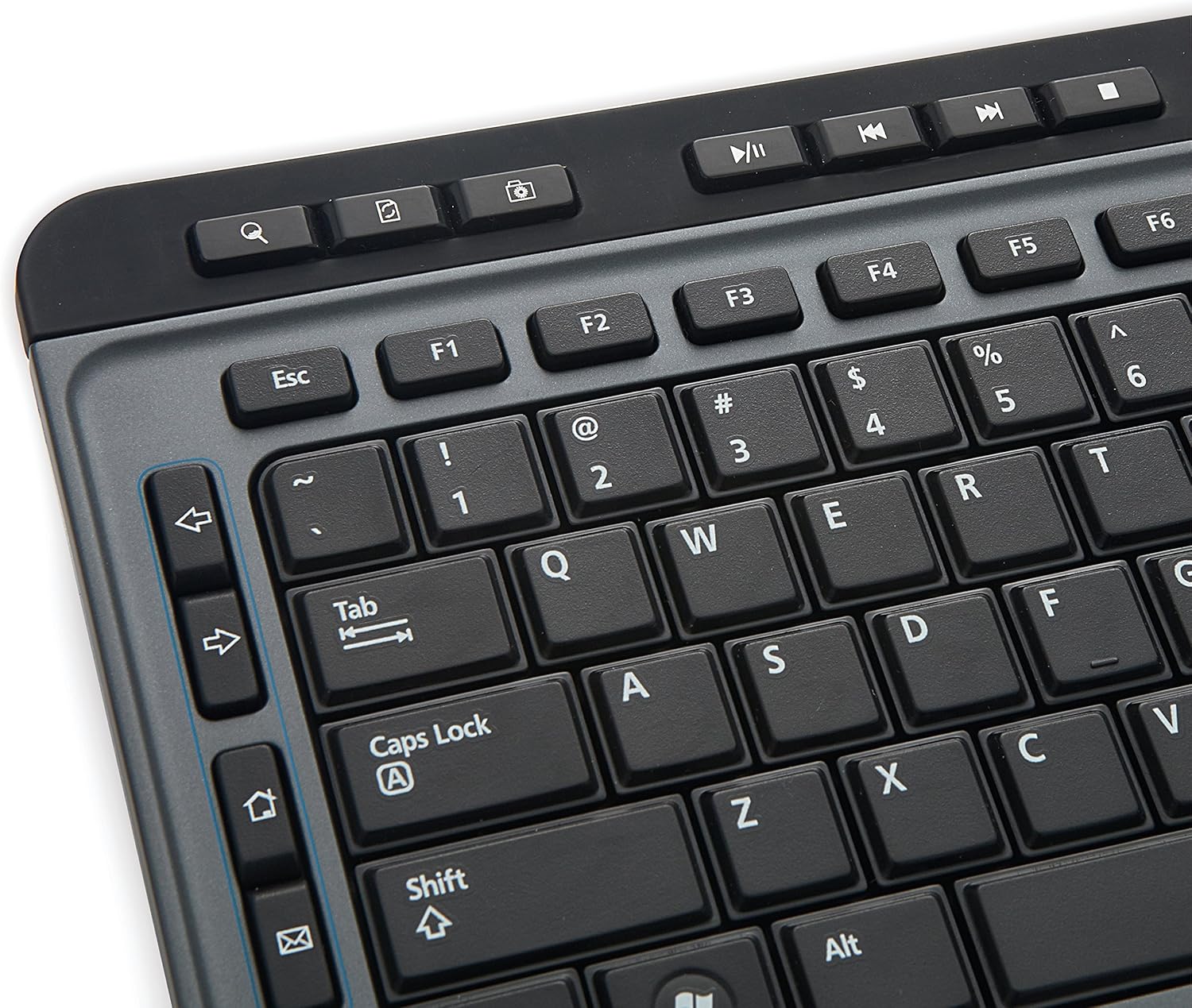
Image: Close-up of the keyboard showing multimedia hot keys and standard layout.
Mouse Features:
- 6-Button Design: Includes standard left and right click buttons, a scroll wheel, and additional buttons for back/forward navigation (webpages), zoom, and adjustable DPI.
- Adjustable DPI: A dedicated DPI switch button allows you to adjust the mouse sensitivity for precise control.
- High-Resolution Optical Technology: The mouse utilizes Blue LED technology, enabling use on various surfaces including glass, wood, and granite.

Image: The 6-button mouse featuring a DPI switch for sensitivity adjustment.

Image: Diagram illustrating the six buttons on the mouse: Left, Right, Scroll Wheel, DPI Switch, Forward, and Backward.
Maintenance
- Cleaning: Use a soft, dry cloth to clean the keyboard and mouse. For stubborn dirt, a slightly damp cloth can be used. Avoid harsh chemicals or abrasive cleaners.
- Battery Replacement: Replace batteries when the low battery indicator on the keyboard illuminates or when mouse/keyboard performance degrades. Always use fresh, high-quality batteries of the specified type (AAA for keyboard, AA for mouse).
- Storage: When not in use for extended periods, remove batteries to prevent leakage and store the devices in a cool, dry place.
Troubleshooting
- No Response from Keyboard/Mouse:
- Ensure batteries are correctly inserted and not depleted. Replace if necessary.
- Verify the nano receiver is securely plugged into a working USB port on your computer.
- Try plugging the nano receiver into a different USB port.
- Restart your computer.
- Lag or Intermittent Connectivity:
- Move the keyboard and mouse closer to the nano receiver.
- Ensure there are no large metal objects or other wireless devices interfering with the 2.4GHz signal.
- Avoid using the receiver with a USB hub if possible; connect directly to the computer.
- Mouse Cursor Jumps or is Inaccurate:
- Clean the optical sensor on the underside of the mouse.
- Ensure you are using the mouse on a suitable surface. Blue LED technology allows for use on many surfaces, but highly reflective or transparent surfaces may still cause issues.
- Adjust the DPI setting using the DPI button on the mouse.
- Multimedia Keys Not Working:
- Ensure your operating system and media player software are up to date.
- Some multimedia keys may require specific software or drivers, though this combo is generally plug-and-play.
Specifications
| Feature | Detail |
|---|---|
| Brand | Verbatim |
| Model Number | 99788 |
| Connectivity Technology | 2.4GHz Wireless (Nano Receiver) |
| Keyboard Type | Multimedia, Full-size with Numeric Keypad |
| Mouse Type | 6-Button, High-Resolution Optical (Blue LED) |
| Compatible Devices | Personal Computer (Mac & PC Compatible) |
| Operating System Compatibility | Windows XP and later, Linux, Mac OS |
| Keyboard Power Source | 2 x AAA Batteries (included) |
| Mouse Power Source | 1 x AA Battery (included) |
| Color | Black |
| Item Weight | 1.91 pounds |
| Product Dimensions (LxWxH) | 18.3 x 7.28 x 0.88 inches |
Important Information
Legal Disclaimer: This product contains chemicals known to the State of California to cause cancer and birth defects or other reproductive harm.
Warranty and Support
This Verbatim product is covered by a 1-Year Limited Warranty. For technical support or warranty claims, please refer to the contact information provided with your purchase or visit the official Verbatim website.
Image: Seal indicating a 1-Year Limited Warranty.


