1. Introduction
This manual provides detailed instructions for the installation, operation, maintenance, and troubleshooting of your ASUS Intel B360 Micro ATX DDR4-SDRAM Motherboard. This motherboard supports 8th Generation Intel Core processors in the LGA1151 package, with integrated graphics, memory and PCI Express controllers to support onboard graphics output with dedicated chipsets, dual-channel (4-DIMM) DDR4 memory and 16 PCI Express 3.0/2.0 lanes for great performance.

Figure 1.1: The ASUS Intel B360 Micro ATX Motherboard alongside its retail packaging.
2. Key Features
- Supports up to 64GB Dual DDR4-SDRAM for high-speed memory performance.
- Micro ATX form factor, suitable for compact PC builds.
- Comprehensive port selection: 2 x PS/2, 1 x DVI-D, 1 x D-sub, 1 x HDMI, 2 x USB3.1 Gen2, 1 x USB3.1 Gen1, 2 x USB2.0, 1 x LAN (RJ45).
- Equipped with the Intel B360 Chipset for reliable performance.
- Designed for 8th Generation Intel Core processors (LGA1151 socket).
3. Setup Guide
3.1. Component Overview
Familiarize yourself with the layout of the motherboard before beginning installation. Identify key components such as the CPU socket, RAM slots, PCIe slots, and various connectors.
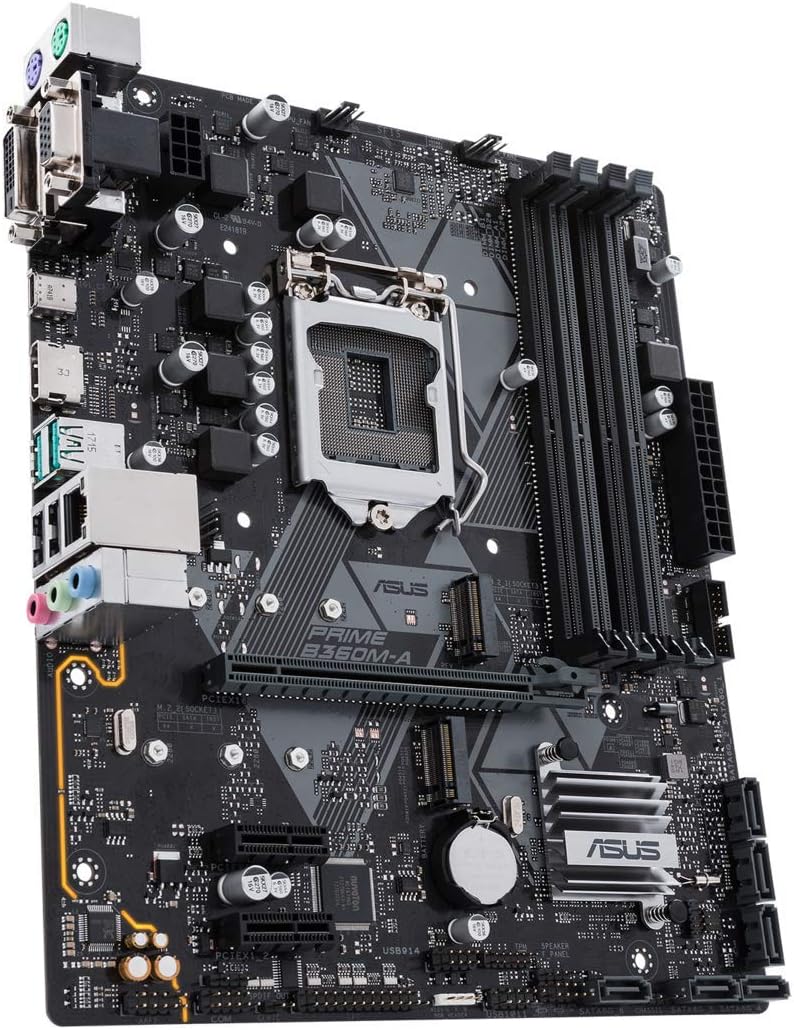
Figure 3.1: An angled view of the motherboard, highlighting the CPU socket, RAM slots, and expansion slots.
3.2. CPU Installation
- Carefully open the CPU socket lever.
- Align the triangular mark on the CPU with the corresponding mark on the socket.
- Gently place the CPU into the socket without forcing it.
- Close the lever to secure the CPU in place.
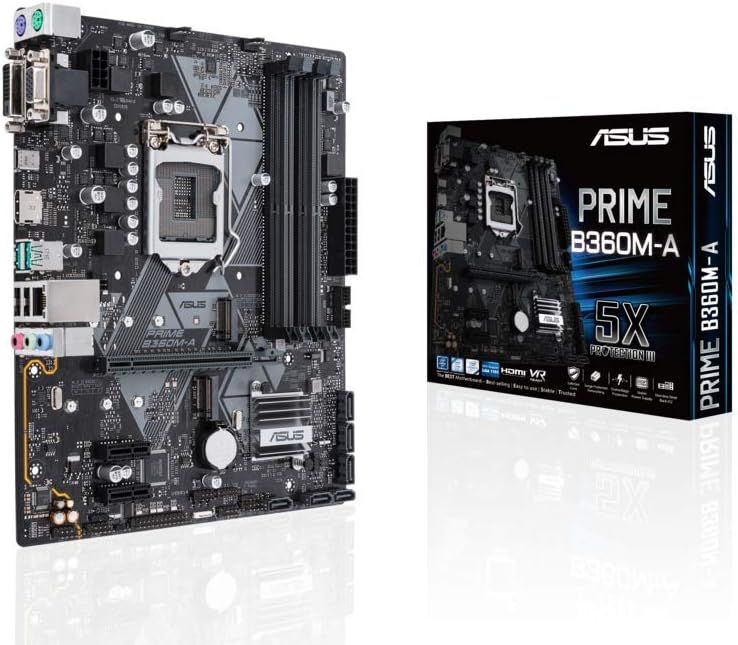
Figure 3.2: A detailed view of the LGA1151 CPU socket, showing the mechanism for CPU installation.
3.3. Memory (RAM) Installation
- Open the clips on both ends of the DIMM slots.
- Align the notch on the DDR4 memory module with the key in the DIMM slot.
- Press down firmly on both ends of the memory module until the clips snap into place.
3.4. Connecting Peripherals and Power
Connect your power supply unit (PSU) cables to the motherboard's 24-pin ATX power connector and 8-pin CPU power connector. Connect storage devices (SATA), front panel connectors (power button, USB ports), and any expansion cards (graphics card, etc.) to their respective slots and headers.

Figure 3.3: The rear I/O panel, displaying the various ports for external device connections.
Rear I/O Port Layout:
- PS/2 Ports: For legacy keyboard and mouse connections.
- DVI-D Port: Digital video output.
- D-sub (VGA) Port: Analog video output.
- HDMI Port: High-definition multimedia interface for audio and video.
- USB 3.1 Gen2 Ports: High-speed data transfer.
- USB 3.1 Gen1 Port: Standard USB 3.0 speed.
- USB 2.0 Ports: Standard USB 2.0 speed.
- LAN (RJ45) Port: For wired network connection.
- Audio Jacks: For speakers, headphones, and microphones.
4. Operating Instructions
4.1. First Boot and BIOS Setup
Upon the first power-on, the system will typically enter the BIOS (Basic Input/Output System) or UEFI (Unified Extensible Firmware Interface) setup utility. Use the keyboard to navigate and configure settings such as boot order, date/time, and system information. Refer to the on-screen prompts for specific key presses to enter BIOS (commonly Del or F2).
4.2. Operating System Installation
Once BIOS settings are configured, you can proceed with installing your preferred operating system. Ensure your installation media (USB drive or DVD) is bootable and set as the primary boot device in BIOS. Follow the on-screen instructions provided by your operating system installer.
5. Maintenance
- Dust Removal: Regularly clean dust from the motherboard and components using compressed air. Ensure the system is powered off and unplugged before cleaning.
- Driver Updates: Keep your motherboard drivers (chipset, audio, LAN, etc.) updated to ensure optimal performance and compatibility. Visit the ASUS support website for the latest drivers.
- BIOS/UEFI Updates: Periodically check for BIOS/UEFI updates from the ASUS website. Updates can improve stability, compatibility, and add new features. Follow the update instructions carefully to avoid system damage.
- Cable Management: Ensure internal cables are neatly routed to improve airflow and prevent interference.
6. Troubleshooting
- No Power: Check all power connections from the PSU to the motherboard and components. Ensure the PSU is switched on.
- No Display: Verify that the monitor is connected correctly to the graphics output (either integrated or discrete GPU). Reseat the graphics card and RAM modules.
- System Instability/Crashes: This can be caused by incompatible RAM, overheating, or faulty drivers. Check RAM compatibility, monitor temperatures, and update drivers.
- Boot Issues: Check boot order in BIOS. Ensure storage drives are properly connected and detected. Try resetting BIOS to default settings.
- Peripheral Not Detected: Ensure the peripheral is properly connected to the correct port. Try a different port or update relevant drivers.
7. Technical Specifications
| Feature | Specification |
|---|---|
| Brand | ASUS |
| Model Number | 90MB0WQ0-M0EAY0 |
| CPU Socket | LGA 1151 |
| Compatible Processors | 8th Generation Intel Core |
| Chipset Type | Intel B360 |
| Form Factor | Micro ATX |
| RAM Memory Technology | DDR4 SDRAM |
| Memory Storage Capacity | 64 GB |
| RAM Memory Maximum Size | 64 GB |
| Memory Clock Speed | 2666 MHz |
| Product Dimensions (LxWxH) | 9.61 x 8.11 x 1.97 inches |
| Item Weight | 1.1 pounds |
| Number of USB 2.0 Ports | 2 |
| Voltage | 12 Volts |
| Date First Available | April 3, 2018 |
8. Warranty and Support
This ASUS motherboard is backed by a 3-year manufacturer's warranty. For technical support, driver downloads, or further assistance, please visit the official ASUS support website or contact their customer service. Keep your purchase receipt as proof of purchase for warranty claims.
For the most up-to-date support information, please visit: www.asus.com/support/


