1. Introduction
Thank you for purchasing the ILEBYGO H20 Mini Wireless Keyboard and Touchpad Mouse Combo. This compact and versatile device combines a full QWERTY keyboard with a multi-touch touchpad, offering convenient control for various smart devices. Its features include adjustable 7-color backlighting, auto-rotation of the touch panel, and a rechargeable battery, making it ideal for use with Android TV Boxes, Projectors, HTPCs, PCs, and more.
Please read this manual carefully to ensure proper setup, operation, and maintenance of your device.
2. Package Contents
- 1 x ILEBYGO H20 Rechargeable Mini Wireless Keyboard
- 1 x USB Receiver
- 1 x USB Charging Line
- 1 x User Manual
Note: The device includes 1 AAA battery required for operation.
3. Setup
3.1 Charging the Device
Before first use, fully charge the keyboard using the provided USB charging line. Connect the micro USB end to the charging port on the keyboard and the standard USB end to a USB power source (e.g., computer USB port, USB wall adapter). The charging indicator light will show the charging status.
The built-in 300 mAh Li-ion battery provides several weeks of standby time on a full charge.
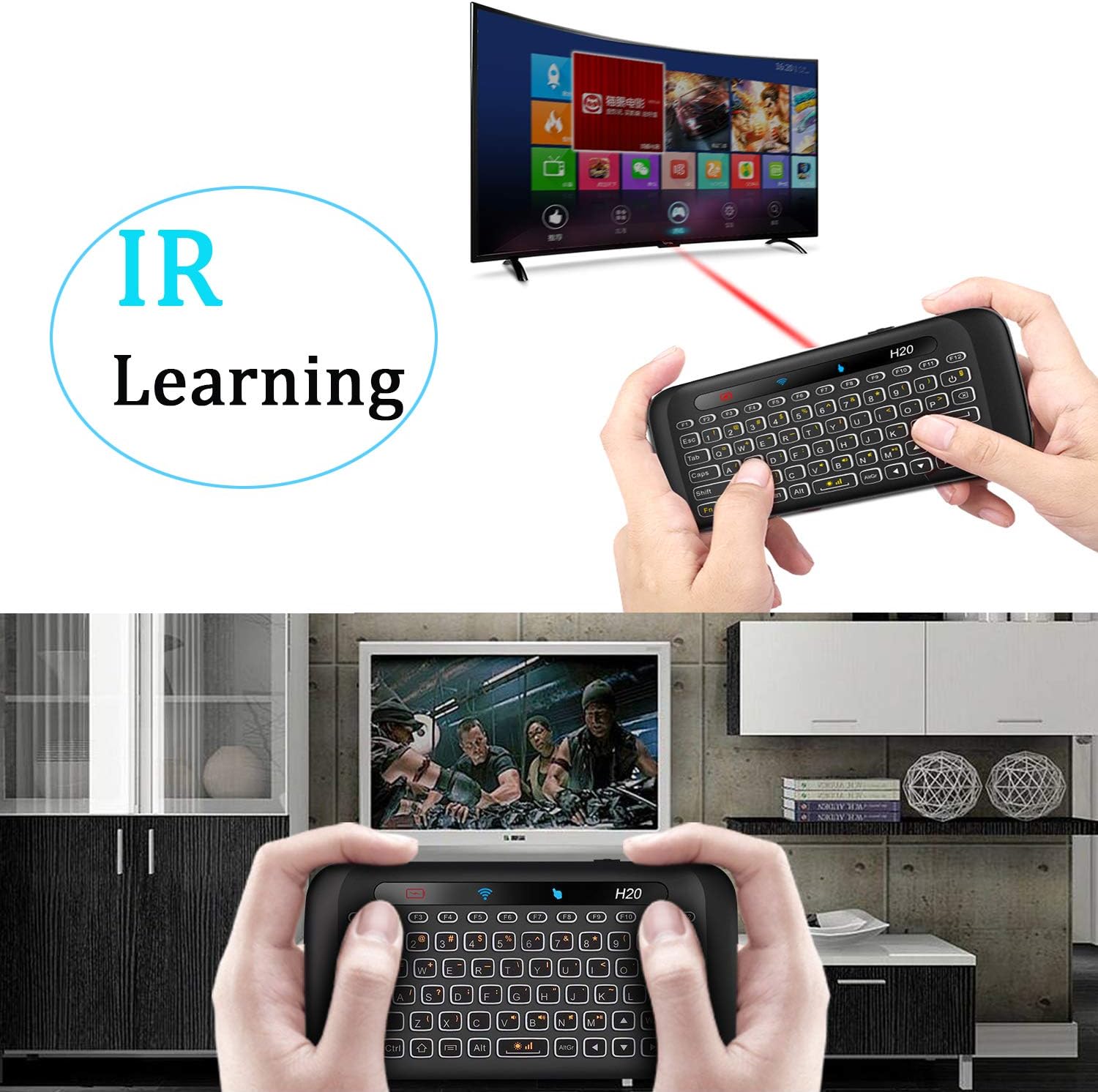
Figure 1: Side view illustrating the charging port and power switch.
3.2 Connecting the USB Receiver
Locate the USB receiver, typically stored within the battery compartment of the keyboard. Insert the USB receiver into an available USB port on your target device (e.g., Android TV Box, PC, Projector). The device should automatically recognize the keyboard and touchpad.

Figure 2: The ILEBYGO H20 Mini Wireless Keyboard and its USB receiver.
4. Operating Instructions
4.1 Keyboard and Touchpad Functions
The H20 features a full QWERTY keyboard on one side and a large multi-touch touchpad on the other. The device intelligently switches between keyboard and touchpad modes based on its orientation. When held with the keyboard facing up, it functions as a keyboard. When flipped, the touch panel becomes active.

Figure 3: Overview of keyboard and touchpad features.
4.2 Auto-Rotation of Touch Panel
The touch panel's coordination index can automatically rotate and adjust based on the device's handling position, similar to screen rotation on a smartphone. This allows for comfortable use in both horizontal and vertical orientations.

Figure 4: Auto-rotation functionality of the touch panel.
4.3 Adjustable Backlight
The keyboard features 3-level adjustable 7-color LED backlighting. This allows for easy use in low-light conditions. Use the dedicated backlight buttons to cycle through colors and adjust brightness levels.
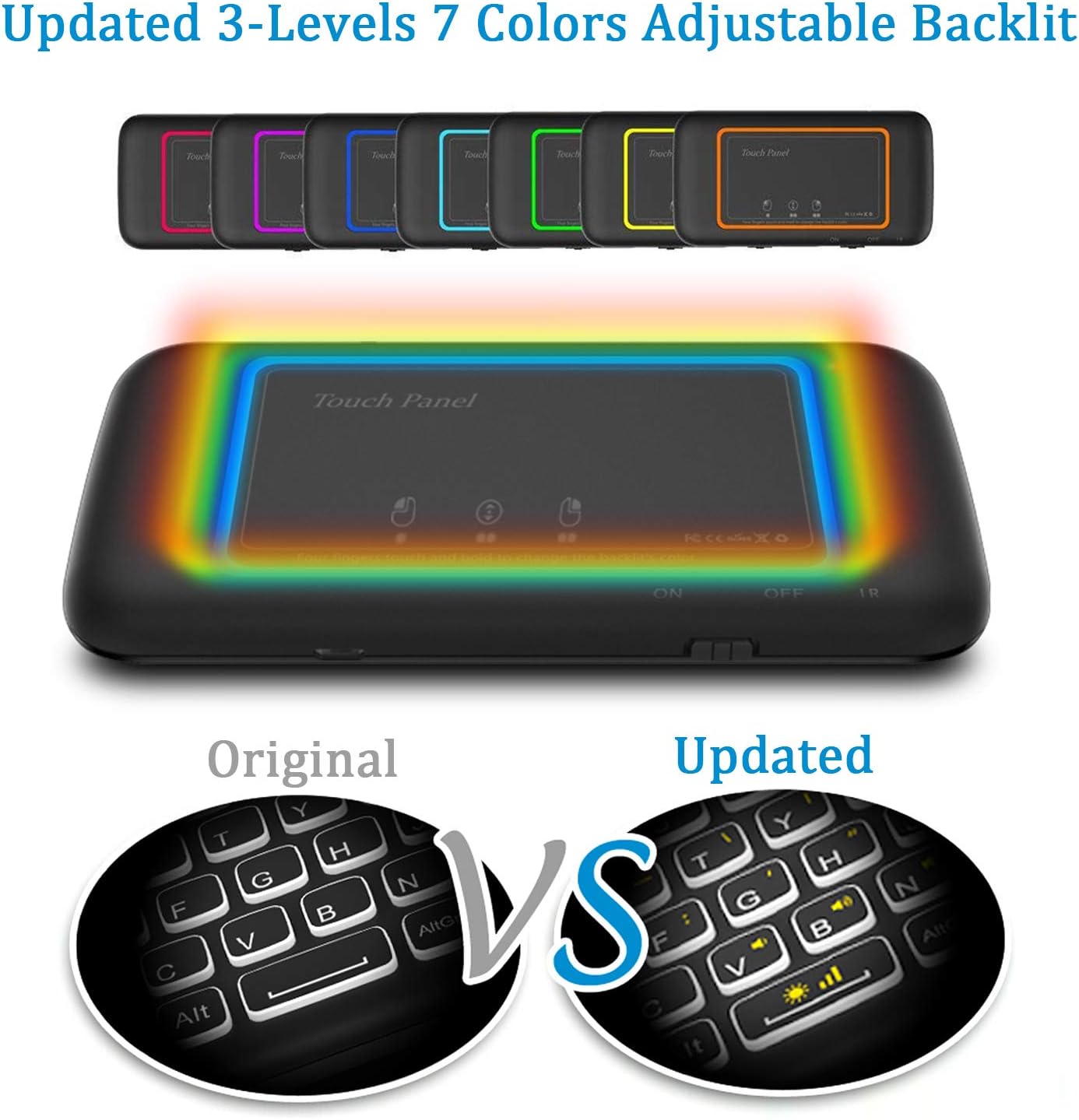
Figure 5: Adjustable 7-color backlight in operation.
4.4 IR Learning Function
The keyboard includes an IR learning function, allowing it to learn commands from existing infrared remote controls. This can consolidate your control devices.

Figure 6: Demonstrating IR learning and device compatibility.
4.5 Compatibility
This wireless keyboard is compatible with a wide range of operating systems and devices, including:
- PC
- Laptop
- Mac OS
- Linux
- HTPC
- IPTV
- Google Android Smart TV Box
- XBMC
- Windows 2000 / XP / Vista / 7 / 8 / 10
5. Maintenance
5.1 Battery Care
To prolong battery life, avoid fully discharging the battery frequently. Recharge the device when the low battery indicator appears. If the device will not be used for an extended period, charge it to approximately 50% and store it in a cool, dry place.
5.2 Cleaning
Use a soft, dry cloth to clean the surface of the keyboard and touchpad. For stubborn dirt, a slightly damp cloth can be used, but ensure no moisture enters the device's ports or openings. Do not use harsh chemicals or abrasive cleaners.
6. Troubleshooting
6.1 Device Stops Working / Auto-Sleep Mode
If the device stops working after a few minutes, it may have entered auto-sleep mode to conserve battery. Tap any key or pick up the device to wake it up. If it does not respond, ensure the battery is charged.
6.2 Connectivity Issues
- Ensure the USB receiver is securely plugged into the target device.
- Verify the keyboard is powered on.
- Move the keyboard closer to the USB receiver to rule out range issues.
- Try plugging the USB receiver into a different USB port on your device.
- Recharge the keyboard to ensure sufficient power.
7. Specifications
| Feature | Specification |
|---|---|
| Product Dimensions | 5.71 x 2.95 x 0.53 inches (5.71"L x 2.95"W x 0.53"H) |
| Item Weight | 3.28 ounces |
| Connectivity Technology | RF, USB |
| Keyboard Description | Wireless |
| Special Features | Backlit, Rechargeable, Auto-Rotation Touch Panel |
| Color | H20 7 Colors Backlit |
| Number of Keys | 69 |
| Battery | 1 AAA battery required (included), Built-in 300 mAh Li-ion |

Figure 7: Product dimensions.
8. Warranty and Support
Your ILEBYGO H20 Mini Wireless Keyboard comes with a worry-free 12-month warranty. For any questions, technical support, or warranty claims, please contact our friendly customer service. Refer to the contact information provided on the product packaging or the official ILEBYGO website.
An official User Guide (PDF) is also available for download here.


