
1. Introduction
This manual provides detailed instructions for the installation, operation, and maintenance of your GIGABYTE B360 HD3 motherboard. Designed to support 8th Generation Intel Core processors with an LGA1151 socket, this ATX form factor motherboard offers robust performance and essential features for a reliable computing experience. It includes support for Dual Channel Non-ECC Unbuffered DDR4 memory, multiple USB 3.1 Gen 2 ports, ultra-fast M.2 storage with PCIe Gen3 x4 and SATA interface, high-quality audio, and Intel Gigabit Ethernet.
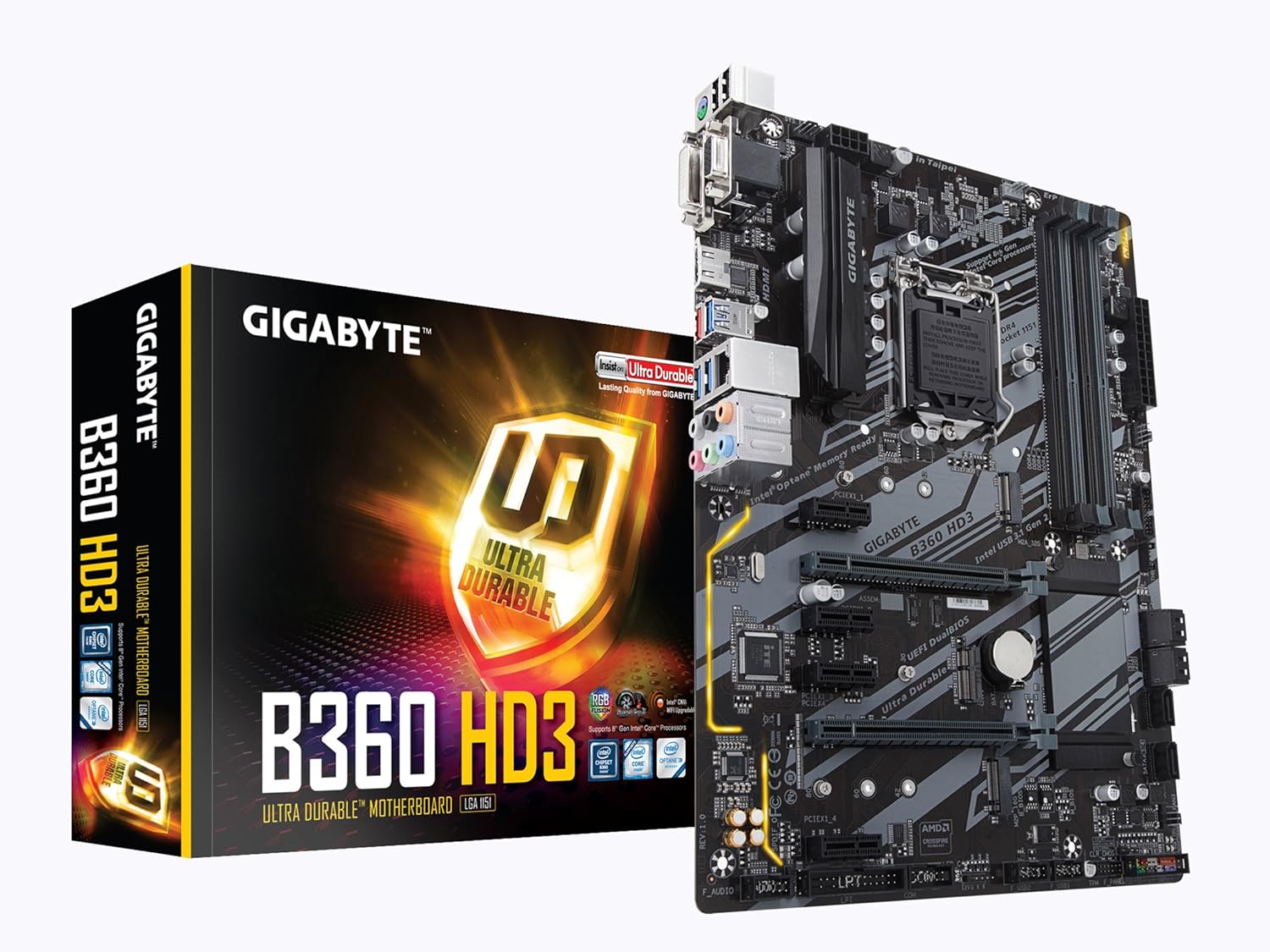
Figure 1: GIGABYTE B360 HD3 Motherboard and Retail Packaging
2. Features
- Processor Support: LGA1151 socket for 8th Generation Intel Core processors.
- Memory: Dual Channel DDR4, 4 DIMMs, supporting up to 128GB of Non-ECC Unbuffered memory.
- Storage: Ultra-fast M.2 slot with PCIe Gen3 x4 & SATA interface, alongside multiple SATA 6Gb/s ports.
- USB Connectivity: Multiple USB 3.1 Gen 2 (USB3.1) Type-A ports for high-speed data transfer.
- Graphics Support: 2-Way Crossfire Multi-Graphics Support for enhanced visual performance.
- Audio: High Quality Audio Capacitors with Realtek ALC892 codec for 7.1-channel high definition audio.
- Networking: Intel Gigabit Ethernet (GbE) LAN with Internet Accelerator Software for optimized network performance.
- BIOS: GIGABYTE UEFI Dual BIOS for system stability and easy management.
- Form Factor: ATX Form Factor (305mm x 224mm) for broad case compatibility.
- Operating System: Support for Windows 10 64-bit.
3. Package Contents
Verify that all items listed below are present in your motherboard package. If any item is missing or damaged, contact your retailer.
- GIGABYTE B360 HD3 Motherboard
- User Manual / Quick Installation Guide
- I/O Shield
- SATA 6Gb/s Cables
- M.2 Screws and Standoffs
- Driver CD/DVD (or download instructions)
4. Setup
4.1. CPU Installation
- Locate the LGA1151 socket on the motherboard.
- Lift the load lever and open the CPU socket cover.
- Carefully align your 8th Generation Intel Core processor with the socket, ensuring the golden triangle on the CPU matches the triangle on the socket.
- Gently place the CPU into the socket without forcing it.
- Close the socket cover and push down the load lever until it locks into place.

Figure 2: Top-down view of the GIGABYTE B360 HD3 Motherboard, highlighting the CPU socket area.
4.2. RAM Installation
- The motherboard features 4 DDR4 DIMM slots. For optimal performance, install memory modules in pairs for dual-channel mode. Refer to the motherboard's Qualified Vendor List (QVL) on the GIGABYTE website for compatible memory.
- Open the clips at both ends of the DIMM slot.
- Align the notch on the DDR4 memory module with the key in the DIMM slot.
- Press down firmly on both ends of the memory module until the clips snap into place.
4.3. Storage Installation
- M.2 SSD: Locate the M.2 slot. Insert your M.2 SSD at an angle and secure it with the provided screw and standoff.
- SATA Drives: Connect your SATA hard drives or SSDs to the SATA 6Gb/s ports using SATA data cables. Ensure power cables from your power supply are also connected to the drives.
4.4. Graphics Card Installation
- Locate the primary PCIe x16 slot (often reinforced with Ultra Durable stainless steel).
- Align your graphics card with the slot and press down firmly until it clicks into place. Ensure the retention clip is engaged.
- Secure the graphics card to your chassis with screws.
- Connect any necessary PCIe power cables from your power supply to the graphics card.
4.5. Power Connections
- Connect the 24-pin ATX main power connector from your power supply to the motherboard.
- Connect the 8-pin ATX 12V power connector to the motherboard.
4.6. Front Panel & Rear I/O Connections
- Connect your chassis' front panel connectors (power button, reset button, HDD LED, power LED) to the corresponding pins on the motherboard. Refer to the motherboard diagram in the full manual for exact pin locations.
- Connect front panel USB 2.0 and USB 3.1 Gen 2 (Type-A) headers.
- Install the I/O shield into your chassis before mounting the motherboard.
- Connect peripherals (monitor, keyboard, mouse, speakers, Ethernet cable) to the rear I/O panel.

Figure 3: Rear I/O Panel of the GIGABYTE B360 HD3 Motherboard, showing various connectivity options.
5. Operating
5.1. BIOS/UEFI Setup
The GIGABYTE B360 HD3 features UEFI Dual BIOS, providing a user-friendly graphical interface for system configuration. To enter BIOS Setup, press the Delete key during the Power-On Self-Test (POST). Here you can configure boot options, system clock, memory settings, and other hardware parameters.
5.2. Software and Drivers
After installing your operating system, install the necessary drivers from the provided driver CD/DVD or download the latest versions from the GIGABYTE official website. Utilize the GIGABYTE APP Center, which includes the Cloud Station Utility, to manage and optimize your system's performance and features.
6. Maintenance
- Keep Clean: Regularly clean dust from your computer case and motherboard components using compressed air. Ensure proper airflow to prevent overheating.
- Check Connections: Periodically verify that all cables (power, data, peripherals) are securely connected.
- Software Updates: Keep your operating system, drivers, and BIOS/UEFI firmware updated to ensure optimal performance, stability, and security.
- BIOS Battery: The motherboard uses a CR2032 lithium-ion battery for the CMOS. If system time or BIOS settings are frequently lost, the battery may need replacement.
7. Troubleshooting
- No Power: Ensure all power cables (24-pin ATX, 8-pin ATX 12V) are firmly connected. Check power supply functionality.
- No Display: Verify that the monitor is connected to the graphics card (or integrated graphics port) and powered on. Reseat the graphics card and RAM modules.
- System Instability/Crashes: Check RAM modules for proper installation and compatibility (refer to QVL). Ensure CPU cooler is correctly installed and making good contact. Update drivers and BIOS.
- Boot Issues: Check boot order in BIOS. Ensure storage drives are detected and contain a valid operating system.
- Peripheral Not Detected: Try connecting the peripheral to a different USB port. Ensure drivers are installed.
- For more detailed troubleshooting, consult the comprehensive user manual available on the GIGABYTE support website.
8. Specifications
| Brand | GIGABYTE |
| Model Name | B360 HD3 |
| CPU Socket | LGA 1151 |
| Compatible Processors | 8th Generation Intel Core |
| Chipset Type | Intel B360 |
| RAM Memory Technology | DDR4 |
| Memory Clock Speed | 2133 MHz (up to 4733 MHz OC) |
| Max RAM Capacity | 128 GB (4 DIMMs) |
| USB 2.0 Ports | 2 (internal headers) |
| USB 3.1 Gen 2 (Type A) | 3 |
| Storage Interface | M.2 (PCIe Gen3 x4 & SATA), SATA 6Gb/s |
| LAN | Intel GbE LAN |
| Audio | Realtek ALC892 (7.1-channel HD Audio) |
| Form Factor | ATX (305mm x 224mm) |
| Operating System | Support for Windows 10 64-bit |
| Item Weight | 2.18 pounds |
| Product Dimensions | 12.01 x 8.86 x 0.79 inches |
9. Warranty and Support
For detailed warranty information and technical support, please refer to the official GIGABYTE website or contact their customer service. Keep your proof of purchase for warranty claims.


