
ASUS STRIX B360-H GAMING
ASUS ROG Strix B360-H Gaming Motherboard User Manual
Model: STRIX B360-H GAMING
1. Product Overview
The ASUS ROG Strix B360-H Gaming motherboard is engineered for optimal gaming performance, featuring robust hardware safeguards and advanced cooling solutions. It supports Intel 8th Gen processors and offers high-speed data transfer capabilities.

Image 1.1: The ASUS ROG Strix B360-H Gaming motherboard alongside its retail packaging, showcasing the product's design and branding.
Key Features:
- Designed exclusively for 8th generation Intel Core processors to maximize connectivity and speed with Dual NVMe M.2, USB 3.1 Gen2 and Intel Optane Memory compatibility.
- ASUS Optic-MEM improves memory stability and performance by improving trace isolation between PCB layers to maintain signal integrity even at higher frequencies.
- Gamer's Guardian Hardware-level safeguards provide component longevity and reliability.
- FanXpert 4 allows for dynamic fan calibration and optimized system cooling while gaming.
- Pre-mounted I/O shield ensures streamlined installation and represents ROG's attention to detail and quality.
2. What's In The Box
Verify that all components listed below are included in your product package:

Image 2.1: A visual representation of all items included in the ASUS ROG Strix B360-H Gaming motherboard package.
- Motherboard
- Warranty Card
- User Manual
- Software Drivers DVD
- Cable Ties
- ROG Strix Stickers
- Screws
- Door Hanger
- 4x SATA Cables
- RGB Extension Cable
3. Setup and Installation
Follow these steps for proper installation of your motherboard into a compatible PC case.
3.1 Motherboard Layout and Connectors

Image 3.1: Detailed view of the motherboard highlighting key areas such as DIMM slots, SafeSlot PCIe, and Dual M.2 sockets.
Familiarize yourself with the motherboard's layout, including the CPU socket (LGA1151), 4x DIMM slots for DDR4 memory (up to 64GB), SafeSlot PCIe 3.0 x16 slots, and Dual M.2 sockets for high-speed storage.
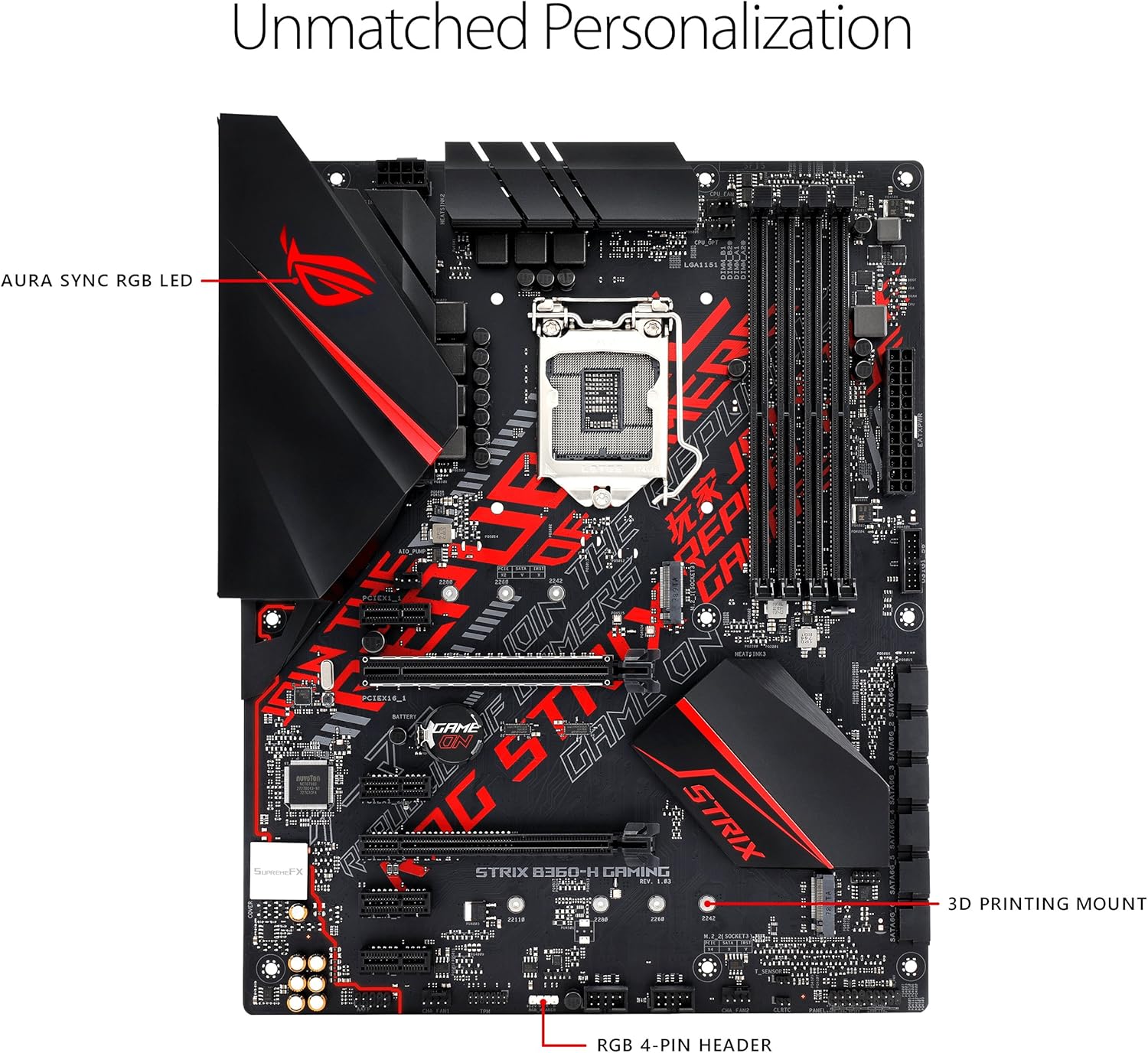
Image 3.2: The motherboard's personalization features, including the AURA SYNC RGB LED area and the RGB 4-pin header for lighting customization.
3.2 Installing Components
- CPU Installation: Carefully align your 8th Generation Intel Core processor with the LGA1151 socket. Ensure the triangle on the CPU matches the triangle on the socket. Lower the retention arm to secure the CPU.
- Memory (RAM) Installation: Open the clips on both ends of the DIMM slots. Align the notch on the DDR4 memory module with the key in the slot. Press down firmly on both ends until the clips snap into place.
- Storage Devices (M.2/SATA): Install M.2 SSDs into the designated M.2 sockets. For SATA drives, connect them to the SATA ports using the provided SATA cables.
- Graphics Card (GPU) Installation: Insert your graphics card into the reinforced SafeSlot PCIe 3.0 x16 slot. Ensure it is seated firmly and secure it with the case screw.
- Power Connections: Connect the 24-pin ATX power connector and the 8-pin CPU power connector from your power supply to the motherboard.
3.3 Connecting Peripherals
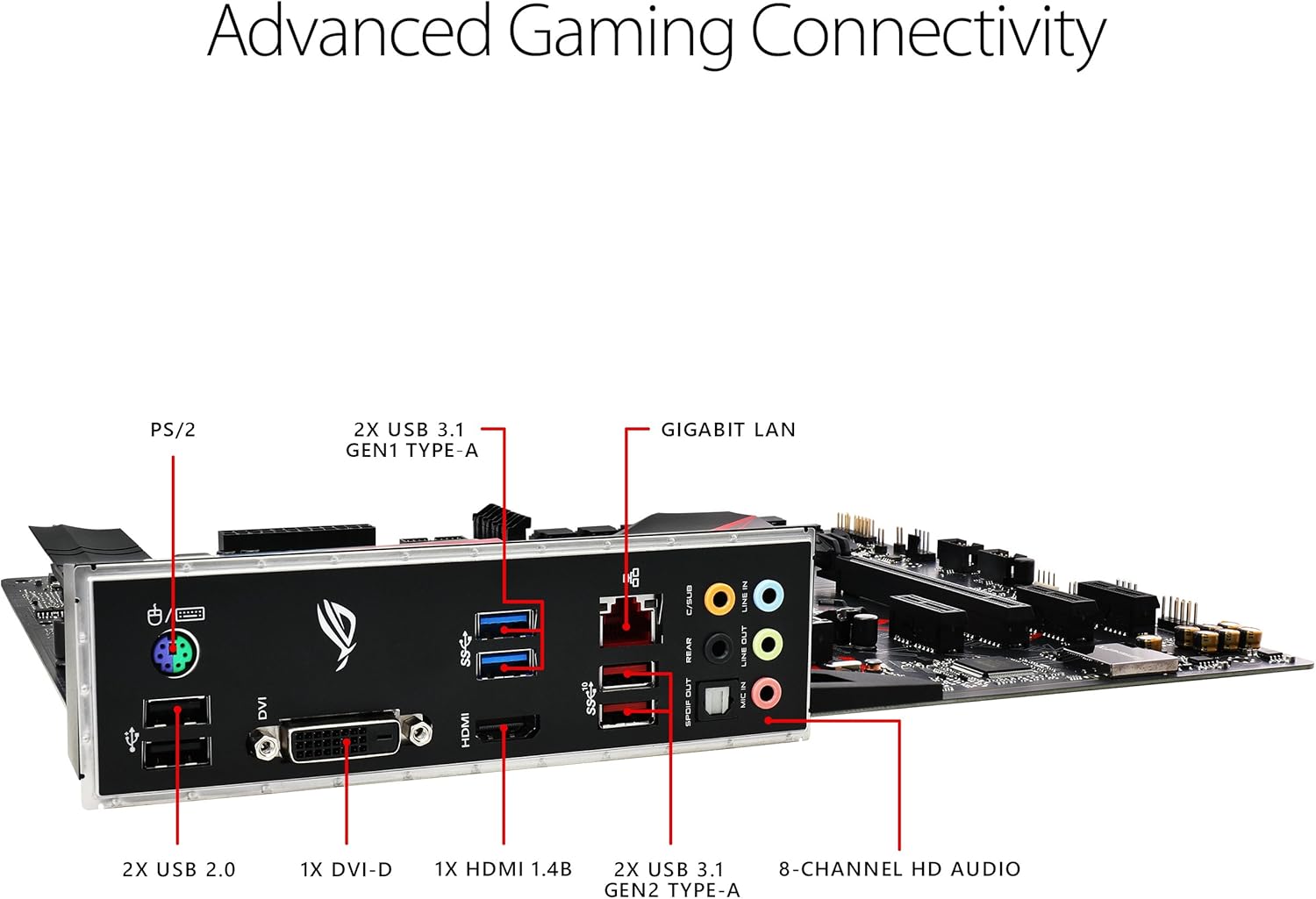
Image 3.3: The rear I/O panel of the motherboard, showing various ports for connectivity including USB, HDMI, DVI-D, LAN, and audio jacks.
Connect your monitor, keyboard, mouse, and other peripherals to the appropriate ports on the rear I/O panel. This includes PS/2, USB 2.0, USB 3.1 Gen1 Type-A, USB 3.1 Gen2 Type-A, DVI-D, HDMI 1.4b, Gigabit LAN, and 8-channel HD audio ports.
4. Operating Your Motherboard
Once all components are installed and connected, you can power on your system.
4.1 BIOS/UEFI Setup
To access the BIOS/UEFI setup utility, press the DEL key or F2 key during the Power-On Self-Test (POST) when the ASUS logo appears. The BIOS allows you to configure system settings, boot order, and monitor hardware status.
4.2 Software and Drivers
After installing your operating system (e.g., Windows 10), install the necessary drivers from the included support DVD or download the latest versions from the official ASUS support website. This includes chipset drivers, audio drivers, LAN drivers, and any utility software like FanXpert 4 for fan control and ASUS Aura Sync for RGB lighting customization.

Image 4.1: The motherboard's cooling features, including the ROG Strix Armor Plating and multiple fan headers for comprehensive thermal management.
5. Maintenance
Regular maintenance helps ensure the longevity and optimal performance of your motherboard and PC system.
- Dust Removal: Periodically clean dust from inside your PC case, especially from fans and heatsinks, using compressed air. Ensure the system is powered off and unplugged before cleaning.
- Cable Management: Ensure cables are neatly routed to promote better airflow and prevent interference.
- BIOS/Driver Updates: Check the ASUS support website regularly for updated BIOS versions and drivers to improve stability and performance.
6. Troubleshooting
If you encounter issues, refer to the following common troubleshooting steps:
- No Display: Ensure your monitor is connected to the graphics card (or motherboard's integrated graphics port) and is powered on. Reseat the graphics card and RAM modules.
- System Not Booting: Check all power connections (24-pin ATX, 8-pin CPU). Verify that the CPU and RAM are correctly seated. Try booting with only essential components (CPU, one RAM stick, GPU).
- Peripheral Not Detected: Ensure the peripheral is properly connected to the correct port. Try a different port or update drivers.
- Overheating: Check fan connections and ensure proper airflow within the case. Monitor temperatures using software utilities.
- BIOS Reset: If system instability occurs after changing BIOS settings, clear the CMOS by removing the motherboard battery for a few minutes or using the CLRTC jumper (refer to the full user manual for location).
For more detailed troubleshooting, please refer to the comprehensive User Manual (PDF).
7. Specifications
| Feature | Specification |
|---|---|
| Brand | ASUS |
| Series | STRIX B360-H GAMING |
| Item Model Number | STRIX B360-H GAMING |
| CPU Socket | LGA 1151 |
| Compatible Processors | 8th Generation Intel Core |
| Chipset Type | Intel B360 |
| RAM Memory Technology | DDR4 |
| Memory Clock Speed | 2400 MHz |
| Memory Storage Capacity | 64 GB (Max) |
| Product Dimensions | 12 x 2.68 x 9.6 inches |
| Item Weight | 2.86 pounds |
| Wireless Type | 802.11a/b/g/n/ac (Note: This model does not include integrated Wi-Fi, this specification might refer to compatible accessories) |
| Number of USB 2.0 Ports | 1 (Internal Header) |
| Number of USB 3.0 Ports | 4 (Internal Headers/Rear I/O) |
| Platform | Windows 10 |
8. Warranty and Support
ASUS provides a limited warranty for its products. Please refer to the warranty card included in your product package for specific terms and conditions, including warranty period and coverage details.
8.1 Customer Support
For technical assistance, driver downloads, or further information, please visit the official ASUS support website or contact their customer service. You can also find the complete User Manual (PDF) online for detailed instructions and diagrams.
Related documentsSTRIX B360-H GAMING


Ask a question about this manual
Ask about setup, troubleshooting, compatibility, parts, safety, or missing instructions. Manuals+ will review the question and use this page’s manual context to help answer it.