
Introduction
This manual provides detailed instructions for the DELTACO GAMING GAM-030 Wired Gaming Headset. Please read this manual carefully before using the product to ensure proper operation and to maximize your gaming and audio experience.
Package Contents
Verify that all items listed below are included in your package:
- DELTACO GAMING GAM-030 Headset
- 1x 3.5mm to 2x 3.5mm Y-adapter

Image: Retail packaging of the DELTACO GAMING GAM-030 headset.

Image: Close-up of the headset's USB connector (for LED power) and 3.5mm audio jack.

Image: The included 3.5mm Y-adapter, splitting a single 3.5mm jack into separate audio and microphone jacks.
Product Overview
The DELTACO GAMING GAM-030 headset is designed for an immersive audio experience across various platforms.

Image: Front view of the DELTACO GAMING GAM-030 headset, showing the earcups and microphone.
- Circumaural Design: Over-ear design with artificial leather ear cushions for comfort and passive noise reduction.
- 57mm Speaker Drivers: Large drivers deliver clear stereo sound.
- Flexible Microphone: Omnidirectional microphone with an orange LED indicator for clear voice communication.
- Integrated Volume Control: A discreet volume control wheel is located on the rear of the left earcup.
- Adjustable Headband: Soft foam padded vegan leather headband for comfortable fit, with height adjustment.
- Durable Frame: Strong and lightweight aluminum frame construction.
- LED Lighting: Orange LED lights on earcups and microphone, powered via USB.

Image: Close-up of the headset earcup, illustrating the 57mm speaker element for immersive sound.
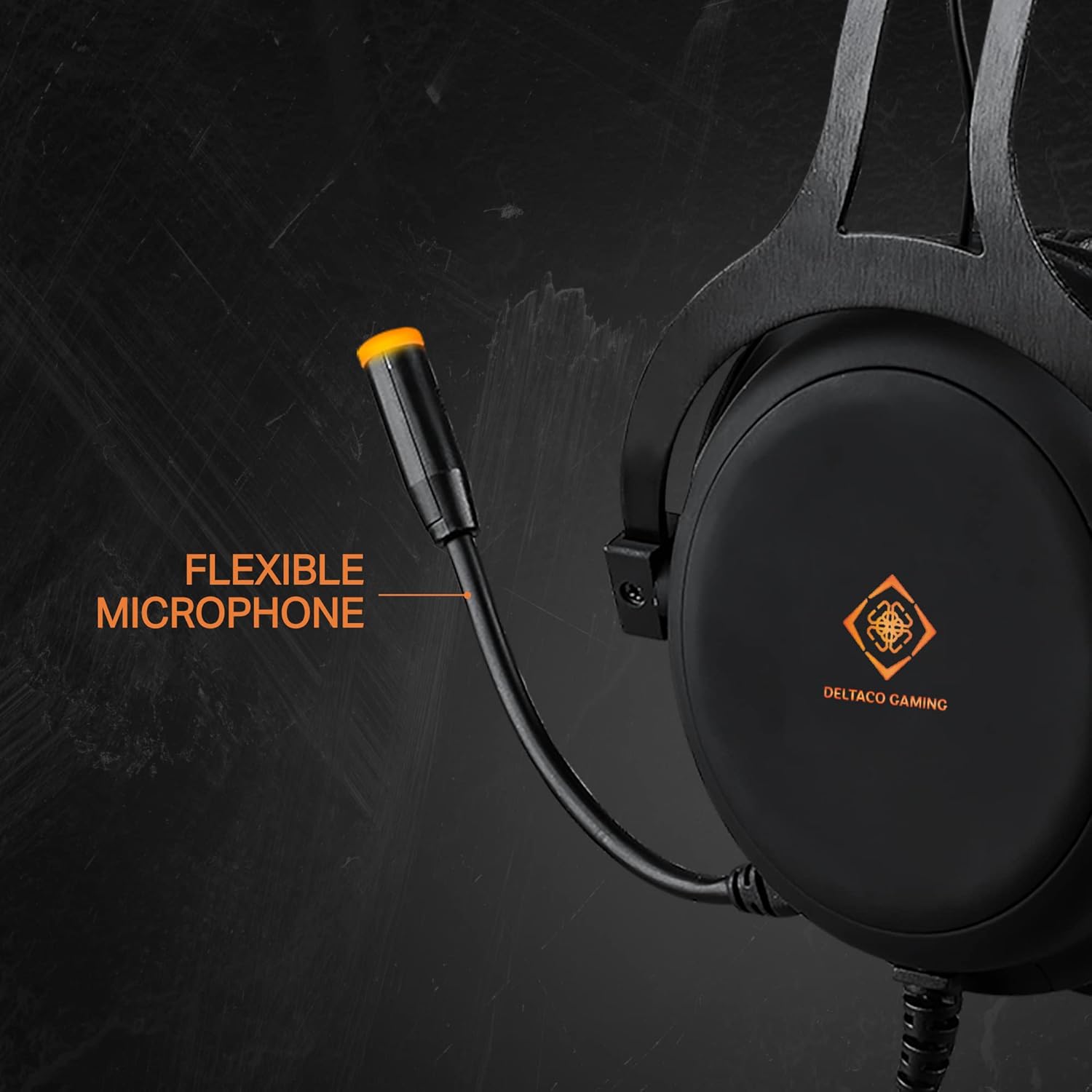
Image: The flexible microphone of the headset, designed for optimal positioning.

Image: Side view of the earcup, highlighting the over-ear design with soft foam padding and the easily accessible volume control.

Image: The soft foam padded vegan leather headband, illustrating its height adjustability.

Image: Detail of the headset's aluminum frame, emphasizing its strong and lightweight construction.
Setup
1. Connecting for Audio and Microphone (3.5mm Jack)
- For devices with a single 3.5mm combo jack (e.g., PS4, Switch, Xbox One, most laptops, mobile phones): Connect the headset's 3.5mm jack directly to the device's audio port.
- For devices with separate audio and microphone 3.5mm ports (e.g., PC desktops): Use the included 1x 3.5mm to 2x 3.5mm Y-adapter. Connect the headset's 3.5mm jack to the adapter, then connect the adapter's green plug to the audio output port and the pink plug to the microphone input port on your computer.
2. Connecting for LED Lighting (USB)
Connect the headset's USB cable to any available USB port on your computer, console, or a USB power adapter. This connection is solely for powering the orange LED lights on the earcups and microphone. It does not transmit audio or microphone signals.
Operating Instructions
- Volume Control: Adjust the audio output level using the control wheel located on the rear of the left earcup. Rotate it upwards to increase volume and downwards to decrease volume.
- Microphone Usage: Position the flexible microphone close to your mouth for optimal voice pickup during communication.
- LED Lighting: The DELTACO GAMING logo on the earcups and the microphone tip will illuminate with an orange LED when the USB cable is connected to a power source.
Maintenance
Cleaning
- Wipe the headset surfaces with a soft, dry cloth.
- For stubborn dirt, use a slightly damp cloth with mild soap, then wipe dry immediately.
- Do not use harsh chemicals, solvents, or abrasive cleaners.
- Avoid getting moisture into the speaker grilles or microphone.
Storage
- Store the headset in a cool, dry place away from direct sunlight and extreme temperatures.
- Avoid placing heavy objects on the headset.
- Do not twist or pull the cables excessively.
Troubleshooting
- No Sound:
- Check if the 3.5mm audio jack is fully inserted into the device.
- Ensure the volume control wheel on the headset is turned up.
- Verify the audio output settings on your device (PC, console, etc.) are configured to use the headset.
- Test the headset with another device to rule out a device-specific issue.
- Microphone Not Working:
- Ensure the 3.5mm microphone jack (or the Y-adapter's pink plug) is correctly connected to the microphone input port on your device.
- Check the microphone input settings on your device. Ensure the headset microphone is selected as the default input device and its volume is not muted or set too low.
- Test the microphone with another application or device.
- LED Lights Not Working:
- Confirm the USB cable is securely connected to a powered USB port.
- Try connecting the USB cable to a different USB port or power source.
- Note that the USB connection is only for LED power and does not affect audio or microphone functionality.
Specifications
| Feature | Detail |
|---|---|
| Model Number | GAM-030 |
| Connectivity | Wired (3.5mm Jack, USB for LED) |
| Driver Size | 57mm |
| Frequency Response | 20 Hz - 20 kHz |
| Impedance | 32 Ohms |
| Sensitivity | 122 dB |
| Microphone Type | Omnidirectional, Flexible |
| Earcups | Circumaural, Artificial Leather |
| Headband | Adjustable, Soft Foam Padded, Vegan Leather |
| Frame Material | Aluminum |
| Cable Length | 2.10 m |
| Weight | 349 g |
| LED Lighting | Orange (USB powered) |
| Controls | Volume control wheel |
| Compatible Devices | PC, Laptops, Desktop Computers, Game Consoles (PS4, Switch, Xbox One), Mobile Phones |
| Included Components | Headset, 1x 3.5mm to 2x 3.5mm Y-adapter |
| Manufacturer | DELTACO |
| Country of Origin | Netherlands |
Warranty and Support
This DELTACO GAMING product is covered by a 5-year warranty for spare parts availability within the EU. For technical support or warranty claims, please contact your retailer or visit the official DELTACO GAMING website for further assistance.


