
1. Introduction
This manual provides detailed instructions for the proper use and maintenance of your Easyfone Prime-A1 Unlocked Flip Cell Phone. Please read this manual thoroughly before using your device to ensure optimal performance and longevity.
2. Package Contents
Upon opening your Easyfone Prime-A1 package, please verify that all the following items are included:
- Easyfone Prime-A1 Cell Phone
- Charging Set (Adapter and Cable)
- Battery
- User Manual (this document)
- SpeedTalk SIM CARD (may be included depending on package)

Image: The Easyfone Prime-A1 product box, detailing the model, item number, FCC ID, and package contents. It also lists radio equipment type, frequency bands, manufacturer, and address.
3. Product Overview
The Easyfone Prime-A1 is a classic bar-type flip cell phone designed for ease of use, featuring large buttons, a backlit keypad, and clear sound. It focuses on essential communication functions like calling and texting, without internet access or a camera for simplicity.
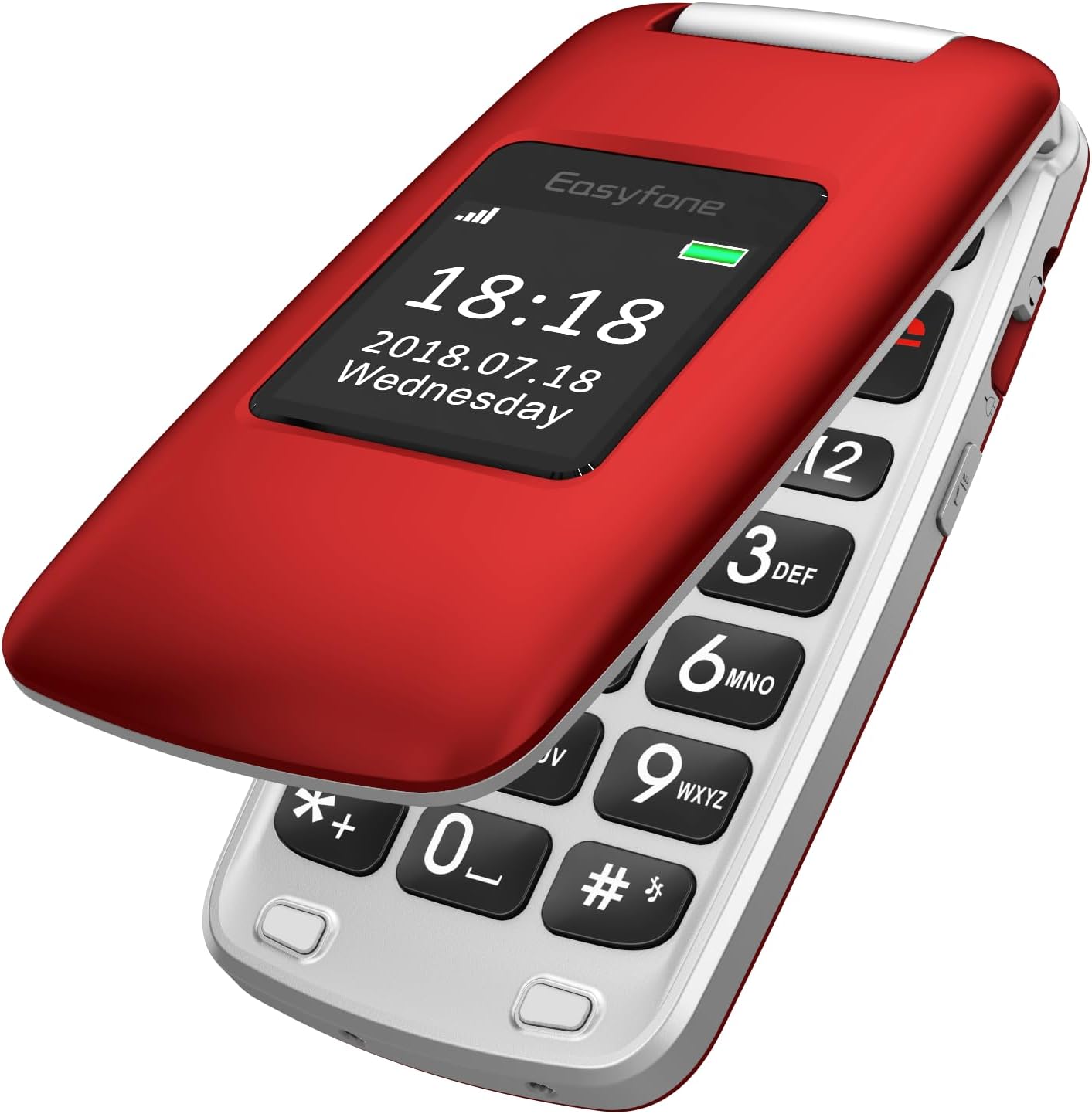
Image: The Easyfone Prime-A1 flip phone in its closed position, showcasing the external display with the current time and date. The phone is red with a silver hinge.

Image: The Easyfone Prime-A1 flip phone in its open position, revealing the large, easy-to-read keypad and the internal screen. The phone is red and silver.
4. Setup
4.1. Inserting SIM Card and Memory Card
- Carefully open the back cover of the phone.
- If the battery is installed, remove it.
- Locate the SIM card slot(s). The phone supports standard SIM cards.
- Slide the metal cover of the SIM slot to the left to unlock it, then lift it.
- Insert your SIM card with the gold contacts facing down, ensuring it is correctly oriented according to the diagram on the phone.
- Close the metal cover and slide it to the right to lock it into place.
- If using a memory card (MicroSD), locate the memory card slot and insert the card with the gold contacts facing down until it clicks into place.
Note: A video titled "How to insert the SIM card and Memory card? See Video!!!" is available online. However, as per our guidelines, only videos created by the seller are embedded in this manual. This particular video is user-generated content and therefore not included here. Please refer to the written instructions above.
4.2. Battery Installation and Charging
- After inserting the SIM/memory card, place the battery into the battery compartment, aligning the gold contacts on the battery with the contacts in the phone.
- Replace the back cover, pressing firmly until it snaps securely into place.
- To charge the phone, connect the charging cable to the phone's charging port or place the phone in the provided charging dock. Connect the other end of the cable to the power adapter and plug it into a wall outlet.
- The battery indicator on the screen will show charging status. Allow the phone to charge completely before first use.

Image: The Easyfone Prime-A1 flip phone resting in its dedicated charging dock, indicating it is ready for charging or currently charging. The phone is red.
4.3. Powering On/Off
- To Power On: Press and hold the red 'End Call' button (usually marked with a power icon) until the screen lights up and the Easyfone logo appears.
- To Power Off: Press and hold the red 'End Call' button until a power-off confirmation appears on the screen. Select 'Power Off' to shut down the device.
5. Basic Operation
5.1. Making Calls
- Open the flip phone.
- Enter the phone number using the keypad. The large, backlit buttons ensure easy dialing.
- Press the green 'Call' button to initiate the call.
- To end the call, press the red 'End Call' button.
5.2. Receiving Calls
- When an incoming call is received, the phone will ring and display the caller's information.
- Press the green 'Call' button to answer the call.
- To reject the call, press the red 'End Call' button.
5.3. Sending and Receiving Text Messages
- Navigate to the 'Messages' menu from the main screen.
- Select 'Write Message' to compose a new text.
- Enter the recipient's number and your message using the keypad.
- Select 'Send' to transmit the message.
- Received messages will appear in your 'Inbox'.
5.4. Speed Dial
The Easyfone Prime-A1 features eight dedicated speed dial buttons (number keys 2-9) and two M1/M2 buttons for quick access to important contacts.
- Setting Speed Dial: Go to 'Settings' > 'Speed Dial' and assign contact numbers to the desired keys (M1, M2, 2-9).
- Using Speed Dial: On the main screen, press and hold the assigned speed dial key (M1, M2, or 2-9) to automatically dial the stored contact.
5.5. SOS Function
The SOS button is a critical safety feature. When activated, it will automatically dial pre-set emergency contacts and send an emergency message.
- Setting SOS Contacts: Navigate to 'SOS Settings' in the menu. Add up to five emergency contact numbers.
- Activating SOS: In an emergency, press and hold the dedicated SOS button on the back of the phone for a few seconds. The phone will then sequentially call the emergency contacts until one answers, and send a pre-set emergency text message to all contacts.
6. Features and Functions
The Easyfone Prime-A1 includes several useful features:
- FM Radio: Listen to your favorite radio stations. Access via the 'Multimedia' or 'Tools' menu.
- Alarm Clock: Set multiple alarms with customizable tones.
- Audio Player: Play audio files stored on your memory card.
- Notes: Create and save simple text notes.
- Calculator: Perform basic arithmetic calculations.
- Calendar: View dates and add reminders.
- Bluetooth: Connect to compatible Bluetooth devices like headsets for hands-free communication. Activate and manage Bluetooth from the 'Settings' menu.
- Flashlight: A built-in flashlight for convenience. Usually activated by a dedicated side button or through the 'Tools' menu.
- HAC Compatible: Hearing Aid Compatible for users with hearing aids.
- External Display: Shows time, date, and caller ID without opening the phone.
- 3.5 mm Audio Jack: For connecting wired headphones.
7. Maintenance
7.1. Battery Care
- Avoid exposing the battery to extreme temperatures.
- Do not puncture, disassemble, or short-circuit the battery.
- Use only the original Easyfone charger and battery.
- If the phone will not be used for an extended period, charge the battery to about 50% and store it in a cool, dry place.
7.2. Cleaning
- Use a soft, dry cloth to clean the phone's exterior.
- Avoid using liquid cleaners or aerosols, as they may damage the device.
7.3. Storage
- Store the phone in a cool, dry environment, away from direct sunlight and excessive moisture.
- Keep the phone out of reach of children and pets.
8. Troubleshooting
If you encounter issues with your Easyfone Prime-A1, refer to the following common problems and solutions:
- Phone does not power on: Ensure the battery is correctly installed and fully charged. Try charging the phone for at least 30 minutes before attempting to power it on again.
- Cannot make or receive calls: Check if the SIM card is properly inserted and activated. Verify that you have network signal. Ensure the phone is not in airplane mode (if applicable).
- Poor call quality: Move to an area with better network coverage. Ensure the speaker and microphone are not obstructed.
- Battery drains quickly: Reduce screen brightness. Close unused applications. If the issue persists, the battery may need replacement.
- Phone is unresponsive: Remove the battery, wait a few seconds, and then reinsert it and power on the phone. This performs a soft reset.
- Compatibility Issues: Please note that this phone is NOT compatible with AT&T, Cricket, or with CDMA Networks like Verizon, Sprint, and Boost Mobile. It is unlocked for use with T-Mobile, MetroPCS, SpeedTalk, and Tello Mobile.
9. Specifications
| Feature | Specification |
|---|---|
| Model Name | Prime-A1 |
| Operating System | Nucleus OS |
| Screen Size | 2.4 Inches |
| Battery Capacity | 1050 Milliamp Hours (Lithium Ion) |
| RAM Memory Installed Size | 64 MB |
| Memory Storage Capacity | 1 GB (expandable via MicroSD, not included) |
| Product Dimensions | 3.94 x 1.97 x 0.79 inches |
| Item Weight | 3.32 ounces (94 Grams) |
| Connectivity Technologies | Bluetooth |
| Cellular Technology | 4G (MVNO compatible) |
| Audio Jack | 3.5 mm |
| Special Features | HAC Compatible, External Display, Charging Dock, FM Radio, Flashlight, SOS Feature, Speed Dial |
| Human Interface Input | Buttons |
| Color | Red |
10. Warranty and Support
Your Easyfone Prime-A1 is covered by a manufacturer's warranty. Please refer to the warranty card included in your package for specific terms and conditions. For further assistance, technical support, or to explore other Easyfone products, please visit the official Easyfone store.
Official Easyfone Store: Easyfone Store on Amazon


