1. Introduction
1.1 Product Overview
The Steren INTV-110 is an Android TV Box designed to transform any television with an HDMI input into a Smart TV. It provides access to various streaming applications, web browsing, and multimedia content, enhancing your entertainment experience. The device operates on Android 6.0.1 and supports Full HD 1080p resolution.

Image 1.1: The Steren INTV-110 Android TV Box, its remote control, and product packaging.
1.2 Package Contents
Verify that all the following items are included in your package:
- Steren INTV-110 Android TV Box
- Remote Control (requires 2 AAA batteries, not included)
- Power Adapter
- HDMI Cable
- User Manual (this document)
2. Setup Guide
2.1 Connecting the Device
Follow these steps to connect your Steren INTV-110 to your television and power source:
- Connect to TV: Insert one end of the HDMI cable into the HDMI OUT port on the INTV-110 and the other end into an available HDMI input on your television. Note the HDMI input number (e.g., HDMI 1, HDMI 2).
- Connect to Power: Plug the power adapter into the DC 5V port on the INTV-110 and then into a standard electrical outlet. The device should power on automatically or indicate a standby mode.
- Insert Batteries into Remote: Open the battery compartment on the back of the remote control and insert two AAA batteries, ensuring correct polarity.
- Select TV Input: Turn on your television and use its remote control to select the corresponding HDMI input where the INTV-110 is connected.

Image 2.1: The Steren INTV-110 device highlighting its USB ports and MicroSD card slot, demonstrating connectivity options for external storage and peripherals.
2.2 Network Connection
The INTV-110 supports both Wi-Fi and Ethernet connections.
- Wi-Fi Connection:
- From the main menu, navigate to Settings.
- Select Wi-Fi and turn it ON.
- Choose your desired network from the list of available networks.
- Enter the Wi-Fi password using the on-screen keyboard and select Connect.
- Ethernet Connection:
- Connect an Ethernet cable from your router or modem to the LAN port on the INTV-110.
- The device should automatically detect and connect to the wired network.
3. Operating Instructions
3.1 Remote Control Functions
The included remote control allows for navigation and interaction with the Android TV Box interface.

Image 3.1: A hand holding the Steren INTV-110 remote control, demonstrating its use for navigating the Android TV interface on a connected television.
- Power Button: Turns the device on or off (standby mode).
- Directional Pad (D-Pad): Navigates through menus and selects items.
- OK Button: Confirms selections.
- Back Button: Returns to the previous screen.
- Home Button: Returns to the main home screen.
- Volume Buttons: Adjusts the audio volume.
- Mute Button: Mutes or unmutes the audio.
- Number Buttons: For direct input or specific app functions.
3.2 Navigating the Android TV Interface
Upon startup, you will see the Android TV home screen. Use the D-Pad on your remote to move between applications, settings, and other features. Press the OK button to launch an application or confirm a selection.

Image 3.2: A collage illustrating different users enjoying content through the Steren INTV-110, showcasing its versatility for various entertainment activities.
3.3 Installing and Using Applications
The INTV-110 allows you to download and install applications from the pre-installed app store (e.g., Aptoide TV). Navigate to the app store icon on your home screen, select it, and browse for desired applications. Once installed, applications will appear on your home screen or in the app drawer for easy access.
4. Maintenance
4.1 Cleaning
To maintain the device's performance and appearance:
- Ensure the device is powered off and unplugged before cleaning.
- Use a soft, dry cloth to wipe the exterior of the device.
- Do not use liquid cleaners, aerosols, or abrasive solvents.
4.2 Software Updates
Periodically check for software updates to ensure optimal performance and security. Updates can typically be found in the Settings menu under About Device or System Update. Follow the on-screen prompts to download and install any available updates.
5. Troubleshooting
If you encounter issues with your Steren INTV-110, refer to the following table for common problems and solutions:
| Problem | Possible Cause | Solution |
|---|---|---|
| No power/Device not turning on | Power adapter not connected; Power outlet issue | Ensure power adapter is securely connected to device and a working outlet. Try a different outlet. |
| No picture on TV | Incorrect HDMI input selected; Loose HDMI cable | Verify TV is on the correct HDMI input. Check HDMI cable connections at both ends. Try a different HDMI cable or port. |
| No Wi-Fi connection | Incorrect password; Router issue; Device too far from router | Re-enter Wi-Fi password carefully. Restart your router. Move the device closer to the router or use an Ethernet cable. |
| Remote control not working | Dead batteries; Obstruction between remote and device | Replace AAA batteries. Ensure no objects are blocking the line of sight between the remote and the INTV-110. |
| Applications crashing or slow performance | Insufficient memory; Outdated app version; System overload | Close unused applications. Clear app cache (Settings > Apps). Check for app updates. Consider expanding storage with a MicroSD card. |
6. Technical Specifications
The following table details the technical specifications of the Steren INTV-110 Android TV Box:

Image 6.1: Key features and specifications of the Steren INTV-110, including resolution, memory, and connectivity.
| Feature | Specification |
|---|---|
| Model Number | INTV-110 |
| Operating System | Android 6.0.1 |
| Resolution | Full HD 1080p |
| Internal Memory (ROM) | 8 GB (expandable up to 32 GB via MicroSD) |
| RAM | 1 GB |
| Connectivity | Wi-Fi (Wireless), Ethernet (Wired) |
| Video Output | HDMI |
| USB Ports | 4 x USB 2.0 |
| Card Reader | MicroSD slot |
| Power Input | DC 5V |
| Wattage | 8 Watt-hours |
| Dimensions (L x W x H) | 40 x 40 x 20 cm |
| Weight | 800 Grams |
| Color | Black |
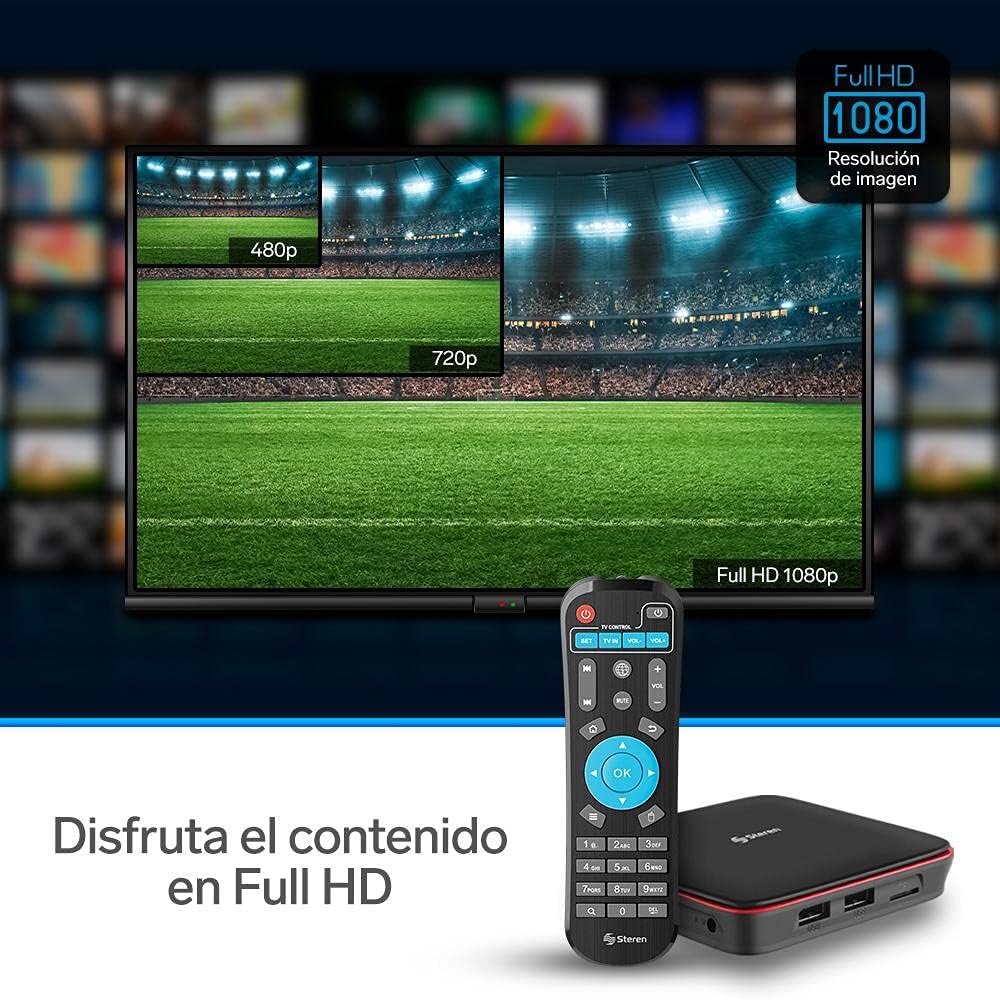
Image 6.2: Visual representation of Full HD 1080p resolution supported by the INTV-110, compared to lower resolutions.
7. Warranty and Support
7.1 Warranty Information
This product is covered by a manufacturer's warranty. Please refer to the warranty card included in your package or visit the official Steren website for detailed warranty terms and conditions. Keep your proof of purchase for warranty claims.
7.2 Customer Support
For technical assistance, troubleshooting beyond this manual, or warranty inquiries, please contact Steren customer support. You can find contact information and additional resources on the official Steren website: www.steren.com.mx.


