
Introduction
The Ryze Tech Tello is a compact and intelligent mini-drone designed for beginners and enthusiasts alike. Powered by DJI flight technology, it offers an intuitive flying experience with stable performance and high-quality imaging capabilities. This manual provides essential information for setting up, operating, maintaining, and troubleshooting your Tello drone.
Key features include a 5MP camera for photos and 720p HD video recording, up to 13 minutes of flight time, and stable video transmission thanks to its dual antennas. The Tello also supports programmable flight paths using Scratch, making it an excellent tool for learning basic programming concepts.
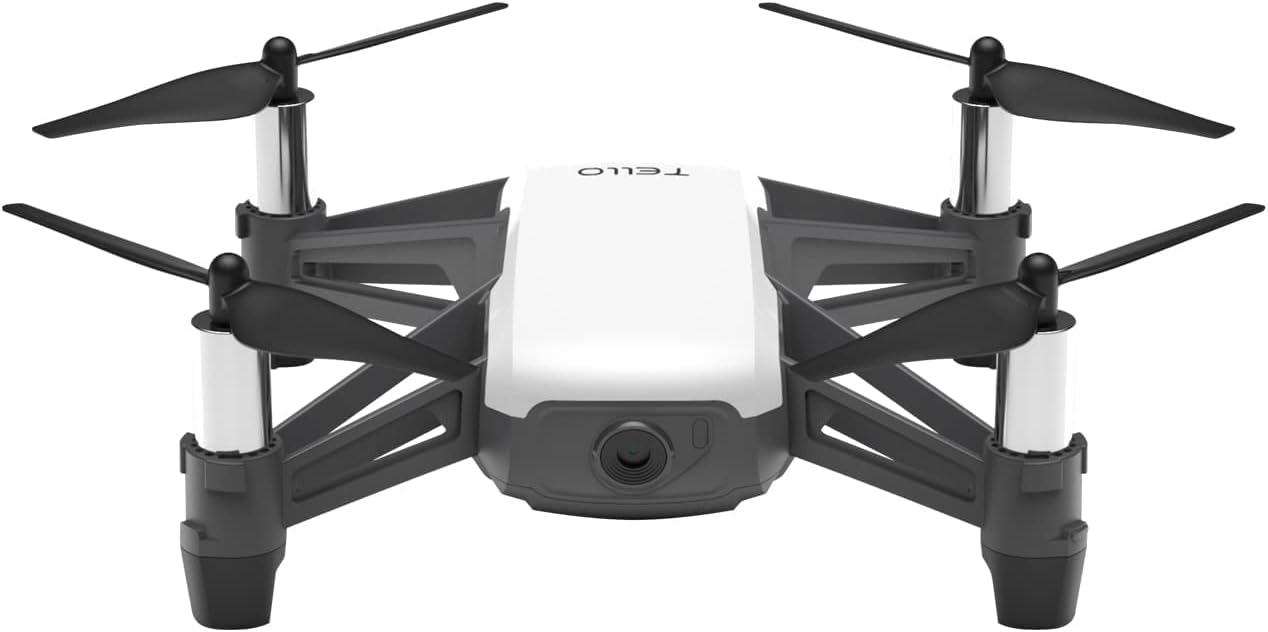
Figure 1: Front view of the Ryze Tech Tello Mini Drone.
Setup
Before your first flight, ensure the Tello drone is properly set up and charged.
1. Charging the Battery
The Tello drone is powered by a high-capacity Lithium Ion battery. A fully charged battery provides up to 13 minutes of flight time.
- Locate the Micro USB port on the drone.
- Connect the provided Micro USB cable to the drone and a USB power source (e.g., computer, USB wall adapter).
- The battery indicator light will show charging status. Refer to the LED indicator guide in the specifications section for details.
- Ensure the battery is fully charged before each flight for optimal performance.

Figure 2: Rear view of the Tello drone showing the battery compartment.
2. Installing Propeller Guards
For enhanced safety, especially during indoor flights or for beginners, it is recommended to install the propeller guards.
- Gently snap each propeller guard onto the corresponding motor arm.
- Ensure they are securely attached and do not interfere with propeller rotation.
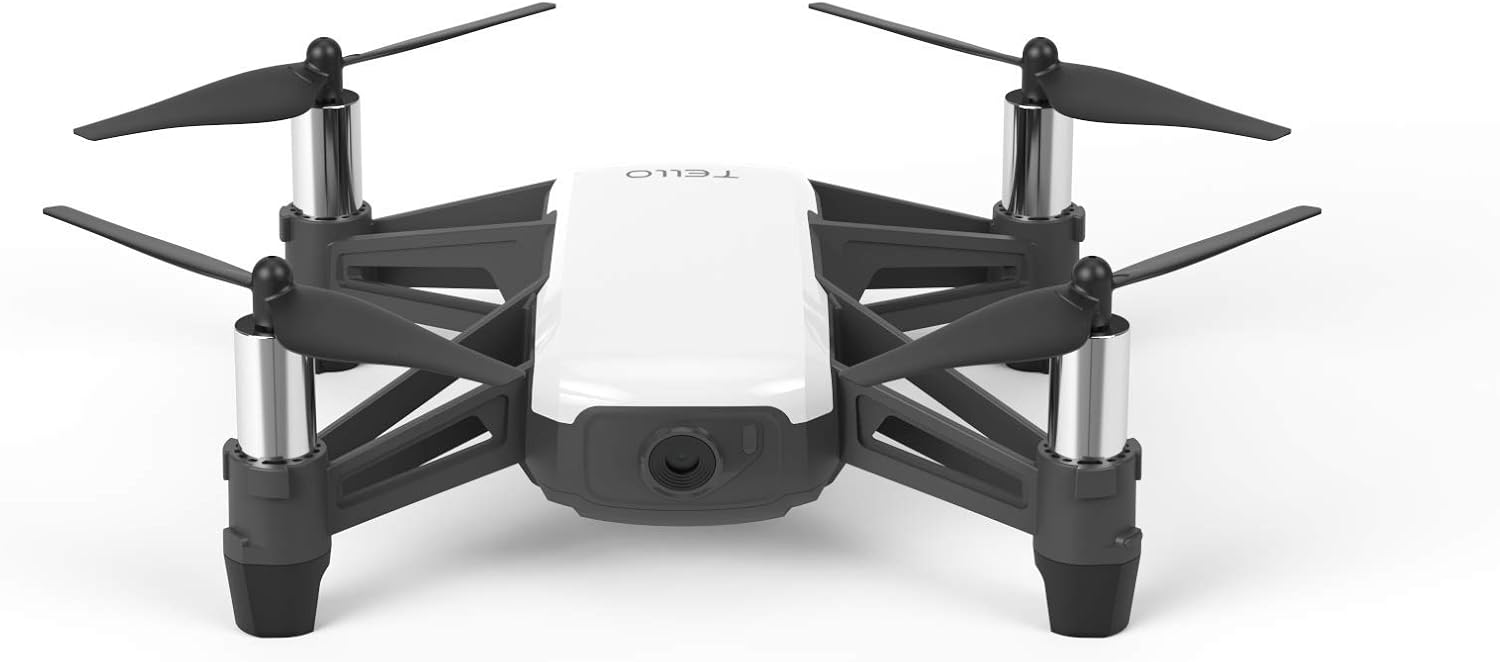
Figure 3: Tello drone with propeller guards installed for safe operation.
3. Downloading the Tello App
The Tello drone is controlled via a smartphone application. Download the official Tello app from your device's app store.
- Search for "Tello" in the App Store (iOS) or Google Play Store (Android).
- Install the application on your smartphone.
- Once installed, open the app and follow the on-screen instructions to connect to your Tello drone via Wi-Fi.
Operating Instructions
The Tello drone offers various flight modes and intelligent features for an enjoyable flying experience.
1. Basic Flight Controls
After connecting the drone to the Tello app, you can control its movements using the virtual joysticks on your smartphone screen. The app provides intuitive controls for takeoff, landing, and directional movement.
- Takeoff: Tap the "Takeoff" button in the app to automatically launch the drone and hover at a safe height.
- Landing: Tap the "Landing" button to initiate an automatic descent and landing.
- Directional Control: Use the left virtual joystick to control altitude and rotation, and the right virtual joystick to control forward, backward, and sideways movement.
- Throw & Go: For a quick launch, enable "Throw & Go" in the app settings, then gently toss the drone into the air to start flying.

Figure 4: Children operating the Tello drone with a smartphone, highlighting its ease of use.
2. Intelligent Flight Modes (EZ Shots)
The Tello features several pre-programmed flight modes, known as EZ Shots, to capture professional-looking videos with ease.
- Circle: The drone flies in a circle around a designated point.
- 360: The drone rotates 360 degrees while hovering, capturing a panoramic video.
- Up & Away: The drone flies upward and backward, capturing a wide-angle shot.
- Bounce Mode: The drone automatically flies up and down from your hand.

Figure 5: A user demonstrating the hand-launch feature of the Tello drone.
3. Photo and Video Capture
The Tello's 5MP camera captures clear photos and 720p HD videos. You can switch between photo and video modes within the app.
- Tap the camera icon in the app to switch between photo and video modes.
- Press the shutter button to take a photo or start/stop video recording.
- All captured media is saved directly to your connected smartphone.
4. Programming with Scratch
Tello is programmable with Scratch, an MIT-developed coding system, allowing users to learn basic programming while controlling the drone.
- Download the Scratch app or access the Scratch website.
- Connect Tello to Scratch via the Tello app.
- Drag and drop coding blocks to create custom flight sequences and tricks.

Figure 6: Children engaged in programming the Tello drone, highlighting its educational aspect.
Maintenance
Proper maintenance ensures the longevity and optimal performance of your Tello drone.
1. Propeller Care
- Regularly inspect propellers for any signs of damage (cracks, bends, chips).
- Replace damaged propellers immediately using the provided propeller removal tool and spare propellers.
- Ensure propellers are clean and free from debris before each flight.
2. Battery Storage
- Store batteries in a cool, dry place away from direct sunlight and extreme temperatures.
- For long-term storage, discharge the battery to approximately 50% to prolong its lifespan.
- Avoid fully discharging the battery for extended periods.
3. Cleaning the Drone
- Use a soft, dry cloth to wipe down the drone's body.
- Gently clean the camera lens with a microfiber cloth to ensure clear image capture.
- Avoid using liquid cleaners or solvents that could damage electronic components.
Troubleshooting
This section addresses common issues you might encounter with your Tello drone.
| Problem | Possible Cause | Solution |
|---|---|---|
| Drone does not take off or respond to controls. | Low battery; Not connected to app; Propellers obstructed. | Charge battery; Reconnect to Tello app via Wi-Fi; Check and clear propellers. |
| Unstable flight or drifting. | Poor lighting conditions; Uneven surface for takeoff; Strong winds. | Fly in well-lit areas; Take off from a flat, level surface; Avoid flying in windy conditions. |
| Poor image/video quality. | Dirty camera lens; Insufficient lighting. | Clean the camera lens; Ensure adequate lighting for recording. |
| App connection issues. | Wi-Fi interference; Incorrect Wi-Fi network selected. | Ensure no other devices are connected to the drone's Wi-Fi; Restart drone and app; Try a different location to reduce interference. |
Specifications
- Brand: DJI
- Model Name: Tello
- Model Number: CP.PT.00000252.01
- Color: White
- Item Weight: 2.82 Ounces
- Product Dimensions: 3.86"L x 3.66"W x 1.61"H
- Video Capture Resolution: 720p HD
- Effective Still Resolution: 5 MP
- Maximum Flight Time: 13 minutes
- Maximum Range: 330 Feet
- Connectivity Technology: Wireless (Wi-Fi)
- Control Type: Remote Control (via smartphone app)
- Battery Type: Lithium Polymer (1 included)
- Skill Level: Beginner
- Material: Plastic
Warranty and Support
For detailed warranty information and technical support, please refer to the official DJI website or the user manual PDF provided with your product.
- User Manual (PDF): Download User Manual
- Brand Store: Visit DJI Store on Amazon
- Proposition 65 Warning: This product may contain chemicals known to the State of California to cause cancer and birth defects or other reproductive harm.

