
Picun P60
Picun P60 Bluetooth Wireless Headphones User Manual
Model: P60
Introduction
Thank you for choosing the Picun P60 Bluetooth Wireless Headphones. This manual provides detailed instructions on how to set up, operate, and maintain your headphones to ensure optimal performance and longevity. The P60 headphones offer high-quality sound, comfortable wear, and versatile connectivity options for an enhanced audio experience.
Package Contents
Please check the package for the following items:
- 1 x Picun P60 Headphone
- 1 x USB Charging Cable
- 1 x Audio Line (for wired mode)
- 1 x User Manual (this document)
- 1 x Packing Box
Product Overview

Image: Front view of the Picun P60 Bluetooth Wireless Headphones, showing the earcups and headband.
The Picun P60 headphones are designed for comfort and high-fidelity audio. They feature a foldable design for portability, CVC6.0 noise cancellation, and multiple connectivity options.
Key Features:
- High-Quality Sound: Equipped with CVC6.0 positive noise cancelling technology for deep bass and clear audio.
- Bluetooth 4.1 Connectivity: Ensures instant and stable wireless connection.
- Extended Playtime: Up to 24 hours of continuous music playback on a single charge.
- Comfortable Design: Stretchable arm with soft protein ear pads, suitable for various head sizes.
- Multi-Mode Support: Supports wired, wireless (Bluetooth), TF card, and FM radio modes.
- Integrated Microphone: For hands-free calls.
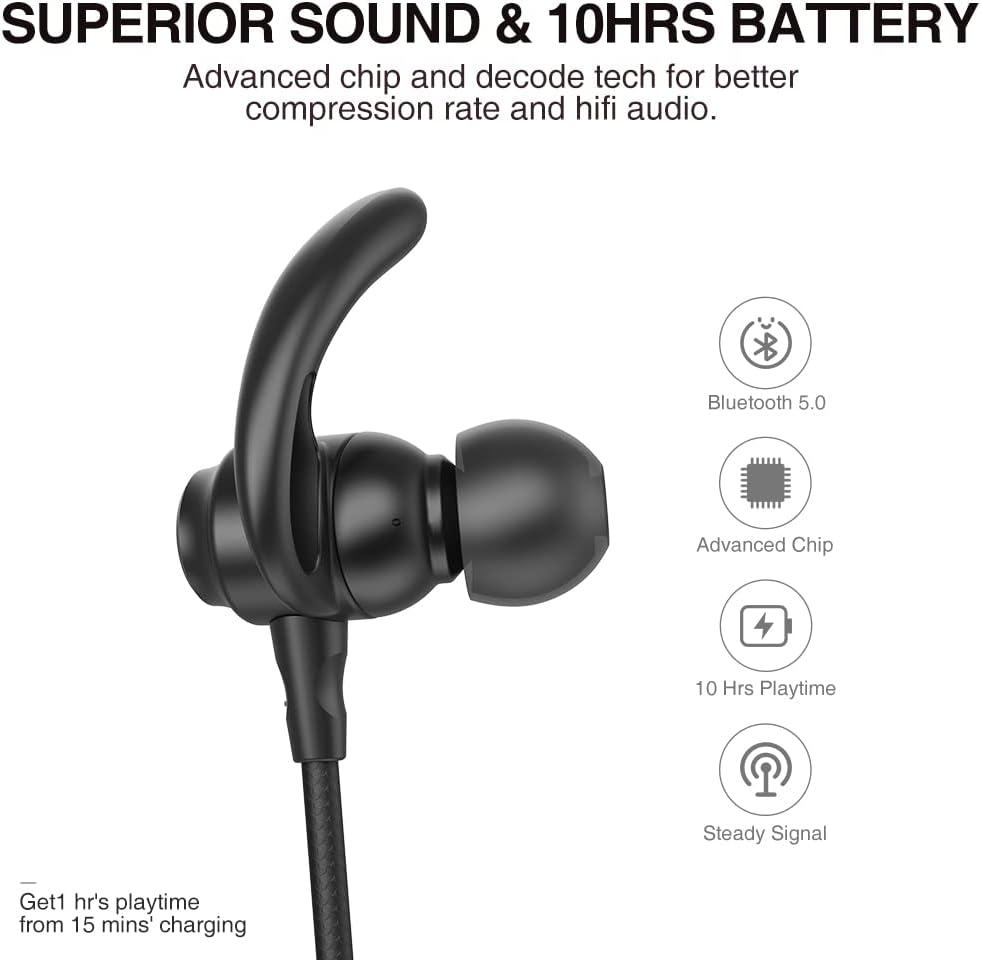
Image: Illustrates the superior sound quality and battery life features, highlighting Bluetooth 5.0, advanced chip, 10 hours playtime, and steady signal.
The headphones incorporate an advanced chip for better compression rate and Hi-Fi audio. While the image indicates 10 hours, the product specifications confirm an impressive 24 hours of playtime, ensuring long-lasting enjoyment.

Image: Depicts the ergonomic design of the earbuds and the various sizes of ear tips (S, M, L) for a comfortable and secure fit.
The P60 headphones feature a lightweight design and 30° ergonomic earbuds, providing a painless and secure fit. Different sizes of ear tips are included to help users find their perfect fit.

Image: Shows the magnetic design of the earbuds, allowing them to clip together when not in use to prevent loss.
The earbuds are designed with magnets, allowing them to clip together securely when not in use. This feature helps prevent tangling and loss, making them convenient to carry around your neck.
Setup
1. Charging the Headphones
Before first use, fully charge your Picun P60 headphones. A full charge takes approximately 2-3 hours.
- Connect the small end of the included USB charging cable to the charging port on the headphone.
- Connect the larger end of the USB cable to a USB power adapter (not included) or a computer's USB port.
- The LED indicator will show charging status (e.g., red for charging, blue for fully charged). Refer to the specific LED behavior in the operating section.
2. Bluetooth Pairing
Pair your headphones with your Bluetooth-enabled device (smartphone, tablet, computer) to enjoy wireless audio.
- Ensure the headphones are fully charged and turned off.
- Press and hold the Multi-function Button (usually the power button) for approximately 5-7 seconds until the LED indicator flashes red and blue alternately, indicating pairing mode.
- On your device, enable Bluetooth and search for new devices.
- Select "Picun P60" from the list of available devices.
- Once paired, the LED indicator on the headphones will turn solid blue or flash blue slowly.
- If prompted for a password, enter "0000".
Note: The headphones will automatically attempt to reconnect to the last paired device when turned on.
3. Wearing the Headphones
Adjust the headphones for a comfortable and secure fit.
- Identify the left (L) and right (R) earcups.
- Place the earcups over your ears, ensuring the soft protein ear pads fully cover them.
- Adjust the headband length by sliding the extenders until the headphones fit snugly and comfortably without excessive pressure.
- For optimal sound quality and noise isolation, ensure a good seal around your ears.
Operating Instructions
Controls Overview

Image: Detailed view of the inline control panel on the headphone cable, showing buttons for play/pause, volume up/next song, volume down/previous song, and voice assistant.
The Picun P60 headphones feature an intuitive control panel on the earcup for easy management of music and calls.
| Button/Action | Function |
|---|---|
| Multi-function Button (Center) |
|
| Volume + / Next Song Button |
|
| Volume - / Previous Song Button |
|
| Voice Assistant Button |
|
Music Playback
- Play/Pause: Press the Multi-function Button once.
- Next Track: Press and hold the "Volume +" button.
- Previous Track: Press and hold the "Volume -" button.
- Volume Up: Press the "Volume +" button once.
- Volume Down: Press the "Volume -" button once.
Call Management
- Answer/End Call: Press the Multi-function Button once.
- Reject Call: Press and hold the Multi-function Button for 2 seconds.
- Redial Last Number: Double-press the Multi-function Button.
Mode Switching
The Picun P60 supports multiple audio input modes:
- Bluetooth Mode: Default wireless mode after pairing.
- TF Card Mode: Insert a TF (MicroSD) card into the designated slot. The headphones will automatically switch to play music from the card.
- FM Radio Mode: Press the Mode button (if available, or refer to specific button combination for radio) to switch to FM radio. Use volume buttons to scan stations.
- Wired Mode (AUX): Connect the included audio line to the headphone's AUX port and your audio source. The headphones will automatically switch to wired mode, even if powered off.
Maintenance and Care
Proper care will extend the life of your headphones.
- Cleaning: Use a soft, dry cloth to clean the headphones. Do not use abrasive cleaners or solvents.
- Storage: When not in use, store the headphones in a cool, dry place, away from direct sunlight and extreme temperatures. The foldable design makes them compact for storage.
- Battery Care: To preserve battery life, charge the headphones at least once every three months if not used regularly.
- Water Resistance (IPX7): The Picun P60 headphones are IPX7 water resistant, meaning they can withstand splashes, rain, and sweat.

Image: Illustrates the IPX7 water resistance, showing water droplets on the earbuds, indicating protection against rain and sweat.
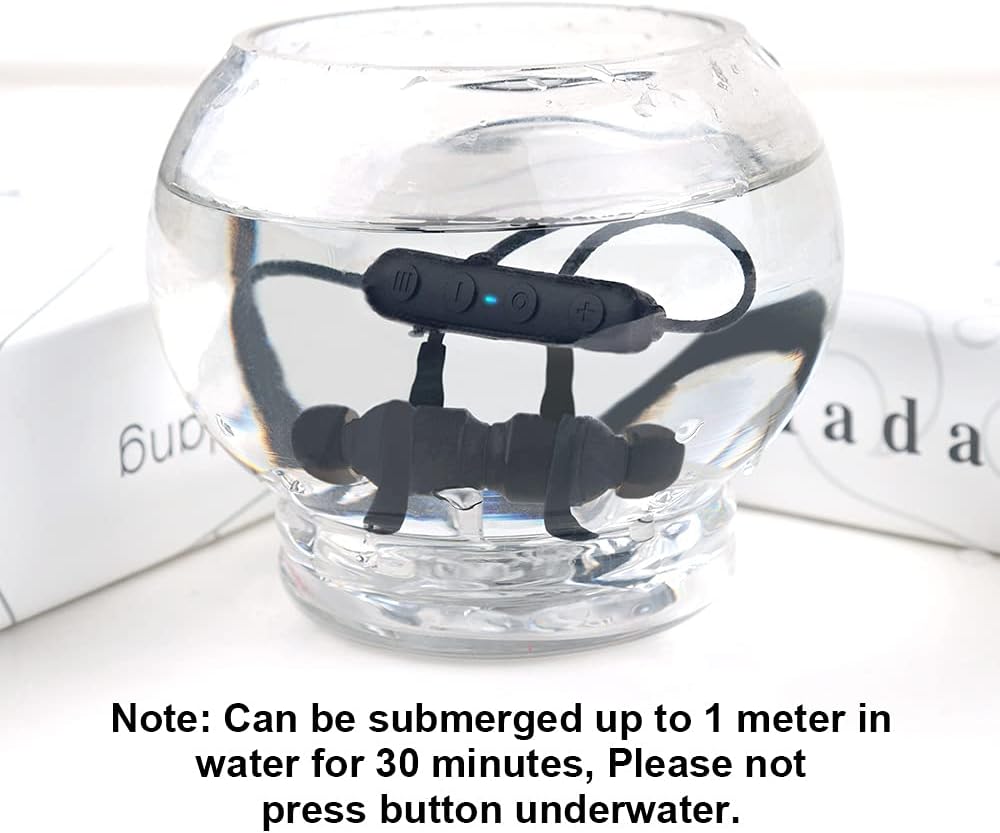
Image: Shows the headphones submerged in a clear bowl of water, demonstrating their water resistance. A note below states they can be submerged up to 1 meter for 30 minutes, but buttons should not be pressed underwater.
Important Note on Water Resistance: While the headphones are IPX7 rated and can be submerged up to 1 meter for 30 minutes, do not press any buttons underwater. Doing so may compromise the water seal and cause damage.
Troubleshooting
If you encounter issues with your Picun P60 headphones, please refer to the following common solutions:
| Problem | Possible Cause / Solution |
|---|---|
| Headphones won't turn on. |
|
| Cannot pair with device. |
|
| No sound or low volume. |
|
| Sound is distorted or cuts out. |
|
Specifications
Detailed technical specifications for the Picun P60 Bluetooth Wireless Headphones:
| Feature | Detail |
|---|---|
| Model | P60 |
| Bluetooth Version | 4.1 |
| Working Distance | Up to 10 meters (33 feet) |
| Playing Time | 24 hours |
| Battery Capacity | 500 mAh |
| Charging Time | Approx. 2-3 hours |
| Noise Cancellation | CVC6.0 |
| Product Weight | 210g |
| Product Dimensions | 190mm x 165mm x 80mm |
| Water Resistance Rating | IPX7 |
| Material | Plastic |
| Supported Modes | Bluetooth, Wired (AUX), TF Card, FM Radio |
Warranty and Support
Picun products are manufactured to the highest quality standards. For warranty information and customer support, please refer to the warranty card included in your package or visit the official Picun website. Keep your purchase receipt as proof of purchase for warranty claims.
For further assistance, please contact Picun customer service through their official channels.
Ask a question about this manual
Ask about setup, troubleshooting, compatibility, parts, safety, or missing instructions. Manuals+ will review the question and use this page’s manual context to help answer it.