
1. Product Overview
The Oculus Go is an all-in-one standalone virtual reality headset designed for immersive experiences without the need for a PC, wires, or a smartphone to drop in. It features crystal-clear optics and optimized 3D graphics for rich detail and vibrant colors. The headset is built with breathable fabrics and injection foam molding for comfort during extended use, and includes adjustable straps for a secure fit.
Key features include:
- Personal Viewing: Enjoy a personal theater experience with crystal clear optics and state-of-the-art 3D graphics.
- Social Viewing: Connect with friends and other users in VR for live sports, concerts, or TV shows.
- Portable & Easy to Use: A truly all-in-one VR experience with no external devices required.
- Intuitive Controller: Navigate content effortlessly with the included controller.
- Built-In Audio: Spatial audio drivers provide immersive sound directly from the headset, with a 3.5mm audio jack for optional headphones.

Figure 1: Front view of the Oculus Go Standalone VR Headset.
2. What's in the Box
Upon unboxing your Oculus Go, ensure all components are present:
- Oculus Go Headset
- Oculus Go Controller
- AA Battery (for controller)
- Power Adapter
- USB Charging Cable
- Eyeglass Spacer
- Lens Cleaning Cloth
- User Guide / Product Instruction
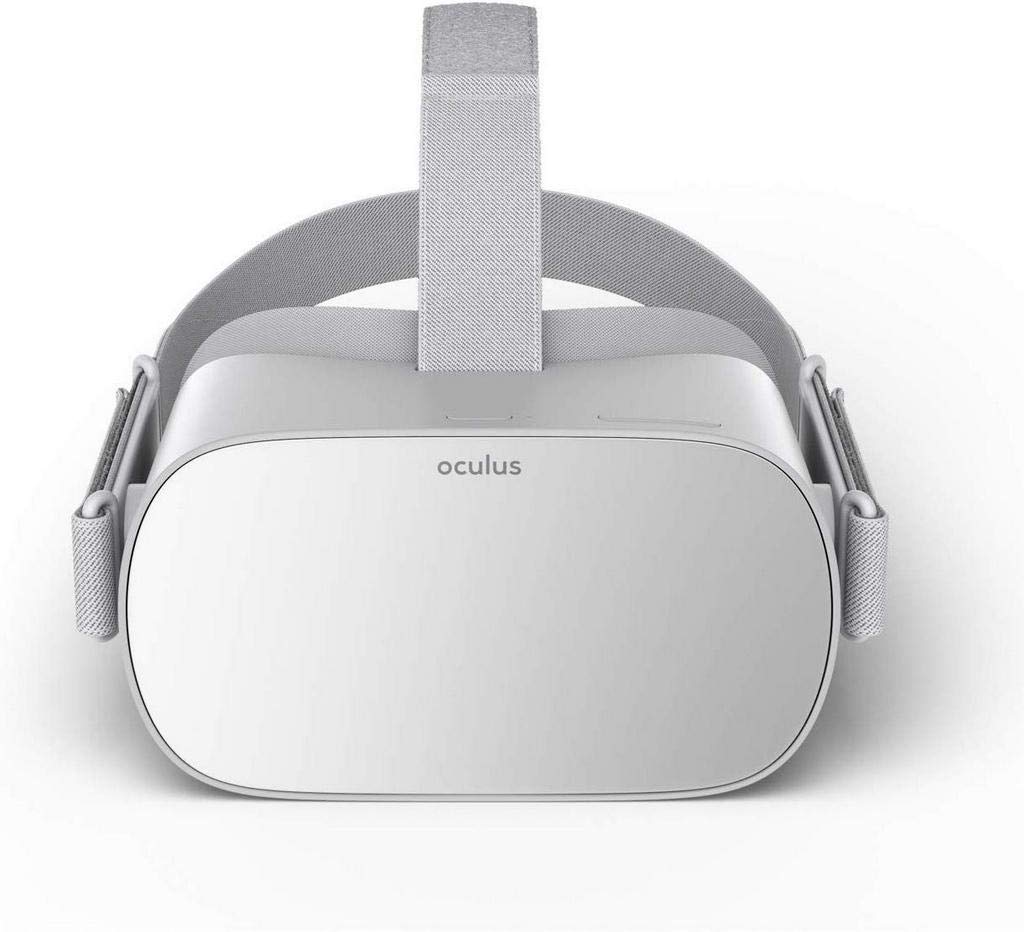
Figure 2: Oculus Go Headset and Controller as packaged.

Figure 3: The intuitive Oculus Go Controller.
3. Setup
The Oculus Go is designed for a straightforward setup process. While it operates standalone for most uses, an initial setup requires a smartphone.
3.1 Initial Setup with Smartphone
- Download the Oculus App: Download the Oculus smartphone app from either the Google Play Store (for Android) or the Apple App Store (for iOS).
- Log In: Open the app and log in. It is recommended to log in through Facebook, as it is required for certain apps and social features.
- Power On Headset: Briefly hold down the power button on the Oculus Go headset to turn it on.
- Charge Headset: Plug the headset into the charger using the provided USB cable and power adapter.
- Pair Headset: In the Oculus app, select the serial number that corresponds to your headset. The serial number can be found on the left side of the headset.
- Connect to Wi-Fi: The app will automatically search for Wi-Fi networks. Select your network and enter the password if necessary.
- Insert Controller Battery: Follow the on-screen instructions in the app to insert the AA battery into the controller. A tiny light should appear on the controller's trackpad.
- Pair Controller: Hold the Oculus button and the back button on the controller until the light stops blinking. You will then be prompted to select which hand you want to use the controller with.
- Set Up Payment Method (Optional): The app will prompt you to set up a payment method for purchasing apps and games. While optional for browsing, it's recommended for convenience.
Video 1: Official Oculus Go Setup Tutorial. This video guides you through the initial unboxing, app download, device pairing, and basic settings configuration for your Oculus Go headset.
3.2 Wearing the Headset
For optimal comfort and visual clarity, adjust the headset straps:
- Slip the straps on from back to front.
- Adjust the top and side straps to fit your head comfortably.
- If the picture appears blurry, adjust the straps until the headset rests in a comfortable position and the image is clear.
- The headset has an internal sensor that detects when it's being worn. If the sensor is not covered, the headset will go to sleep.

Figure 4: Back view of the Oculus Go headset, showing the adjustable straps for a comfortable fit.
3.3 Using with Glasses
If you wear glasses, ensure they fit within the headset's dimensions (width 142mm or less, height 50mm or less). To accommodate glasses:
- Gently remove the lens rings and then the facial interface foam from the headset.
- Insert the provided eyeglass spacer, ensuring the glasses logo faces the top of the headset, and press it into place.
- Reinsert the facial interface foam and gently press the lens rings back until they click.
4. Operating the Oculus Go
Once set up, the Oculus Go provides access to a wide range of virtual reality content.
4.1 Navigating the VR Environment
- Use the Oculus Go controller to point and select items in the virtual environment.
- The main menu (Explore menu) features recommended content.
- Select "Store" to browse and download games and apps.
- Downloaded content can be accessed from the "Library" section.
- The "Events" tab allows you to join live VR experiences via Oculus Venues.
4.2 Audio Controls
- The headset has built-in spatial audio drivers for immersive sound.
- Volume controls are located on the headset itself.
- A 3.5mm audio jack is available for connecting external headphones if desired.
5. Maintenance and Care
Proper maintenance ensures the longevity and optimal performance of your Oculus Go headset.
5.1 Cleaning the Headset
- The inside of the headset and the straps can be cleaned with non-abrasive, anti-bacterial wipes.
- Do NOT use alcohol or abrasive cleaning solutions on any part of the headset.
- Use the provided lens cleaning cloth to gently clean the lenses.
5.2 Protecting the Lenses and Screen
- Avoid direct sunlight: Direct sunlight hitting the lenses can permanently damage the lenses and the internal screen.
- Do not place the device near windows or in direct sunlight.
- Always store the headset in a safe place away from direct light when not in use.
6. Troubleshooting
Here are some common issues and potential solutions:
- Controller Pairing Issues: If the controller fails to pair, remove and reinsert the AA battery, then repeat the pairing steps.
- Lens Fogging: This is a common issue. Lenses may fog initially but should clear after 10-15 minutes of use as they warm up.
- Comfort Issues: If the headset feels uncomfortable or leaves indentations, adjust the straps to redistribute pressure. The face part is cushioned for comfort.
- Battery Life: The headset typically offers 2-3 hours of battery life. It is not recommended to use the headset while it is charging.
- Screen Drifting: If the virtual environment appears to drift, you can perform a quick recalibration by holding the Oculus button on the controller for 2-3 seconds.
7. Specifications
| Feature | Detail |
|---|---|
| Model Number | 301-00104-01 |
| Storage Capacity | 64GB |
| Dimensions | 8 x 8 x 4 inches |
| Item Weight | 12.5 ounces |
| Display | Crystal clear optics, optimized 3D graphics |
| Audio | Built-in spatial audio drivers, 3.5mm audio jack |
| Controller | Intuitive handheld controller (1 AA battery required, included) |
| Connectivity | Wi-Fi, Bluetooth (for controller) |
| Processor | Qualcomm Snapdragon 821 mobile platform |
| Release Date | May 1, 2018 |

Figure 5: Oculus Go headset with its controller and charging cable.
8. Warranty and Support
For detailed warranty information, helpful guides, and official support, please visit the Oculus support website.
Online Support: ocul.us/gosupport
For information on protection plans, please refer to your purchase documentation or the retailer's website.


