
Introduction
This manual provides detailed instructions for the installation, operation, and maintenance of your ORICO 3.5-inch USB 3.1 External Hard Drive Enclosure. This enclosure is designed to convert a 3.5-inch SATA HDD or SSD into an external storage device, offering high-speed data transfer and broad compatibility.

Image: The ORICO 3.5-inch USB 3.1 External Hard Drive Enclosure shown with its detachable vertical stand.
Package Contents
Please verify that all items are present in the package:
- 1 x 3.5-inch Hard Drive Enclosure
- 1 x USB Cable (USB-C to USB-A)
- 1 x 12V/2A Power Adapter
- 1 x Detachable Base
- 1 x Screwdriver

Image: All components included in the ORICO 3.5-inch external hard drive enclosure package.
Setup and Installation
Follow these steps to install your 3.5-inch SATA hard drive or SSD into the enclosure:
- Open the Enclosure: Use the provided screwdriver to open the enclosure cover.
- Insert Hard Drive: Carefully slide your 3.5-inch SATA HDD or SSD into the enclosure, ensuring it connects securely to the internal SATA connector.
- Close the Enclosure: Replace the cover and tighten the screws using the screwdriver.
- Connect to Power: Connect the 12V/2A power adapter to the enclosure's power port and plug it into an electrical outlet.
- Connect to Computer: Connect the USB cable from the enclosure's USB 3.1 Type-C port to an available USB port on your computer. The device is plug-and-play.

Image: Step-by-step visual instructions for hard drive installation and connection.
The enclosure includes a detachable base for vertical placement, which can help save desk space. For portability, the main enclosure can be used without the base.

Image: The enclosure can be used vertically with its stand to save space or horizontally for portability.
Operating Instructions
Once connected, the enclosure will be recognized by your operating system. A blue LED indicator on the front of the enclosure will illuminate to show power and activity status.

Image: The blue LED indicator signifies power and data activity.
Data Transfer Speed
The enclosure supports USB 3.1 Gen1 to SATA 3.0 with a maximum data transfer rate of 5 Gbps. It also supports the UASP (USB Attached SCSI Protocol) for enhanced performance, especially with SSDs.
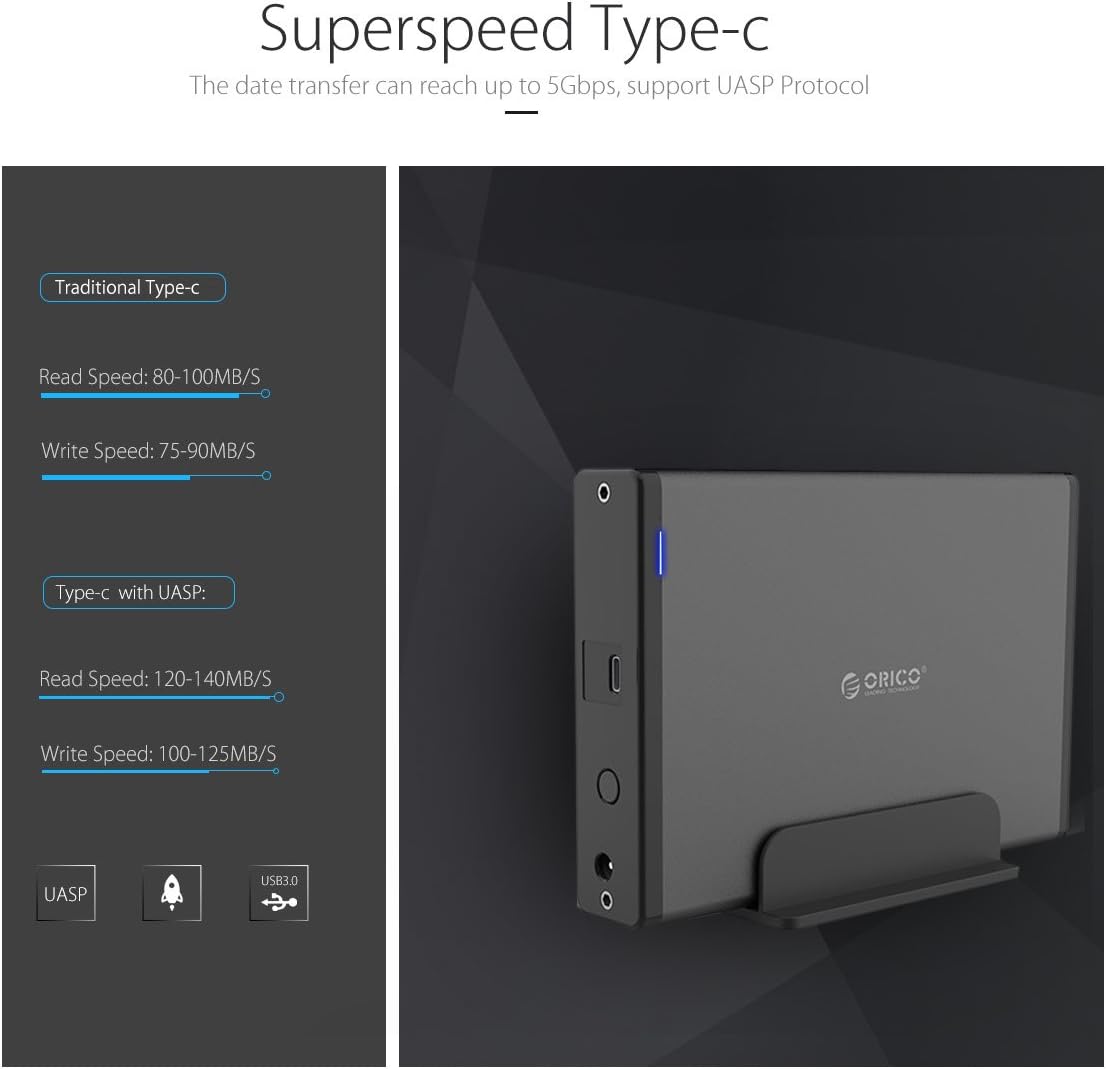
Image: Comparison of data transfer speeds with and without UASP support.
Smart Auto Sleep Function
The enclosure features a smart auto-sleep function that activates after 10 minutes of inactivity to conserve power and extend the lifespan of your hard drive.

Image: The enclosure enters sleep mode after 10 minutes of idle time.
Compatibility
This enclosure is designed for broad compatibility:
- Hard Drive Type: Supports 3.5-inch SATA I/II/III HDDs and SSDs.
- Maximum Capacity: Supports hard drives up to 18TB.
- Operating Systems: Compatible with Windows 10/8/7, Mac OS 8.0 and above, and Linux systems.
- Interface: Connects via USB 3.1 Gen1 Type-C port.
Important: Ensure your hard drive uses a Serial ATA (SATA) port. This enclosure is not compatible with Parallel ATA (IDE) ports.

Image: Visual guide to distinguish between compatible SATA and incompatible IDE ports.
Specifications
| Model | 7688 USB C (7688C3) |
| Connectivity Technology | SATA, USB |
| Interface | USB 3.1 Gen1 (Type-C), SATA 3.0 |
| Data Transfer Speed | Up to 5 Gbps |
| Supported Drive Type | 3.5-inch SATA HDD/SSD |
| Max Storage Capacity | 18 TB (up to 20 TB mentioned in some specifications) |
| Material | High-quality Magnesium Alloy, Aluminum, ABS |
| Dimensions (L x W x H) | 17.4 x 12.5 x 2.8 cm |
| Weight | 560 g |
| Power Adapter | 12V/2A |
| Features | UASP Support, Hot Swap, Plug and Play, Smart Auto Sleep (10 mins) |
Troubleshooting
- Device Not Recognized:
- Ensure the power adapter is securely connected and the enclosure is powered on.
- Check the USB cable connection to both the enclosure and your computer. Try a different USB port or cable.
- Verify that the hard drive is properly seated within the enclosure and connected to the SATA interface.
- For Windows users, check Disk Management to see if the drive appears but needs initialization or formatting. For Mac users, check Disk Utility.
- If using Windows 11 and experiencing recognition issues, ensure your system drivers are up to date. Some users have reported compatibility challenges with specific Windows 11 configurations.
- Slow Data Transfer:
- Ensure you are connected to a USB 3.0 or USB 3.1 port on your computer. Connecting to a USB 2.0 port will result in slower speeds.
- Verify that your operating system and drivers support UASP for optimal performance.
- The speed of the hard drive itself can be a limiting factor.
- Hard Drive Not Fitting:
- Ensure you are using a 3.5-inch SATA HDD/SSD. The enclosure is not designed for 2.5-inch drives or IDE drives.
- Check for any internal obstructions or misalignments. Some hard drives might have slight variations in dimensions; ensure proper alignment with the SATA connector.
- Enclosure Disconnects Randomly:
- Check power connections and USB cable integrity.
- Disable USB selective suspend settings in your computer's power options (Windows) or energy saver settings (Mac) to prevent the system from powering down the USB port.
Maintenance
To ensure the longevity and optimal performance of your ORICO enclosure:
- Keep the enclosure clean and free from dust. Use a soft, dry cloth for cleaning.
- Avoid exposing the device to extreme temperatures, humidity, or direct sunlight.
- Do not drop or subject the enclosure to strong impacts.
- Always safely eject the hard drive from your operating system before disconnecting the USB cable or power.
- Store the enclosure in a cool, dry place when not in use.
Warranty and Support
ORICO products come with a standard manufacturer's warranty. For specific warranty terms and conditions, please refer to the warranty card included with your product or visit the official ORICO website. For technical support or customer service, please contact ORICO customer support through their official channels.
Manufacturer: ORICO Technologies Co.,Ltd


