
1. Introduction
The MOOER Radar is a full-featured professional speaker cabinet simulator designed for guitar and bass. This compact pedal offers a wide array of features including 30 different speaker cabinet models, 11 microphone models, and 4 power amplifier models. It allows for extensive tone shaping with a customizable EQ stage and the ability to load custom Impulse Responses (IRs). With 36 user preset slots, the Radar is a versatile tool for recording, practice, and live performance, transforming your pedalboard into a complete guitar rig.
2. Product Features
- Extensive Modeling: Features 30 diverse speaker cabinet models, 11 microphone models, and 4 distinct power amplifier models.
- Customizable EQ: Integrated customizable EQ stage for precise tone sculpting.
- IR Loading Capability: Supports loading of custom Impulse Responses (IRs) for expanded tonal options.
- User Presets: Store and recall up to 36 user-defined presets for quick access to your favorite sounds.
- USB Connectivity: Connects to a PC editor via USB for advanced editing and IR management.
- Versatile Outputs: Equipped with headphone and line-out outputs, making it ideal for silent practice, recording, or direct connection to a PA system.
- Compact Design: Small footprint integrates easily into any pedalboard setup.
3. Controls and Connections

Figure 1: MOOER Radar Pedal - Front View. This image shows the compact size and overall design of the Radar pedal, highlighting its small form factor suitable for any pedalboard.
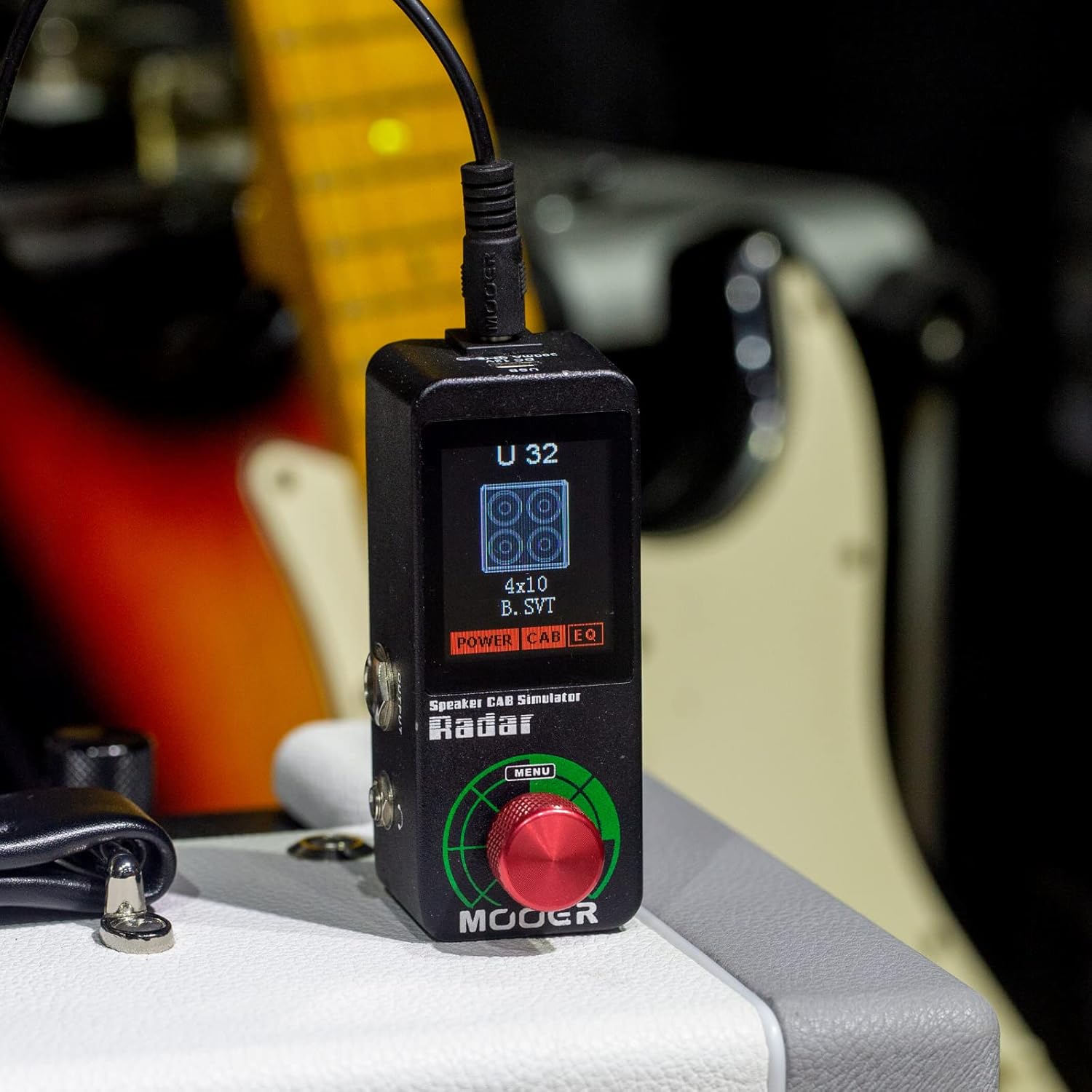
Figure 2: MOOER Radar Pedal - Top View. This image displays the pedal's screen, rotary encoder for menu navigation, and the main output and headphone jacks.
- Screen: Displays current preset, selected cabinet, mic, power amp models, and EQ settings.
- Rotary Encoder (MENU): Used to navigate menus, select options, and adjust parameters. Press to confirm selection.
- Output Jack (1/4" TS): Connects to your amplifier, audio interface, or PA system.
- Headphone Jack (1/8" TRS): For silent practice with headphones.

Figure 3: MOOER Radar Pedal - Rear View. This image shows the USB port and the DC 12V power input.
- USB Port: Connects to a computer for firmware updates, IR loading, and software editing.
- DC 12V Power Input: Connects to a 12V DC power supply (300mA, center negative).
4. Setup Guide
- Power Connection: Connect a 12V DC power supply (300mA, center negative) to the DC 12V input jack on the rear of the pedal.
- Instrument Connection: Connect your guitar or the output of your pedalboard to the input jack (usually on the side, not explicitly shown but standard for pedals).
- Output Connection: Connect the output jack to your amplifier's effects return, an audio interface, or a PA system. For silent practice, connect headphones to the headphone jack.
- Software Setup (Optional): For advanced editing and custom IR loading, connect the pedal to your computer via the USB port. Download and install the MOOER Studio software from the official MOOER website.
5. Operating Instructions
5.1 Basic Operation
- Power On: Once connected to power, the pedal will automatically power on and display the current preset.
- Preset Selection: Use the rotary encoder to scroll through the 36 available user presets. Press the encoder to select a preset.
- Parameter Adjustment: Within a selected preset, rotate the encoder to adjust parameters such as cabinet type, mic model, power amp model, and EQ settings. Press the encoder to confirm changes.
5.2 Loading Custom IRs
The MOOER Radar supports loading third-party Impulse Responses (IRs) to expand your tonal palette. This process requires connecting the pedal to a computer with the MOOER Studio software installed.
- Connect to PC: Ensure the Radar pedal is powered on and connected to your computer via USB.
- Launch Software: Open the MOOER Studio software on your computer. The software should detect your Radar pedal.
- Navigate to IR Section: Within the software, locate the section for IR management.
- Select Slot: Choose an empty or existing preset slot where you wish to load your custom IR.
- Import IR: Use the software's import function to browse for your IR files (typically .wav format) on your computer and upload them to the selected slot on the pedal.
- Save Changes: After loading, save the changes to the pedal's memory.
5.3 Tone Shaping with EQ
The customizable EQ stage allows for fine-tuning your sound. Access the EQ settings through the pedal's menu or the MOOER Studio software to adjust frequency bands, gain, and other parameters to achieve your desired tone.
Video 1: MOOER Radar Guitar Speaker CAB Simulator. This video provides an overview of the MOOER Radar pedal's features and sound capabilities.
Video 2: MOOER Radar Cab Speaker Simulator. This video demonstrates various cabinet simulations available on the MOOER Radar pedal.
6. Specifications
- Model: Radar
- Brand: MOOER
- Dimensions: 3.68 x 1.65 x 2.05 inches
- Weight: 1.15 pounds (0.52 Kilograms)
- Power Input: DC 12V, 300mA (center negative)
- Cabinet Models: 30
- Microphone Models: 11
- Power Amp Models: 4
- User Presets: 36
- Connectivity: USB, 1/4" TS Output, 1/8" TRS Headphone Output
7. Maintenance
- Cleaning: Use a soft, dry cloth to clean the pedal. Avoid using abrasive cleaners or solvents.
- Power Supply: Always use the specified 12V DC, 300mA (center negative) power supply to prevent damage.
- Storage: Store the pedal in a dry, cool place away from direct sunlight and extreme temperatures.
- Firmware Updates: Periodically check the MOOER website for firmware updates to ensure optimal performance and access to new features.
8. Troubleshooting
- No Sound:
- Ensure all cables are securely connected.
- Verify the power supply is correctly connected and functioning.
- Check the volume levels on the pedal, your amplifier, and headphones.
- Confirm that the correct preset is selected and not bypassed (if applicable).
- Poor Sound Quality:
- Check cable quality and connections.
- Adjust EQ settings to fine-tune the tone.
- Ensure the correct cabinet, mic, and power amp models are selected for your instrument.
- If using custom IRs, verify they are loaded correctly and are compatible.
- Pedal Not Responding to Software:
- Ensure the USB cable is properly connected.
- Restart the MOOER Studio software and/or your computer.
- Check for updated USB drivers or software versions on the MOOER website.
9. Support & Warranty
For technical support, firmware updates, and additional resources, please visit the official MOOER website. Information regarding product warranty can also be found on the MOOER website or by contacting MOOER customer service directly. Please retain your proof of purchase for warranty claims.


