
Autoscript EVO-IP On-Camera Package
EVO-IP On-Camera Package with 17'' Prompt Monitor User Manual
Brand: Autoscript
1. Introduction
This manual provides comprehensive instructions for the setup, operation, and maintenance of your Autoscript EVO-IP On-Camera Package with 17'' Prompt Monitor. The EVO-IP prompt monitor is designed for professional broadcast environments, offering a slim, lightweight solution ideal for various camera setups, including those with robotic camera supports.
Please read this manual thoroughly before operating the equipment to ensure proper functionality and to prevent damage.
2. Package Contents
Verify that all components are present in your package:
- EVO-IP 17-inch Prompt Monitor
- On-camera mounting hardware
- Power supply unit
- Necessary cabling (e.g., video, power, network)
- User Manual (this document)
If any items are missing or damaged, contact Autoscript customer support immediately.
3. Setup and Installation
Follow these steps to correctly set up your EVO-IP On-Camera Package.
3.1 Mounting the Monitor
The EVO-IP monitor is designed for on-camera mounting. Ensure your camera support system is stable and capable of handling the monitor's weight (approximately 29 pounds).
- Attach the provided mounting hardware to the camera's lens support or matte box system. Refer to your camera's manual for specific attachment points.
- Securely fasten the EVO-IP monitor to the mounting hardware. Ensure the monitor is level and centered with the camera lens.
- Adjust the monitor's angle for optimal viewing by the talent.
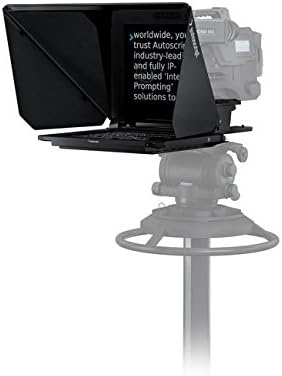
Figure 3.1: The Autoscript EVO-IP 17-inch Prompt Monitor securely mounted on a camera system, ready for operation. The monitor displays example teleprompter text.
3.2 Power and Connectivity
Connect the monitor to power and video sources.
- Power Connection: Connect the provided AC/DC power supply to the monitor's power input port. Plug the power supply into a suitable power outlet.
- Video Input: Connect your video source (e.g., teleprompter software output, video switcher) to the monitor's video input port using the appropriate cable. The monitor supports various video capture formats, including MPEG-4, and resolutions up to 720p.
- Network Connectivity (Optional): For IP-based control and content delivery, connect an Ethernet cable to the monitor's network port. The monitor supports Wi-Fi connectivity for wireless communication.
4. Operating Instructions
This section details the basic operation of the EVO-IP Prompt Monitor.
4.1 Powering On/Off
- To power on the monitor, ensure it is connected to a power source and press the power button located on the side/rear of the unit.
- To power off, press and hold the power button until the display turns off.
4.2 Displaying Prompt Content
The monitor will display the video signal received from your connected source. For teleprompting, ensure your teleprompter software is running and outputting to the correct video output.
- Adjust text size and scroll speed using your teleprompter software or connected controller (e.g., Iris controller).
- The monitor's high-quality glass ensures clear text visibility even in varying lighting conditions.
4.3 Network Features (Wi-Fi)
The EVO-IP monitor supports Wi-Fi for remote control and content management. Refer to the Autoscript software manual for detailed instructions on connecting the monitor to your network and utilizing its IP-enabled features.
5. Maintenance
Proper maintenance ensures the longevity and optimal performance of your EVO-IP monitor.
5.1 Cleaning
- Monitor Screen: Use a soft, lint-free cloth specifically designed for optical surfaces. Lightly dampen the cloth with a screen cleaning solution (non-abrasive, ammonia-free) if necessary. Do not spray liquid directly onto the screen.
- Exterior Surfaces: Wipe down the monitor's casing with a soft, dry cloth. For stubborn dirt, a slightly damp cloth can be used, followed by a dry cloth.
- Avoid using harsh chemicals, solvents, or abrasive materials, as these can damage the finish and screen.
5.2 Storage
When not in use, store the monitor in a clean, dry environment, preferably in its original packaging or a padded case to protect it from dust, moisture, and physical impact.
6. Troubleshooting
This section addresses common issues you might encounter with your EVO-IP monitor.
| Problem | Possible Cause | Solution |
|---|---|---|
| Monitor does not power on. | No power, faulty power supply, loose connection. | Check power cable connection. Ensure power outlet is functional. Test with a different power supply if available. |
| No image on screen. | Incorrect video input selected, faulty video cable, no signal from source. | Verify video cable connections. Ensure video source is active and outputting a signal. Check monitor input settings (if applicable). |
| Image is distorted or flickering. | Poor cable connection, interference, incompatible video signal. | Reseat video cables. Check for sources of electromagnetic interference. Ensure video signal resolution and format are compatible (e.g., 720p, MPEG-4). |
| Cannot connect to Wi-Fi. | Incorrect network settings, out of range, network issues. | Verify Wi-Fi password and network name. Ensure monitor is within range of the Wi-Fi router. Restart router and monitor. |
If you encounter issues not listed here or if the suggested solutions do not resolve the problem, please contact Autoscript customer support.
7. Specifications
Key technical specifications for the Autoscript EVO-IP On-Camera Package with 17'' Prompt Monitor:
- Model: EVO-IP 17-inch Prompt Monitor
- Brand: Autoscript
- ASIN: B079TXPNKQ
- UPC: 663647981080
- Monitor Depth: 41.5mm (slimmest broadcast prompt monitor)
- Item Weight: Approximately 29 pounds (13.15 kg)
- Video Capture Resolution: Up to 720p
- Video Capture Format: MPEG-4
- Connectivity Technology: Wired, Wi-Fi
- Power Source: AC/DC
- Material: Glass (for beamsplitter/screen)
- Indoor/Outdoor Usage: Outdoor, Indoor
- International Protection Rating: IP54
- First Available: August 6, 2024
8. Warranty and Support
For detailed warranty information, please refer to the warranty card included with your product or visit the official Autoscript website. Warranty terms and conditions may vary by region.
For technical support, service, or spare parts, please contact Autoscript customer service. Contact information can typically be found on the Autoscript website or in your product documentation.
Note: Always ensure you are using official Autoscript parts and accessories to maintain product integrity and warranty validity.
Related documentsEVO-IP On-Camera Package


Ask a question about this manual
Ask about setup, troubleshooting, compatibility, parts, safety, or missing instructions. Manuals+ will review the question and use this page’s manual context to help answer it.