
Introduction
This manual provides essential information for the safe and effective use of your Panasonic LUMIX DC-ZS200 digital camera. The LUMIX DC-ZS200 is a compact digital camera featuring a large 1-inch 20.1 Megapixel MOS sensor and a versatile 15x LEICA DC VARIO-ELMAR optical zoom lens (24-360mm equivalent). It is designed for high-quality still photography and 4K video recording, offering advanced features in a portable form factor.

Figure 1: Front view of the Panasonic LUMIX DC-ZS200 digital camera with its 15x optical zoom lens extended.
Setup
1. Unboxing and Package Contents
Before starting, ensure all components are present in the package:
- Panasonic LUMIX DC-ZS200 Camera Body
- Battery Pack
- AC Adaptor
- USB Cable
- Hand Strap
2. Charging the Battery
Insert the supplied battery pack into the camera. Connect the AC adaptor to the camera using the USB cable, then plug the AC adaptor into a power outlet. The charging indicator will illuminate during charging and turn off when complete.

Figure 2: Connecting the USB cable for battery charging. The charging port is located under a small cover.
3. Inserting a Memory Card
Open the battery/card compartment cover. Insert a compatible SDXC memory card (up to 64 GB recommended) into the slot with the contacts facing the correct direction until it clicks into place. Close the cover securely.
Operating the Camera
1. Power On/Off
To power on the camera, slide the ON/OFF switch located on the top panel. To power off, slide it again.

Figure 3: Top view of the camera, highlighting the mode dial and ON/OFF switch.
2. Basic Photography
- Mode Dial: Select your desired shooting mode (e.g., Program AE, Aperture Priority, Shutter Priority, Manual, Intelligent Auto, Scene Modes) using the mode dial on the top of the camera.
- Zoom: Use the zoom lever around the shutter button to adjust the 15x optical zoom (24-360mm equivalent).
- Autofocus: The camera features fast autofocus technology (Depth From Defocus) for quick subject acquisition. You can also use the touch-enabled LCD for touch focus.
- Image Stabilization: The 5-Axis HYBRID O.I.S.+ (Optical Image Stabilizer Plus) helps reduce blur from camera shake, especially at longer zoom settings.
3. Using the Electronic Viewfinder and LCD
The camera is equipped with an electronic viewfinder (EVF) and a 3-inch touch-enabled LCD screen. You can switch between them or use the EVF for precise framing and the LCD for reviewing images and navigating menus.
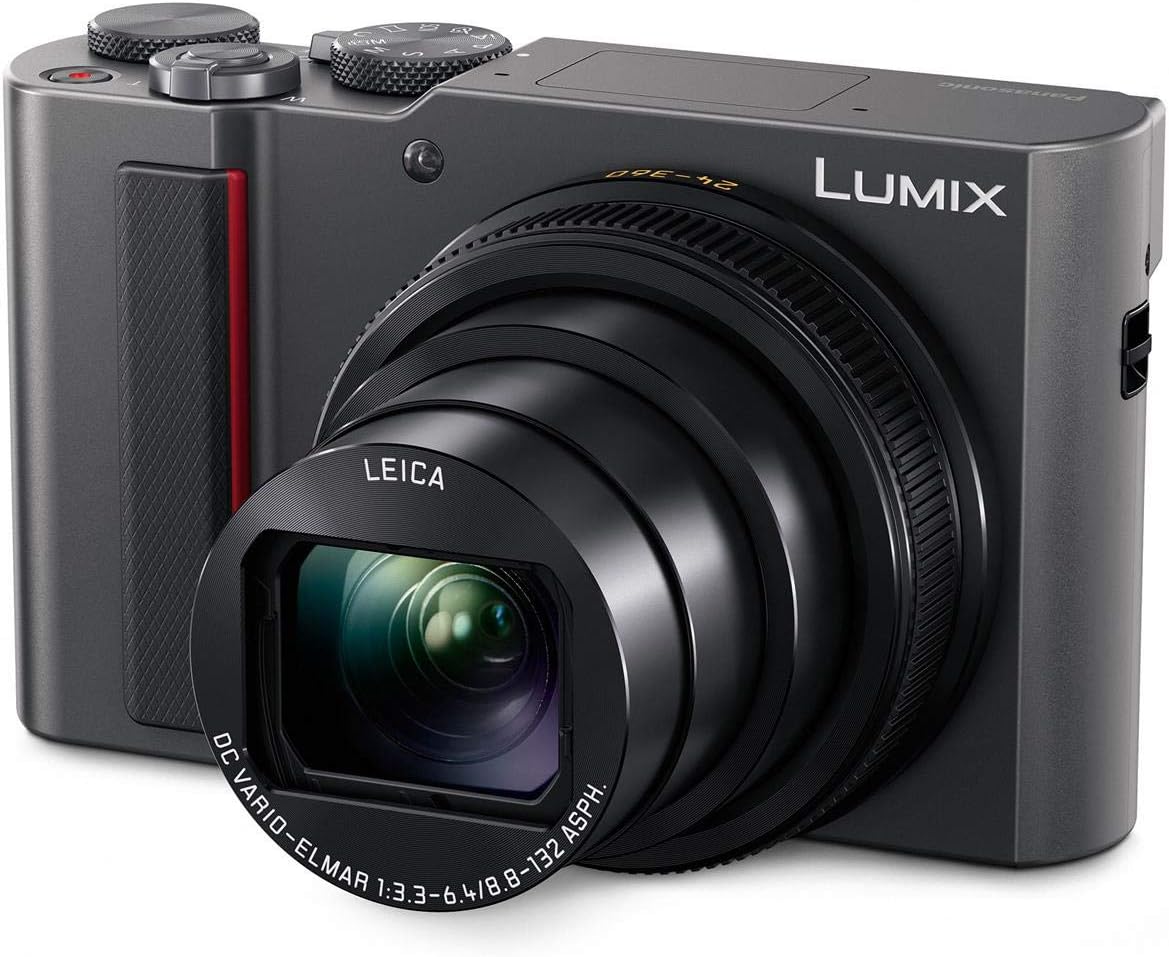
Figure 4: Rear view of the camera, showing the LCD screen and electronic viewfinder.
4. 4K Features
- 4K Video: Record high-resolution 4K video at 30p.
- 4K PHOTO: Capture 8-megapixel still images from 4K video footage at 30 frames per second, ideal for fast-moving subjects.
- 4K Live Crop: Utilize 4K video capabilities to create smooth panning and zooming effects in Full HD footage.
5. Connectivity (Wi-Fi and Bluetooth)
The camera features built-in Wi-Fi and low-energy Bluetooth for wireless transfer of images to a smartphone or tablet using the Panasonic Image App. This allows for easy sharing and remote control of the camera.
Maintenance
1. Cleaning the Camera
- Camera Body: Wipe the camera body with a soft, dry cloth. For stubborn dirt, use a cloth lightly dampened with water and then wipe dry. Avoid using organic solvents.
- Lens: Use a lens brush to remove dust, then gently wipe with a lens cleaning cloth. For smudges, use a lens cleaning fluid specifically designed for optical lenses.
- LCD Screen/Viewfinder: Use a soft, dry cloth to gently wipe the screen. Avoid pressing too hard.
2. Storage
When not in use for extended periods, remove the battery and store the camera in a cool, dry, and well-ventilated place, away from direct sunlight and high humidity.
Troubleshooting
If you encounter issues with your camera, refer to the following common troubleshooting tips:
- Camera does not power on: Ensure the battery is fully charged and correctly inserted.
- Images are blurry: Check if the lens is clean. Ensure the camera is stable during shooting (use image stabilization or a tripod). Verify focus settings.
- Memory card error: Ensure the memory card is inserted correctly and is not full or corrupted. Try formatting the card (this will erase all data).
- Wi-Fi/Bluetooth connection issues: Ensure the camera and smart device are within range and the Panasonic Image App is installed and updated.
For more detailed troubleshooting, please consult the full user manual available on the Panasonic support website.
Specifications
| Feature | Detail |
|---|---|
| Model Name | PANASONIC LUMIX ZS200 (DC-ZS200) |
| Photo Sensor Resolution | 20.1 MP |
| Photo Sensor Size | 1-inch |
| Lens Type | LEICA DC Vario-Elmar 15x optical zoom lens |
| Focal Length Range | 24-360mm (35mm equivalent) |
| Optical Zoom | 15x |
| Maximum Aperture | F3.3 - F6.4 |
| Image Stabilization | Optical, Sensor-Shift (5-Axis HYBRID O.I.S.+) |
| Video Resolution | 4K UHD 2160p |
| Continuous Shooting | Up to 10 FPS (mechanical shutter), 30 FPS (4K PHOTO) |
| ISO Sensitivity | Expanded ISO Minimum: 80, Maximum ISO: 12,800 |
| Autofocus Technology | Depth From Defocus (DFD), Face/Eye Detection, Tracking, 49-area |
| Viewfinder | Electronic (EVF) |
| Screen Size | 3 Inches LCD, Touch-enabled |
| Connectivity | Bluetooth, HDMI (Micro-HDMI), USB, Wi-Fi |
| Supported File Format | JPEG, Raw |
| Memory Card Type | SDXC (UHS-I, Class 10 recommended) |
| Item Weight | 298 Grams |
Warranty and Support
Warranty Information
This product is covered by a manufacturer's warranty. Please refer to the warranty card included in your product packaging for specific terms and conditions, or visit the official Panasonic website for detailed warranty information applicable to your region.
Customer Support
For technical assistance, product inquiries, or service requests, please contact Panasonic customer support. You can find contact details and additional resources on the official Panasonic website: www.panasonic.com.
You can also visit the Panasonic Store on Amazon for more product information and accessories: Panasonic Store.


