1. Introduction
This manual provides detailed instructions for the installation, operation, and maintenance of your EZVIZ CS-BW2424-B1E10 Wireless NVR System. Please read this manual thoroughly before using the product to ensure proper setup and functionality. Keep this manual for future reference.
2. Product Overview
The EZVIZ CS-BW2424-B1E10 is a wireless network video recorder (NVR) system designed for home or small business surveillance. It includes a central NVR unit with a pre-installed 1TB hard disk drive and four 2-megapixel wireless cameras, providing a comprehensive security solution.
2.1 System Components

2.2 NVR Unit Features
The NVR unit serves as the central hub for recording and managing video footage from the connected cameras. It features various ports for connectivity and a pre-installed hard drive for storage.

- Power Input: Connects to the power adapter.
- Audio In/Out: For external audio devices.
- VGA Port: Connects to a monitor for video output.
- HDMI Port: Connects to an HDMI-compatible monitor or TV for high-definition video output.
- LAN Port: Connects to your network router via an Ethernet cable for internet access.
- USB Ports: For connecting a USB mouse or external storage devices.
- Reset Hole: Used to reset the NVR to factory default settings.

The NVR comes with a 1TB hard disk drive pre-installed, providing ample storage for recorded video footage.
2.3 Camera Features
The four wireless cameras capture 2-megapixel resolution video and connect wirelessly to the NVR. They are designed for outdoor or indoor use and include features for easy management.

- Reset Button: Used to reset the camera to factory default settings.
- QR Code: Essential for adding the camera to the EZVIZ app and for initial setup.
3. Setup Guide
3.1 Unpacking and Initial Inspection
- Carefully unpack all components from the box.
- Verify that all items listed in the packaging contents are present and undamaged.
- If any items are missing or damaged, contact customer support immediately.
3.2 NVR Connection
Before powering on, connect the necessary peripherals to the NVR.
- Connect a Monitor: Use an HDMI or VGA cable to connect the NVR to a monitor or TV.
- Connect a Mouse: Plug the USB mouse into one of the NVR's USB ports.
- Network Connection: For initial setup and remote access, connect the NVR's LAN port to your router using an Ethernet cable.
- Power On: Connect the power adapter to the NVR's power input and then plug it into a power outlet. The NVR will start automatically.
3.3 Camera Placement and Installation
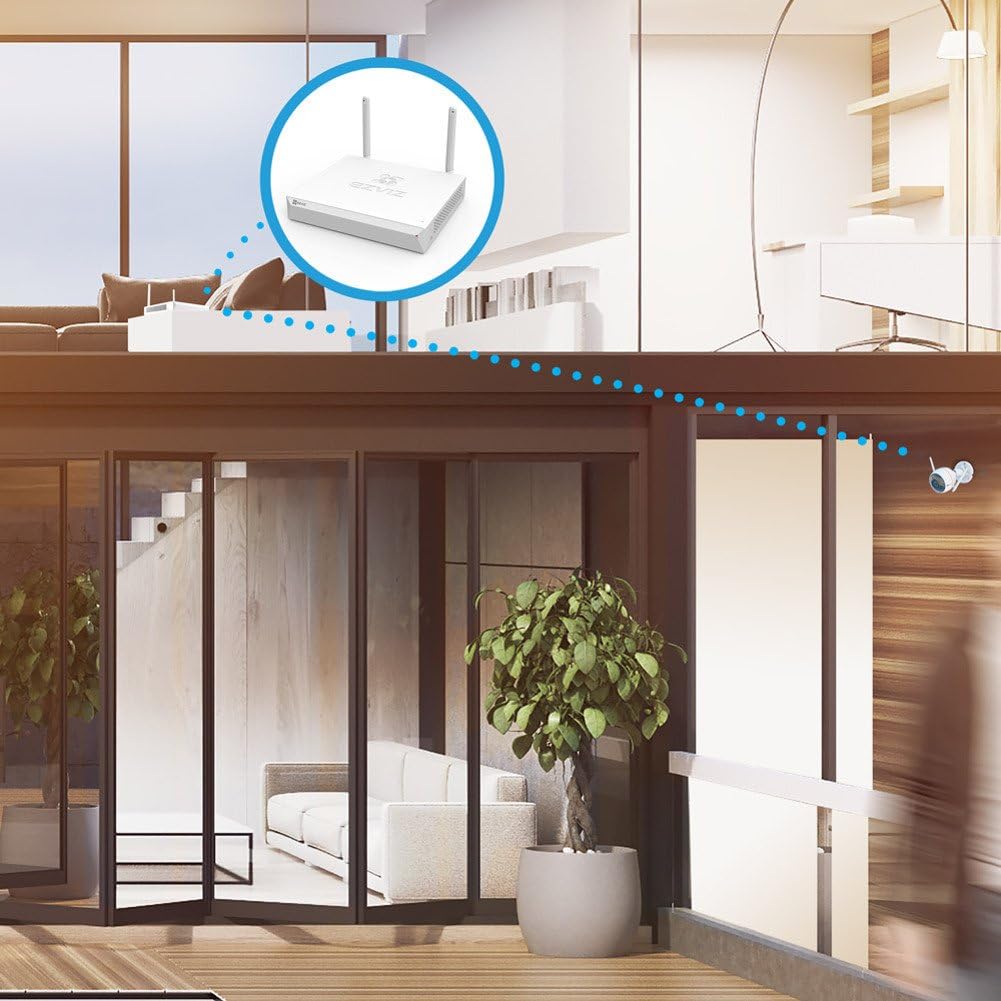
The cameras connect wirelessly to the NVR. Ensure optimal placement for signal strength and coverage.

- Choose Locations: Select locations for your cameras that provide the desired viewing angle and are within the wireless range of the NVR or your home router. Avoid obstructions that could interfere with the wireless signal.
- Mount Cameras: Use the provided mounting hardware to securely install each camera. Ensure the camera is positioned correctly to capture the desired area.
- Power Cameras: Connect each camera to its respective power adapter and plug it into a power outlet.
3.4 System Configuration
- First-Time Setup Wizard: Upon first boot, the NVR will guide you through a setup wizard. Follow the on-screen prompts to set up language, date/time, and network settings.
- Camera Pairing: The cameras are typically pre-paired with the NVR. If a camera does not display video, you may need to manually pair it. Refer to the NVR's on-screen menu for camera management options.
- Mobile App Setup: Download the EZVIZ app from your smartphone's app store. Create an account and add your NVR system by scanning the QR code on the NVR or its packaging. This enables remote viewing and control.
4. Operating Instructions
4.1 Live View
Once the system is set up, you can view live footage from all connected cameras on your monitor or through the EZVIZ mobile app.
- On Monitor: The NVR interface displays a multi-channel view. Use the mouse to select a specific camera for a full-screen view.
- On Mobile App: Open the EZVIZ app, select your NVR system, and tap on the desired camera feed to view live video.
4.2 Recording Management
The NVR continuously records footage to the 1TB hard drive. You can configure recording schedules and modes.
- Continuous Recording: Records 24/7.
- Motion-Triggered Recording: Records only when motion is detected, saving storage space. Configure motion detection zones and sensitivity via the NVR menu or mobile app.
4.3 Playback
Review recorded footage from the NVR's hard drive.
- On Monitor: Access the 'Playback' menu on the NVR interface. Select the date, time, and camera to view recordings.
- On Mobile App: In the EZVIZ app, select the NVR, then choose the camera and navigate to the playback timeline to review recorded events.
4.4 Motion Detection and Alerts
Configure the system to send alerts when motion is detected.
- Enable motion detection for each camera in the NVR settings or EZVIZ app.
- Set up notification preferences in the EZVIZ app to receive instant alerts on your smartphone.
4.5 Remote Access
Access your security system from anywhere using the EZVIZ mobile app or web portal.
- Ensure the NVR is connected to the internet.
- Log in to your EZVIZ account on the app or web portal to view live feeds, playback recordings, and manage settings remotely.
5. Maintenance
5.1 Cleaning
- Regularly clean the camera lenses with a soft, dry cloth to ensure clear image quality.
- Wipe the NVR unit with a dry cloth. Do not use liquid cleaners.
5.2 Firmware Updates
Periodically check for firmware updates for both the NVR and cameras to ensure optimal performance and security. Updates can typically be performed through the NVR's system menu or the EZVIZ app.
5.3 Hard Drive Management
The 1TB hard drive will automatically overwrite the oldest footage when full. You can configure recording settings to optimize storage usage.
6. Troubleshooting
- No Video Display: Check power connections for NVR and cameras. Ensure HDMI/VGA cables are securely connected to the monitor. Verify cameras are paired with the NVR.
- No Network Connection: Ensure the Ethernet cable is properly connected to the NVR and router. Check router status. Restart NVR and router.
- Poor Video Quality: Clean camera lenses. Ensure cameras are within optimal wireless range. Check for strong Wi-Fi signal.
- No Recording: Verify the hard drive status in the NVR settings. Check recording schedules and motion detection settings.
- Cannot Access Remotely: Ensure the NVR has an active internet connection. Verify your EZVIZ app account is correctly linked to the NVR.
- System Reset: If issues persist, you may need to reset the NVR or individual cameras to factory settings using the reset button/hole. Note that this will erase all configurations.
7. Specifications
| Feature | Specification |
|---|---|
| Model Number | CS-BW2424-B1E10 |
| Brand | EZVIZ |
| Connectivity Technology | Wireless |
| Video Capture Resolution | 1080p (2MP) |
| Number of Channels | 4 |
| Memory Storage Capacity | 1 TB (Hard Disk Drive) |
| Color | White |
| Power Source | Battery Powered (Cameras, likely refers to power adapter for cameras) |
| Product Dimensions | 30 x 30 x 14 cm (NVR unit) |
| Item Weight | 2.6 kg (NVR unit) |
| Compatible Devices | Cameras |
8. Warranty and Support
For warranty information and technical support, please refer to the warranty card included with your product or visit the official EZVIZ website. You can also contact EZVIZ customer service for assistance with product setup, troubleshooting, and other inquiries.
Manufacturer: EZVIZ


