
DELUX OM06G+M105GX
Contents
DELUX OM06G+M105GX Wireless Keyboard and Mouse Combo User Manual
Model: OM06G+M105GX
1. Introduction
Thank you for choosing the DELUX OM06G+M105GX Wireless Keyboard and Mouse Combo. This product is designed to provide a comfortable and efficient computing experience with its ergonomic design and reliable 2.4GHz wireless connectivity. This manual will guide you through the setup, operation, and maintenance of your new device.
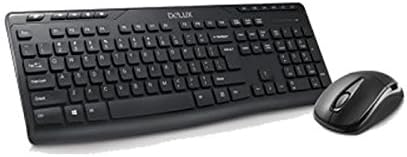
Image 1.1: The DELUX OM06G+M105GX Wireless Keyboard and Mouse Combo.
2. Package Contents
Please check the package carefully to ensure all items are present:
- 1 x DELUX Wireless Keyboard (French Layout) with 11 Multimedia Keys
- 1 x DELUX Wireless Optical Mouse
- 1 x USB Nano Receiver
- 2 x AAA Batteries (for Keyboard)
- 2 x AA Batteries (for Mouse)
- 1 x User Manual (this document)

Image 2.1: The retail packaging of the DELUX OM06G+M105GX combo, showing the keyboard and mouse inside.
3. Setup Guide
3.1. Installing Batteries
- For the Keyboard: Locate the battery compartment on the underside of the keyboard. Open the cover and insert two AAA batteries, ensuring correct polarity (+/-). Close the cover.
- For the Mouse: Locate the battery compartment on the underside of the mouse. Open the cover and insert two AA batteries, ensuring correct polarity (+/-). Close the cover.
- The keyboard features a battery wear indicator. Replace batteries when the indicator light signals low power.
3.2. Connecting the USB Nano Receiver
- Locate the USB Nano Receiver, typically stored within the mouse's battery compartment for safekeeping during transport.
- Plug the USB Nano Receiver into an available USB port on your computer.
- Your computer should automatically detect and install the necessary drivers. This process may take a few moments.
- Once the drivers are installed, the keyboard and mouse are ready for use. No additional pairing is required as they are pre-paired with the receiver.
4. Operating Instructions
4.1. Keyboard Usage
- Standard Typing: Use the keyboard as a standard French layout keyboard for all typing tasks.
- Multimedia Keys: The keyboard is equipped with 11 dedicated multimedia keys for quick access to functions like volume control, media playback, and web browsing. These keys are typically located along the top row of the keyboard. Refer to the key legends for specific functions.
- Ergonomic Design: The keyboard features a contoured ergonomic profile designed for comfortable typing over extended periods.
4.2. Mouse Usage
- Basic Operation: The mouse functions as a standard optical mouse with left-click, right-click, and scroll wheel.
- DPI Resolution: The mouse operates at a resolution of 1000 DPI, providing precise and smooth cursor control for general computing tasks.
- Wireless Range: The 2.4GHz wireless connectivity offers a reliable connection up to 10 meters (approximately 33 feet) from the USB receiver.
5. Maintenance and Care
To ensure the longevity and optimal performance of your DELUX wireless combo, follow these maintenance guidelines:
- Cleaning:
- Disconnect the USB receiver from your computer before cleaning.
- Use a soft, dry, lint-free cloth to wipe down the surfaces of the keyboard and mouse.
- For stubborn dirt, slightly dampen the cloth with water or a mild, non-abrasive cleaning solution. Avoid excessive moisture.
- Do not spray cleaning solutions directly onto the devices.
- Use compressed air to remove dust and debris from between the keyboard keys.
- Battery Replacement: Replace batteries promptly when the low battery indicator on the keyboard illuminates or when mouse performance degrades. Always use new, good quality batteries of the specified type (AAA for keyboard, AA for mouse).
- Storage: When not in use for extended periods, remove the batteries to prevent leakage. Store the USB receiver in the mouse's battery compartment to avoid loss.
- Environment: Avoid exposing the devices to extreme temperatures, direct sunlight, high humidity, or dusty environments.
6. Troubleshooting
If you encounter issues with your DELUX wireless combo, please refer to the following common problems and solutions:
| Problem | Possible Cause | Solution |
|---|---|---|
| Keyboard/Mouse not responding | Low batteries, receiver not connected, out of range, interference. |
|
| Lagging or erratic cursor movement | Dirty optical sensor, uneven surface, interference. |
|
| Multimedia keys not working | Software conflict, driver issue. |
|
If the problem persists after trying these solutions, please contact DELUX customer support.
7. Specifications
| Feature | Detail |
|---|---|
| Brand | DELUX |
| Model Number | OM06G+M105GX |
| Color | Black |
| Connectivity Technology | 2.4GHz Wireless (USB Nano Receiver) |
| Wireless Range | Up to 10 meters |
| Keyboard Layout | French (AZERTY) |
| Keyboard Keys | 104 standard keys + 11 multimedia keys |
| Keyboard Key Life | Approx. 10 million keystrokes |
| Keyboard Operating Current | 1.5V DC / ≤10mA |
| Mouse Resolution | 1000 DPI |
| Mouse Button Life | Approx. 3 million clicks |
| Mouse Operating Current | 1.5V DC / ≤10mA |
| Power Source | Keyboard: 2 x AAA batteries; Mouse: 2 x AA batteries |
| Compatible Operating Systems | Windows XP/7/8.x/10 |
| Device Compatibility | Personal Computer |
8. Warranty and Support
8.1. Manufacturer's Warranty
The DELUX OM06G+M105GX Wireless Keyboard and Mouse Combo comes with a 1-year manufacturer's warranty from the date of purchase. This warranty covers defects in materials and workmanship under normal use. It does not cover damage caused by misuse, accident, unauthorized modification, or external causes.
Please retain your proof of purchase for warranty claims.
8.2. Customer Support
For technical assistance, warranty claims, or any other inquiries regarding your DELUX product, please contact DELUX customer support through the retailer where you purchased the product or visit the official DELUX website for contact information.
Online Resources: For additional support and frequently asked questions, please visit the DELUX brand store on Amazon or the official DELUX website.
Documents and downloads
Ask a question about this manual
Ask about setup, troubleshooting, compatibility, parts, safety, or missing instructions. Manuals+ will review the question and use this page’s manual context to help answer it.