1. Introduction
The Wacom Intuos Small Graphics Drawing Tablet is designed for individuals beginning their journey in digital art, photo editing, and design. It offers a natural pen-on-paper feel with its light, super-accurate, battery-free pen and customizable ExpressKeys. This manual provides essential information for setting up, operating, maintaining, and troubleshooting your Wacom Intuos tablet.
2. What's in the Box
Upon unboxing your Wacom Intuos Small tablet, please ensure all the following components are present:
- Wacom Intuos Small Tablet
- Wacom Pen 4K
- USB-A cable with L-shaped Connector
- 3 extra standard nibs and nib removal tool
- Quick start guide
- Regulation sheet
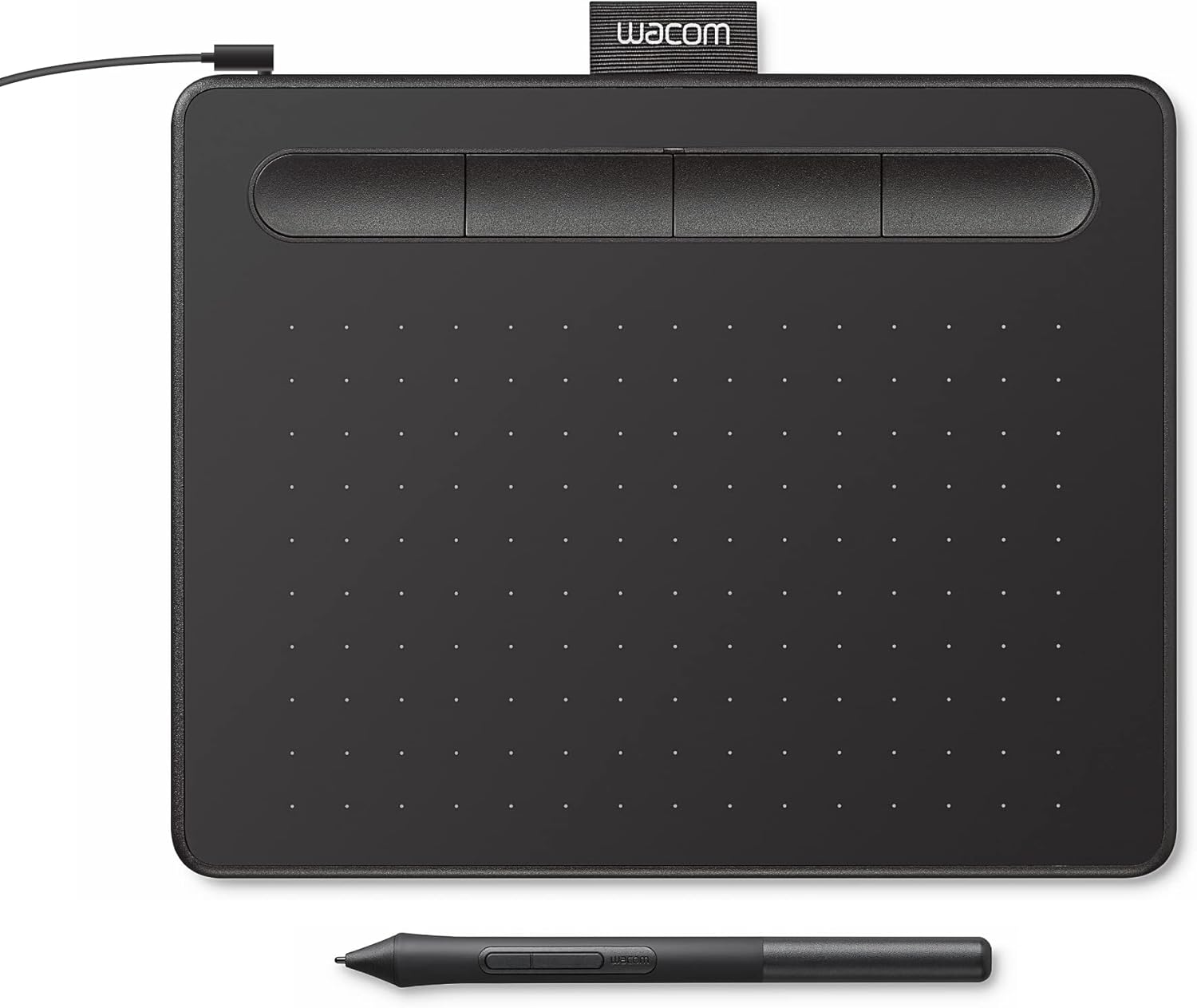
Image: Wacom Intuos Small Graphics Drawing Tablet with its accompanying pen.
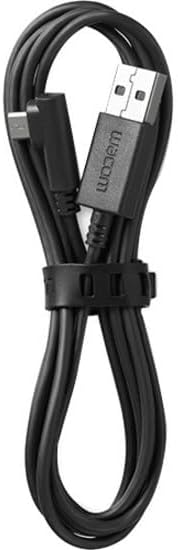
Image: The USB-A cable with an L-shaped connector used to connect the tablet.
3. Setup
Follow these steps to set up your Wacom Intuos tablet:
- Connect the Tablet: Plug the USB-A cable into your computer's USB port and the L-shaped connector into your Wacom Intuos tablet.
- Install Drivers: For Mac and PC users, internet access is required to download and install the necessary drivers from the official Wacom website. Chromebooks and select Android devices are plug-and-play, requiring no driver installation.
- Register Your Product: Register your Intuos tablet to gain access to included creative software and online tutorials.

Image: Diagram showing the Wacom Intuos tablet, its packaging, and the simple plug-and-play connection for various operating systems.
4. Operating Instructions
The Wacom Intuos tablet provides a natural and intuitive drawing experience:
- Pen Usage: Use the Wacom Pen 4K directly on the tablet surface. The pen is battery-free, utilizing Wacom's EMR (Electro-Magnetic Resonance) technology.
- Pressure Sensitivity: The tablet features 4096 levels of pressure sensitivity, allowing for precise control over line thickness and opacity in compatible software.
- Ergonomics: The ergonomic design and lightweight pen ensure comfortable use for extended periods, providing both precision and control.

Image: A hand demonstrating the use of the Wacom Pen on the Intuos tablet, highlighting its battery-free design and pen buttons.
5. Customization
Enhance your workflow by customizing the tablet's features:
- ExpressKeys: The tablet features four customizable ExpressKeys located at the top. These can be programmed to perform frequently used functions or shortcuts within your creative applications.
- Pen Buttons: The Wacom Pen 4K includes two programmable buttons. These can be assigned to various functions, such as right-click, scroll, or specific tool shortcuts in your software.
- Software Settings: Use the Wacom Desktop Center software (downloaded after driver installation) to configure ExpressKeys, pen buttons, pressure sensitivity, and mapping to suit your preferences and specific application needs.

Image: A close-up view of the Wacom Intuos tablet, emphasizing the customizable ExpressKeys and the pen in use.
6. Compatibility
The Wacom Intuos Small Graphics Drawing Tablet is designed for broad compatibility:
- Operating Systems: Compatible with Mac, PC (Windows), Chromebook, and select Android smartphones/tablets.
- Software: Works with a wide range of creative software for drawing, painting, photo/video editing, design, and document markup.
- Included Software & Training: Wacom provides access to creative software and online tutorials upon product registration, enhancing your digital creative capabilities.

Image: A visual representation of the valuable software and training packages included with the Wacom Intuos tablet, featuring various creative and educational application logos.
7. Maintenance
Proper maintenance ensures the longevity and optimal performance of your tablet:
- Cleaning: Use a soft, damp cloth to gently wipe the tablet surface. Avoid harsh chemicals or abrasive materials.
- Nib Replacement: The pen nibs will wear down over time. Replace them when they become too short or sharp to maintain the natural drawing feel and prevent scratching the tablet surface. Use the included nib removal tool to carefully pull out the old nib and insert a new one.
- Storage: When not in use, store the tablet and pen in a clean, dry place to protect them from dust and damage.
8. Troubleshooting
If you encounter issues with your Wacom Intuos tablet, try the following:
- Connection Issues: Ensure the USB cable is securely connected to both the tablet and your computer. Try a different USB port.
- Driver Problems: If the tablet is not responding or pen pressure is not working, try reinstalling the latest drivers from the Wacom website. Restart your computer after installation.
- Pen Not Responding: Check if the pen nib is properly seated. If the nib is worn, replace it with one of the spares.
- Software Conflicts: If issues arise only within specific applications, check the application's settings for tablet compatibility or try updating the application.
- System Restart: A simple restart of your computer can often resolve minor connectivity or software glitches.
For persistent issues, refer to the comprehensive support resources on the official Wacom website or contact Wacom customer support.
9. Specifications
Key technical specifications for the Wacom Intuos Small Graphics Drawing Tablet (Model CTL4100):
| Feature | Specification |
|---|---|
| Model Number | CTL4100 |
| Dimensions (L x W x H) | 6.3 x 7.87 x 0.1 inches |
| Item Weight | 8.1 ounces |
| Pressure Sensitivity | 4096 Levels |
| Connectivity Technology | USB-A |
| Compatible Operating Systems | Android, Windows, Linux, Mac |
| Pen | Wacom Pen 4K (Battery-free, EMR) |
10. Warranty and Support
Wacom is a global leader in drawing tablets and displays, with over 40 years of industry experience. Your Wacom Intuos tablet is backed by Wacom's commitment to quality and innovation.
For detailed warranty information, technical support, and additional resources, please visit the official Wacom support website. You can also find FAQs, driver updates, and community forums to assist you with any questions or issues.
Remember to register your product online to ensure you receive all applicable warranty benefits and access to exclusive content and software offers.


