Introduction
This manual provides instructions for the setup, operation, and maintenance of your HUION Inspiroy H950P Drawing Tablet. Please read this manual thoroughly before use to ensure proper functionality and to maximize your creative experience.
What's in the Box
Verify that all items are present in the package:
- Digital Pen PW100
- USB Cable
- Pen Holder with 8 Replacement Nibs
- Cleaning Cloth
- Quick Start Guide

Image: The HUION Inspiroy H950P drawing tablet, PW100 battery-free pen, USB cable, pen holder with replacement nibs, and a quick start guide.
Setup
1. Connecting the Tablet
Connect the HUION Inspiroy H950P tablet to your computer using the provided USB cable. Ensure the connection is secure.

Image: The HUION Inspiroy H950P drawing tablet connected to a laptop via USB cable.
2. Driver Installation
For optimal performance, install the latest drivers from the official HUION website.
- Visit www.huion.com/download.
- Select your product model (H950P) and operating system (Windows, macOS, Linux, Android).
- Download and run the installer. Follow the on-screen instructions.
- Restart your computer after installation if prompted.
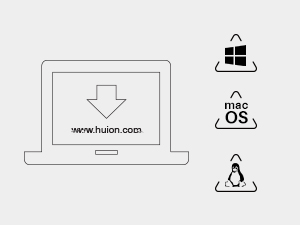
Image: A laptop screen displaying the Huion website for driver downloads, with icons for Windows, macOS, and Linux operating systems.
3. Mobile Device Connection (Android)
The H950P supports Android devices (OS version 6.0 or later). Use an OTG adapter (not included) to connect the tablet to your Android phone or tablet.

Image: A person using the HUION Inspiroy H950P tablet connected to an Android smartphone, demonstrating mobile compatibility.
Operating Instructions
1. Using the PW100 Battery-Free Stylus
The PW100 stylus offers 8192 levels of pressure sensitivity and supports ±60° tilt recognition for a natural drawing experience.
- The pen features two customizable side buttons. By default, these buttons can switch between pen and eraser functions.
- Store the pen in the provided pen holder when not in use. The pen holder also contains replacement nibs.

Image: A detailed view of the HUION PW100 battery-free pen, highlighting its 8192 pressure levels, 5080 LPI pen resolution, 266 PPS report rate, and ±60° tilt range.
2. Customizing Express Keys
The H950P features 8 programmable press keys on the tablet. These keys can be customized through the HUION driver software to assign shortcuts for various applications.
- Open the HUION driver software on your computer.
- Navigate to the "Press Key" or "Express Key" settings.
- Assign desired functions or shortcuts to each key.
- Settings can be configured for specific applications.

Image: A close-up of the HUION Inspiroy H950P tablet showing the 8 customizable press keys and a press-key lock switch.
3. Adjusting the Working Area
The active drawing area of the tablet is approximately 8.7 x 5.4 inches. You can adjust the mapping of this area to your screen(s) via the HUION driver software.

Image: A diagram illustrating the working area of the HUION Inspiroy H950P tablet, measuring 8.7 x 5.4 inches (221 x 137 mm).
4. Left-Handed Mode
The tablet supports left-handed users. This setting can be configured within the HUION driver software.
Maintenance
1. Cleaning the Tablet and Pen
Use a soft, dry cloth to gently wipe the surface of the tablet and pen. Avoid using harsh chemicals or abrasive materials.
2. Replacing Pen Nibs
When the pen nib wears down, replace it with one of the 8 spare nibs located inside the pen holder.
- Use the nib clip (often integrated into the pen holder) to carefully pull out the old nib.
- Insert a new nib firmly into the pen.
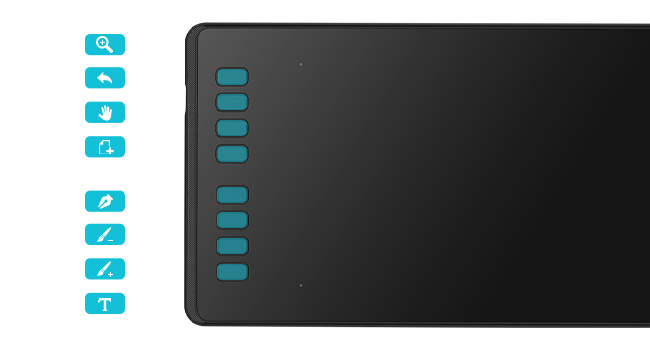
Image: A diagram showing how to replace the pen nib, with a pen holder containing spare nibs.
Troubleshooting
Common Issues and Solutions
- No Pen Pressure: Ensure the latest driver is installed correctly. Reinstall the driver if necessary. Check your drawing software settings for pen pressure options.
- Pen Not Responding: Verify the USB cable connection. Try a different USB port. Ensure the tablet is recognized by your computer.
- Inaccurate Cursor Movement: Calibrate the working area in the HUION driver settings.
- macOS Compatibility Issues: Some macOS versions may require specific security permissions for external USB devices. Refer to HUION's official support or contact customer service for assistance with connection problems on macOS.
For further assistance, please visit the official HUION support website or consult the FAQ section on their product page.
Specifications
| Feature | Specification |
|---|---|
| Model | H950P |
| Product Dimensions | 12.5 x 7.3 x 0.1 inches |
| Item Weight | 1.76 pounds |
| Connectivity Technology | USB |
| Pressure Sensitivity | 8192 Levels |
| Tilt Support | 60° |
| Operating System Compatibility | Android 6.0+, Linux (Ubuntu), Mac OS 10.12+, Windows 7+ |
| Programmable Keys | 8 |
Warranty and Support
For warranty information and technical support, please visit the official HUION website or contact their customer service.
Official HUION Store: HUION Store on Amazon


