
1. Introduction
Thank you for choosing the Hanwha Techwin Wisenet QND-6020R 2 Megapixel Network Camera. This manual provides essential information for the safe and efficient installation, operation, and maintenance of your new surveillance camera. Please read this manual thoroughly before using the product and retain it for future reference.
2. Safety Information
Observe the following safety precautions to prevent injury or damage to the product:
- Power Source: Use only the specified power adapter (AC/DC) for this device. Incorrect voltage can cause fire or electric shock.
- Installation: Ensure the camera is securely mounted to prevent it from falling. Wall mounting is recommended.
- Water and Moisture: This camera has an IP65 waterproof rating, meaning it is protected against dust and low-pressure water jets. However, avoid submerging the camera in water or exposing it to high-pressure water.
- Cleaning: Disconnect power before cleaning. Use a soft, dry cloth. Do not use liquid or aerosol cleaners.
- Operating Temperature: Do not operate the camera outside its specified temperature range.
- Servicing: Do not attempt to service this product yourself. Refer all servicing to qualified service personnel.
3. Package Contents
Verify that all items are present in the package:
- Hanwha Techwin Wisenet QND-6020R Network Camera
- Mounting Screws and Anchors
- Installation Guide
- Power Adapter (AC/DC)
4. Product Overview
The Hanwha Techwin Wisenet QND-6020R is a 2-megapixel network dome camera designed for reliable surveillance. It features advanced video compression (H.264, H.265, Motion JPEG), 1080p video capture, and a 3.60 mm lens. Key features include night vision up to 65.62 ft and motion detection capabilities.
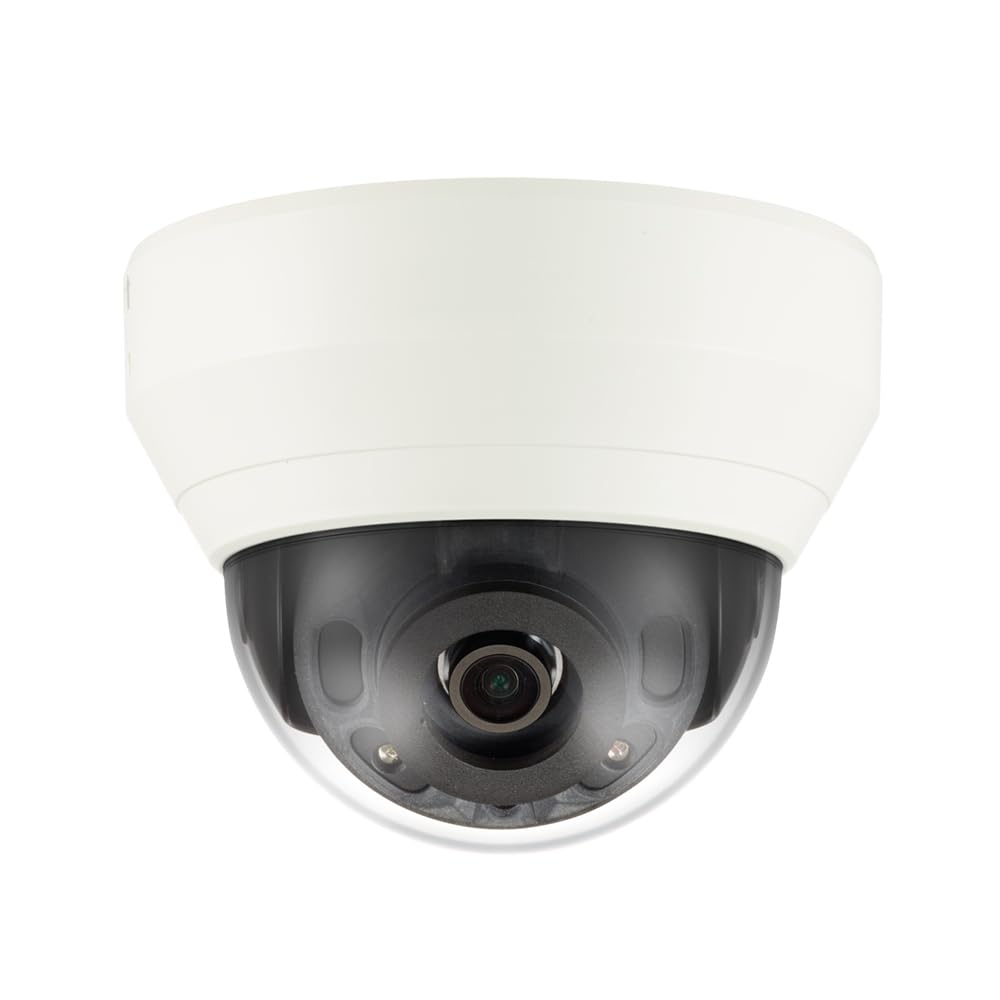
Figure 4.1: Front view of the Hanwha Techwin Wisenet QND-6020R 2 Megapixel Network Dome Camera. This image shows the compact dome design, suitable for discreet surveillance installations. The camera features a dark housing and a clear dome covering the lens, indicating its robust construction for various environments.
5. Setup
5.1 Mounting the Camera
- Select a Location: Choose a suitable wall location for optimal surveillance coverage. Ensure the surface is strong enough to support the camera.
- Drill Holes: Use the provided mounting template (if applicable) to mark and drill pilot holes for the mounting screws.
- Secure the Mount: Attach the camera's mounting base to the wall using the screws and anchors.
- Adjust Angle: Once mounted, adjust the camera's viewing angle as needed.
5.2 Power and Network Connection
- Power Connection: Connect the supplied AC/DC power adapter to the camera's power input port and then to a power outlet.
- Network Connection (Wired): For a wired connection, connect an Ethernet cable from the camera's network port to your network router or switch.
- Network Connection (Wi-Fi): For Wi-Fi connectivity, refer to the camera's initial setup wizard or the dedicated network configuration section in the full digital manual for pairing instructions. The camera supports Wi-Fi connectivity.
5.3 Initial Configuration
After connecting power and network, the camera will boot up. Access the camera's web interface via a browser using its IP address (refer to your network's DHCP client list or use the manufacturer's discovery tool). Follow the on-screen prompts to set up administrator credentials, network settings, and initial video configurations.
6. Operating Instructions
6.1 Live View and Recording
Access the camera's live view through its web interface or a compatible network video recorder (NVR) / surveillance software. Configure recording schedules, motion-triggered recording, and continuous recording settings as desired. Video is captured at 1080p resolution in MP4 format.
6.2 Motion Detection
The camera features a motion sensor. Configure motion detection zones and sensitivity settings within the camera's web interface. You can set up alerts (e.g., email notifications) to be triggered upon motion detection.
6.3 Night Vision
The QND-6020R is equipped with night vision capabilities, providing clear images in low-light conditions up to 65.62 ft. The camera automatically switches between day and night modes based on ambient light levels. Night vision is in color.
7. Maintenance
7.1 Cleaning
Regularly clean the camera's lens and housing with a soft, dry cloth to ensure optimal image quality. Avoid using harsh chemicals or abrasive materials.
7.2 Firmware Updates
Periodically check the Hanwha Techwin website for firmware updates. Keeping your camera's firmware up-to-date ensures optimal performance, security, and access to new features.
8. Troubleshooting
- No Power: Ensure the power adapter is securely connected to both the camera and a working power outlet. Verify the outlet has power.
- No Video/Offline: Check network cable connections (if wired) or Wi-Fi signal strength (if wireless). Verify the camera's IP address and network settings. Restart the camera and your network router.
- Poor Image Quality: Clean the camera lens. Ensure there are no obstructions in the camera's field of view. Check lighting conditions.
- Motion Detection Not Working: Review motion detection zone settings and sensitivity in the camera's web interface. Ensure the feature is enabled.
- Cannot Access Web Interface: Verify the camera's IP address. Ensure your computer is on the same network segment as the camera. Try a different web browser.
9. Specifications
| Feature | Description |
|---|---|
| Model Number | QND-6020R |
| Brand | HANWHA |
| Recommended Uses | Surveillance |
| Special Features | Motion Sensor, Night Vision |
| Power Source | AC/DC |
| Connectivity Protocol | Wi-Fi |
| Controller Type | H.264 |
| Mount Type | Wall Mount |
| Alert Type | Motion Only |
| Waterproof Rating | IP65 |
| Wireless Technology | Wi-Fi |
| Photo Sensor Technology | CMOS |
| Video Capture Resolution | 1080p |
| Video Capture Format | MP4 |
| Night Vision | Night Color |
| Manufacturer | Hanwha Group |
10. Warranty and Support
This Hanwha Techwin product is covered by a manufacturer's warranty provided by Hanwha Group. For detailed warranty terms and conditions, please refer to the warranty card included with your product or visit the official Hanwha Techwin website. For technical support, troubleshooting assistance, or service inquiries, please contact Hanwha Techwin customer support through their official channels.


