
1. Introduction
This manual provides essential information for the safe and efficient use of your ASUS C302CA-DH75-G Chromebook. This device is a versatile 12.5-inch Full HD touchscreen laptop with a flip design, powered by an Intel Core m7 processor and running Google Chrome OS. Please read this manual thoroughly before operating your device.
2. Safety Information
- Use only the original power adapter and battery provided with your Chromebook.
- Do not expose the device to extreme temperatures, humidity, or direct sunlight.
- Avoid placing heavy objects on the Chromebook.
- Keep the device away from liquids and sources of strong magnetic fields.
- Do not attempt to disassemble or repair the device yourself. Contact authorized service personnel for assistance.
- Ensure proper ventilation when using the device to prevent overheating.
3. Package Contents
Verify that all items are present in your package:
- ASUS C302CA-DH75-G Chromebook
- Power Adapter
4. Device Layout
Familiarize yourself with the key components and ports of your Chromebook.

Figure 4.1: Front view of the ASUS C302CA-DH75-G Chromebook in traditional laptop configuration.

Figure 4.2: The Chromebook demonstrating its 360-degree hinge, allowing for various modes such as tent or stand mode.
4.1 Left Side Ports
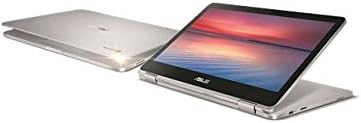
Figure 4.3: Left side of the Chromebook, showing the USB-C port and other features.
- USB-C Gen1 Port: Supports high-resolution display output and power delivery.
- MicroSD Card Reader: For expanding storage or transferring files.
4.2 Right Side Ports

Figure 4.4: Right side of the Chromebook, featuring another USB-C port and the headphone jack.
- USB-C Gen1 Port: Another port supporting high-resolution display output and power delivery.
- Headphone/Microphone Combo Jack: For audio input and output.
4.3 Keyboard and Touchpad
- Keyboard: Features a backlight for use in low-light conditions.
- Touchpad: Supports multi-touch gestures for navigation.
5. Setup
5.1 Charging the Chromebook
- Connect the power adapter to one of the USB-C ports on your Chromebook.
- Plug the power adapter into a wall outlet.
- Allow the device to charge until the battery indicator shows a full charge, especially before first use.
5.2 Powering On and Initial Setup
- Press the power button located on the side of the device.
- Follow the on-screen instructions to select your language and connect to a Wi-Fi network.
- Sign in with your Google account. If you do not have one, you will be prompted to create one.
- Complete the initial setup steps as guided by Chrome OS.
6. Operating Your Chromebook
6.1 Chrome OS Basics
- Shelf: The taskbar at the bottom of the screen for quick access to apps.
- Launcher: Click the circle icon in the bottom-left corner to open the app launcher and search bar.
- Status Area: Located in the bottom-right corner, it displays Wi-Fi, battery, time, and settings.
6.2 Using the Touchscreen and Convertible Modes
Your Chromebook features a 10-point multi-touch display and a 360-degree hinge, allowing it to be used in multiple configurations:
- Laptop Mode: Traditional laptop use with keyboard and touchpad.
- Tablet Mode: Fold the screen back completely to use as a tablet. The keyboard and touchpad will automatically disable.
- Tent Mode: Stand the device in an inverted 'V' shape for media consumption or presentations.
- Stand Mode: Position the keyboard face down to use the screen as a display.
6.3 Keyboard Backlight
To adjust the keyboard backlight brightness, use the dedicated function keys on the top row of the keyboard.
7. Maintenance
7.1 Cleaning the Device
- Use a soft, lint-free cloth slightly dampened with water or a screen cleaner to wipe the display.
- For the chassis and keyboard, use a soft, dry cloth. Avoid harsh chemicals or abrasive materials.
- Ensure the device is powered off and unplugged before cleaning.
7.2 Battery Care
- Avoid fully discharging the battery frequently.
- Store the device in a cool, dry place if not used for extended periods.
- Do not expose the battery to high temperatures.
7.3 Software Updates
Chrome OS automatically updates in the background. Ensure your device is connected to the internet regularly to receive the latest security patches and features.
8. Troubleshooting
- Device not powering on: Ensure the device is charged. Connect the power adapter and try again. If unresponsive, perform a hard reset by holding the power button for 10 seconds.
- Wi-Fi connection issues: Check if Wi-Fi is enabled in the status area. Restart your router and the Chromebook.
- Slow performance: Close unnecessary tabs or applications. Restart the Chromebook. Ensure Chrome OS is up to date.
- Screen not responding to touch: Restart the device. Ensure the screen is clean and free of debris.
- Keyboard backlight not working: Check the function keys for backlight control. Ensure the device is not in tablet mode.
9. Specifications
| Feature | Detail |
|---|---|
| Model Name | ASUS Chromebook C302CA-DH75-G |
| Operating System | Chrome OS |
| Processor | Intel Core m7 (6th Gen) 6Y75, 1.2 GHz (up to 3.1 GHz Turbo) |
| RAM | 16 GB LPDDR3 SDRAM (soldered) |
| Storage | 64 GB SSD (eMMC) |
| Display | 12.5-inch Full HD (1920 x 1080) LED-backlit LCD, 10-point multi-touch, glossy |
| Graphics | Intel HD Graphics 515 (Integrated) |
| Wireless Connectivity | Bluetooth 4.0, 802.11ac Wi-Fi |
| Ports | 2 x USB-C Gen1 (supports display output & power delivery), Headphone/microphone combo jack, MicroSD card reader |
| Battery | 2-cell Lithium Ion, 39 Wh (Up to 10 hours run time) |
| Dimensions (LxWxH) | 17.1 x 2.4 x 10.1 inches |
| Weight | 4.25 pounds |
| Color | Silver |
10. Warranty Information
Your ASUS C302CA-DH75-G Chromebook is covered by a limited manufacturer's warranty. Please refer to the warranty card included with your product or visit the official ASUS website for detailed terms and conditions, including warranty period and service procedures.
11. Support
For further assistance, technical support, or to download updated drivers and manuals, please visit the official ASUS support website:
You may also contact ASUS customer service directly for personalized support.