
1. Introduction
Thank you for purchasing the Artlii Full HD LED Projector. This manual provides essential information for the safe and efficient use of your projector. Please read it thoroughly before operation and keep it for future reference.
2. Product Overview
The Artlii Full HD LED Projector is designed for home cinema and entertainment, offering clear and vibrant images with a native resolution of 1280x800 pixels and support for up to 1080p. Its versatile connectivity options make it compatible with various devices.

Image 2.1: Artlii Full HD LED Projector in use, displaying video games and sports.
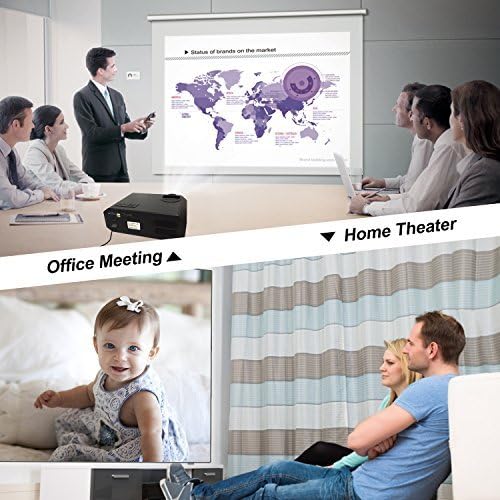
Image 2.2: Artlii Full HD LED Projector demonstrating versatility in office and home environments.
3. Package Contents
Ensure all items are present in the package:
- 1 x Artlii Home Cinema Projector
- 1 x AV Cable
- 1 x HDMI Cable
- 1 x IR Remote Control
- 1 x Power Cable
- 1 x Projector Fuse
- 1 x User Manual (French, this document is an English version)
- 4 x Screws for Ceiling Mounting
4. Specifications
| Feature | Specification |
|---|---|
| Power | 170W |
| Lamp Type | LED |
| Brightness | 3500 Lumens |
| Contrast Ratio | 1500:1 |
| Projection Distance | 1 - 5 meters |
| Input Voltage | AC 90-240V |
| Projection Technology | TFT LCD |
| Aspect Ratios | 16:9 / 4:3 or Auto |
| Native Resolution | 1280 x 800 pixels |
| Keystone Correction | ±15 degree, Manual |
| Projected Image Size | 40 - 200 inches |
| Built-in Speaker | Yes, stereo speaker |
| Projector Type | HD Home Cinema Projector |
| LED Lamp Lifespan | 30000 hours |
| Noise Level | 25dB (beyond 2m); 40dB (close to projector) |
| Connectors | HDMI x 2; USB x 2; VGA; AV; Headphone Jack |
| Projection Modes | Ceiling, Rear, Front |
| Max Supported Resolution | 1920 x 1080 pixels |
| Dimensions (L x W x H) | 30.48 x 23.5 x 11.91 cm |
| Weight | 2.6 Kilograms |
Supported File Formats:
- Text: TXT
- Image: JPEG / JPG / PNG / BMP / MPO
- Audio: MP3 / MAV / OGG / WMA / FLAC / M4A(AAC)
- Video: FLV / MKV / MP4 / RM / MPG(MPEG1) / MPG(MPEG2) / MOV(MPEG4) / AVI (MPEG) / 3GP / DIVX / RMVB / VOB
5. Setup
5.1 Positioning the Projector
Place the projector on a stable, flat surface or mount it to the ceiling. Ensure there is adequate ventilation around the unit. The optimal projection distance is between 1 and 5 meters to achieve an image size of 40 to 200 inches.
5.2 Connecting Power
- Connect the power cable to the projector's power input.
- Plug the other end of the power cable into a suitable AC 90-240V power outlet.
5.3 Connecting Devices
The projector offers multiple connectivity options:
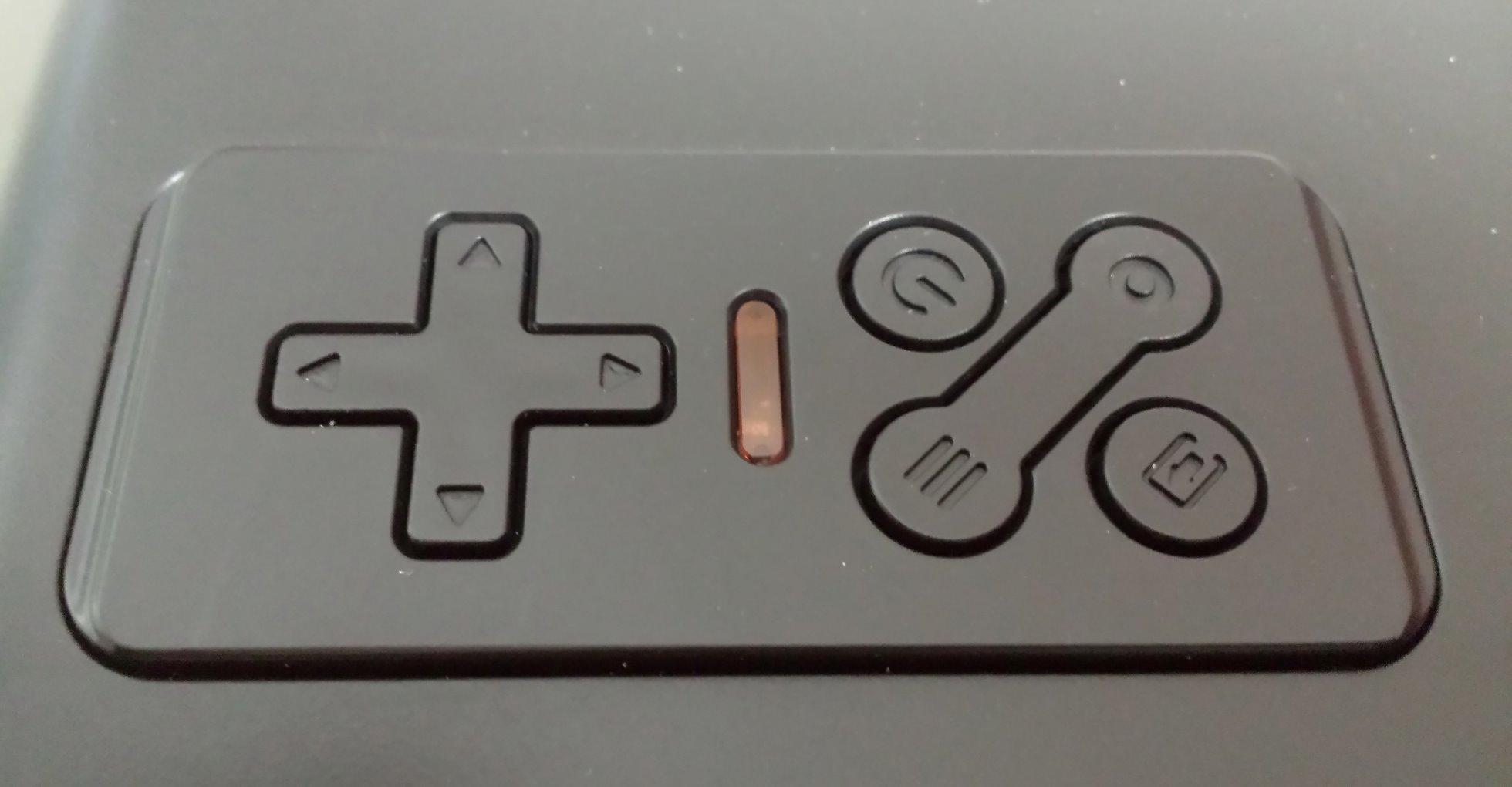
Image 5.1: Rear panel with various input/output ports.
- HDMI: Connect Blu-ray players, game consoles (PS4, Xbox), PCs, laptops, Amazon Fire TV Stick, Roku Streaming Stick, etc., using an HDMI cable. The projector has two HDMI ports.
- USB: Insert USB drives to play media files directly. The projector has two USB ports.
- VGA: Connect older PCs or laptops using a VGA cable.
- AV: Use the provided AV cable to connect devices with composite video and stereo audio outputs.
- Headphone Jack: Connect external speakers or headphones for enhanced audio.
Note: To connect your iPhone or Android smartphone, a separate WIFI dongle is required (not included).
6. Operating Instructions
6.1 Power On/Off
- Ensure the projector is connected to power.
- Press the power button on the projector or the remote control to turn it on.
- To turn off, press the power button again. The projector will enter standby mode.
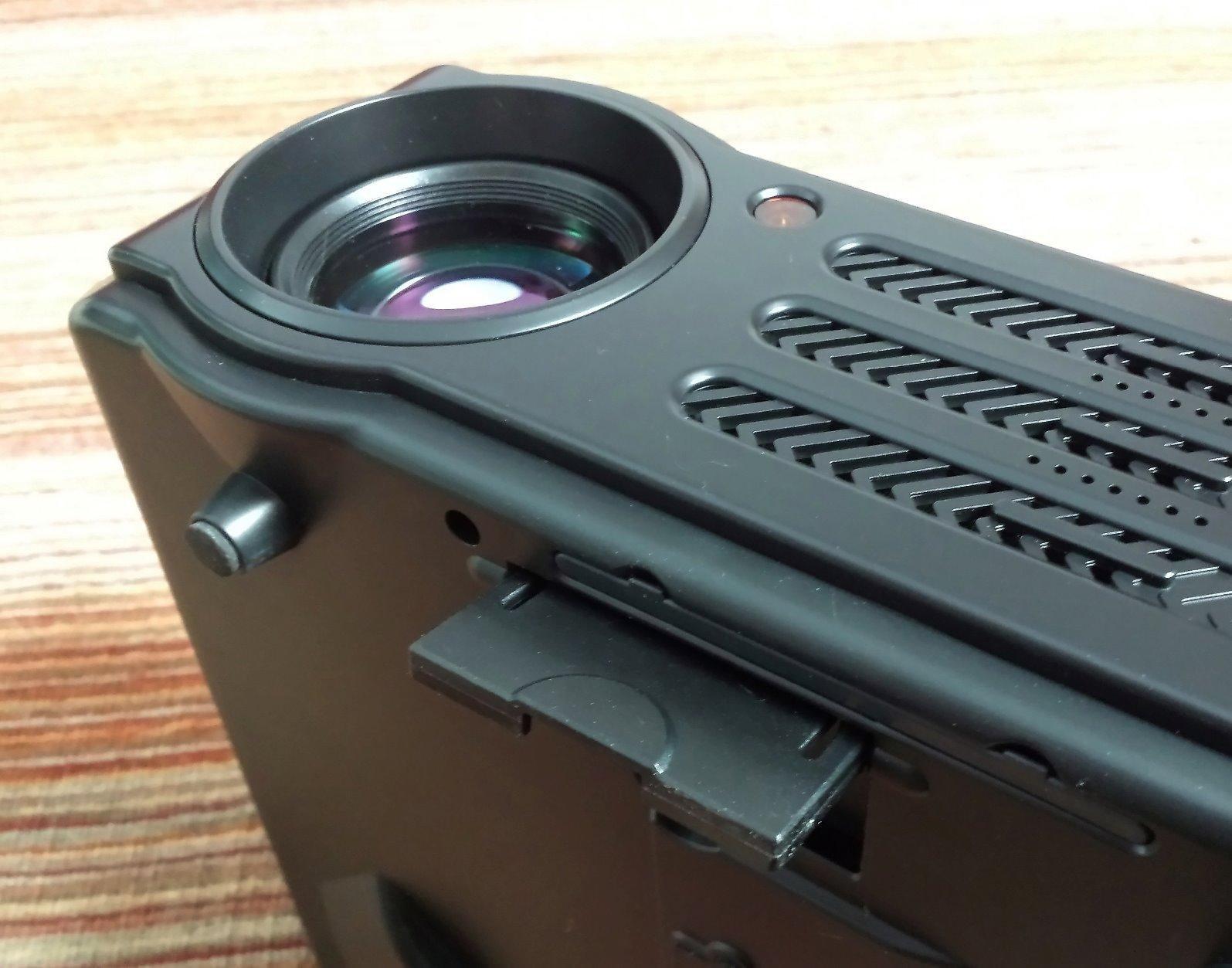
Image 6.1: Projector control panel and adjustment dials.
6.2 Focus and Keystone Correction
- Focus: Rotate the focus ring on the lens until the projected image is clear and sharp.
- Keystone Correction: Use the keystone correction dial (usually located near the lens) to adjust the image shape if it appears trapezoidal. This corrects vertical distortion up to ±15 degrees. For best results, position the projector as perpendicular to the screen as possible.
6.3 Input Source Selection
Use the "Source" button on the remote control or the projector's control panel to select the desired input source (HDMI1, HDMI2, USB1, USB2, VGA, AV).
6.4 Menu Navigation
Use the arrow keys and "OK" button on the remote control or projector to navigate the on-screen menu. Adjust settings such as picture mode, aspect ratio, sound, and projection mode (Front, Rear, Ceiling).
7. Maintenance
7.1 Cleaning the Lens
Use a soft, lint-free cloth and specialized lens cleaning solution to gently wipe the projector lens. Avoid abrasive materials or excessive pressure.
7.2 Cleaning the Air Filter
Regularly clean the air filter to ensure proper ventilation and prevent overheating. The filter is typically located on the side or bottom of the projector and can be removed for cleaning. Use a soft brush or vacuum cleaner to remove dust.
7.3 General Cleaning
Wipe the projector's exterior with a soft, dry cloth. Do not use liquid cleaners or solvents.
8. Troubleshooting
| Problem | Possible Cause | Solution |
|---|---|---|
| No image displayed | Power not connected; Incorrect input source; Cable not connected properly. | Check power connection; Select correct input source; Ensure cables are securely connected. |
| Image is blurry | Focus not adjusted; Projector too close/far from screen. | Adjust the focus ring; Adjust projection distance. |
| Image is trapezoidal | Keystone correction needed; Projector not perpendicular to screen. | Adjust keystone correction dial; Reposition projector. |
| No sound | Volume too low; Muted; Incorrect audio output selected; External speakers not connected. | Increase volume; Unmute; Check audio settings; Connect external speakers if desired. |
| Loud fan noise | Normal operation for cooling; Blocked vents. | This is normal. For optimal experience, sit at least 1 meter away or connect external speakers. Ensure vents are clear. |
| Cannot connect to smartphone | Requires a WIFI dongle. | Purchase and connect a compatible WIFI dongle (not included). |
9. Warranty and Support
The Artlii Full HD LED Projector comes with a 3-year warranty. If you encounter any issues or require technical assistance, please contact Artlii customer support. Refer to your purchase documentation for specific contact details.
For further information or support, you may visit the official Artlii store: Artlii Store on Amazon.
